
This is a short, controlled experiment about risk and consequences. It shows how a single rollback can expose data and devices fast.
Why did I do it? I wanted to see how an earlier build behaves under real conditions and to test mitigation steps that security teams apply after a failed release.
The story begins with a deliberate rollback to a prior release that had once felt stable. Within two days attackers found a flaw and turned that gap into a full compromise.
From years of security work I knew common pitfalls: rollbacks rely on tagged releases (like v2.1.3) and deployment pipelines, and app stores force resubmission which can take 24–48 hours. That timing matters.
This introduction frames the reason for a practical how-to. Read on to learn the difference between theory and what actually happened, the key issue that led to data exposure, and the steps you can take to avoid a repeat.
Key Takeaways
- Rollback risk: Reverting to earlier builds can reopen patched flaws quickly.
- Timing matters: App store resubmits often take 24–48 hours and change exposure windows.
- Data can leak fast: A single issue in an older release can cascade into device-level problems.
- Learn from the experiment: This story is a controlled test, not fearmongering.
- Practical next steps: Later sections outline mitigation and team actions after a failed release.
For technical context and a related breakdown of vulnerabilities, see our detailed post on a recent CVE explanation and full breakdown.
Why This How-To Starts with a Cautionary Story
This section explains why a real incident frames the guidance and why timing and communication matter.
I reverted to a prior release to measure how quickly a patched flaw becomes a live risk. The story shows the concrete reason teams treat rollbacks as high-risk operations.
Rollbacks happen when critical bugs or security flaws surface. Mobile distribution is different from web: stores require resubmission and review. That process shifts the risk window and changes the way you must respond.

- Real cases teach faster: a concrete incident ties each step to a real threat.
- Staged rollouts help: phased release reduces user impact and confusion.
- Clear comms are vital: tell users and teams what to expect when you change a version.
| Risk | Mobile Impact | Mitigation |
|---|---|---|
| Reopened bug | Store review delay | Staged rollout + quick patch |
| Data exposure | User devices affected | Integrity checks + revoke tokens |
| Confusion | Support load spikes | Clear notifications and notes |
Later sections map each step from this case to exact fixes. If you need a practical checklist for APK safety, see the APK safety checklist.
The Real Risks of Using Older App Versions Today
Running an out-of-date release creates clear attack surfaces and real user harm. Known fixes disappear in legacy builds, and the gap between patched and unpatched code is where attackers hunt.

Security vulnerabilities: outdated code, missing patches, and quick exploits
When an app runs on older code, public flaws that vendors fixed remain exploitable. Attackers scan for those gaps and weaponize them fast.
Keep in mind: sideloading from untrusted sources can insert malicious code into legitimate packages. For more on the broad risks of delaying updates see the update risk briefing.
Privacy and data exposure: permissions, data overflow, and third‑party code
Third‑party SDKs in legacy releases often mishandle permissions and leak data. Elevated permissions in essential apps make a single compromise far worse.
Report problems to developers and scan for known issues; tools that check packages for vulnerabilities can help. See a practical how‑to here: how to check for outdated vulnerabilities.
Compatibility and performance: OS changes, device issues, and broken features
As operating systems evolve, older builds can crash, corrupt local storage, or stop critical features from working. Legacy networking code often drains battery and raises crash rates.
The safest way is to update regularly or limit rollbacks to controlled testing with tight monitoring and short windows.
- Key risk: Known exploit → quick compromise.
- Privacy: SDKs and permissions matter.
- Stability: OS changes break compatibility.
What Happened When I intentionally used old app version week
I recreated a real case by installing a specific build by number on a test device. This let me observe how quickly a rollback can expose problems and confirm practical recovery steps.

A 48-hour timeline: selection, sideload, first indicators
I selected a named build by its release number and sideloaded the package to a dedicated device. I did not rely on the play-driven flow so I could isolate changes.
Within hours I saw unusual network spikes, a background service respawn loop, and permission prompts that did not match the chosen build. Those were early red flags for tampering.
How the compromise surfaced and immediate recovery
By hour 48 the app showed session anomalies and suspicious outbound calls. Logs indicated token misuse and test-only data exfiltration. I first Force Stopped the app, screenshot the current version number, then uninstalled or used “Uninstall updates” where available.
- Remove the compromised package.
- Clear caches and residual directories.
- Rotate credentials and restore a trusted, current build.
Postmortem focused on signature fingerprint checks and restoring telemetry baselines. For related recovery steps and installation notes see an Apple rollback discussion and a practical step-by-step install guide.
How to Roll Back an App Safely on Android Without Getting Burned
Start with a short, repeatable plan before you touch the device. A safe rollback is mostly process: stop the package, record the build number, and control sources to limit exposure.
Uninstall or remove updates first
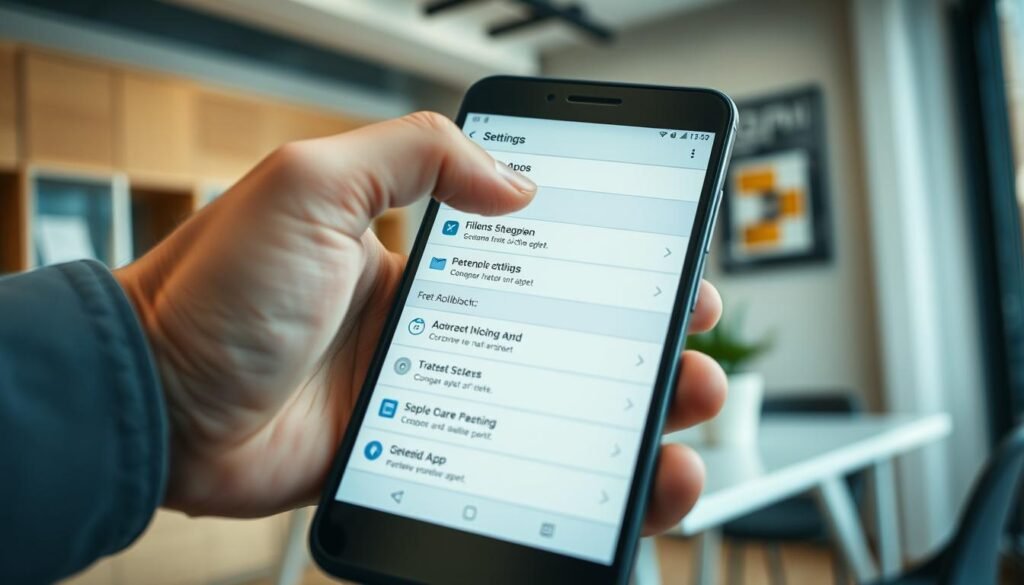
Open Settings > Apps, select the target app, tap Force Stop, and screenshot the current number. This trace helps when you report an issue later.
If it’s a third-party package, choose Uninstall. For preinstalled system apps, open the three-dot overflow menu and pick “Uninstall updates” to restore the factory build.
Trust your source
Google Play and the Play Store are safest; they don’t let you install older versions. Users in Advanced Protection cannot sideload, by design.
APK vs. App Bundle — installer steps
For older builds, prefer reputable catalogs like APK Mirror or F‑Droid and verify the publisher. Bundles may require the APK Mirror Installer and present architecture or DPI choices; the default option usually works.
Manage updates after rollback
Turn off auto‑update in the Play Store listing’s overflow menu to avoid accidental overwrite. Remember this delays security fixes and can expose data risks.
| Step | Action | Why it matters |
|---|---|---|
| Record | Screenshot version number | Enables clear reporting and repro |
| Revert | Uninstall or Uninstall updates | Restores factory or removes third-party code |
| Source | Use APK Mirror / F‑Droid | Reduces chance of tampered files |
| Monitor | Check logs, battery, network | Detects regressions and data leaks |
Report and watch for fixes
Report the problem with exact repro steps and the saved number. Monitor new updates and return to the current release as soon as a safe build lands.
For extra practical tips on keeping your phone secure while testing, see these Android safety tips.
Behind the Scenes: How Developers Handle Versions, Rollbacks, and App Stores
Teams win or lose on rollbacks based on how they tag, build, and observe releases. Good process reduces blast radius and speeds recovery.

How tags, CI/CD, and signed artifacts protect stability
Version control with strict tag discipline makes a reproducible code snapshot available fast.
Build servers create signed artifacts and store them for audit. That link between tag, build, and signing keys is the single biggest difference in safe rollbacks.
Store limits: no one-click revert and review delays
There is no native revert in Google Play or the Play Store. Teams republish a prior build as a “new version” and wait 24–48 hours for review.
That delay forces engineering to rely on phased rollouts and monitoring rather than instant fixes.
User impact: phased rollouts, notes, and support playbooks
Phased rollouts cap exposure. Clear release notes and status banners help users and support teams stay aligned.
Support needs playbooks to triage tickets while engineering rebuilds the trusted tag and pushes through the store review.
| Area | Practice | Why it matters |
|---|---|---|
| Source control | Git tags + branch strategy | Rebuild exact code quickly |
| CI/CD | Signed artifacts + retention | Auditable, reproducible releases |
| Distribution | Phased rollout via Play Store | Limits user impact during rollbacks |
| Monitoring | Crash logs & KPIs | Fast detection and halt triggers |
Conclusion
When teams must run a temporary rollback, keep the exposure window short and treat the change like an incident. Monitor data and behavior, document every action, and return to a current update as soon as a safe new version is in the store.
Disable auto‑updates only if you have a plan to patch quickly; turning off default protections raises risk.
Share clear repro steps with developers and standardize rollback criteria across teams. Re-enable Play Store updates and reset any overflow installer toggles you changed. For broader context on software update impacts see the antitrust case, and to brush up on threats consult this guide to common cyber attacks.
