
Sideloading an Android Package Kit (APK) can feel like unlocking a world of apps not available on the Google Play Store. But this freedom comes with a significant risk. Every unverified APK is a potential gateway for malware, spyware, or ransomware to compromise your device. How can you be sure the file you’re about to install is safe?
The truth is, threat actors often disguise malicious code within seemingly legitimate apps, tricking users into granting them full access to their personal data. Before you tap “install,” performing due diligence is not just a recommendation—it’s a critical security practice. This guide will walk you through the exact steps security professionals use to vet an APK file, ensuring your device remains secure.
An expert take by Ethan Cross, HakTechs.com Lead Analyst
Article Summary
- The Dangers of APKs: Unverified APK files can contain malware, spyware, and ransomware that steal your data.
- Online Scanners: Use multi-engine scanners like VirusTotal to check the file against dozens of antivirus databases.
- Source Reputation: Only download from trusted sources and verify the developer’s digital signature.
- App Permissions: Scrutinize the permissions an app requests before installation to spot red flags.
- Checksum Verification: Compare the APK’s MD5 or SHA-256 hash to the official one to ensure it hasn’t been tampered with.
- Community Feedback: Look for independent reviews and discussions on forums like Reddit or XDA Developers.
- Sandboxing: Test the APK in a secure, isolated environment to observe its behavior safely.
- Code Inspection: For experts, decompiling the APK allows for a direct review of its source code.
The Hidden Dangers Lurking in Unverified APK Files
When you install an app from the Google Play Store, you benefit from Google’s security checks, which, while not perfect, filter out a significant amount of malicious software. Sideloading bypasses this protection entirely.
More Than Just an App: Malware, Spyware, and Data Theft
A malicious APK can look and function exactly like the real app it’s impersonating. While you use its features, it could be executing harmful code in the background. This code can:
- Steal Your Credentials: Log your keystrokes to capture usernames and passwords for banking, email, and social media accounts.
- Deploy Ransomware: Encrypt your personal files and demand a payment for their release.
- Install Spyware: Access your microphone, camera, GPS location, and contacts without your knowledge.
- Commit Ad Fraud: Silently click on ads in the background, draining your battery and data.
Real-World Consequences of a Malicious Installation
A common mistake I see is users underestimating the damage a single malicious app can cause. In my experience analyzing mobile malware, I’ve seen compromised devices used to drain bank accounts, blackmail individuals with private photos, and infiltrate corporate networks. The initial convenience of a “free” premium app is never worth the potential cost of your digital life.
7 Ways to Check if an APK is Safe Before Installing
Arm yourself with these seven methods to thoroughly vet any APK file.
Method 1: Scan the APK with an Online Malware Scanner
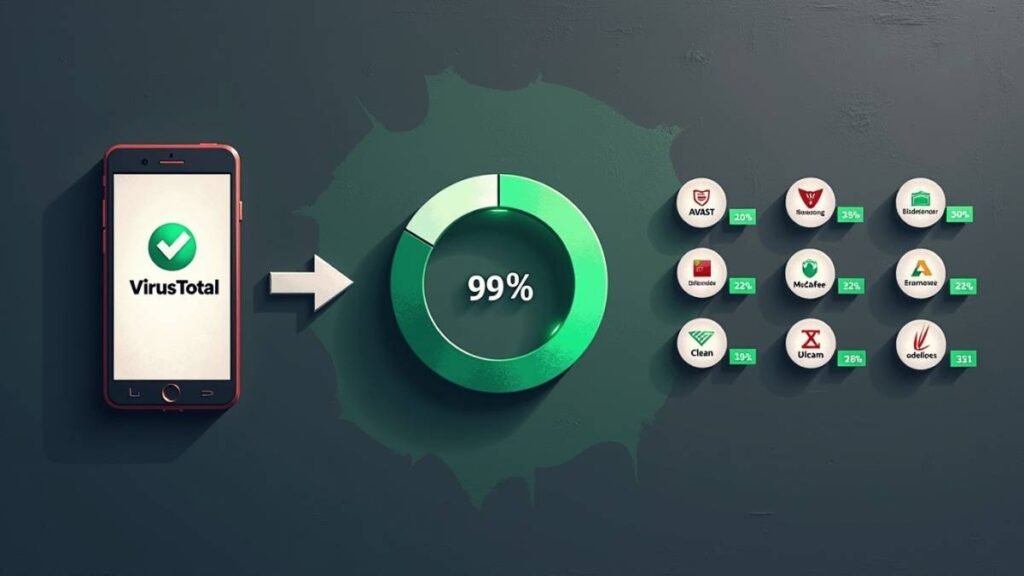
The single most effective first step is to use a multi-engine malware scanner. These services analyze a file using dozens of different antivirus engines, providing a broad consensus on its safety.
VirusTotal is the industry standard for this.
- Navigate to the VirusTotal website.
- Click the “File” tab and select “Choose file.”
- Upload the APK file from your device.
- Review the results. If multiple major security vendors flag the file as malicious, do not install it.
A clean scan is a good sign, but it’s not a 100% guarantee. Some malware is new and may not be detected yet.
Method 2: Verify the Source and Developer Reputation
Where you get the APK from matters.
- Trusted Sources: Reputable repositories like APKMirror, APKPure, and the open-source catalog F-Droid have strict vetting processes. They often verify the cryptographic signatures of developers to ensure the APKs are untampered originals.
- Untrusted Sources: Be extremely cautious of APKs downloaded from random websites, forums, or file-sharing links. These are common distribution channels for malware.
Always check the developer’s name. Does it match the official developer of the app? A quick search can reveal if the developer has a known history or is a new, unknown entity.
Method 3: Scrutinize the App’s Permissions
Android requires apps to declare the permissions they need to function. Before you install an APK, your device will show you a list of these permissions. This is a critical checkpoint.
Ask yourself: Do these permissions make sense for this app’s function?
| App Type | Reasonable Permissions | Suspicious Permissions |
|---|---|---|
| Simple Game | Vibrate, Access Network | Read Contacts, Access Microphone, Send SMS |
| Photo Editor | Access Storage, Use Camera | Access Precise Location, Make Phone Calls |
| Flashlight App | Control Flashlight | Read Browser History, Access All Files |
If the permissions seem excessive, it’s a major red flag. A flashlight app has no legitimate reason to read your text messages.
Method 4: Compare the APK’s Hash (Checksum)
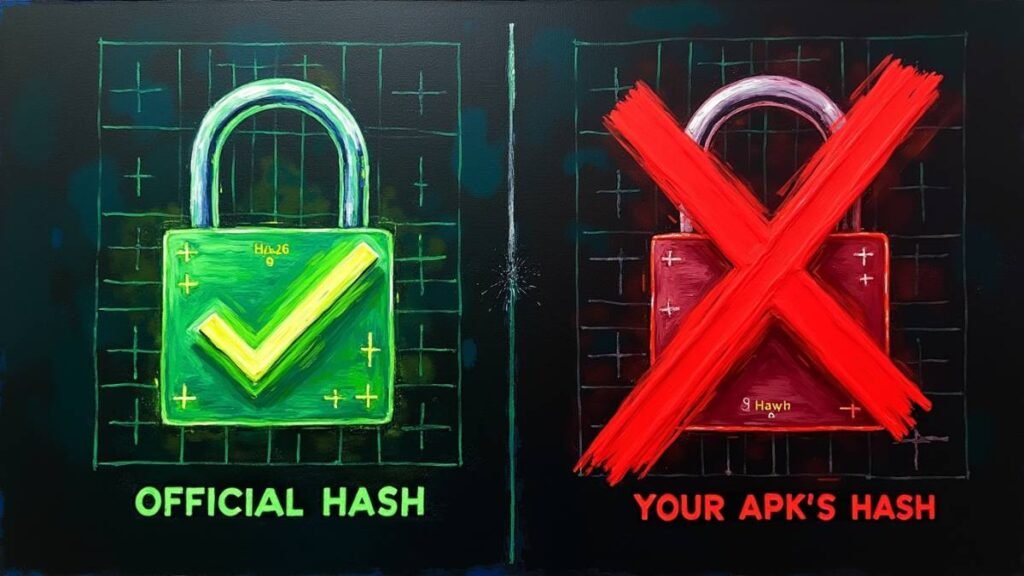
A file’s hash (often MD5 or SHA-256) is a unique digital fingerprint. If even one bit of the file is changed, the hash will be completely different. Reputable developers sometimes publish the official hash for their app releases. You can use this to verify your downloaded file is identical to the original.
- Find the official hash from the developer’s website or a trusted source.
- Use a hash calculator app on your Android device or computer to generate a hash for your downloaded APK.
- Compare the two hashes. If they match perfectly, the file is authentic. If they don’t, delete the file immediately as it has been altered.
Method 5: Read Independent Reviews and Forum Discussions
Don’t just trust the reviews on the site where you found the APK. Search for discussions about the app and the specific version on independent platforms like Reddit (e.g., r/androidapps) or XDA Developers. Real user experiences can expose issues that a technical scan might miss. Look for complaints about:
- Aggressive ads
- Unusual battery drain
- Suspicious behavior
- Requests for unnecessary permissions
Method 6: Use a Sandbox Environment for Safe Testing (Advanced)
Sandboxing allows you to install and run an app in an isolated container, preventing it from accessing your device’s main system and data. This lets you observe its behavior in a safe environment. While this is an advanced technique, tools like VirtualXposed or even the Android Studio emulator can be used to test an APK’s behavior without risking your personal device.
Method 7: Decompile the APK to Inspect Its Code (Expert Level)
For those with technical skills, decompiling an APK allows you to examine its source code. Tools like Jadx can reverse-engineer the package, revealing the app’s underlying functions. This is the most definitive way to check for malicious code, as you can see exactly what the app is programmed to do. You can look for suspicious code that communicates with unknown servers, accesses sensitive user data, or performs actions without user consent.
What to Do if You Suspect You’ve Installed a Malicious APK
If you’ve already installed a suspicious app, act quickly to minimize the damage.
- Enable Airplane Mode: Immediately disconnect the device from all networks (Wi-Fi and cellular) to stop it from communicating with a remote server.
- Uninstall the App: Remove the suspicious application.
- Scan Your Device: Run a full scan with a reputable mobile antivirus app (e.g., Malwarebytes, Bitdefender).
- Check for Other Unwanted Apps: The malicious app may have installed other malware. Go through your app list and remove anything you don’t recognize.
- Change Your Passwords: If you used any accounts on your device while the malicious app was installed, change your passwords immediately from a separate, secure device.
- Consider a Factory Reset: For high-certainty infections, the safest option is to back up your essential data and perform a factory reset.
Key Takeaways
- Always prioritize downloading apps from the official Google Play Store.
- If you must sideload, use VirusTotal to scan the APK file before installation.
- Verify the download source and critically evaluate the app’s requested permissions.
- Comparing file hashes is a powerful way to confirm an APK’s authenticity.
- If you suspect an infection, disconnect from the internet and run a malware scan immediately.
Conclusion
Sideloading APKs offers flexibility, but it shifts the responsibility for security squarely onto you. By adopting a multi-layered verification process—scanning the file, checking its source, reviewing permissions, and verifying its integrity—you can significantly reduce your risk of installing a malicious application. Treat every unknown APK with suspicion until it has been proven safe.
Ready to secure another part of your digital life? Ask us in the comments which security guide you’d like to see next!
Frequently Asked Questions (FAQ)
1. Is it illegal to download and install APK files? No, it is not illegal to sideload APK files. However, it can be illegal to download and use pirated or cracked versions of paid apps, which often come in APK format.
2. If VirusTotal says an APK is clean, is it 100% safe? Not necessarily. A clean scan is a very positive indicator, but it’s possible for brand new malware (a “zero-day” threat) to go undetected. That’s why using multiple verification methods is crucial.
3. Can a malicious APK infect my device even if I don’t grant it permissions? While denying permissions limits what an app can do, some advanced malware can exploit vulnerabilities in the Android operating system itself to gain access without explicit permission. This is rare but possible, reinforcing the need to only install APKs you trust.
4. What’s the difference between APKMirror and the Google Play Store? The Google Play Store is the official app marketplace curated and secured by Google. APKMirror is a reputable, independent repository that hosts free, legitimate APKs. It verifies the cryptographic signature of the apps to ensure they are the original, untampered versions released by the developers.
5. How can I tell if an app’s permissions are excessive? Use common sense. A calculator app shouldn’t need access to your contacts. A photo editor doesn’t need to make phone calls. If a permission request doesn’t align directly with the app’s core function, treat it as a red flag.
About the Author
Ethan Cross is the Lead Analyst for HakTechs.com. With over a decade of hands-on experience in ethical hacking and mobile malware analysis, he has dissected countless malicious applications to understand their attack vectors. Ethan is dedicated to the HakTechs mission of translating complex cybersecurity threats into clear, actionable guidance that empowers users to protect their digital lives.
To ensure the highest level of accuracy, every technical claim in this article was verified against primary sources and reviewed by our editorial team.
