Did you know? In 2025, a business falls victim to ransomware every 14 seconds. 😱 That’s faster than you can microwave a snack! Cybercriminals are relentless, but here’s the good news—your Windows setup already has a built-in “digital superhero squad” ready to fight back.
Think of OneDrive backups as your ultimate “get-out-of-jail-free card.” Lose your files? No sweat—just restore them. But backups are just the start. We’ll cover everything from automatic updates to Controlled Folder Access, turning your PC into a fortress.
Spoiler: You don’t need to be a tech wizard to stay safe. Let’s dive in!
Key Takeaways
- Ransomware attacks happen every 14 seconds in 2025.
- Windows has built-in tools for strong protection.
- OneDrive backups act as a safety net.
- Regular updates and scans keep threats at bay.
- Easy-to-use features like Controlled Folder Access help.
Understanding Ransomware and Its Threats
Ransomware doesn’t knock—it barges in, encrypts your life, and demands a ransom. 💸 Think of it like a toxic ex: it locks up your files and won’t give them back unless you pay up. Worse? These digital extortionists keep evolving, and 2025’s variants are sneakier than ever.
What Is Ransomware?
At its core, ransomware is malware with a mean streak. It scrambles your files using unbreakable encryption and flashes a ransom note like a digital hostage demand. Pay up (usually in crypto), and maybe you’ll get your data back—though there’s no guarantee.
Common Types of Ransomware Attacks
Cybercriminals have a nasty toolbox. Here’s what’s trending in 2025:
- CryptoLocker 2.0: Faster, stealthier, and now with AI-driven targeting.
- Phobos-Deepfake Edition: Uses fake voice clips to trick you into enabling macros. Yikes.
Even Controlled Folder Access isn’t foolproof against all malware types, so layering defenses is key.
Why Windows Systems Are Vulnerable
Windows is the world’s most popular OS—which makes it cybercriminals’ bullseye 🎯. Default admin privileges and legacy code (looking at you, old .dll files) create weak spots. Skip updates? That’s like leaving your front door wide open 🚪 while shouting, “Take my data!”
Bottom line: Understanding these threats is step one to shutting them down. Next up? Armoring your Windows setup like a pro.
How to Protect Windows System from Ransomware: Key Strategies
Ever ignored a software update? That’s like handing hackers a VIP pass to your data. 🎟️ Ransomware loves outdated systems, but with a few smart moves, you can slam the door in its face.
Keep Your System Updated
Updates are the flu shots of tech—annoying but life-saving 💉. Enable auto-patching (Settings → Update & Security → Windows Update), and you’ll sleep better knowing your PC’s armor is always fresh.
Pro tip: Schedule updates for off-hours. Your Netflix binge won’t be interrupted.
Use Built-in Windows Security Features
Meet your free digital bodyguard: Windows Defender. It’s not just antivirus; it’s a full suite of security features like real-time scanning and firewall controls. Turn it on, and let it flex its muscles.
- Virus & threat protection: Runs background checks on every file.
- Firewall & network protection: Blocks sketchy connections.
- App & browser control: Stops sneaky downloads.
Pair these with Controlled Folder Access (coming up next!), and you’ve got multi-layered protection that’s tougher than a password like “123456.”
Enabling Windows Defender Antivirus
Windows Defender isn’t just a scanner; it’s your silent guardian against digital chaos. 🛡️ With real-time virus threat protection, it’s like having a 24/7 bodyguard for your files. But even superheroes need direction—here’s how to unleash its full power.
How to Run a Quick Scan
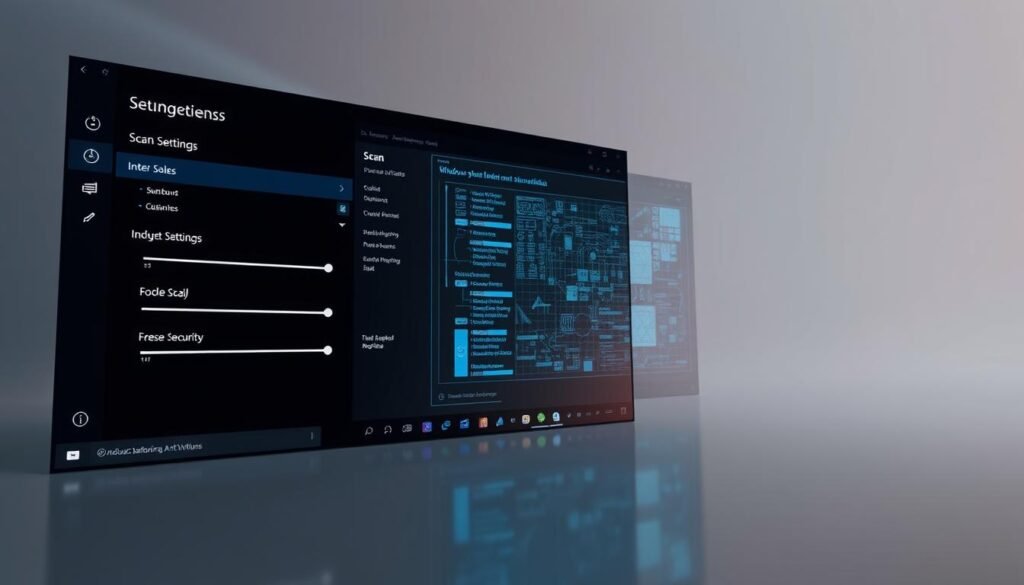
Need a security check ASAP? A quick scan is your best friend. Think of it as a Tinder swipe for malware—fast, surface-level, and surprisingly effective.
- Step 1: Open Windows Security (hit the shield icon in your taskbar).
- Step 2: Click Virus & threat protection → Quick scan.
Pro tip: 79% of threats hide in temp files. Don’t skip scans—unless you enjoy digital hide-and-seek with hackers.
Setting Up Automatic Scans
Forgetful? Automate threat protection like your coffee maker. Schedule nightly scans while you binge Netflix 🍿:
- In Windows Security, go to Virus & threat protection settings.
- Under scan options, pick Full scan (the FBI background check of scans).
- Toggle Automatic scans and set a time (2 AM = zero interruptions).
Note: Custom scans let you target specific folders—perfect for that sketchy downloads folder you keep avoiding.
Activating Controlled Folder Access
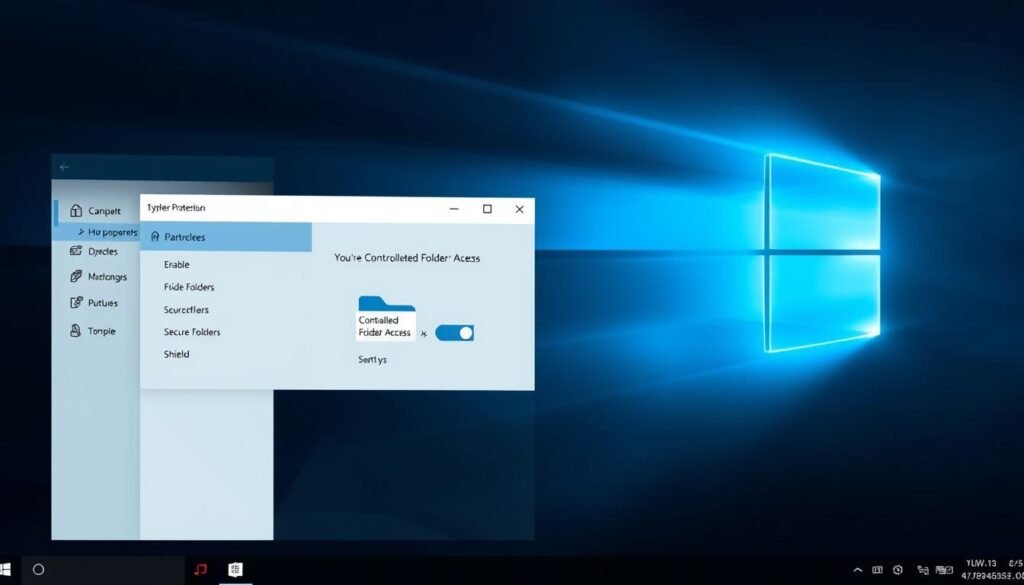
Imagine your files throwing a VIP party—but only the cool apps get past the velvet rope. 🕶️ That’s Controlled Folder Access (CFA) in a nutshell: a built-in security feature that plays bouncer for your most precious data. No ransom note surprises here.
What Is Controlled Folder Access?
CFA is Windows’ way of saying, “Not today, hackers.” It blocks unauthorized access to key folders—like your Documents and Photos—by shady apps. Think of it as a force field around your digital treasure chests 💎. Even if malware slips past your defenses, it can’t touch what’s inside.
How to Turn On Controlled Folder Access
Activating CFA is easier than dodging a spam call. Follow these steps:
- Open Windows Security (that shield icon in your taskbar).
- Click Virus & threat protection → Manage ransomware protection.
- Toggle Controlled Folder Access to On.
Heads up: Your sketchy torrent app might suddenly get kicked out 🚫. Consider it a digital intervention.
Adding Protected Folders
Windows automatically guards common folders, but you can add more VIPs to the list:
- In the same CFA menu, click Protected folders.
- Hit Add a folder and pick your target (e.g., that freelance work folder you can’t afford to lose).
Now even if ransomware crashes the party, your protected folders stay off-limits. No crypto payments needed.
Managing Trusted Applications
Not all apps play nice. Time to sort the heroes from the villains. 🦸♂️ With trusted applications, you control which programs get VIP access to your files—and which get blocked like a sketchy email attachment.
Adding or Removing Trusted Apps
Whitelisting apps is easier than unfriending your ex. Here’s the drill:
- Trigger the pop-up: When an app tries to access a protected folder, Windows flashes a notification.
- Approve or block: Click “Allow” for legit apps (like Photoshop). Hit “Block” for anything named “CryptoBot.exe.” 🚫
- Add additional apps manually: Go to Windows Security → Virus & threat protection → Manage ransomware protection → Allow an app.
Pro tip: Accidentally blocked a good app? No sweat. Revisit the list and hit “Remove” to fix false positives.
Handling Unauthorized Access Notifications
When Windows spots a shady app, it screams louder than a horror-movie jump scare. Here’s what to do:
- Read the alert: Example: “⚠️ ALERT: ‘FreeTaxTool.exe’ tried editing your Documents!”
- Investigate: Google the app name. If it’s legit, whitelist it. If not, nuke it with a virus scan.
- Audit quarterly: Clean your trusted applications list every 3 months. Old apps = potential backdoors.
| App Status | Action | Security Risk |
|---|---|---|
| Trusted (e.g., Microsoft Word) | No action needed | Low |
| Unknown (e.g., “FlashPlayer_Update.exe”) | Block + scan | High |
| False positive (e.g., Adobe Premiere) | Whitelist manually | None |
Bottom line: Your security is only as strong as your app vetting. Keep the bouncers alert! 🛡️
Configuring Virus & Threat Protection
Your PC’s security settings are like a customizable suit—tailor them for maximum defense. 🕵️♂️ Windows’ virus threat protection isn’t one-size-fits-all. Tweaking scan options and checking quarantine logs turns good security into ironclad armor.
Customizing Scan Options
Deep scans are the TSA of your PC—thorough, annoying, but absolutely necessary. 🛂 Here’s how to fine-tune them:
- Full scan: The FBI-level sweep. Checks every corner, including USB drives (where 40% of threats hitch rides).
- Custom scan: Target specific files or folders—perfect for that shady downloads folder you’ve been avoiding.
- Off-hour scans: Schedule them at 2 AM. Your gaming session stays uninterrupted.
Reviewing Quarantined Threats
Quarantine isn’t just for pandemics; it’s where Windows locks up shady files. 🔒 To check your quarantined threats:
- Open Windows Security → Protection history.
- Click the Quarantined tab. See a list of blocked suspects.
- False positive? Hit “Restore” to bail out your legit file.
Fun fact: 30% of users never check quarantine. Don’t let malware throw a secret party in your PC’s jail. 🎉
Using OneDrive for Ransomware Data Recovery
OneDrive isn’t just cloud storage; it’s your ransomware escape hatch. 🚪 When attackers lock your files, a solid backup lets you hit undo faster than a TikTok trend. No crypto payments, no panic—just clean recovery.

Setting Up OneDrive Backups
Turn any folder into a backup with two clicks:
- Right-click the folder (e.g., Documents).
- Select Always keep on this device ☁️.
Pro tip: Enable 2FA on OneDrive. Double protection means hackers need your phone and password. 🔒
Restoring Files After an Attack
Ransomware encrypted your data? OneDrive’s version history is like time travel 🕰️:
- Open OneDrive online → right-click the file → Version history.
- Pick a pre-attack version → Restore. Poof! Crisis averted.
“Dave didn’t enable backups. Now he’s rewriting his thesis from scratch.”
Moral? Don’t be Dave. OneDrive’s ransomware data recovery turns nightmares into quick fixes. Next up: beefing up your Windows Security app.
Leveraging Windows Security App
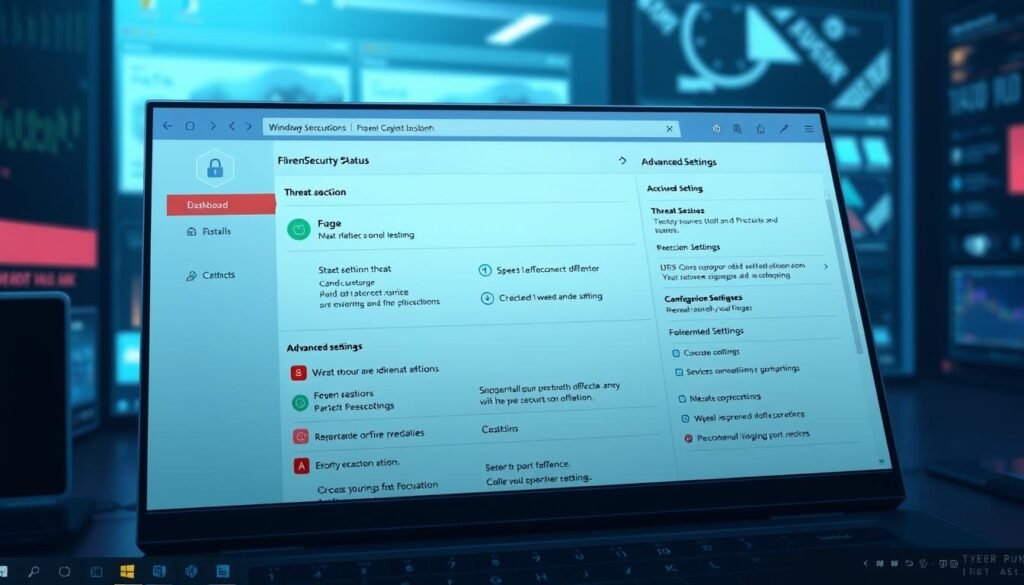
Your Windows Security app is like a security guard with night vision—always watching, always ready. 🕵️♂️ This built-in tool packs a punch, from real-time scans to threat histories. Best part? No PhD required to use it.
Navigating the Windows Security Interface
The dashboard is your security command center. Green checkmarks? All good. Red alerts? Sound the alarms. Here’s what to watch:
- Threat timeline: Shows attack attempts like a Netflix watch history 📺. Spoiler: The villain always loses.
- Real-time stats: “Last scan: 2 hrs ago | Threats blocked: 47” 🛡️. Flex those numbers.
Monitoring Current Threats
The current threats section is your backstage pass to risks. It logs everything—from shady downloads to blocked phishing attempts. Pro tip: Check it weekly. Hackers hate routines.
“Jen ignored her security alerts. Now her cat videos are held for ransom.”
| Alert Type | Action Needed |
|---|---|
| Low risk (e.g., cookie tracker) | Review & dismiss |
| High risk (e.g., ransomware attempt) | Full scan + coffee ☕ |
Bottom line: Your Windows Security app works hard so you don’t have to. Let it do its job—while you binge your shows guilt-free.
Advanced Ransomware Protection Settings
Security isn’t just about basics—it’s about fine-tuning like a pro DJ. 🎛️ Windows hides elite threat protection tools most users never touch. Let’s tweak them to outsmart 2025’s sneakiest attacks.

Adjusting Threat Protection Levels
Windows lets you dial security from “Casual Friday” to “Paranoid Mode” 🕶️. Here’s how to pick your vibe:
- Standard: Blocks known threats. Good for Netflix-and-chill days.
- High: Scans every file like a TSA agent. Ideal for risky downloads.
- Custom: Mix and match settings. Perfect for control freaks.
Warning: Maxing all sliders can slow your PC. Your laptop isn’t Fort Knox 🏰—balance security and speed.
Enabling Cloud-Delivered Protection
Turn on this feature, and your PC taps into Microsoft’s global threat protection network ☁️. It’s like getting malware intel from a bat-signal.
- Open Windows Security → Virus & threat protection settings.
- Toggle Cloud-delivered protection to On.
“Lisa skipped cloud updates. Her ‘tax refund’ file became a crypto ransom.”
Pro tip: Pair this with automatic scans for 24/7 protection. Hackers get updates faster than your Instagram feed—stay ahead.
Creating a Ransomware Response Plan
Your worst-case scenario just happened: a flashing ransom note and locked data. Now what? Panic fuels chaos—but a clear response plan turns you from victim to survivor. Here’s how to fight back when ransomware attacks hit.
Steps to Take During an Attack
Unplug the internet—fast. This stops the encryption spread like pulling a fire alarm 🔥. Next:
- Launch Windows Security: Run a full scan while you assess the damage.
- Isolate infected devices: No Wi-Fi, no USB transfers—nothing escapes.
Threats love moving targets. Freeze everything, and you cut their escape route.
Post-Attack Recovery Procedures
Time to rebuild. Your recovery kit needs:
- Backup drives: Restore clean data from OneDrive or external drives.
- System images: Reinstall Windows if needed (like a digital reset button).
“Companies with response plans save 60% in recovery costs. The rest? They’re Googling ‘how to mine Bitcoin.’”
Post-mortem: How’d they breach you? Check logs like CSI: Cybercrime 🕵️♂️. Patch holes, update passwords, and never repeat history.
Third-Party Antivirus Solutions
Windows Defender is solid, but sometimes you need extra muscle. 💪 Think of third-party antivirus tools like hiring a SWAT team when your neighborhood watch isn’t enough. Whether you’re a crypto trader or run an OnlyFans for cats 🐱💻, additional protection can be a game-changer.
When to Consider Additional Protection
Not everyone needs premium security. Here’s when to upgrade:
- High-risk users: Crypto wallets, sensitive client data, or public-facing businesses.
- Frequent travelers: Hotel Wi-Fi is hacker heaven. ✈️
- Tech novices: If you regularly click “Download Now” on sketchy sites.
Free vs paid? Broke student? Windows Defender works. CEO? Go premium 💼. Just avoid those “100% free” tools—they’re often data vampires 🧛♂️.
Top Antivirus Tools for 2025
These top tools dominated lab tests this year:
| Tool | Key Feature | Price (Yearly) |
|---|---|---|
| Norton 360 Deluxe | AI-driven malware blocking + VPN | $99.99 (5 devices) |
| Bitdefender GravityZone | Ransomware rollback + crypto protection | $69.99 (3 devices) |
| Malwarebytes Premium | Lightning-fast scans | $44.99 (1 device) |
According to PC Mag’s testing, Norton and Bitdefender scored perfect 10/10 for threat protection. Malwarebytes? The fastest scans in the West. 🤠
“Free antivirus is like a paper umbrella in a hurricane—good luck staying dry.”
Pro tip: Most premium tools offer 30-day trials. Test before you invest. Your additional protection should feel like a tailored suit—not a straitjacket.
Educating Users on Ransomware Risks
Clicking that sketchy link is like playing Russian roulette with your data—except all chambers are loaded. 🔫 The weakest link in security isn’t your PC; it’s the person using it. That’s why savvy browsing habits beat even the fanciest antivirus.
Recognizing Phishing Attempts
Phishing emails are the con artists of the internet—they impersonate, flatter, and panic you into clicking. Here’s how to spot the fakes:
- Sender sleuthing: “Netfliix.support.ru” isn’t Netflix—it’s a hacker fishing 🎣 for your login.
- Urgency traps: “Your account expires in 24 hours!” Legit companies don’t threaten.
- Grammar crimes: “Dear valued costumer”—even autocorrect knows that’s sketchy.
According to Canadian cybersecurity experts, 94% of threats start with phishing. When in doubt, hover over links (don’t click!) to reveal the real URL.
Safe Browsing Practices
Your browser is either a fortress or a welcome mat for hackers. Upgrade your safe browsing game:
- Install uBlock Origin: This ad-blocker also stops malicious scripts. Two shields for one click.
- HTTPS everywhere: Never enter passwords on sites without the padlock icon 🔒.
- Tab discipline: 10+ open tabs? Time to close the sketchy ones shouting “FREE IPHONE!”.
“Jen ignored browser warnings. Now her cat meme folder is encrypted with 256-bit AES.”
Final rule: When your gut says “This feels off,” GTFO (close the tab fast). Your security instincts are smarter than you think. 🛡️
Monitoring and Maintaining Security
Security isn’t a one-time setup—it’s a daily habit, like brushing your teeth (but for your PC). 🛠️ Even the best protection crumbles without regular checkups. Stay ahead with two golden rules: audit often and update faster than a TikTok trend.
Regular Security Audits
Treat audits like dental cleanings: quick monthly checks and deep quarterly dives. Here’s how to scrub your Windows setup clean:
- Monthly: Scan for new apps, review firewall rules, and check security audits logs (10 mins max).
- Quarterly: Test backups, purge old user accounts, and verify encryption settings. 🧼
Pro tip: Schedule audit reminders with your phone’s calendar. “Time to check for digital cavities!” works great.
Updating Trusted Applications
Outdated apps = Jurassic Park security. 🦖 Hackers love exploiting old code. Automate updating applications with these tools:
- Winget: Microsoft’s command-line tool updates all apps silently. Type winget upgrade –all and forget it.
- Patch My PC: Free updater for 300+ non-Microsoft apps like Zoom and Adobe.
“60% of breaches exploit known vulnerabilities. The fix? A 2-minute update.”
| Update Type | Frequency | Risk If Skipped |
|---|---|---|
| Critical (e.g., browsers) | ASAP (auto-update) | High |
| Non-critical (e.g., media players) | Monthly | Medium |
| Firmware (e.g., BIOS) | Yearly | Low |
Bottom line: Consistent protection beats panic-driven fixes. Set reminders, automate updates, and sleep like a baby—your data stays safe. 😴
Conclusion
Your digital armor is only as strong as your weakest habit. Updates + Controlled Folder Access + Backups = an unhackable fortress 🏰. No magic required—just smart Windows security moves.
Don’t be the horror story coworkers whisper about. Be the hero who restores files in minutes, not the victim begging hackers for mercy. 🦸♂️
Final truth: Ransomware evolves faster than TikTok trends. Stay woke, update often, and keep backups fresh. 🔄
Share this guide with your squad—because ransomware protection is a team sport. 👯♂️
