When a Windows computer shows signs of a cyberattack, the first few minutes can be critical. Suspicious processes may disappear, network connections may close, and important evidence can be lost if someone restarts the system too soon.
IRTriage is a Windows incident response tool designed to collect forensic evidence from a potentially compromised computer. It helps investigators gather system details, memory data, registry information, network activity, and other useful artifacts without immediately creating a complete disk image.
But there is an important catch: IRTriage is an older tool, and its documented Windows compatibility does not cover modern Windows 11 releases. This guide explains what IRTriage collects, how to use it responsibly, how to examine the results, and when a newer forensic collection method may be a better choice.
Key Takeaways
- IRTriage automates Windows evidence collection to help incident responders examine suspicious activity before important information disappears.
- It can collect several types of forensic evidence, including memory dumps, registry hives, network information, event logs, and file-system artifacts.
- Evidence collection should follow the order of volatility. Temporary information, such as active network connections and memory contents, may disappear after a reboot or shutdown.
- Modern Windows compatibility is a concern. The project’s published compatibility information is dated, and some commands it uses have been removed from current Windows 11 versions.
- IRTriage is not a replacement for a full forensic investigation. Investigators still need to validate the collected evidence, protect its integrity, and examine the findings using suitable analysis tools.

What Is IRTriage in Incident Response?
IRTriage stands for Incident Response Triage. It is an open-source Windows evidence collection project maintained in the AJMartel IRTriage GitHub repository. The project was forked from an earlier AutoIt-based tool called Triage-ir, originally developed by Michael Ahrendt.
Its main purpose is to speed up the first stage of a digital forensic investigation. Rather than collecting every file on a computer, IRTriage gathers selected information that may help an analyst understand what happened.
Consider a company where several employees report unusual system activity. An incident responder may need to investigate multiple computers before deciding which ones require deeper examination.
Creating complete forensic disk images for every device can consume considerable time and storage. A triage collection offers a faster way to identify systems that deserve closer attention.
IRTriage uses an AutoIt script and several supporting utilities to automate much of this process. Its graphical interface allows investigators to select collection categories, and the project documentation describes placing results in a folder identified by the computer name, date, and time.
What Forensic Evidence Can IRTriage Collect from Windows?
Windows records activity in many places. Some information exists only while the computer is running, while other data remains stored on disk.
IRTriage brings several collection methods together so investigators can examine these sources without manually gathering every artifact.
| Evidence Category | What It May Reveal | Why It Matters |
|---|---|---|
| Memory (RAM) | Active processes and information held in memory | May reveal activity that disappears after shutdown |
| Network information | Active connections, IP addresses, routes, and DNS information | Helps identify unusual communications |
| Windows Registry | System settings, user information, and persistence-related entries | May show configuration changes or unauthorized activity |
| Event logs | Recorded system, security, and application events | Helps reconstruct what happened and when |
| Processes and services | Running programs, services, and related information | Helps identify suspicious execution |
| File-system artifacts | Prefetch data, recent files, Jump Lists, and NTFS metadata | Can provide evidence of program use and file activity |
| Volume Shadow Copies | Older copies of supported files and system data, when available | May provide historical evidence missing from current files |
The exact results depend on which collection functions are enabled, whether the required supporting tools work, and what evidence exists on the computer.
How Does Memory Collection Help an Investigation?
Random Access Memory (RAM) holds information that programs use while the computer runs. This can include active program data, portions of network activity, and other short-lived information.
IRTriage’s project documentation describes memory collection using supporting tools such as Win32dd, Win64dd, or FDpro. Its published configuration file includes an enabled memory-dump option, although successful capture depends on the selected utility and the Windows environment.
Memory collection can be valuable when investigators suspect malware operating in memory. However, capturing RAM is not risk-free. Acquisition tools can change the live system and may require low-level access that modern Windows security features restrict.
For that reason, investigators should validate their chosen memory collection method on the operating system they intend to examine.

Why Are Registry Hives Important?
The Windows Registry stores many settings used by Windows, installed software, and user accounts.
IRTriage supports collection and processing of important registry data, including the SYSTEM, SOFTWARE, SAM, SECURITY, and user-related hives.
These artifacts may help answer questions such as:
- Was an unfamiliar program configured to run automatically?
- Were important system settings changed?
- Are there signs of unusual account or user activity?
- Do registry records support the suspected attack timeline?
Registry information should not be treated as proof of compromise on its own. Investigators need to compare it with logs, file activity, and other evidence.
What Is the Value of Volume Shadow Copies?
Windows Volume Shadow Copy Service can maintain snapshots of certain files and volumes. When such snapshots exist, they may preserve older data that is no longer present in the current file system.
IRTriage includes optional collection functions for shadow-copy artifacts such as event logs, registry information, Prefetch files, and user activity records.
These functions are not all enabled by default in the published configuration. They also depend on usable shadow copies being available.
Shadow copies can offer valuable historical context, but they are not guaranteed backups. They may be missing, incomplete, or deleted during an attack.
How Should You Prepare Before Running IRTriage?
Forensic collection should begin with a plan, not by immediately launching every available tool. Even a trusted investigation utility can change the computer it examines.
The NIST Guide to Integrating Forensic Techniques into Incident Response explains why evidence handling, collection methods, and the preservation of data matter during an investigation.
What Should You Check Before Collection?
- Authorization: Confirm that you own the system or have explicit permission to investigate it.
- System condition: Record whether the computer is running, locked, isolated, or showing active suspicious behavior.
- Operating system: Identify the Windows version and determine whether the chosen collection tools are compatible.
- Available storage: Prepare sufficient external or approved evidence storage, especially if collecting a full RAM image.
- Tool integrity: Obtain tools from trusted sources, review their dependencies, and verify their hashes against an independently established trusted inventory when available.
- Evidence handling: Prepare a case identifier, collection log, secure storage location, and chain-of-custody process.
Also consider whether collecting evidence before network isolation is appropriate. Isolation may help stop harmful activity, but disconnecting a system can terminate connections and affect volatile evidence. Make this decision according to the incident’s severity and the organization’s response plan.
How Do You Use IRTriage to Collect Windows Evidence?
The following workflow describes a cautious approach to using the original IRTriage project on a supported and validated investigation system. It is not a claim that the older executable works correctly on every modern Windows computer.
Step 1: Obtain and Examine the IRTriage Project
Start with the official IRTriage project repository. It contains the AutoIt source, a compiled executable, configuration files, and supporting project material.
Before running the executable on an evidence computer, review the source and determine which external utilities are required. The project describes dependencies including Sysinternals tools, The Sleuth Kit, RegRipper, NirSoft utilities, and memory acquisition software.
Do not assume that an older executable or bundled third-party tool is secure and compatible simply because it appears in a public repository.
Step 2: Prepare a Separate Collection Drive
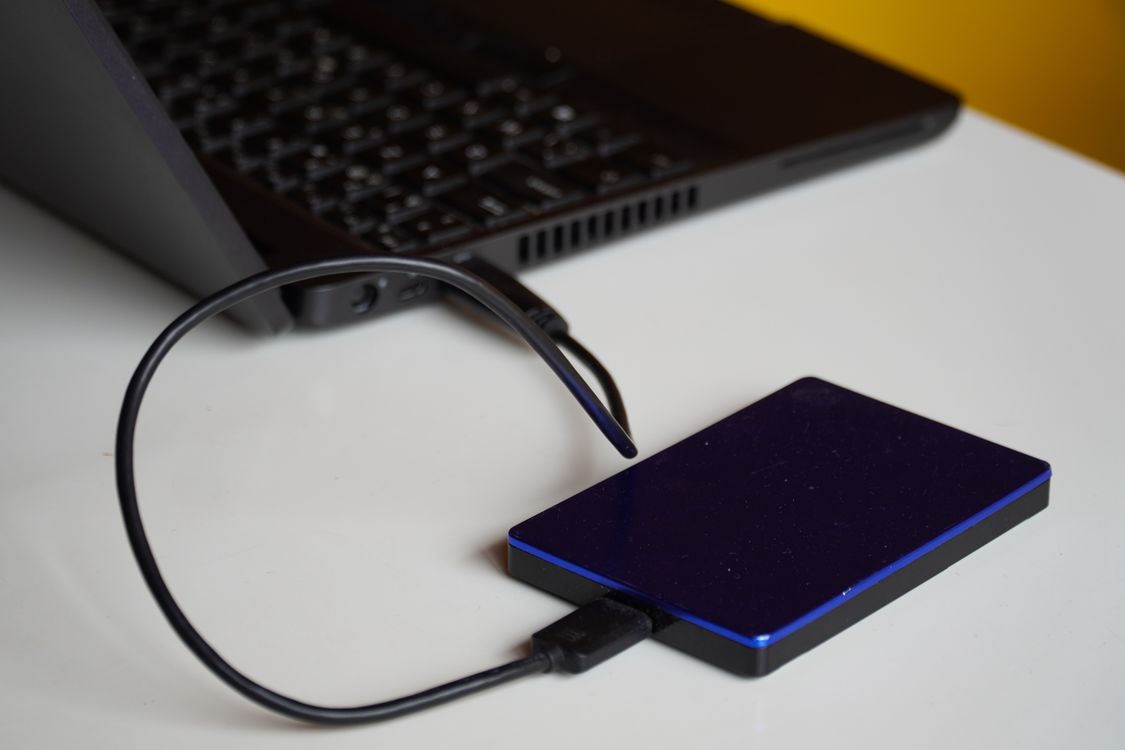
The project recommends running IRTriage from removable media to reduce unnecessary changes to the computer being investigated.
Prepare approved media with the validated application and enough free space for the intended collection. If a memory image is required, allow at least enough capacity for the installed physical RAM, plus the remaining evidence and working files.
Using a separate drive can reduce writes to the source disk, but it does not make live collection completely read-only. Windows and the acquisition tools may still generate system activity.
Step 3: Record the Initial System State
Before starting collection, document the computer’s visible condition and the reason for the investigation.
Record the hostname, case identifier, current date and time, time zone, system clock difference from a trusted reference, and the person conducting the collection.
If the system is already running, avoid restarting it merely to simplify access. A reboot can destroy useful volatile evidence.
Step 4: Launch the Validated Collection Tool
On a Windows environment where compatibility has been established, launch the prepared IRTriage application using the approved procedure.
The original project provides a graphical interface with collection categories arranged in tabs. Its documentation states that the program attempts to run with administrator privileges on supported Windows versions other than Windows XP.
Choose only the evidence categories required by the investigation. For example, a suspected malware incident may justify memory, process, network, registry, event-log, and persistence-related collection.
Review the configuration before execution. The published IRTriage.ini file includes options for memory dumping, registry collection, event logs, Prefetch, processes, network information, hashing, and compression.
Some functions may be disabled, and the configuration should not be assumed to match every distributed build.
Step 5: Collect and Preserve the Results
Allow the selected collection operations to finish while documenting any errors. The application is designed to organize collected information in a hostname-and-timestamp-based output folder.
Check whether the expected files actually exist. A completed program window does not prove that every collection operation succeeded.
Preserve the original output in secure storage. If deeper analysis is needed, work from a verified copy rather than modifying the collected evidence.
Which Evidence Should Be Collected First?
Not every form of evidence disappears at the same speed. This is known as the order of volatility.
Active network connections can change within seconds. Running processes may terminate. Memory contents disappear when power is lost, while many files on disk can remain available afterward.
RFC 3227: Guidelines for Evidence Collection and Archiving recommends collecting more volatile information before less volatile data.
| Collection Priority | Evidence | Main Concern |
|---|---|---|
| Very high | Active connections, running processes, sessions, and memory | Information may change rapidly or disappear |
| High | Temporary data, caches, and current network state | Records may expire or be overwritten |
| Next | Event logs, registry data, and selected disk artifacts | Data may be changed, rotated, or deleted |
| Additional preservation | Full disk images, external logs, and archival sources | May require more collection time or separate access |
This is a general planning order, not a rigid instruction to collect RAM after every possible network artifact. The right sequence depends on the threat, the available tools, and the risk of losing evidence.
For example, a machine actively encrypting files may require urgent containment even when that affects evidence collection. The response team must balance preservation against preventing further damage.

How Do You Analyze the Evidence Collected by IRTriage?
Collecting evidence is only the first stage. An investigator must examine the information, identify meaningful clues, and test possible explanations.
A useful approach is to begin with the initial alert and work outward toward related processes, accounts, network connections, and file activity.
1. Examine Processes and Network Activity
Start by looking for processes or services that do not match the computer’s normal role. Consider executable locations, process relationships, command lines, and associated network connections where those details are available.
For example, an unfamiliar executable running from a temporary user folder and connecting to an unexpected external server may deserve closer examination.
However, an unusual process name or foreign IP address alone does not establish malicious activity. Legitimate software can use unfamiliar file paths and remote infrastructure.

2. Check Persistence Mechanisms
Persistence refers to methods that allow a program or attacker-controlled component to run again after a reboot or user sign-in.
Review collected startup information, scheduled tasks, services, and relevant registry entries. Pay attention to unexplained changes that appear near the suspected incident time.
Compare findings with known software installations, administrative changes, and existing system baselines before deciding that an entry is suspicious.
3. Review Event Logs and User Activity
Windows event logs may provide useful information about authentication attempts, service activity, errors, and other recorded operations.
Investigators can use these records to examine questions such as whether an account was used unexpectedly or whether suspicious activity followed a particular system event.
Event availability depends on the system’s auditing configuration, retention settings, and whether logs have been altered or overwritten.
4. Build an Evidence-Based Timeline
A timeline brings events from different sources together so they can be compared.
Suppose an investigator finds a suspicious scheduled task. The next step is to check related file timestamps, available event logs, and account activity to understand when the task appeared and what it may have executed.
Convert timestamps to a consistent time zone and document clock differences. Do not assume that file timestamps prove who performed an action or that every timestamp reflects the time of the attack.
5. Separate Findings from Conclusions
For every important finding, record the evidence source, the observation, and what remains uncertain.
A network connection may indicate communication with a suspicious destination. It does not, by itself, prove that data was stolen.
Strong conclusions come from multiple supporting artifacts, a defensible timeline, and reasonable consideration of alternative explanations.
How Can You Protect the Integrity of IRTriage Evidence?
Evidence integrity means being able to show that collected material has not been improperly changed after acquisition.
IRTriage’s published configuration includes MD5 and SHA-1 hashing options. However, these older algorithms should not be the only integrity protection used in a modern forensic workflow.
SHA-256 provides a stronger option for computing a file’s cryptographic hash. A hash acts as a digital fingerprint that can be compared later to check whether file contents have changed.
On a trusted analysis workstation, Windows PowerShell can calculate a SHA-256 hash using this command:
Get-FileHash -LiteralPath 'E:\Evidence\sample.evtx' -Algorithm SHA256This example assumes an evidence file named sample.evtx already exists at that location. Replace the path with the actual file being examined.
For reliable evidence handling, document the original acquisition, hash the completed evidence files, preserve a protected record of the hashes, and verify working copies before analysis.
Also maintain a chain-of-custody record showing who collected, accessed, transferred, or stored the evidence and when. A matching hash helps establish file integrity, but it does not replace good documentation or prove that an acquisition was complete.
What Are the Limitations of IRTriage on Modern Windows Systems?
The biggest concern with the original IRTriage project is compatibility with current Windows environments. Its repository documents support for older workstation and server releases, including Windows 10 and Windows Server 2016, but does not establish tested support for Windows 11 or newer server versions.
Several limitations deserve attention before using it in a real incident.
- Legacy dependencies: Some third-party tools used by the project are old and may behave differently under modern Windows security controls.
- Removed Windows commands: The repository documents operations using WMIC. Microsoft removed the WMIC command-line utility from currently supported Windows 11 versions in 2026, so functions depending on it may fail.
- Memory acquisition uncertainty: Legacy memory collection drivers may not work on newer Windows systems.
- Incomplete forensic coverage: Triage collects selected evidence. It may miss deleted files, unselected artifacts, cloud activity, or evidence stored elsewhere.
- Live-system changes: Running collection software can create processes, logs, file writes, and other changes that investigators must account for.
- Collection failures: Missing privileges, unavailable utilities, encryption, or incompatible configurations can produce partial results.
Microsoft’s WMIC removal guidance recommends moving legacy command-line operations to supported methods such as PowerShell and WMI APIs. This is a practical reason to validate IRTriage carefully rather than assuming that its older documented commands still work.
For modern enterprise investigations, newer collection frameworks may be more appropriate. For example, Velociraptor’s forensic documentation describes endpoint artifact collection, live machine-state analysis, event-log examination, and other digital forensic workflows.
The choice should depend on supported platforms, tool validation, collection requirements, security controls, and the investigation team’s procedures—not simply on which application is easiest to launch.
When Is IRTriage Useful, and When Should You Choose Another Approach?
IRTriage can be useful for learning how Windows forensic triage works and for investigating systems where the tool and its dependencies have been tested successfully.
Its main strength is the ability to bring several evidence collection tasks into one interface. That can make an initial investigation more organized than manually executing many unrelated utilities.
However, an unvalidated legacy collector should not be the default choice for a current production incident involving modern Windows endpoints.
| Situation | Practical Approach |
|---|---|
| Training or forensic lab | Use IRTriage on a validated Windows environment to learn artifact collection and analysis. |
| Older supported Windows system | Consider IRTriage after checking dependencies, permissions, and collection results. |
| Modern Windows 11 enterprise endpoint | Prefer a currently maintained, validated collection method with confirmed platform support. |
| Active ransomware or destructive incident | Follow the incident containment and evidence-preservation plan, with priority given to preventing further damage. |
| Investigation requiring complete disk evidence | Use appropriate forensic imaging and preservation methods in addition to, or instead of, triage. |
The objective is not to collect the largest possible amount of data. It is to preserve the right evidence in a reliable way so analysts can make sound decisions.
What Mistakes Should You Avoid During Windows Forensic Triage?
Even experienced IT teams can accidentally damage evidence when responding too quickly.
- Restarting before assessing volatile evidence: A reboot can erase useful memory contents, process details, and active connections.
- Running unverified tools: An incompatible collector may fail, change important system data, or interfere with security controls.
- Saving everything on the source drive: Unnecessary writes can alter data and complicate forensic analysis.
- Assuming successful execution means complete collection: Always check outputs, errors, and missing artifacts.
- Analyzing original evidence directly: Use verified working copies when practical and protect the original material.
- Ignoring timestamps and documentation: Without reliable time information and collection records, otherwise useful findings may become difficult to interpret.
Good incident response is controlled and repeatable. Collection, analysis, containment, and recovery should follow an established process.
Frequently Asked Questions About IRTriage
Is IRTriage a free forensic tool?
The IRTriage project is publicly available as open-source code on GitHub. However, it uses supporting utilities, and their individual licenses or usage conditions may differ. Review those requirements before deploying it in an organization.
Does IRTriage work on Windows 11?
The original repository does not establish tested Windows 11 compatibility. Some documented functions rely on legacy commands, including WMIC, that are no longer available in supported Windows 11 releases. Do not rely on it for Windows 11 evidence collection without thorough validation.
Can IRTriage recover deleted files?
IRTriage includes file-system and Volume Shadow Copy collection capabilities that may provide historical evidence when the relevant data still exists. It is not a complete deleted-file recovery solution, and it does not guarantee recovery of removed information.
Is IRTriage the same as a forensic disk imaging tool?
No. IRTriage focuses on collecting selected information useful for rapid investigation. A forensic disk image attempts to preserve a much more complete representation of storage media. The two methods serve different purposes and may be used together.
Should you collect memory before shutting down a compromised computer?
When memory is relevant and safe acquisition is possible, investigators should consider collecting it before shutdown because RAM contents are normally lost when power is removed. However, active destructive behavior, safety concerns, or containment requirements may change that decision.
Final Verdict: Is IRTriage Still Worth Using?
IRTriage remains a useful example of automated Windows forensic triage. It brings together memory, registry, network, event-log, and file-system collection methods that can help investigators understand a suspected compromise.
Its age is also an important limitation. The project relies on several legacy components, and its published compatibility information does not establish reliable operation on current Windows 11 systems.
For learning and validated legacy environments, IRTriage can still have value. For modern production investigations, use a maintained and tested collection method that supports the target system.
Whatever tool you choose, preserve volatile evidence when appropriate, document every significant action, verify the collected files, and keep the originals protected. These practices matter more than the name of the collection utility.
