
Ever felt like you’re walking on eggshells when testing security tactics? You’re not alone. Every cybersecurity pro needs a safe space to experiment without breaking production systems. Enter the world of controlled chaos—a lab where you can simulate attacks, test tactics, and uncover vulnerabilities without the fear of real-world consequences.
Imagine setting up a fictional corporate intranet like the Umbrella Corporation. 🧪 It’s not just about hacking; it’s about understanding how attackers think and act. This kind of environment lets you mimic real-world security gaps, giving you the chance to patch them before they’re exploited.
And the best part? No grandma-tasing required—just matrix-like CLI coolness. 💻 Whether you’re testing EDR solutions or hardening defenses, this lab is your playground. It’s scalable, reproducible, and, most importantly, safe.
Key Takeaways
- Create a controlled space for non-destructive cyber attack simulations.
- Mimic real-world security gaps using fictional corporate setups.
- Experiment with tactics, techniques, and procedures (TTPs) safely.
- Scale your lab for future integrations like EDR and hardening.
- Ensure reproducibility and stability for consistent testing.
What is a Red Team Lab and Why Do You Need One?
Think of it as a gym for hackers—but without the sweat. 🥋 A red team lab is your personal cyber dojo, where you can practice attack and defense drills without risking real systems. It’s the ultimate safe space for honing your skills and understanding how attackers operate.
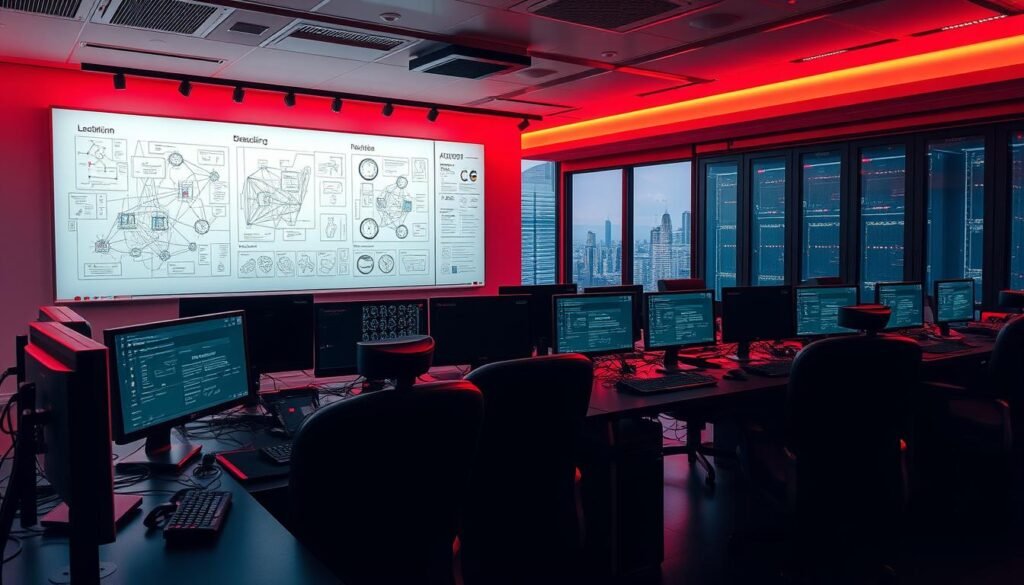
Here’s the real talk: 73% of hiring managers ask about lab experience during interviews (2024 SANS survey). Having your own setup not only boosts your resume but also gives you hands-on practice that’s hard to replicate elsewhere. It’s like having a sandbox where you can fail, learn, and improve—without costing your company a dime.
Understanding the Role of Red Team Labs in Cybersecurity
These labs aren’t just for fun—they’re essential for understanding real-world threats. By simulating attacks, you can identify vulnerabilities in a controlled environment. For example, you can test SQL injection on your own vulnerable database instead of risking your company’s data. 😅
Benefits of Building Your Own Red Team Lab
Why invest time in creating one? Here’s the breakdown:
- Cost-free failure analysis: Experiment without fear of breaking things.
- Skill crossover: Develop both red and purple team expertise.
- Realistic testing: Mimic actual attack scenarios safely.
Pro tip: Start small. Even a single server and workstation setup can help you build critical skills. Over time, you can expand to include tools like Active Directory, domain controllers, and more. 🚀
Essential Components of a Red Team Lab
Ready to dive into the nuts and bolts of your cyber playground? 🛠️ Whether you’re a seasoned pro or just starting, the right setup can make or break your simulations. Let’s explore the must-haves for your digital battleground.

Hardware Requirements: Local vs. Cloud Solutions
Choosing the right hardware is crucial. A local setup, like the Beelink SER5 Pro mini-PC, costs around $400 and offers solid performance. But if you’re scaling up, cloud solutions like AWS might be worth the investment.
Here’s a quick comparison:
| Option | Cost | Pros | Cons |
|---|---|---|---|
| Beelink SER5 Pro | $400 | Affordable, customizable | Limited scalability |
| AWS Cloud | Variable | Scalable, pay-as-you-go | Higher long-term costs |
Pro tip: RAM matters! 🖥️ Whether you’re using an old laptop or a mini-PC, ensure it has enough memory to handle multiple machines and tasks.
Software and Tools for Red Team Simulations
Your software stack is the heart of your setup. Start with Wazuh SIEM for monitoring and Sysmon for endpoint visibility. Add Kali Linux for attack simulations and Winlogbeat for log analysis.
Here’s a quick list of must-haves:
- Wazuh SIEM: Real-time threat detection.
- Kali Linux: The ultimate toolkit for attackers.
- Ludus templates: Clone pre-configured VMs in seconds. ⚡
- ELK stack: Free log analysis for blue teamers.
Don’t forget a sacrificial VM for irreversible experiments. 🔥 It’s your safe space for testing the riskiest tactics.
Planning Your Red Team Lab Architecture
Your network configuration can make or break your simulations. A well-thought-out setup ensures you’re testing in an environment that mirrors real-world scenarios. Let’s dive into the essentials of crafting a lifelike network for your experiments.

Designing a Realistic Network Environment
Start with the IP scheme. Why 192.168.66.x? It’s a nod to the RE universe lore 🧟♂️—but more importantly, it’s easy to remember and avoids conflicts with common subnets. This setup gives you a clean slate for your fictional corporate intranet.
Next, set up Active Directory. Create a forest and domain like “umbrellacorp.local” to mimic a real corporate environment. This is where your domain controller comes into play, managing users, groups, and permissions.
Choosing the Right Operating Systems and Services
Mix Windows Server 2019 and Windows 10 for a modern attack surface. This combo lets you test against both server and client vulnerabilities. Don’t forget DNS—create fake intranet domains like “dev.env.intranet.umbrellacorp.local” 🌐 to add realism.
Pro tip: Always assign static IPs. Forgetting this step leads to those frustrating “Why can’t I ping?!” moments 😱. A stable network is key to smooth testing.
Setting Up Virtual Machines for Your Lab
Setting up your virtual playground is the first step to mastering cybersecurity simulations. 🎮 Virtual machines (VMs) are the backbone of your setup, allowing you to create isolated environments for testing. Whether you’re deploying a domain controller or a client workstation, the right configuration ensures smooth operations.

Deploying VMs for Domain Controllers and Clients
Start by assigning roles to your VMs. For example, DC01 will serve as your domain controller, while WEB01 can host an IIS server. DB01 and DB02 are perfect for SQL databases. This setup mimics a real corporate environment, giving you a realistic testing ground.
Pro tip: Use Ludus to deploy pre-built Windows Server 2019 templates in just three clicks. 🚀 This saves time and ensures consistency across your lab.
Configuring Network Settings and IP Addresses
Proper configuration of network settings is crucial. Assign static IPs to avoid connectivity issues. A good rule of thumb: use .10-.20 for servers and .100+ for clients. 📡 This keeps your network organized and easy to manage.
Don’t forget to install VMware Tools or equivalent for your hypervisor. Skipping this step can lead to sluggish VM performance. 😅
- Hypervisor options: Choose between ESXi, Hyper-V, or VirtualBox based on your needs and budget.
- VM roles: Clearly define roles like DC01 (Domain Controller) vs. WEB01 (IIS server).
- IP assignment: Keep servers in the .10-.20 range and clients in the .100+ range.
How to Build a Red Team Lab Environment with Active Directory
Active Directory is the backbone of any realistic cyber simulation. It’s the glue that holds your network together, allowing you to manage users, groups, and permissions like a pro. Without it, your testing environment lacks the depth needed to mimic real-world scenarios.
Installing and Promoting a Domain Controller
Start by installing Windows Server on your designated VM. Once set up, promote it to a domain controller. This process involves configuring Active Directory and setting up your forest and domain. Pro tip: Use lore-friendly names like “umbrellacorp.local” for added fun. 🧪
Here’s a quick step-by-step:
- Install Windows Server on your VM.
- Open Server Manager and select “Add Roles and Features.”
- Choose “Active Directory Domain Services” and follow the prompts.
- Promote the server to a domain controller and configure your domain.
Creating and Managing Users and Groups
Once your domain controller is live, it’s time to populate it. Use PowerShell to bulk-import fictional employees like “T-Virus Researchers” and “Zombie QA Testers.” 😈 This saves time and adds a touch of realism to your setup.
Here’s a hack: Use CSV files and PowerShell scripts to create multiple users in seconds. For example:
Import-Csv “users.csv” | ForEach-Object { New-ADUser -Name $_.Name -SamAccountName $_.SamAccountName }
Don’t forget to create groups like “Protected Users” to hide admin accounts. Mimic real organizations by keeping admins at 10% and standard users at 90%. This ensures your simulations are as realistic as possible.
Configuring Servers and Services for Realistic Simulations
Let’s get your servers and services ready for some serious action. 🚀 A well-configured setup ensures your simulations feel like the real deal. Whether it’s SQL Server or web applications, every detail matters.

Setting Up SQL Server and Database Permissions
Start with SQL Server. Use gMSA accounts for service authentication—it’s a pro move. 🔑 This ensures secure access without storing credentials in plain text. Always block direct SQL access from Client01 using firewall rules. 🛡️ This mimics real-world network segmentation.
Create a database like “5G_enzyme_experimental” for added fun. 🧬 Populate it with Resident Evil-themed data to keep things engaging. Remember, realistic data makes your simulations more effective.
Installing and Configuring Web Applications
Next, focus on web applications. Host both production and development intranet sites on WEB01. This setup lets you test different environments without breaking your main system. 🌐
Avoid storing credentials in appsettings.json—it’s a big no-no! 😬 Instead, use secure methods like Azure Key Vault or environment variables. This keeps your setup safe and professional.
Pro tip: Use IIS to manage your sites. It’s flexible, reliable, and perfect for hosting multiple applications. 🖥️
Integrating Security Tools and Monitoring Solutions
Monitoring your setup is like having eyes everywhere. 👀 The right tools ensure your simulations stay secure while providing insights into every move. Let’s dive into the essentials of integrating Wazuh, Sysmon, and Winlogbeat for a robust monitoring system.

Setting Up Wazuh for SIEM and XDR Capabilities
Wazuh is your go-to for central alerting. It detects SQL injection attempts and lateral movement in real-time. 🚨 Think of it as your security guard, always on duty. Pro tip: Use its XDR capabilities to correlate events across your network for deeper insights.
Installing Sysmon and Winlogbeat for Log Analysis
Sysmon tracks process creation and network connections, mapping them to MITRE ATT&CK techniques. Meanwhile, Winlogbeat pipes logs to your ELK stack for analysis. 📤 Together, they provide a complete picture of your environment.
Here’s a quick comparison of these tools:
| Tool | Function | Benefit |
|---|---|---|
| Wazuh | SIEM & XDR | Central alerting and event correlation |
| Sysmon | Process & network tracking | Detailed ATT&CK mapping |
| Winlogbeat | Log shipping | Efficient log analysis |
Pro tip: Sync all VM clocks. ⏰ This ensures log timestamps are accurate, making analysis a breeze. Also, create Kibana dashboards for visualizing attacks. 📊 It’s a blue team bonus that makes your setup even more powerful.
Simulating Real-World Attack Scenarios
Ever wondered what it takes to mimic a real cyberattack without causing chaos? 🕵️♂️ Simulating attacks in a controlled environment helps you understand vulnerabilities and test defenses effectively. It’s like playing chess against yourself—strategic, challenging, and rewarding.

Creating Vulnerable Configurations for Testing
To test your defenses, you need to create vulnerable configurations. Start by setting up a database admin account with weak credentials. This mimics real-world mistakes attackers exploit. 🎯
Next, configure a web server with outdated software. This allows you to simulate SQL injection or cross-site scripting (XSS) attacks. Remember, the goal is to find weaknesses before real attackers do.
Pro tip: Use tools like Cobalt Strike or Metasploit to automate these setups. It saves time and ensures consistency.
Running Non-Destructive Attacks to Test Defenses
Once your setup is ready, it’s time to run non-destructive attacks. For example, use Mimikatz in memory only to avoid credential dumping to disk. This keeps your environment safe while testing lateral movement. 💉
Purple team drills are also effective. Trigger alerts intentionally to test if your monitoring tools like Wazuh detect the activity. This helps fine-tune your defenses.
Here’s a cool trick: Simulate APT29’s SMB exploit for credential harvesting. It’s a real-world tactic that tests your network’s resilience. 🛡️
“Simulating attacks is not about breaking things—it’s about understanding how to protect them.”
After testing, always clean up event logs. This ensures your environment is ready for the next round of simulations. 🧹
| Tool | Function | Use Case |
|---|---|---|
| Cobalt Strike | Attack Simulation | Mimic advanced threats |
| Metasploit | Exploitation Framework | Test vulnerabilities |
| Mimikatz | Credential Harvesting | Test lateral movement |
By simulating real-world scenarios, you’ll uncover hidden vulnerabilities and strengthen your defenses. It’s the ultimate way to stay one step ahead of attackers. 🚀
Best Practices for Maintaining Your Red Team Lab
Keeping your cyber playground in top shape requires consistent care and attention. A well-maintained setup ensures your simulations remain effective and realistic. Let’s dive into the essential practices for keeping your environment secure and efficient.

Regularly Updating and Patching Your Environment
Staying on top of updating and patching is non-negotiable. Schedule monthly updates to keep your systems current. For critical vulnerabilities, apply fixes immediately to avoid exploitation. 🔧
Pro tip: Use automation tools to streamline the patching process. This saves time and ensures nothing slips through the cracks. Also, take snapshots before major changes, like Active Directory modifications. 💾 This gives you a quick rollback option if something goes wrong.
Implementing Network Segmentation and Security Measures
Network segmentation is your best friend for hardening your setup. Use VLANs to separate servers, workstations, and DMZ zones. This minimizes the risk of lateral movement during simulations. 🛡️
For remote access, use WireGuard VPN. It’s secure, lightweight, and perfect for managing your lab from anywhere. 🔒 Additionally, auto-shutdown VMs when not in use. This simple trick can save you over $300 a year in cloud costs. ☁️
| Practice | Benefit |
|---|---|
| Monthly Updates | Keeps systems secure and up-to-date |
| Network Segmentation | Reduces attack surface and limits lateral movement |
| WireGuard VPN | Secure remote access to your lab |
| Auto-Shutdown VMs | Cost-effective and energy-efficient |
By following these best practices, you’ll ensure your lab remains a reliable and secure space for testing. Remember, a little maintenance goes a long way in keeping your environment ready for action. 🚀
Conclusion
Transforming a simple setup into a robust testing space is easier than you think. 🎉 From a $400 Beelink PC to a corporate-like Active Directory environment in just 8 hours, the journey is both rewarding and educational. Your lab is now ready for action, but the fun doesn’t stop here.
Next up? Add EDR/AV evasion to your setup for an even more advanced environment. Remember, a hacker’s lab is never truly finished—it’s only temporarily functional. 💡 Keep iterating, testing, and improving to stay ahead of the curve.
Got an Umbrella Corp attack story to share? Drop it on Reddit and join the conversation! 🚨 And as a parting gift, check out the GitHub repo with all the config files and lore scripts. 👾 Happy hacking!
