Could a single odd message in your inbox be the first sign that someone else holds the keys to your digital life? This quick guide shows a fast way to spot suspicious activity and lock your account down.
Start calm, act fast. Email accounts are a common target for fraud and identity theft. A 60-second scan of your inbox, Sent, and spam can reveal clear signs of compromise like odd messages, missing threads, or drafts you did not write.
If you find unusual sign‑ins, changed recovery details, or new forwarding rules, move immediately to regain access. Use provider dashboards to review recent security events, sign out of all devices, and enable two‑step verification.
Locked out? Follow official account recovery flows and consult trusted resources such as this guide at recovering an account for step‑by‑step help.
Key Takeaways
- Scan fast: a 60‑second pass over inbox, Sent, and spam can spot suspicious signs.
- Act quickly: speed matters because hackers move to linked accounts.
- Use tools: review recent security events and signed‑in devices in your provider dashboard.
- Recover and harden: follow account recovery, change your password, and enable 2‑step verification.
- Monitor: watch for unusual activity and remove risky app access or extensions.
Do This First: A 60-Second Quick Check for Suspicious Activity
Spend sixty seconds now to spot obvious signs of compromise. These fast checks let you decide whether to lock the account down immediately.
Start by scanning recent messages and Sent items for anything strange. Look for missing threads, odd replies, or sudden forwards that move your emails away from the inbox.
Scan your inbox and Sent for odd messages, missing emails, or auto-forwarding
In under a minute, scan your inbox and Sent for unexpected messages, replies you don’t recognize, or emails that have disappeared. Open Settings and review filters, forwarding, delegation, IMAP/POP access, and vacation responder for unauthorized edits.

Look for provider security alerts about new sign-ins, password or settings changes
Check security alerts from your email provider for new sign‑ins, password changes, or setting edits. In Google’s Recent security events, flag “No, it wasn’t me” to trigger guided remediation.
“A one-minute triage can stop attackers from moving laterally through linked accounts.”
Check recent devices and locations on your account from your phone or computer
Visit Your devices > Manage devices to remove unfamiliar device sessions and review location entries. On mobile you can perform the same checks and revoke access immediately.
| Action | Where | What to do |
|---|---|---|
| Scan messages | Inbox / Sent | Look for missing threads and unknown replies |
| Review settings | Filters & Forwarding | Remove unauthorized rules |
| Audit security | Recent security events | Flag unfamiliar actions |
| Revoke sessions | Manage devices | Remove unknown device access |
Clear Signs Your Email May Be Compromised
Spot simple, actionable indicators that point to an intrusion. These signals tell you whether to move straight to containment and recovery.
Start by looking for access failures and unusual outbound activity.
Can’t access account or password no longer works
Sudden inability to sign in or a password that stops working is a high‑risk sign. Attackers often change credentials first to lock you out.
Unfamiliar Sent items or contacts receiving spam “from you”
See messages you didn’t send, bouncebacks, or contacts reporting spam from your address. Those are clear signs the account has been used to pivot to others.
Security alerts about sign‑ins from unknown devices or locations
Provider alerts about new devices, odd locations, or repeated sign‑in attempts mean active intrusion. Remove unknown sessions immediately.
Unexpected password reset emails for other accounts
Receiving reset emails for services you did not request shows attackers try to expand access beyond one account.
| Indicator | What it means | Immediate action |
|---|---|---|
| Lost access / wrong password | Credentials changed | Start recovery; reset password |
| Unknown Sent items | Account used to send spam | Review sent mail; remove forwarding |
| Security alerts | Sign‑ins from foreign devices | Revoke sessions; secure account |
Regain Control Fast: Essential Steps to Secure Your Email
Begin recovery with a clear plan and act without delay. Use trusted devices and follow provider prompts to regain access quickly.
Use account recovery to access account, then change password immediately
Begin with the provider’s account recovery flow, answering prompts from a familiar device and location. This improves verification success and helps you regain access account control.
Once signed in, immediately change password to a strong, unique passphrase. Rotate any reused passwords on other services to stop lateral access.
Sign out of all devices and sessions to kick out intruders
Sign out everywhere to evict active sessions. In Google, go to “Your devices” > “Manage devices” and remove unfamiliar entries.
Verify recovery email address, phone number, and remove unknown apps
Confirm your recovery email and recovery email address plus the recovery phone are correct. Revoke unknown third‑party apps, turn off less secure app access, and delete suspicious browser extensions.
Run antivirus and remove harmful software on every device
Run a full antivirus scan on every system that touched your email account. Remove harmful software and uninstall unknown programs. If malware persists, back up critical files and consider a clean OS reinstall.
- Make sure 2‑Step Verification stays enabled and forwarding rules are removed.
- Document changes so you can spot recurrence and notify affected services.

How to check if email was hacked using built-in security tools
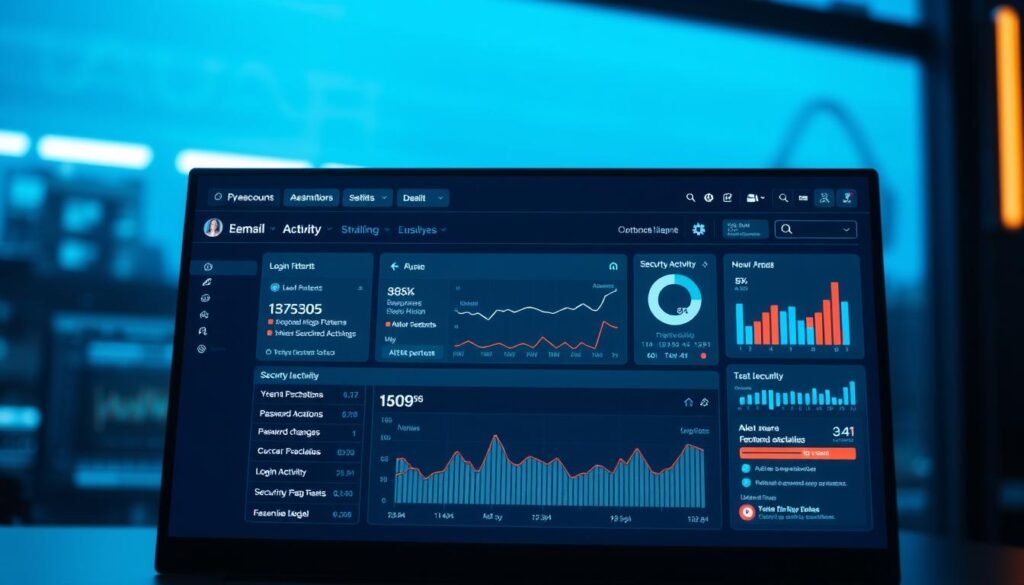
Open your security dashboard and scan recent events to spot unfamiliar actions tied to your account. This reveals quick signals you can act on right away.
Review account activity and recent security events for suspicious activity
Review the Recent security events area in your provider console. In Google, mark unknown events as “Not you” to trigger guided recovery.
Audit devices and locations; remove any you don’t recognize
Visit Your devices and use Manage devices to sign out sessions from unknown devices. Removing rogue sessions cuts attacker access fast.
Inspect filters, labels, forwarding, and delegated access in settings
Open account settings and review Mail delegation, Automatic forwarding, Scheduled messages, IMAP/POP, Filters, Labels, Blocked addresses, and Vacation responder.
- Flag unusual account activity and revoke suspicious app tokens.
- Confirm recovery address and phone are yours, and enable 2‑Step Verification.
- Review recent password changes; rotate passwords when changes aren’t yours.
Record anomalies and removals to help support with your email provider.
Lock It Down: Prevent Future Hacks of Your Email Account
Protect the account now by adding proven layers: multifactor authentication, stronger passwords, and fewer signed‑in devices. Small changes today cut the odds of a repeat compromise tomorrow.
Start with the basics and make them routine.
Turn on 2‑Step Verification or multifactor authentication
Enable 2‑Step Verification (MFA) using a phone code, authenticator app, or hardware security key. This adds a second barrier that stops most automated attacks.
Use strong, unique passwords and a reputable password manager
Create long, unique passwords for each account and store them in a trusted manager. Rotate any reused passwords after a breach alert to restore secure access.
Update browsers, apps, and uninstall risky extensions or less secure apps
Keep browsers and apps patched. Remove unknown extensions and disable less‑secure app access in settings to reduce hidden risk from compromised software.
Use secure connections; be cautious with links and public Wi‑Fi
Avoid signing in on public Wi‑Fi without a VPN, and don’t follow suspicious links that ask for credentials. Limit devices that can access sensitive accounts and make sure recovery methods are current and only yours.
- Turn on sign‑in alerts for unusual activity.
- Separate work and personal accounts to lower collateral damage.
- Learn common attack patterns to stay ahead — see common cyber attacks.
Protect Your Money and Identity After an Email Breach
Act fast to stop theft and to limit damage to your bank accounts and credit records. Prioritize financial controls, then follow with identity monitoring and cleanup.
Start by treating financial accounts as high risk and move through these steps in order.
Contact banks and review cards and accounts for charges
Call your bank immediately to freeze or monitor cards and accounts when you spot odd activity. Small test charges often precede larger thefts of money.
Enable transaction alerts in your banking apps and review Google Pay, Play, and saved payment methods for unauthorized entries.

Monitor credit and place alerts or freezes
Pull your credit reports and add fraud alerts or a freeze to block new accounts. Enroll in credit monitoring for faster detection of fraud on your credit files.
Scan breaches and rotate reused passwords
Use reputable breach checkers to search the dark web for your email address and credentials. If your data appears, change reused passwords everywhere and secure any services showing reset emails or a pending password reset.
- Make sure to document charges and communications for bankers and law enforcement.
- Warn people in your contacts if attackers sent payment requests from your account.
- Run anti‑malware software on devices before resuming sensitive financial activity.
Provider-Specific Actions: Gmail, Outlook, and Yahoo
Each major provider exposes different recovery tools and device controls. Follow the platform steps below to remove rogue access and restore account health quickly.
Gmail / Google Account
Open Google Account → Security. Review Recent security events and remove unfamiliar sessions under Your devices → Manage devices.
Verify Gmail settings like filters, forwarding, delegation, and IMAP/POP. Confirm 2‑Step Verification, your recovery email, and phone number.
Outlook
If you lose access, use the provider’s account recovery flow. After regaining control, choose “Sign out everywhere” to revoke unwanted sessions.
Re-verify security info and a current phone number. Then change password and re-check trusted sign-in methods.
Yahoo Mail
Open Recent activity to list connected apps and unknown devices. Disconnect any odd sessions and update recovery contacts.
Rotate passwords when you see unexplained entries and review login location details for anomalies.
- Make sure to change password after recovery and remove stale third‑party tokens.
- Gather timestamps and screenshots and escalate to official support for persistent anomalies.
“Use provider consoles to act where it matters most—device sessions and recovery info are the fastest levers.”

Conclusion
Treat odd messages and unfamiliar sign‑ins as urgent signals to act. Take swift steps: review recent activity, remove unauthorized access, and lock the account with two‑step verification and a strong password.
Simple habits reduce big risks. Your email account often contains recovery links and sensitive notices, so maintain an accurate phone and recovery address. Rotate passwords, run anti‑malware on devices, and monitor financial accounts and credit for fraud.
Want a quick guide to learn how to know email hacked? See this concise walkthrough at know email hacked for steps and recovery tips. Small, steady actions protect your accounts and the people you communicate with.
