
Ever wondered if you can access an app that isn’t in the play store without risking your device? This guide answers that question and shows clear steps you can trust. You’ll learn what an apk file is, why some android apps land outside Google Play, and which checks matter before installation.
We focus on practical verification: compare file hashes, run multi-engine scans, and confirm developer signatures. These actions help you keep your phone and data safe while using alternative sources for an application you need.
This guide explains device settings on modern Android versions and older releases, plus when installing apk files makes sense—such as testing a beta or restoring a previous version. Expect short, actionable steps and a simple checklist that preserves security without blocking legitimate access.
Key Takeaways
- Understand what an apk file is and how signatures protect installation.
- Only use vetted sources and verify files before you tap Install.
- Compare SHA-256 hashes and scan with multi-engine tools like VirusTotal.
- Adjust Android settings per source, then revert changes after use.
- Keep device defenses updated and review app permissions after install.
Why Sideloading APKs Exists and When It Makes Sense
Installing APK files fills gaps the official store leaves open. It gives controlled access for region-locked titles, missing listings, and rolling back an update that removed features.
Use this route for specific goals, not casual browsing. Beta builds and developer-shared bundles often arrive outside the google play store. Power users also use APK files to test different versions or regain performance lost after an update.
Prefer vetted repositories and keep unknown sources disabled when idle. Reputable options include APKMirror, APKPure, F‑Droid, Uptodown, and Aptoide. Random blogs often lack checks like signature matching or integrity hashes.

| Reason | Example | Recommended Sources | Key Risk |
|---|---|---|---|
| Geo-restriction | Game not shown in play store | APKMirror, APKPure | Region-locked content mismatch |
| Rollback | Restore prior app version | APKMirror, F‑Droid | Signature conflicts |
| Beta access | Early feature testing | Developer forums, Uptodown | Unsigned bundles |
- Understand app bundles and split packages so your device gets correct resources.
- Record where files came from for later verification.
Safety First: Prerequisites and Settings on Your Android Device
Protect your device by preparing settings and permissions in a targeted, temporary way before installing an apk file. Make only the smallest changes needed for the task, then revert them when finished. These steps limit exposure and keep your security posture strong.
Android 8.0 and newer
Enable Install Unknown Apps for a single installer
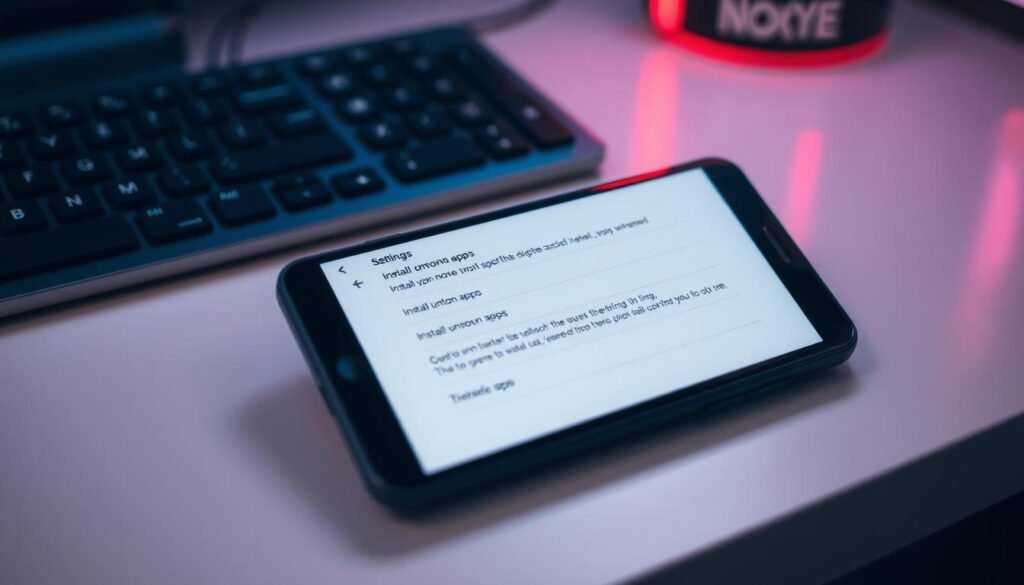
Go to Settings > Apps & Notifications > Special App Access > Install Unknown Apps. Allow only the browser or file manager you will use. This limits which sources can request installation and preserves system protections.
Android 7.0 and older
Use the Unknown Sources toggle in Security
Open Settings > Security > Unknown sources and enable the switch briefly. This is a global change; turn it off immediately after install to avoid persistent risk.
Keep Play Protect active
Do not disable core protections. Keep Google Play Protect on so apps from the google play store and other sources get scanned. If Play Protect blocks an app, investigate before you override any warnings.
| Task | Action | Why it matters |
|---|---|---|
| Enable per-app install | Settings > Install Unknown Apps > allow chosen app | Limits installer to a single trusted app, reducing attack surface |
| Temporary global toggle | Settings > Security > Unknown sources (7.0 and below) | Works on legacy phones but must be turned off after use |
| Play Protect | Keep enabled | Offers ongoing scans and warnings for suspicious apps |
| Verify files | Check source and compare file hash before install | Prevents installing tampered or mismatched apk file |
Use a trusted file manager and avoid granting extra permissions beyond file access. Confirm storage space, a stable connection, and a rollback plan if the app misbehaves. Document which installer you used and the time of the installation for later audits.
For deeper verification steps and a step-by-step checklist, see this guide on installing from outside the store and this checklist for validating a package before you install: APK safety checks.
How to sideload apks safely
Begin with a verified source and an integrity check before the file ever reaches your android phone. This minimizes risk and keeps the process predictable.
Download and verify. Choose a vetted repository like APKMirror, APKPure, F‑Droid, Uptodown, or Aptoide. Match the SHA-256 hash the developer publishes and run a VirusTotal scan. Also confirm the package signature with apksigner when available.

Locate and review in your file manager
Open your trusted file manager and go to Downloads. Confirm the filename and size match what you expected. Tap the package and inspect requested permissions.
Install and verify app behavior
On Android 8.0+ temporarily enable the installer app under Install Unknown Apps. On older phones toggle Unknown sources, then install. Tap Install and wait; large apps may take some time.
“Verify source, check the hash, scan the file, then install—repeat these steps each time.”
Post-install checks
Launch the app and confirm core features run and sign-in works. Revoke the temporary allow-from-this-source setting and re-enable Play Protect. Clear the installer cache and delete stray files you no longer need.
| Step | Action | Why it matters | Checklist |
|---|---|---|---|
| Source | Pick vetted repository | Reduces chance of modified files | APKMirror, F‑Droid, APKPure |
| Verify | SHA-256 + VirusTotal + signature | Confirms integrity and authenticity | Compare hash; scan file; run apksigner |
| Cleanup | Revoke permissions and remove leftovers | Restores baseline security on device | Turn off installer; clear cache; archive trusted files |
App Bundles Explained: AAB, APKS, APKM, and XAPK
App bundles group an app’s core APK plus optional resource splits so your device gets only what it needs. This reduces download size and avoids installing unrelated assets.
The official Android App Bundle (AAB) is Google’s publishing format. Developers can produce an APKS set from an AAB when distributing through google play or a local conversion tool. Community bundles—APKM (APKMirror) and XAPK (APKPure)—pack the base plus configuration splits for simpler sharing.
Use the right installer for best results. Split APKs Installer (SAI) handles APKM and XAPK and can auto-select resources. App Bundle Installer accepts AAB, APKS, XAPK, and APKM and offers a guided flow. Both respect signatures and ease the install app process.

Manual and advanced options
For expert control, extract the split files and run adb install-multiple file1.apk file2.apk. Verify you picked splits that match your device architecture and language.
If a bundle includes OBB assets, copy them into Internal storage/Android/OBB/<package> exactly. Misplaced OBB folders or mixed-version resources will break the application.
| Format | Tool | Main benefit |
|---|---|---|
| AAB / APKS | App Bundle flow / App Bundle Installer | Device-tailored install and smaller footprint |
| APKM / XAPK | SAI / App Bundle Installer | Community packaging for easy distribution |
| Split APK set | adb install-multiple | Manual control for troubleshooting and testing |
“Bundle installs succeed when signatures match, resources align with your device, and all required splits and OBBs are present.”
Verifying APK Authenticity Before You Install
Run a short integrity and signature check before any installation. These steps reduce risk to your device and operating system and help spot tampered apk files or embedded malware early.
Compare SHA-256 hashes. Compute the hash for each apk file and match it against the developer’s published value. Keep the hash text beside the file for quick re-checks later.
Scan with VirusTotal
Upload the file to VirusTotal and review multi-engine results. One or two false positives can happen; multiple detections for the same malware family are a red flag. If flagged, do not install.
Confirm digital signatures
Use apksigner or a similar verifier to confirm the signing certificate matches known releases. A mismatched signer or odd package IDs often means the app was altered.
- Check filenames, version codes, and resources so split sets belong to the same build.
- Save verified files in a dedicated folder with the hash file beside each package.
- Rescan later if time permits; engine detections change as signatures update.
“One minute of verification can prevent hours of cleanup.”
Getting Files onto Your Phone Securely
Move verified files onto your phone using the method that fits the file size and your security needs. Choose direct downloads for single packages and USB or cloud transfers for large bundles; always confirm integrity before you install.
Direct download is the simplest route when a trusted source hosts the apk file. For transfers from a desktop, upload to Google Drive and fetch the file with the Drive app on your android phone. This gives fast access and reduces extra hops.
USB is best for large bundles and OBB data. Use MTP transfer mode and safely eject the device when finished to avoid corrupted files. Bluetooth works for tiny items but check file size on both ends so nothing truncates.
Open your file manager and place every file in a single folder per app and version. For split installs, keep all parts together and label folders with ABI and DPI so your device gets matching resources.

- Verify checksums after transfer and confirm available storage before you install apps.
- Archive known-good files for quick rollback or later comparison.
- Fix download errors or permission issues now; partial transfers waste time and risk corrupted installs.
| Method | Best for | Note |
|---|---|---|
| Direct download | Single apk file | Fast; rely on trusted stores |
| USB | Large bundles | Reliable; use MTP and eject |
| Google Drive | Cross-device access | Easy; re-download via Drive app |
Common Installation Issues and How to Fix Them
If an app refuses to install, narrow the fault to signature, file integrity, or device compatibility first. These three areas explain most failures and give a clear path for repair.

App not installed: version and signature conflicts
App not installed often means an existing package uses a different signing key or a conflicting version is present. Uninstall the old app or obtain a build that matches the original signer. That will resolve most signature mismatches.
Parse error and corrupted downloads
A Parse error usually shows when the apk file is incomplete or built for a newer operating system. Re-download the file, verify the SHA-256 hash, and confirm the minimum SDK level the app requires.
Blocked by Play Protect: assess risk and next steps
If Play Protect flags an app, pause and verify. Run a VirusTotal scan and confirm the signer. Only proceed when multiple checks agree the package is safe; otherwise, prefer the google play store version.
Storage, permission, and ABI/DPI compatibility problems
Low storage can cause silent failures. Free space, clear cache, then retry the installation. If split bundles or missing resources cause crashes, ensure ABI and DPI match your device and place OBB assets in Internal storage/Android/OBB/<package>.
- Restart the phone if an install stalls, then use a trusted file manager and verified file.
- Remove old folders and OBBs that can conflict, then install fresh and restore required assets.
- Make sure Unknown Sources or per-app installer permission is granted for the installer only while installing; disable it afterward.
- Review requested permissions before first launch; deny anything excessive and test core features.
“Persistent failures most often come from mismatched files—check filenames, version codes, and hashes to ensure every file belongs to the same build.”
Ongoing Security Best Practices When You Install Apps Outside Google Play
Ongoing vigilance makes installing apps outside official channels far safer for your device and data. Keep protections active, verify every file, and make checks routine.
Reputable stores and repositories
Favor well-known sources: APKMirror (signature checks), F‑Droid (FOSS), APKPure (signature verification), Uptodown (VirusTotal integration), and Aptoide (scanning). Even with trusted stores, verify each apk file before installation.
Recognize modified or fake apps
Watch for brand typos, mismatched package names, odd permissions, sudden ads, or requests for accessibility privileges without reason. Treat every download as untrusted until you compute hashes, confirm signatures, and run a malware scan.
| Risk | Sign | Quick action |
|---|---|---|
| Modified bundle | Different package ID or version | Reject and re-download from a verified store |
| Malware | High detections on VirusTotal | Do not install; remove file and report source |
| Suspicious updates | In-app prompts from unknown servers | Use trusted store for updates; block unknown servers |
Practical rituals: keep unknown sources disabled except during the installer moment, back up data before major changes, and keep a personal allowlist of trusted sources. Audit installs monthly, monitor battery and data for anomalies, and remove unused apps to reduce attack surface.
Conclusion
A simple, repeatable checklist makes installing an app from external sources predictable and safer. Verify sources, confirm file hashes and signatures, and keep device protections active before any installation.
Make sure every apk file passes a hash and multi-engine scan, then use the right tool for bundles—SAI, App Bundle Installer, or ADB—so the app installed matches your device profile.
Enable install permissions only for the installer app and revert them afterward. Keep files organized and note when and where each file came from. If problems appear, re-check sources, compare versions, and confirm storage and resource matches.
Follow the verify → install → validate → secure cycle each time you add apps. For practical guidance on risks and mitigation for side-loaded apps, see this overview from Startup Defense: side-loaded app risks and best practices.
