
How do you protect your family’s privacy and security without turning trust into surveillance? This question guides every choice I make at home and at work.
I favor clear steps, open talk, and vetted controls over hidden monitoring software. As a chief information security officer and a parent, I teach kids to spot malware and apps that behave oddly, and to tell an adult when a device or screen acts strange.
We define spyware as a type of malware that watches activity and grabs data without consent. Signs include slow performance, odd pop-ups, redirects, disabled antivirus, and sudden storage drops.
At home we use simple rules: keep apps minimal, review permissions, enable Google Play Protect and system updates, run account checks, and take measured steps before stronger actions. Privacy builds trust; security protects people, not just devices.
Key Takeaways
- Talk openly: explain risks and set expectations about privacy and apps.
- Watch for signs: slow performance, pop-ups, and disabled security tools.
- Use trusted tools: enable Play Protect and keep system updates current.
- Act methodically: follow simple steps first, then escalate if threats persist.
- Preserve trust: avoid hidden monitoring and favor transparent controls.
Why digital safety matters now: a CISO parent’s approach
Digital safety starts with values, not surveillance. We build skills and habits that protect privacy while keeping security strong.
As a parent and security lead, I model transparent, privacy-first behavior and teach practical steps rather than hiding controls. That means explaining app permissions, reviewing requested features, and agreeing when access is appropriate.

Show, don’t secretly track: consumer-grade spyware and stalkerware can run hidden, abuse accessibility or admin controls, and capture messages, photos, calls, and location without a visible icon. Education beats blanket monitoring.
When devices act oddly, we pause and look for simple signs. We check operating settings, recent installs, and network use before escalating. This calm, stepwise review protects the screen of privacy and preserves trust.
Teaching privacy-first habits without surveillance
Decision-making matters: before installing apps we discuss publisher reputation, requested access, and whether features justify the data asked for.
- Normalize checks: routine updates, basic hygiene, and settings reviews become family habits.
- Explain consent: monitoring without discussion mirrors the same power imbalance bad actors exploit.
- Watch for social risks: curiosity, unknown links, or pressure to install raise malware and data exposure.
We protect people first. If risks escalate, we adapt with clear communication and transparent protective measures—always keeping kids involved in the plan. For related guidance on talking with young people about online harm, see cyberbullying prevention tips.
Spot the signs: how to recognize spyware and malware on your device
Unexplained slowdowns and odd browser behavior are common early signs of compromise. Watch for several cues together—performance drops, browser changes, and disabled security often point to a deeper problem. Start with careful detection before taking stronger steps.
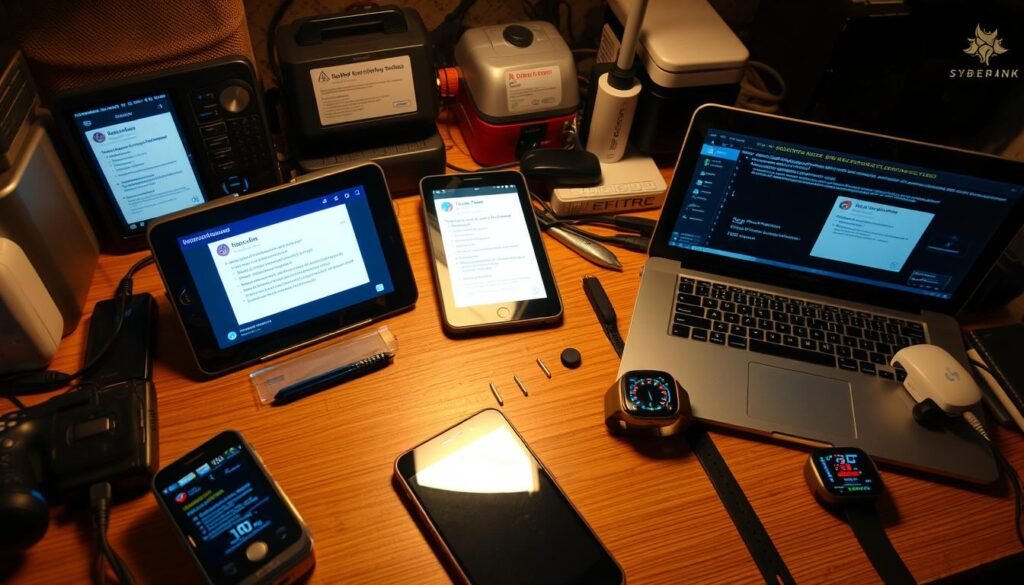
Device red flags
Sudden lag, apps crashing, or a tablet and laptop running hot are red flags. Significant storage loss or unexplained battery drain can mean hidden processes are collecting data.
If contacts report messages you didn’t send, treat that as evidence of an infected device and act quickly.
Browser and account clues
Endless pop-ups, redirects to unfamiliar pages, and a changed homepage or search engine are classic browser signs. Unwanted extensions or toolbars that return after removal show persistence.
Being forced to log in repeatedly or seeing spoofed login screens can indicate credential theft through a fake page.
Security symptoms
Antivirus or other security software that won’t start, strange notifications tied to permissions, or sudden data spikes are strong signals. Correlate odd behavior with specific networks or locations to narrow detection.
- Quick checklist: document screenshots, timestamps, and any unusual network use.
- Act smart: enable Play Protect where available and run account checks as part of initial detection.
Immediate safety steps before you start removing anything
Safety first, then cleanup. If you suspect stalkerware on a device, removing software can alert the person who installed it. Pause and plan a safe approach that protects people before tech.
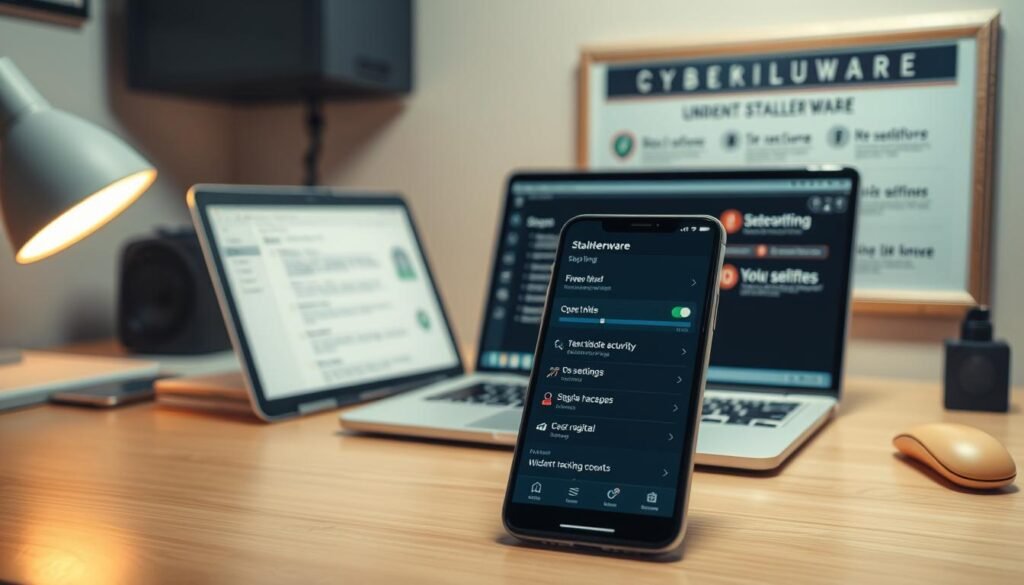
Start by assessing risk. If there is any chance the abuser has physical access or might react, use a separate, known-safe device to research options and contact help. The National Domestic Violence Hotline (1-800-799-7233) offers confidential, 24/7 support.
Preserve evidence and use a secondary safe device
- Document what you see: photograph suspicious apps, notifications, and settings with timestamps.
- Limit risky access: avoid logging into sensitive accounts on the suspected device; change passwords from a safe device.
- Build a safety plan: consult the Coalition Against Stalkerware and decide whether to involve law enforcement or advocates.
- Protect privacy during triage: turn off unnecessary radios (Bluetooth, Wi-Fi) and avoid discussing the issue near the suspected device.
Understand scope: deleting monitoring may stop reporting, but it will not recover data already uploaded to an attacker’s server. Follow a clear sequence of steps and document each action, including any notifications or access attempts, so you keep both people and evidence secure.
Remove phone spyware on Android: a step-by-step playbook
Start with vendor tools, then clean apps, secure accounts, and only consider a full reset if problems persist. This sequence keeps people safe and preserves evidence while we fix the device.

Turn on Google Play Protect and scan for harmful apps
Enable Play Protect: open the Google Play Store, tap your profile icon, go to Play Protect Settings, and turn on “Scan apps with Play Protect.”
If you installed apps from outside google play, enable “Improve harmful app detection.” Then run a Play Protect scan to surface known spyware or malware on the device.
Apply system and app updates
In Settings, go to System > Software updates and check for Android updates.
Also check Google Play system update and update all apps in the Google Play Store. Prioritize messaging and security apps because updates often patch features attackers abuse.
Check apps, uninstall untrusted entries, and review permissions
Open Settings > Apps & notifications > See all apps. Carefully check app names and recent installs.
Uninstall any app you don’t recognize. Review permissions for camera, location, SMS, call logs, and accessibility to limit access while removing spyware and related threats.
Secure accounts and sessions
Run the Google Account Security Checkup at myaccount.google.com/security-checkup to review devices, active sessions, and third-party access.
Sign out unknown sessions, change passwords from a safe device, and enable two-factor authentication to lock down logins and data.
When to consider a factory reset and how to prepare safely
If odd behavior continues after these steps, plan a factory reset. Back up only essential data and avoid restoring suspicious app data.
Confirm you can re-authenticate accounts and consider contacting the device manufacturer if system compromise remains. Some malware can persist, so a reset is a last, controlled step.
Quick checklist
- Play Protect scan → update system → update apps
- Check apps in Settings > See all apps → uninstall unknown entries
- Run Google Account Security Checkup → sign out unknown sessions
- Factory reset only after backups and verification
| Action | Where to find it | Why it matters | Follow-up |
|---|---|---|---|
| Enable Play Protect | Google Play Store → Profile → Play Protect | Scans apps and flags known threats | Run scan immediately |
| System & Play updates | Settings → System → Software updates; Play Store | Patches vulnerabilities used by malware | Reboot after updates |
| App review & uninstall | Settings → Apps & notifications → See all apps | Removes unwanted processes and permissions | Re-check permissions |
| Account Security Checkup | myaccount.google.com/security-checkup | Closes session and credential risks | Change passwords from a safe device |
Advanced Android checks for stalkerware and hidden surveillance
Go deeper than a basic scan. Stalkerware hides in powerful Android features—Accessibility, Notification access, and Device admin—so review each area and act on anything you don’t trust.

Start with targeted checks in Settings before more invasive steps. Accessibility services, notification readers, and admin privileges give apps broad operating control. Stalkerware often disguises itself with generic names such as “System Service” or “Device Health.”
Accessibility services: spotting disguised apps
Open Settings → Accessibility and scan services. If you see unfamiliar entries, especially with vague labels, tap them, revoke access, and identify the associated app. Then check that app in Apps and uninstall any you don’t trust.
Notification access: who can read messages?
Go to Settings → Apps → Special app access → Notification access. Revoke any app that can read notifications unless you deliberately granted that access. This protects messages, alerts, and two-factor prompts.
Device admin apps and sideloading risk
In Settings → Security, review Device admin apps. Disable any admin you didn’t enable; admin rights let software alter system policies. Also search “Install unknown apps” and block installation from outside Google Play to limit sideloaded sources that often carry malware.
- Confirm protections: open the Play Store and ensure Play Protect / Google Play Protect is on, then run a scan.
- Correlate signals: log suspicious apps and services, then check apps one by one until you isolate the culprit.
- Apply restraint: if safety is a concern, follow your safety plan before making visible changes.
For broader guidance on staying secure, see this stalkerware safety guide.
How to remove phone spyware on iPhone and Mac
Apple devices are harder to compromise but not immune. Avoid jailbreaking, keep the operating system up to date, and use vetted security software before a factory reset.
Jailbreaking bypasses App Store protections and raises the risk of malware and hidden monitoring.
If a device is jailbroken, plan to restore a clean operating system using recovery or DFU modes before putting personal data back.

Use reputable tools and keep systems patched
Scan and monitor. On Mac, run trusted security software to scan for malware and check Activity Monitor for unfamiliar processes that consume CPU or network.
Apply iOS and macOS updates promptly. These updates close vulnerabilities in the operating system and reduce the attack surface on your devices.
Factory reset and backup guidance
Back up only essential data to a safe source. If symptoms persist, perform a factory reset. Re-authenticate accounts from a secure device and reinstall apps from the App Store only.
After a restore, install updates first, add apps slowly, and monitor behavior before restoring messages or sensitive data.
| Step | Where | Why | Next action |
|---|---|---|---|
| Avoid jailbreaking | N/A | Keeps App Store protections intact | Restore OS if jailbroken |
| Run Mac security scan | Trusted AV on macOS | Detects malware and unwanted processes | Quarantine or seek expert help |
| Update OS | Settings → General → Software Update | Patches vulnerabilities | Reboot and re-scan |
| Factory reset | Settings → General → Reset / macOS Recovery | Resets system to clean state | Restore minimal data only |
PC cleanup basics: detect and remove spyware on Windows
Start with visibility—see what’s running—then uninstall what doesn’t belong and scan thoroughly. Follow that step, then apply system updates so known holes are closed.

Use Task Manager to spot suspicious processes
Begin with a quick inventory: see which processes and apps are active and flag anything that looks out of place.
Open Task Manager → Processes. Look for unusual names, high CPU or network use, and services that restart after you stop them. Research process names online before ending them so you don’t stop legitimate software.
Uninstall bloatware and unknown programs from Apps & features
Go to Settings → Apps → Apps & features and uninstall untrusted programs. On Windows 11 you can right‑click entries to uninstall quickly.
Check browser extensions and remove add‑ons that redirect traffic or inject ads. These often act like lightweight malware and harm security and privacy.
Scan with trusted anti‑malware and apply system updates
Run a full scan with reputable anti‑malware to detect hidden threats. Schedule regular scans to keep devices clean.
Apply Windows and application updates immediately. Reboot and recheck performance after updates to confirm stability.
- Inspect startup entries and services to stop persistence on reboot.
- Limit admin access—run daily tasks as a standard user to reduce attack surface.
- If the infected device stays unstable, back up critical files and consider a factory reset as a last resort.
For guidance on trusted removal tools for PCs, see this official cleanup guide.
Conclusion
Wrap your cleanup as a careful checklist: verify what’s active, isolate risky accounts, remediate threats, and harden settings.
Keep steps ordered and calm—this preserves evidence, safety, and trust while you restore security.
Make sure you enable protections like Play Protect and update the operating system and apps first. Then identify and remove suspicious apps, review account sessions, and re-check results after each step.
Use Google Play and the Google Play Store on Android to lower risk and avoid installs from outside google. If stalkerware is suspected, prioritize safety and seek help from trusted resources; see this guide to detect and detect and remove spyware on an android phone.
When cleaning fails or the device remains unstable, plan a factory reset and restore only from verified backups.
