Can a single weak password let a stranger watch you at home? This guide answers that question and gives a clear, practical path you can follow right now.
Recent reports show thousands of consumer devices were discoverable online and, in some cases, controllable. Nest camera intrusions are a real-world reason we must act, often tied to weak or reused credentials and disabled two-factor authentication (2FA).
In this short guide you will see step-by-step actions that reduce risk and protect privacy. Expect simple, reproducible steps: update firmware, use unique passwords with a password manager, enable 2FA, run reputable security software, and use a physical cover when you are not on video.
We will also point to trusted further reading — for background on common attack types, visit common cyber attack types. These measures make sure your camera and microphone are locked down today.
Key Takeaways
- Follow quick steps that cut the most common risk paths.
- Update firmware and enable two-factor authentication.
- Use strong, unique passwords saved in a password manager.
- Install security software with camera protection features.
- Use a physical cover and habit-based checks for ongoing safety.
Why does webcam security matter today?
Modern webcams sit in bedrooms and boardrooms, making any exposure highly consequential. Protecting this point of view is central to personal and corporate security.
Webcams are embedded across computers, phones, tablets, and smart TVs. That ubiquity means a single weak link can put an entire home or office at risk. When attackers gain control they can stream or record video, invade privacy, and try to reach other data on the same machine.
Your webcam is a direct window into life and work, not an optional extra. A compromised camera can expose conversations, reveal schedules, and surface sensitive files stored on a computer or linked accounts.
- Attackers often pivot beyond footage — they seek email, cloud storage, and business systems after initial access.
- Stolen streams fuel extortion and social engineering by exposing details that help reset accounts or manipulate contacts.
| Risk | Impact | Simple Fix |
|---|---|---|
| Live stream capture | Privacy breach, harassment | Cover camera, use unique passwords |
| Recorded footage | Extortion, reputation damage | Enable two-factor authentication (2FA) |
| Lateral movement | Data theft, system compromise | Update firmware and run reputable security software |
What is webcam hacking and how does it work?
Webcam hacking, often called camfecting, is unauthorized remote control of a camera. It can let an attacker view or record video and audio without consent.
A camera that seems idle can be controlled remotely when defenses are weak. Camfecting typically starts with malware such as Remote Access Trojans (RATs). These programs arrive via phishing links, infected apps, or bundled installers.
Camfecting explained: remote access without consent
Camfecting means an attacker activates a camera on a device and streams or saves footage. The payload may run silently and request system permissions, or it may abuse existing remote access software if misconfigured.
Common attack paths: malware, RATs, phishing links, and software flaws
Attack chains often follow a simple pattern:
- A deceptive message or link tricks a user into running a file.
- A RAT or other malware installs and gains persistent control.
- The malicious program beacons to a command server and waits for commands.
- Permissions are changed and on-screen warnings may be suppressed.
Real incidents: credential reuse and Nest camera intrusions
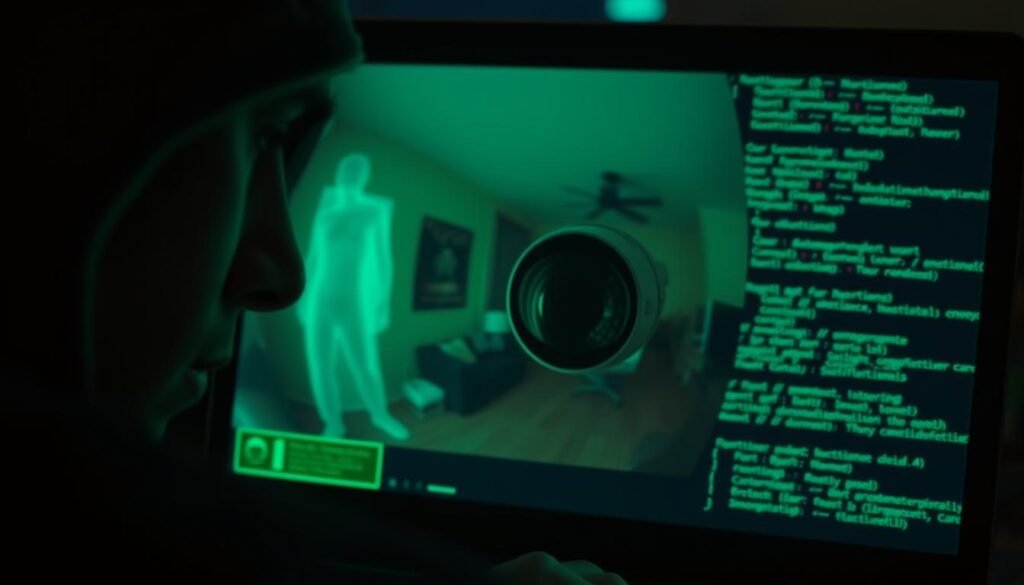
Multiple Nest cases showed attackers speaking through cameras after logging in with reused passwords. Disabled two-factor authentication (2FA) made direct account logins trivial.
| Attack vector | What it does | Common fix |
|---|---|---|
| Phishing link | Delivers RAT or malicious installer | Verify sender, avoid unknown links |
| Malicious app or extension | Grants camera and mic permissions | Install vetted apps and audit permissions |
| Credential reuse | Direct login to cloud camera service | Use unique passwords and enable 2FA |
Layered defenses stop different stages: antimalware blocks payloads, cautious handling of links prevents initial infection, and account protections limit direct logins. Together these reduce the chance an attacker can access webcam feeds or other data on a computer.
What are the signs your webcam may be hacked?
Watch simple, observable cues that often reveal intrusion. Act quickly when multiple signs appear together; a single anomaly may be harmless, but patterns matter.
An unexpected light or strange video glitch can be the first clue that something is wrong. Check for extra signs right away and keep notes of what you see and when.
Indicator light anomalies and video glitches
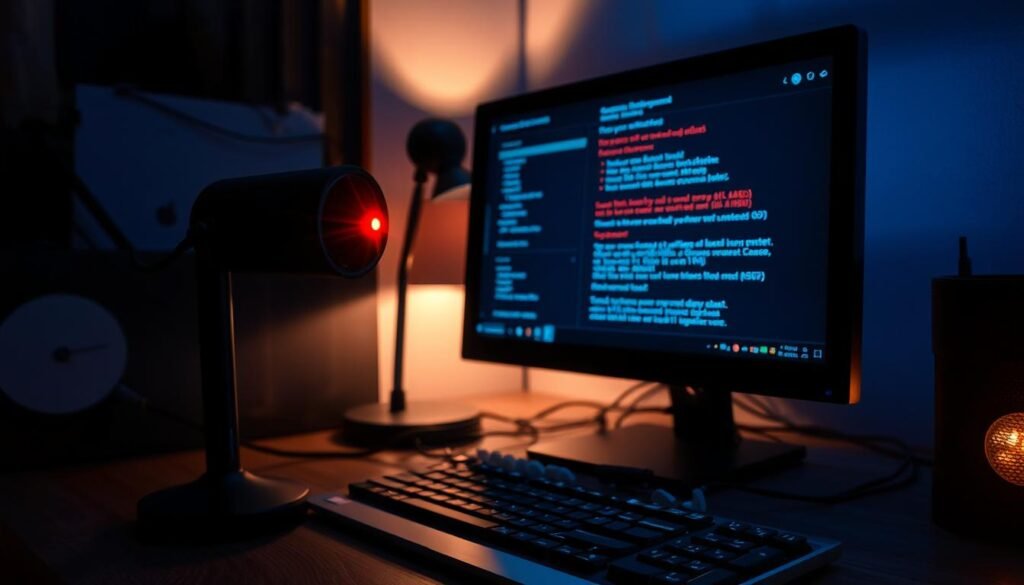
Look for an indicator light that turns on when you are not using the camera. Flickering or brief on/off cycles are also suspicious.
Unexplained stuttering, tearing, or lag during calls can point at hidden recording or resource conflicts.
Internet, battery, apps and altered settings
Sudden spikes in data usage or faster battery drain on a portable device suggest outbound streaming. Scan the device for unfamiliar apps, browser extensions, or new files.
Also check camera permissions and privacy settings for unexpected changes.
Extortion, scans, and next steps
Treat extortion messages with skepticism but preserve evidence if content matches other signs. If a malware scan flags threats, assume remote access may be possible until cleaned.
- Quick checklist: note times, capture screenshots, run an antivirus scan, and isolate the device.
- For more detail, see 5 signs your webcam has been.
| Sign | Likely cause | Immediate action |
|---|---|---|
| Indicator light on unexpectedly | Background camera use or rogue app | Cover camera, close apps, run scan |
| Data or battery spikes | Outbound stream or malware | Disconnect network, check network usage |
| New apps or changed settings | Unauthorized installs or altered permissions | Uninstall unknown apps, reset permissions |
How do you block hackers from accessing your webcam?
Start with immediate, repeatable actions that close common attack routes. These steps give clear outcomes: less exposure, fewer alerts, and a simpler recovery path if something goes wrong.
Lock down software and accounts
Update your operating system and camera firmware first; patches fix known exploits that malware targets. Use strong, unique passwords for camera and email accounts and enable two‑factor authentication (2FA) so a stolen password alone won’t grant access.
Harden defenses
Install reputable antivirus and antimalware programs and enable SafeCam‑style features that alert or block unauthorized camera use. Keep your firewall active and audit app permissions so only approved software can reach the camera.
Protect your connection
Treat unexpected links with suspicion; verify senders before downloading attachments. On public Wi‑Fi, use a trusted VPN to encrypt traffic and reduce risks from on‑path attackers.
Physical and device controls
Use a sliding cover or disconnect external webcams when idle. These simple habits stop remote misuse even if software defenses fail.
Apply these tips in order: updates, passwords, software defenses, then physical controls. Repeat checks after major updates for a resilient setup.
| Action | Why it matters | Expected result |
|---|---|---|
| System and firmware updates | Closes known vulnerabilities | Fewer exploit paths for malware |
| Unique passwords + 2FA | Prevents simple credential reuse attacks | Accounts stay locked even if a password leaks |
| Antivirus + SafeCam features | Detects and blocks malicious camera access | Automatic alerts and blocked attempts |
| VPN on public Wi‑Fi | Encrypts traffic against interception | Reduces on‑path attacker exposure |
For a practical checklist and more vendor‑neutral guidance, see these webcam security tips.
Which device and network settings boost webcam security?
Small changes in your device and system settings can close common webcam attack paths. These adjustments take minutes and cut the most likely remote access vectors.
Start at the OS privacy dashboard and work outward: browser, firewall, security software, and router.
- Review camera and microphone permissions in Windows, macOS, iOS, or Android and disable apps you don’t use.
- Require prompts for new requests so the system asks before any app can access camera or mic.
- Set browser media permissions to “Ask before accessing” and remove unknown sites from allowed lists.
- Verify firewall rules on your laptop and router: deny unsolicited inbound connections and restrict outbound traffic for unfamiliar software.
- Enable security-suite alerts that notify when a program requests camera access; use that feature to catch suspicious activity early.
- Confirm the indicator LED works and stays visible; investigate if the light and expected use conflict.
- Limit admin accounts — run daily work on a standard account and keep admin rights for updates only.
- Audit startup apps and background services to remove stealthy processes that could enable remote access.
For practical, vendor-specific steps on preventing a webcam breach, see this guide on preventing a webcam hack. If you need network-level controls, the article on stopping unauthorized devices is a helpful reference.
What should you do if you suspect your webcam is hacked?
Act fast and stay calm. When a device shows signs of compromise, immediate containment stops live streams and preserves evidence for cleanup or reporting. Follow a simple playbook: isolate, scan, recover.
Immediate containment: cover the camera, disconnect from the internet, and power cycle
Cover the camera and mute or unplug microphones right away. Then disconnect the computer from Wi‑Fi or Ethernet to cut any live access webcam sessions.
Power cycle the device to kill active connections. If safe, boot into safe mode so fewer services run while you troubleshoot.
Cleanup and recovery: full malware scans, removing suspicious apps, resetting settings
Run a full scan with reputable antivirus and antimalware tools. Quarantine or remove flagged items and reboot when prompted.
Uninstall unfamiliar apps or browser extensions, review recent installs and restore camera permissions and OS privacy settings.
Next steps: change passwords, enable 2FA, and consider reporting and professional support
Change affected account passwords and add two‑factor authentication (2FA). Save suspicious extortion emails and logs; do not pay demands.
If problems persist, seek professional help. A trusted technician can inspect system files, router logs, and device features to ensure your security and privacy.
What’s the bottom line on blocking webcam hackers?
Keep a clear, layered routine: update systems, lock accounts with strong unique passwords and two‑factor authentication, run reputable security software, and use a physical cover when the camera is idle.
Combine these technical steps with simple habits — verify links before opening them, use a VPN on public Wi‑Fi, and review which apps can access the camera each month.
Quick action checklist:
• Update firmware and operating system.
• Use unique passwords and enable 2FA; review credentials in your manager monthly.
• Run trusted antivirus and keep your firewall active.
• Use a camera cover, check the indicator light, and isolate the device if behavior looks odd.
If you see signs of intrusion, contain first, preserve evidence, and seek trusted support rather than engaging anyone directly. Make this routine part of regular system hygiene and your privacy will stay far safer.
