Could a single crash hide an active threat inside your Windows system? That question matters when a stop code flashes and your PC halts to protect itself.
One-off BSODs often point to faulty drivers, BIOS quirks, or hardware faults like RAM and storage. Recurring crashes hint at deeper problems—corrupted system files, conflicting updates, or malicious code that tampers with drivers and critical processes.
Start calm: restart clean, disconnect nonessential devices, and note any stop code. Use Event Viewer and tools such as BlueScreenView to pull minidump details and identify which driver or module failed. For guided fixes, follow vendor advice on handling common failures and recovery steps found on official support pages like this troubleshooting guide.
We’ll walk through Safe Mode checks, driver rollback, system repairs with sfc /scannow, DISM, and CHKDSK, plus quick scans with trusted anti-malware tools. If you need focused help for specific stop codes, see practical fixes such as those listed in this kernel data inpage walkthrough.
Key Takeaways
- Note stop codes and collect minidumps right after a crash.
- One-off BSODs can be harmless; repeated crashes need full troubleshooting.
- Use Event Viewer, Reliability Monitor, and BlueScreenView to find faulty drivers.
- Repair system files with SFC, DISM, and CHKDSK before swapping hardware.
- Scan with reputable anti‑malware tools early to rule out tampering.
- Disable automatic driver installs and prefer vendor drivers for stability.
BSOD basics: what a blue screen means and why Windows stops
A sudden system halt and a diagnostic code mean Windows found a fault it couldn’t ignore. This stop is deliberate: the operating system freezes to protect files, hardware, and running processes.

Blue screen of death (BSOD) is a Windows stop condition that appears when the kernel-level code hits an unrecoverable fault. The display lists a stop code and often a referenced file name. That code is your first clue toward a root cause.
During a BSOD, Windows logs a crash event and writes a minidump. These files store the exception code, faulting module, and parameters you need for diagnosis.
Common triggers include faulty drivers, BIOS or firmware mismatches, disk or file corruption, failing hardware, overheating, and sometimes malware. Frequency matters: one-off incidents may be transient; repeated crashes signal a persistent issue needing structured troubleshooting.
Start your checks with Event Viewer and Reliability Monitor to find when crashes started and which updates or device failures preceded stops. Use Device Manager to inspect or roll back drivers, then run system repair commands if needed.
Could a blue screen error be caused by malware?
When hostile software rewrites kernel hooks or corrupts critical files, Windows may halt to prevent further damage. That halt creates forensic artifacts you can check.
How hostile code corrupts system files and drivers
Yes—malicious programs can damage system files and tamper with kernel‑mode drivers. Rootkits and kernel implants often hook or replace driver code. When those hooks fail or memory becomes inconsistent, the kernel throws an exception and forces a stop.
Run a reputable malware scan before deeper diagnostics
Scan first, diagnose second. Run a full scan with a trusted scanner to remove active threats. Analyzing dumps on an infected system wastes time and risks missed indicators.
“Check Event Viewer and the minidump folder before trusting any single driver name; malware sometimes masquerades as legitimate modules.”
Beware fake pop-ups versus real stop events
Fake “blue screen” web pop-ups mimic a stop page but do not halt Windows or create minidumps. A genuine stop event writes files to C:\Windows\Minidump and records a bugcheck in Event Viewer.
- Look for recent minidumps and bugcheck timestamps.
- Note unexpected driver installs, disabled security tools, or sudden device failures.
- Disconnect from untrusted networks and contain the machine until scans finish.
| Symptom | Likely sign | Action |
|---|---|---|
| Repeated stops | Minidumps exist | Scan, then analyze dumps with BlueScreenView |
| Browser pop-up | No minidump | Close tab, end browser task, run anti‑adware scan |
| Disabled security | Unexpected service changes | Isolate device, full offline scan, restore tools |
Read the clues: stop codes, system files, and crash logs
Capture the on‑screen stop code and any module name; that single line often cuts troubleshooting time in half. These details translate to likely causes and point you toward focused fixes.
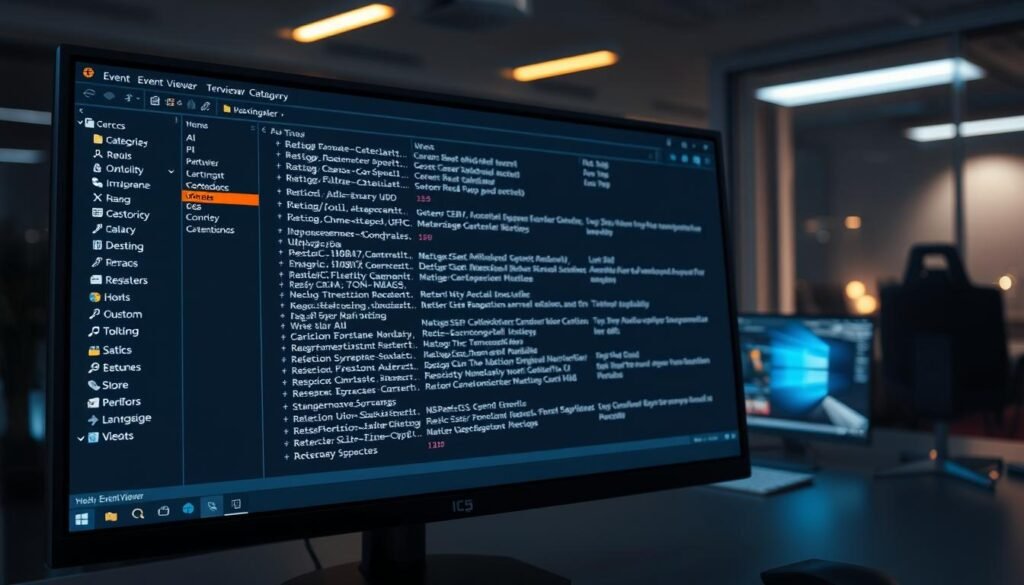
Use Event Viewer to check the System log around the crash time. Open Windows Logs > System and look for critical bugcheck entries or device warnings that match the stop code.
Identify the stop code
Write down full codes such as KMODE_EXCEPTION_NOT_HANDLED or IRQL_NOT_LESS_OR_EQUAL, plus any referenced file or driver. Those names narrow the hunt to driver versions, memory faults, or failing hardware.
Correlate timing with Reliability Monitor
Reliability Monitor shows recent events and application failures. Use its timeline to link updates, driver installs, or app crashes to repeated BSODs.
Analyze minidumps with tools
Load C:\Windows\Minidump files into NirSoft BlueScreenView for quick module highlights. Use Microsoft WinDbg when you need full stack traces and parameter details.
| Stop code | Likely cause | Quick action |
|---|---|---|
| VIDEO_TDR_TIMEOUT_DETECTED | GPU driver, overheating | Update or roll back driver; test thermals |
| NTFS_FILE_SYSTEM | Disk corruption or NTFS fault | Run chkdsk; check SMART and storage firmware |
| DPC_WATCHDOG_VIOLATION | Driver latency or storage firmware | Update chipset/storage drivers; check firmware |
Save evidence. Export Event Viewer entries, keep minidump files, and note driver versions. That information helps confirm the fix rather than masking the underlying cause.
Safe Mode first: isolate software conflicts and roll back changes
Booting into Safe Mode limits active components so you can test whether third‑party drivers or utilities trigger crashes. Work methodically: change one driver or setting at a time and reboot to check results.
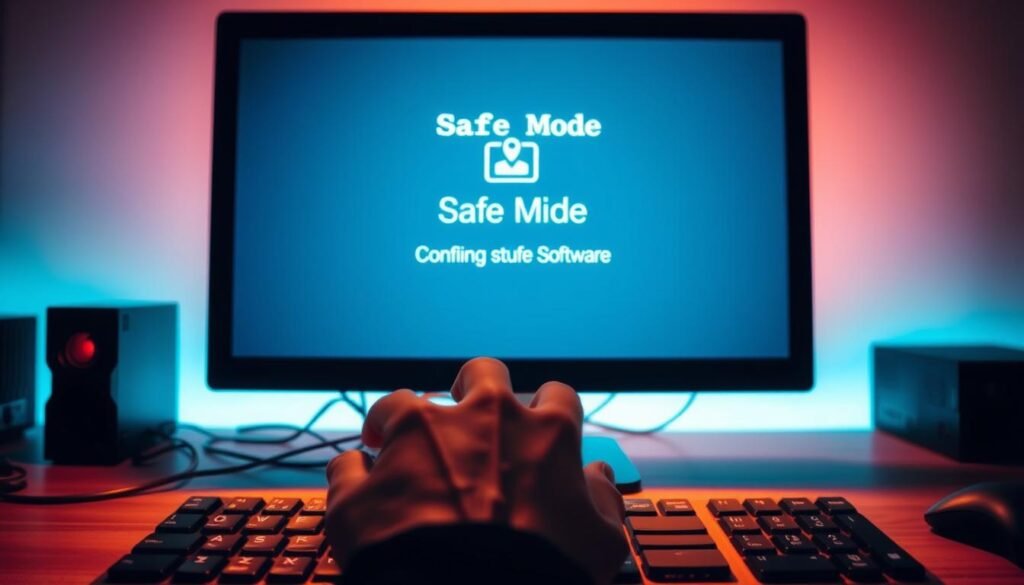
How to start in Safe Mode
From Settings > System > Recovery use Advanced startup to restart into Startup Settings. Then pick Safe Mode or Safe Mode with Networking.
Use Device Manager to fix drivers
Open Device Manager and inspect display, network, and storage entries. Choose Properties > Driver to Roll Back Driver, Update Driver, or Disable a device until stability returns.
Stop automatic driver reinstalls
Turn off automatic driver installation and hide Windows Update driver suggestions. That prevents older or incompatible updates from returning and undoing your fixes.
Other practical steps
If crashes began after a recent update, try System Restore to go back to a known good state.
“Test in stages: reboot normally after each change to confirm the issue is fixed and record driver versions and outcomes.”
Repair Windows: sfc /scannow, DISM, and chkdsk to fix corrupted system files
Repairing core Windows components with built-in tools is often the fastest way to stop recurring crashes. These commands target protected system files, the Windows image, and underlying disk faults so drivers and hardware tests run on a stable foundation.
Run sfc /scannow and review the CBS log
Open an elevated Command Prompt and run sfc /scannow. This command scans protected system files and replaces bad copies from the component store.
If SFC reports unrepaired entries, inspect C:\Windows\Logs\CBS\CBS.log for file names and errors. That log tells you which files need deeper fixes.
Use DISM when SFC can’t repair
If SFC fails, run DISM /Online /Cleanup-Image /RestoreHealth. DISM repairs the Windows image so SFC can later repair individual system files successfully.
Reboot after DISM finishes and run SFC again to confirm repairs completed.
Run chkdsk to detect disk errors and bad sectors
Schedule chkdsk /f /r on the affected drive from Command Prompt. This command finds file-system inconsistencies and relocates data from bad sectors.
Windows will ask to schedule the scan at next boot. Restart to let chkdsk run; review results in the System event log after boot.
Use System Restore or Startup Repair if crashes began after updates
If instability started after recent updates or installs, use System Restore to roll back to a known good point.
Run Startup Repair from advanced recovery options when Windows fails to boot. That can restore boot components without wiping user files.
“Fix the foundation first: repair system files, then test drivers and hardware one step at a time.”
| Symptom | Likely tool | Next action |
|---|---|---|
| Protected files corrupted | sfc /scannow | Check CBS.log; re-run after DISM |
| Windows image damaged | DISM /RestoreHealth | Reboot; run SFC to verify file repairs |
| NTFS or bad sectors | chkdsk /f /r | Schedule at boot; review event log |
| Crashes after update | System Restore / Startup Repair | Rollback update; reinstall vendor drivers |
After repairs, reinstall only vendor-signed drivers and test stability before adding optional software. Document commands run, logs reviewed, and results.
For step-by-step guidance on repairing corrupted system files, see repair corrupted Windows system files.
Hardware checks: RAM, storage, overheating, BIOS settings
When software fixes stop recurring failures, inspect physical components next. Run targeted tests for memory, thermal stress, and power delivery before replacing parts.
Start with memory. Run Windows Memory Diagnostic (mdsched.exe) and schedule an extended pass if any errors show. Persistent faults often match stop codes such as PAGE_FAULT_IN_NONPAGED_AREA or DATA_BUS_ERROR.
Check thermals and power. Use monitoring tools to watch CPU and GPU temps under load. A failing PSU can cause random crashes that look like driver or software faults.
- Inspect and reseat RAM sticks, GPU, SATA/NVMe, and power cables.
- Clean cooling—remove dust, re-seat heatsinks, verify fan operation.
- Update BIOS with stable vendor firmware; disable caching or shadowing only if vendor guidance recommends it.
- Test in isolation—remove recent devices or run single RAM modules to find the faulty part.
Document temps, voltages, and test results. Small environmental changes—room temperature, dust, airflow—often push marginal hardware into critical failures that create repeated BSODs.
Stabilize and prevent future blue screen errors
Treat stability as routine: schedule checks, keep trusted drivers current, and remove risky utilities. Small, steady maintenance prevents most sudden system failures and makes troubleshooting far easier.
Keep Windows patched and prefer vendor-signed drivers from official sources. Install updates on a controlled schedule so you can test results and roll back if issues appear. Use OEM or silicon-vendor packages rather than third-party driver sites when updating drivers.
Remove problematic or unwanted software and recent updates
Uninstall unstable utilities, trial software, and overclocking tools that add kernel hooks or services. If a stop started after an update, roll back the update or use System Restore.
Create backups and review logs regularly for early warning signs
Keep versioned backups of critical files to external disks or cloud storage. Build a simple rollback plan that stores last-known-good installers for drivers and firmware.
Routine checks and validation
- Monitor health: check Reliability Monitor weekly and scan Event Viewer for repeating warnings.
- Validate integrity: run sfc /scannow after major changes and use DISM when needed to restore the Windows image.
- Standardize drivers: align GPU, chipset, storage, and network drivers to known-stable versions across devices.
- Layer security: use reputable endpoint security and vetted tools to limit kernel tampering and block malicious drivers.
“Document update baselines and keep installers for known-good drivers to speed recovery when issues recur.”
Conclusion
Treat each stop as forensic data: the codes, logs, and minidumps point the way to a real fix. Work in order—scan for threats, boot Safe Mode, test drivers, repair files, then check BIOS and hardware.
Keep calm and follow evidence. Use the stop codes and logs to move from guesswork to confirmed fixes. Validate each change with a reboot and stability test so you know which step resolved the issue.
Standardize updates, keep backups, and watch Reliability Monitor for early signs. If you want a quick reference for common faults and fixes, see this top causes of the blue screen of.
