Did you know nearly half of Americans can’t tell if strangers are piggybacking on their Wi-Fi? 😱 That’s like leaving your front door wide open with a “Free Buffet” sign. Hackers, neighbors, or even that sketchy van down the street could be draining your bandwidth or snooping on your data.
But don’t panic! We’re breaking down exactly how to spot freeloaders and lock things down tighter than a bank vault. No tech wizardry needed—just simple steps anyone can follow. (Yes, even if you still call your router “the internet box.”)
From decoding MAC addresses to ninja-level password tricks, you’ll learn to be the bouncer your network deserves. Let’s turn your Wi-Fi into a VIP lounge—no plus-ones allowed.
Key Takeaways
- 47% of people can’t identify unfamiliar devices on their connections
- Unauthorized users slow speeds and risk your privacy
- MAC filtering adds an extra layer of security
- Regular router updates patch vulnerabilities
- Strong passwords are just the first step
Introduction to Network Security
Picture this: Your Wi-Fi is like a VIP party, but 68% of homes accidentally left the invite list public. According to Trend Micro, most home networks have at least one vulnerable device—basically rolling out the red carpet for hackers. 🚨
Unprotected connections get hacked every 39 seconds. That’s faster than you can microwave popcorn. And it’s not just about slower Netflix speeds. Open networks are a goldmine for:
- Identity thieves: They’ll snatch your data faster than a seagull steals fries.
- Crypto-mining bots: These silent parasites turn your smart fridge into a Bitcoin factory.
- IoT invaders: Yes, even your “smart” toothbrush can be hijacked.
| Threat | Risk Level | Common Targets |
|---|---|---|
| Data Snooping | 🔥🔥🔥🔥 | Banking apps, emails |
| Bandwidth Theft | 🔥🔥 | Streaming devices |
| Botnet Enrollment | 🔥🔥🔥 | Smart home gadgets |
Good news? Locking things down is easier than assembling IKEA furniture. A few tweaks—like MAC filtering and firmware updates—can turn your network security from “meh” to “Fort Knox.” Ready to play digital bouncer? Let’s dive in. 🔒
Understanding Unauthorized Network Access
Your router might be hosting a secret party without your invite. 🎉 Slow speeds or gadgets acting possessed? That’s your network screaming for help.
- Mystery devices: Names like “Android_4572B” or “AmazonBasics_23” (spoiler: that’s not your Alexa).
- Lag spikes: If Netflix buffers more than a ’90s dial-up modem, check your connected devices.
- Smart home mutiny: Lights flickering? Thermostat set to “Arctic mode”? Could be unknown devices pulling strings.
How do they sneak in? Hackers love:
- Default passwords (like “admin123” – seriously, change that).
- WPS exploits (that handy Wi-Fi button? Turn. It. Off.).
- Shady “free Wi-Fi” apps (nothing’s free, Karen).
62% of unauthorized access comes from nearby residents. Looking at you, Dave.
Pro tip: If your smart fridge suddenly demands Bitcoin, you’ve got uninvited guests. Time to play bouncer. 🔒
How to Check for Connected Devices
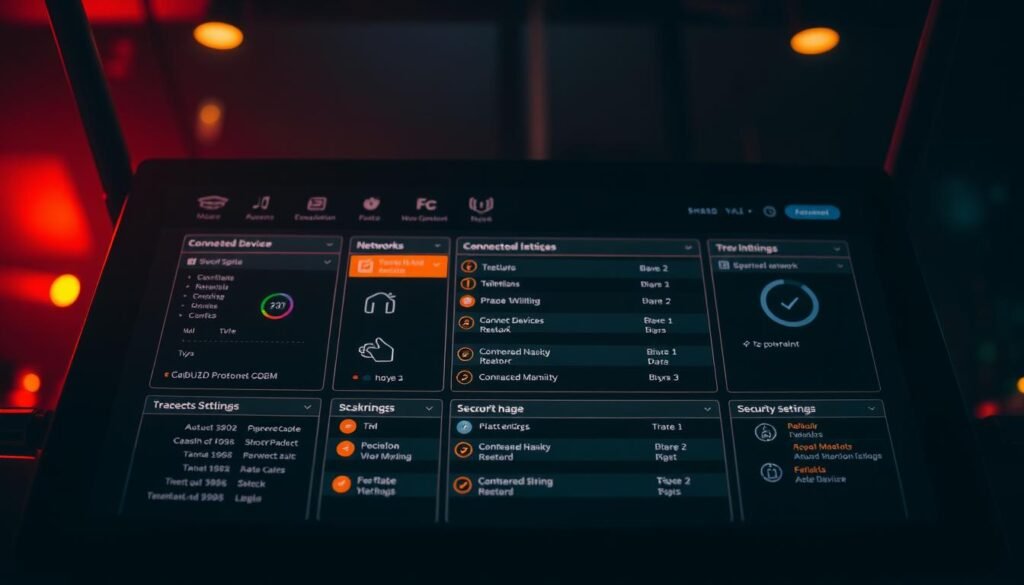
Your router admin panel is like backstage at a concert – it shows who’s really using your bandwidth. Time to play digital detective and spot any sneaky connections.
Accessing Your Router’s Admin Panel
Type 192.168.1.1 or 192.168.0.1 into your browser (yes, like it’s 1999). Can’t remember the login? Check your router’s underside – that sticker holds the keys to the kingdom. 🔑
Pro tip: If you changed the password and forgot it, hold the reset button for 10 seconds. Just know you’ll need to reconfigure everything – like rebooting your entire digital life.
Locating the DHCP Client List
The dhcp client list is your network’s VIP roster. Find it under:
- Connected Devices (ASUS)
- Attached Devices (Netgear)
- DHCP Clients Table (TP-Link)
See “android_4a8b92” when you only own iPhones? That’s your cue to investigate. 🕵️♂️
Identifying Unknown Devices
MAC addresses devices tell you who’s who:
| First 6 Digits | Manufacturer | Common Devices |
|---|---|---|
| 00:1A:3F | Samsung | Phones, Smart TVs |
| 84:38:35 | Amazon | Echo, Fire Stick |
| DC:53:60 | Roku | Streaming Devices |
Windows users: Run ipconfig /all in Command Prompt to see your device’s MAC. Android folks: Check under Wi-Fi settings > Network details. Now you can spot imposters faster than a bouncer checks IDs. 🚫
How to Block Unauthorized Devices on Your Network
Your Wi-Fi isn’t a public library—yet strangers might be treating it like one. 🚫 Trend Micro’s golden rule? Pair MAC address filtering with WPA3 encryption. It’s like adding a moat to your castle.

- Router judo move: Blacklist shady MAC addresses in your admin panel. No mercy for “Unknown_Device_42.”
- Nuclear reset: Change your SSID and password. Pro tip: Use a phrase like “NoFreeWiFiHere” to deter freeloaders.
Schedule Security Sundays to audit connected devices. Spot a Roku when you own a Fire Stick? Time to block device access. 🔍
Fing (App Store’s top network scanner) lets you play detective from your couch. 🕵️♂️
Bonus: Enable WPA3 if your router supports it. It’s like upgrading from a padlock to a retinal scanner. 🔒
Changing Your Wi-Fi Password
Time to change that weak Wi-Fi password—hackers love easy targets. 🎯 If yours is shorter than a TikTok attention span or uses your dog’s name, you’re rolling out the red carpet for trouble.
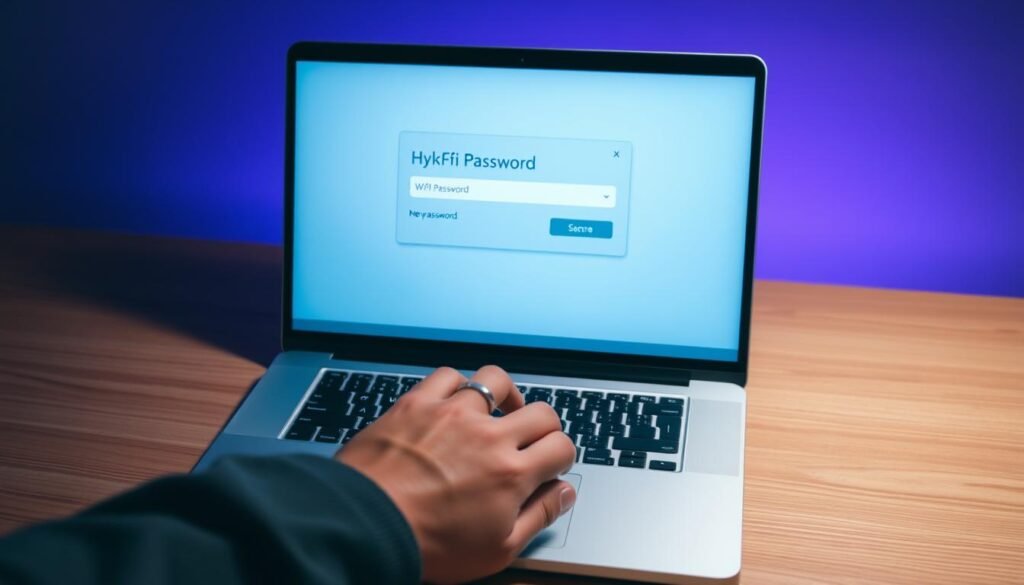
Password 101: Aim for 12+ characters with a mix of uppercase, symbols (!@#), and numbers. “Fluffy123” won’t cut it—try “Purple$42!Elephant” instead. Pro tip: Use a password manager to store it like nuclear codes. 🔐
- WPA3 upgrade: If your router supports it, enable WPA3. It’s like swapping a screen door for a vault—way tougher to crack.
- Reality check: 73% of people reuse passwords across devices. Don’t be that guy—your Netflix account isn’t worth risking.
Fun fact: “P@ssw0rd” takes hackers 0.3 seconds to crack. Yikes!
Change your password every 6 months, or whenever you suspect snoopers. Your security is worth the 2-minute effort. 🔒
Enabling MAC Address Filtering
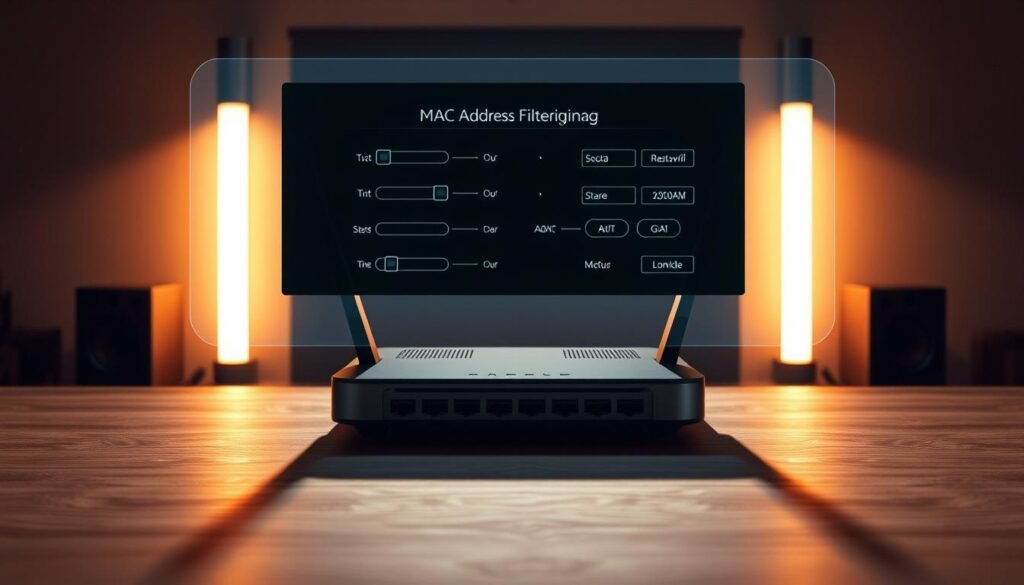
Ever wished your Wi-Fi had a bouncer? Meet MAC address filtering. It’s like a VIP list for your network—only approved gadgets get past the velvet rope. 🚧
What Is MAC Address Filtering?
Every device has a unique MAC (Media Access Control) address—think of it as a digital fingerprint. Filtering lets you whitelist only trusted devices. No MAC? No entry. Simple as that.
- Robot bouncer mode: Your router checks IDs (MACs) at the door.
- 92% effectiveness: Stops casual intruders cold.
- Gotcha: Hackers can spoof MACs, but it’s rare for randos.
How to Set Up MAC Filtering on Your Router
Ready to play gatekeeper? Here’s the drill:
- Gather MAC addresses: Check phones, laptops, and smart TVs under settings.
- Access your router: Log in via 192.168.1.1 (or your router’s IP).
- Enable whitelist mode: Look for “MAC Filtering” or access control.
- Add your devices: Paste those MACs like a VIP guest list.
Pro tip: Name devices in your router settings (e.g., “Jenny’s iPhone”). Future-you will send thank-you notes. 📝
Boom! Your Wi-Fi just went from “open bar” to “strict guest list.” 🔒
Updating Your Router’s Firmware
58% of routers are running on outdated firmware—yours might be one. 🚨 Hackers love exploiting these digital wrinkles, turning your network into their playground.
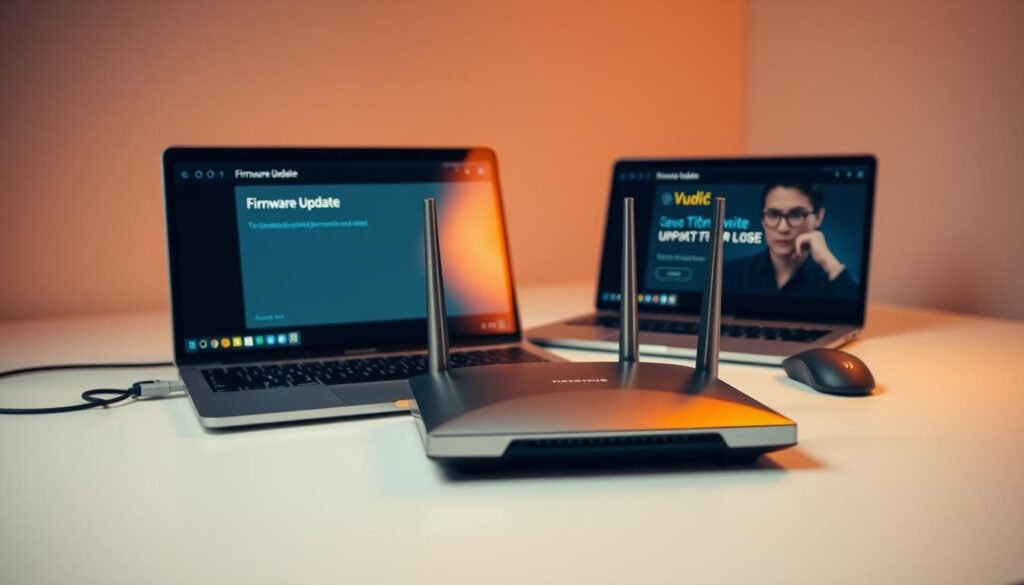
Think of firmware updates as vaccine shots for your router’s immune system. They patch security holes you didn’t know existed. Here’s the 411:
- Where to update: Router admin panel → Advanced Settings → Firmware Update (location varies by brand)
- Pro hack: Enable auto-updates if available. Set it and forget it—like a Roomba for your router firmware.
Remember the 2016 botnet zombie apocalypse? Outdated routers got hijacked to crash Twitter. 💀 Don’t be tomorrow’s horror story.
Fun fact: New firmware often boosts Wi-Fi speed too—like a bonus free upgrade for your patience.
Check for updates quarterly. Your router will thank you with faster speeds and fewer uninvited guests. 🔄
Disabling WPS for Enhanced Security
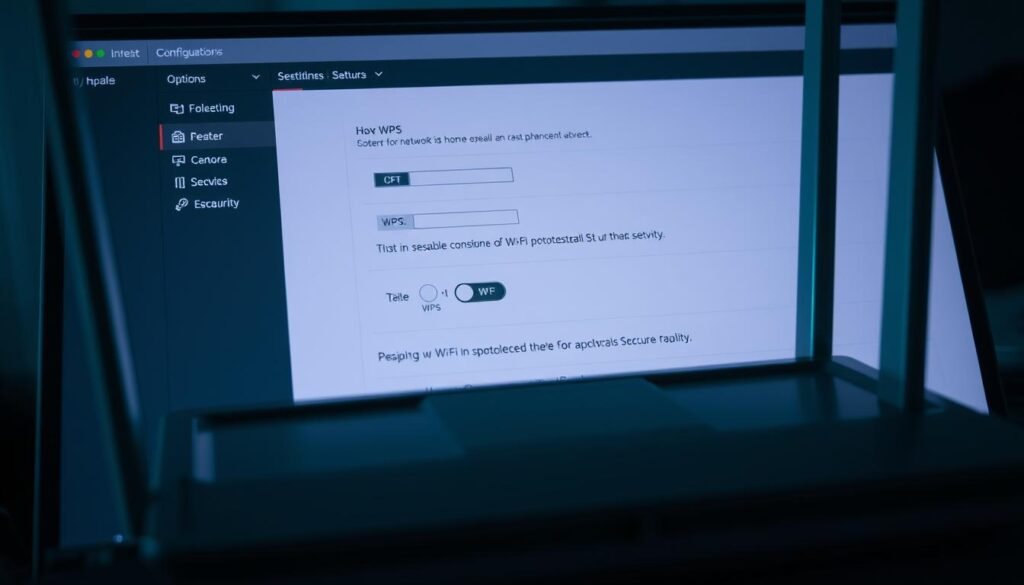
That handy WPS button on your router? It’s basically a hacker’s golden ticket. 🎟️ Wi-Fi Protected Setup (WPS) lets devices connect with a PIN or button press—but it’s about as secure as a screen door. Hackers can brute-force their way in faster than you can say “compromised.”
- 4-hour hack window: Determined attackers can crack WPS PINs before your next Zoom meeting.
- 83% of users don’t even know what WPS does (it’s not Worthwhile Protection, Susan).
- Modern routers are ditching WPS—check if yours still has this relic.
| Feature | Convenience | Security Risk |
|---|---|---|
| WPS Button | High (one-tap connect) | 🔥🔥🔥🔥 |
| WPS PIN | Medium | 🔥🔥🔥🔥🔥 |
| WPA3 Password | Low | 🔥 |
“WPS is like giving burglars a lockpick kit with instructions.” — Network security expert
How to disable it: Dive into your router settings → Wireless → WPS → Off. Location varies, but look for anything labeled “easy connect” or “quick setup.” Your Wi-Fi security will thank you. 🔒
Hiding Your Network SSID
Want to make your Wi-Fi invisible to random snoopers? 🕵️♂️ Turning off SSID broadcasting is like putting your network in stealth mode—63% fewer drive-by hacking attempts according to cybersecurity studies.
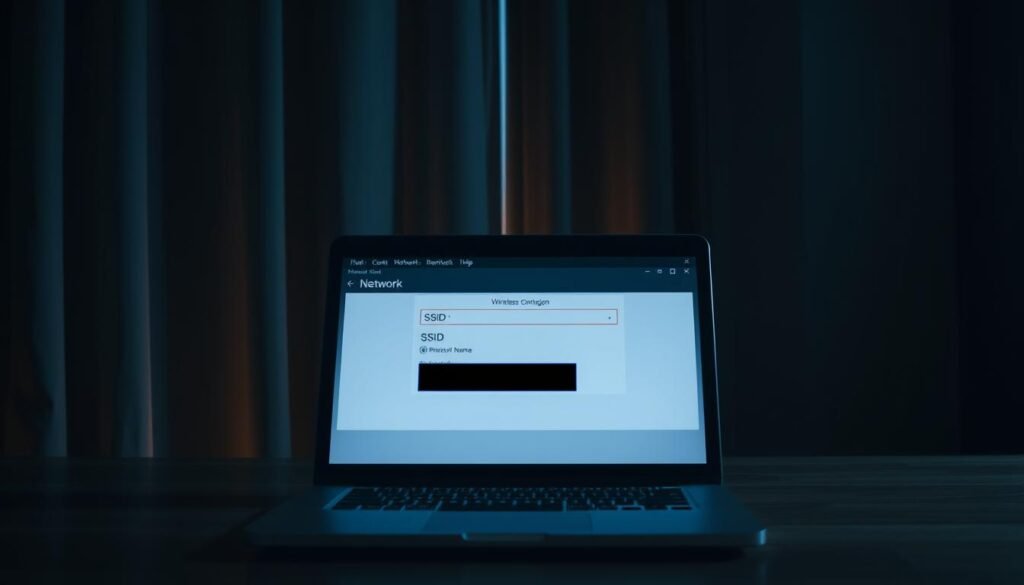
Here’s the ninja move: Head to your router’s wireless settings and disable SSID broadcast. No more public shoutouts about your Wi-Fi network existence. New devices will need manual entry—small price for privacy.
| Visibility Mode | Convenience | Security |
|---|---|---|
| Public SSID | High (auto-display) | 🔥 |
| Hidden SSID | Medium (manual entry) | 🔥🔥🔥 |
Pro tip: Name your hidden network something like “Area 51 Guest Wi-Fi” or “FBI Van #42”. Freeloaders will think twice before trying their luck. 😎
“Hidden networks force hackers to work harder—they’ll usually move to easier targets.” — NetworkSecurityWeekly
Gotcha: Tech-savvy intruders can still find hidden networks with sniffing tools. Pair this with WPA3 and MAC filtering for maximum protection. Your router’s now a digital ninja. 🕶️
Limiting the Number of Connected Devices
Your router’s guest list might be longer than a Coachella lineup. 🎪 The average U.S. home juggles 25 connected devices (Deloitte says so), but how many are actually yours?
Time to set some digital boundaries. Your router’s DHCP settings let you cap device connections like a strict bouncer:
- Find the sweet spot: Allow 2-3 extra slots for guests beyond your usual gadgets. Nobody wants to explain why Aunt Karen can’t Instagram her latte.
- Smart home math: Got 15 IoT devices? Set limits at 18-20. Your robot vacuum shouldn’t boot your work laptop.
- Traffic control: After limiting devices, use QoS settings to prioritize Zoom over your neighbor’s 4K cat videos.
“Device quotas are like portion control for your bandwidth—everyone gets their fair share.” — NetworkAdmin Weekly
Here’s the drill: Router admin → DHCP Settings → Max Device Limit. Boom—your Wi-Fi just went from “all-you-can-eat” to “reservations only.” 🚧
Using a Firewall for Extra Protection
Firewalls are the unsung heroes of your digital fortress—89% of automated attacks bounce right off them. 🛡️ Think of it as a bouncer with a blacklist longer than Santa’s naughty list. No shady scripts or zombie bots allowed.
Your router’s built-in firewall works silently in the background. It scans traffic like a TSA agent, but for data packets. Suspicious activity? Denied at the gate.
- Enable it now: Router admin → Security tab → Firewall → On (location varies by brand).
- Double up: Pair with software firewalls on devices for 360° protection.
- Fun fact: The term comes from physical fire barriers in buildings. Hackers = digital arsonists.
| Firewall Type | Best For | Effectiveness |
|---|---|---|
| Router Firewall | Whole-network defense | 🔥🔥🔥🔥 |
| Software Firewall | Individual devices | 🔥🔥🔥 |
| Cloud Firewall | Remote work setups | 🔥🔥🔥🔥 |
“A firewall without updates is like a castle with broken drawbridges.” — Cybersecurity proverb
Warning: Don’t confuse firewalls with antivirus! One guards your network’s borders; the other hunts malware inside. Use both—like a moat and castle guards. 🔒
Monitoring Your Network Regularly
Network monitoring is like having x-ray vision for your internet traffic. 🦸♂️ That “Unknown_Device_12” lurking in your router? Time to expose it. Your smart fridge shouldn’t be mining Bitcoin—unless you’re into that.
| Tool | Best For | Cool Feature |
|---|---|---|
| Fing (Mobile) | Device tracking | “New device!” push alerts |
| GlassWire (PC) | Data flow visuals | Firewall + traffic graphs |
| Trend Micro Home | All-in-one protection | Vulnerability scans |
Set weekly alerts like a pro:
- Enable notifications in your router admin panel
- Whitelist known devices (yes, even that dusty smart bulb)
- Check device logs every Sunday with coffee ☕
40% of 2024 cyberattacks involved unauthorized access—don’t be a statistic.
Pro move: Name sketchy connections “INTRUDER ALERT” in your router. Hackers hate attention. 😎
Conclusion
You’ve just leveled up your digital defense game—high five! ✋ Consider this your official certification in Badass Network Defense 101. Those sketchy connection attempts? They’ll bounce off your upgraded security like raindrops on a titanium umbrella.
Remember, keeping your setup remains secure requires regular checkups. Mark your calendar for password changes every 6 months—treat it like dental hygiene for your router. Pro checklist: MAC filtering ✔️ Firmware updates ✔️ WPS disabled ✔️
Now spread the wisdom! Help your less-techy friends avoid becoming hacker bait. Share these tips and transform their vulnerable networks into digital fortresses too. Your network security journey? Mission accomplished. 🔒
