Can a simple string of letters and symbols still stop a modern attacker?
This guide treats your credential as the first line defense for every account that holds your information.
A robust password shields your Google Account and private data from mass attacks. Google warns against using birthdays, phone numbers, nicknames, or easy examples like “password123.” Microsoft advises 12–14+ characters with mixed letters, numbers, and symbols, and to avoid dictionary words and your own name.
We blend research and practical steps so you can build a strong password you remember and use across many accounts without reuse. Expect clear, repeatable advice on length, character mixes, and recovery settings.
For extra detail and examples, see this short guide on how to create strong passwords.
Key Takeaways
- Length matters: favor 14–16+ characters over clever short strings.
- Mix characters: use uppercase, lowercase, numbers, and symbols.
- Unique per account: never reuse credentials across accounts.
- Use a manager: password managers generate and store unique entries securely.
- Set recovery now: add an email and phone so you can regain access.
Why strong passwords are your first line of defense in 2025
Most breaches begin with a guessed or stolen login, not a hidden software flaw. Treat this as a practical warning: credential attacks move at machine speed, and small mistakes cascade fast.
Understanding current threats: credential stuffing and brute force
Credential stuffing is attackers replaying leaked logins across many sites. Microsoft notes this method uses real username‑password pairs against hundreds of services.
Brute force attacks try large sets of combinations. Eight-character secrets can fall in minutes with modern rigs, while longer, unique passphrases push cracking time into years.
“One reused login on a shopping site can unlock email, banking, and cloud files—attackers rely on reuse more than exotic exploits.”
Every account matters: email, banking, and social media exposure
Treat every account as a gateway. Email handles resets, social media can damage reputation, and payment accounts allow direct theft of funds.
- First line defense: Unique entries stop a single leak from cascading.
- Use alerts and monitors from major vendors to spot exposure early.
- A simple example: a leaked forum login reused on email lets attackers pivot across services.
For a practical checklist and recovery advice, see this short guide on password security in 2025.
The math behind password strength: length, uniqueness, and complexity
Small changes in length shift an attacker’s task from minutes to years. Mixing letters, numbers, and symbols multiplies the options each character can represent.
Small strings are cheap for attackers. Industry data shows eight-character entries can be brute-forced in minutes with modern tools. Vendors now recommend a minimum of 12 characters and favor 14–16+ for real resilience.

Length vs. cracking time
Length is the primary driver of strength. Each added character multiplies the search space, moving attack time from minutes at eight characters to years at well-chosen passphrases 14–16+ characters long.
Entropy basics
Complexity adds entropy. Mixing uppercase and lowercase letters, numbers, and symbols forces attackers to try many more combinations per position.
- Uniqueness: different entries for each site stop credential stuffing.
- Avoid words: common words and names lower entropy and invite dictionary attacks.
- Practical tip: use several unrelated words with separators for an easier-to-remember strong password.
How to create strong passwords step by step
Pick a long, memorable phrase, then build layers that raise entropy without making it impossible to recall. This section gives clear, repeatable steps you can apply across accounts.

Start with a memorable passphrase of at least 14–16 characters
Draft a passphrase using four or more unrelated words. Aim for at least 14–16 characters long so cracking moves from minutes into years.
Example: pick a line from a song or an image you remember and use the whole phrase rather than single words.
Layer complexity: add numbers, symbols, and varied casing
Mix uppercase and lowercase letters and sprinkle in numbers and symbols. Microsoft’s example, 6MonkeysRLooking^, shows length plus variety works well.
Avoid personal info, dictionary words, and predictable patterns
Never use birthdays, pet names, phone numbers, or keyboard sequences like qwerty. Those drop entropy and invite dictionary attacks.
Test and refine without reusing across accounts
- Convert a memorable sentence into an abbreviated string: keep punctuation, take first letters, and add a symbol.
- Run a local strength check or your manager’s analyzer to confirm length and variety.
- Never reuse credentials; if you spot a duplicate, regenerate immediately.
“Google recommends at least 12 characters and suggests using memorable elements like lyrics or phrases, while advising against reuse.”
| Step | What to do | Why it matters |
|---|---|---|
| Draft | Pick 4+ unrelated words, 14–16 characters long | Length increases time to crack dramatically |
| Layer | Add numbers, symbols, mixed letters | Variety multiplies search space for attackers |
| Avoid | No personal data or common patterns | Prevents easy guessing and dictionary hits |
| Test | Use a local checker or manager analyzer | Confirms entropy without exposing the secret |
What not to do: common mistakes that cybercriminals exploit
Many breaches begin with predictable choices that attackers spot in seconds. Avoid shortcuts and personal data that make guessing easy.
Attackers use automated tools that try known patterns and leaked lists. Google warns against nicknames, addresses, birthdays, phone numbers, and common words like qwerty or 1234. Microsoft highlights credential stuffing when people reuse passwords across services.
Reusing passwords and tiny tweaks
Never reuse passwords between accounts. One breach gives cybercriminals a foothold they can replay across dozens of sites.
Don’t rely on small tweaks like appending “!2025” or swapping a->@; cracking tools try those variants automatically.
Personal data, common words, and keyboard sequences
Avoid names, birthdays, addresses, and numbers tied to your life. Attackers scrape social media and public records for that information.
Steer clear of simple words and keyboard sequences (e.g., qwerty, 123456). They appear at the top of attacker dictionaries.
“One reused login can unlock email, banking, and cloud files—attackers rely on reuse more than exotic exploits.”
- Don’t share secrets over email or chat; treat any direct request as a red flag.
- Audit your account portfolio for duplicates and replace look‑alike entries with longer passphrases.
- Enable breach monitoring and update exposed credentials immediately.
| Mistake | Example | Why it helps attackers | Fix |
|---|---|---|---|
| Reusing passwords | Same login across email and shopping | Credential stuffing spreads access fast | Use unique entries per site |
| Predictable tweaks | OldPass!2025 | Tools try common variants instantly | Replace with unrelated passphrase |
| Personal data | Name + birthdate | Scraped from social media and public records | Use unrelated answers or vault hints |
For an expanded checklist of common pitfalls and recovery steps, see this practical guide on common cybersecurity mistakes.
Using a password manager to create and maintain strong passwords
Modern managers replace memory with cryptography, raising security across all your accounts. Both Google and Microsoft recommend a password manager for generating long, unique entries and for vaulting sensitive information.
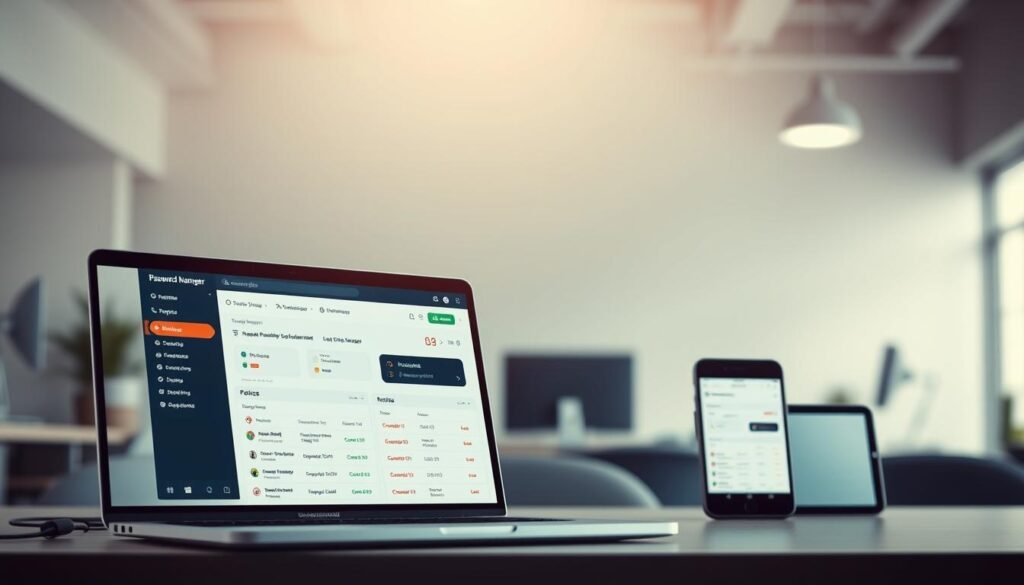
Benefits are practical: a password manager generates long, complex, unique credentials for every account and stores them in an encrypted vault. Autofill speeds sign‑ins and reduces risky copy/paste or notes.
Security model: pick a tool with zero‑knowledge architecture and robust encryption. Top vendors support multi‑factor authentication (MFA) for vault access and publish audits or third‑party assessments.
Practical workflow
Use the built‑in generator set to 16–20+ characters by default. Let the manager autofill forms and sync across devices so you don’t hand‑type secrets on public networks.
“A password manager reduces human error and raises the baseline security for every account you create.”
Choosing and protecting your vault
Choose a vendor with audited security and responsive patching. Import existing entries, resolve duplicates, and enable breach monitoring and health checks so you can maintain strong hygiene at scale.
- Protect the master login with a long master password and enable MFA.
- Use shared collections for families or teams with per‑user permissions.
- Store recovery codes offline and review emergency access options.
| Feature | What it does | Why it matters | Recommended setting |
|---|---|---|---|
| Generator | Creates unique password for each account | Stops reuse and credential stuffing | 16–20+ chars, mixed types |
| Zero‑knowledge vault | Encrypts data client‑side | Only you hold decryption keys | Required |
| Autofill & sync | Signs in across devices | Reduces copy/paste risks | Enable on trusted devices |
| Breach monitoring | Flags exposed entries | Lets you react quickly | Turn on alerts |
Beyond passwords: MFA, recovery options, and passkeys
Extra authentication turns a stolen secret into an unusable credential for most attackers. Set recovery contacts and adopt device-based sign‑ins where available.
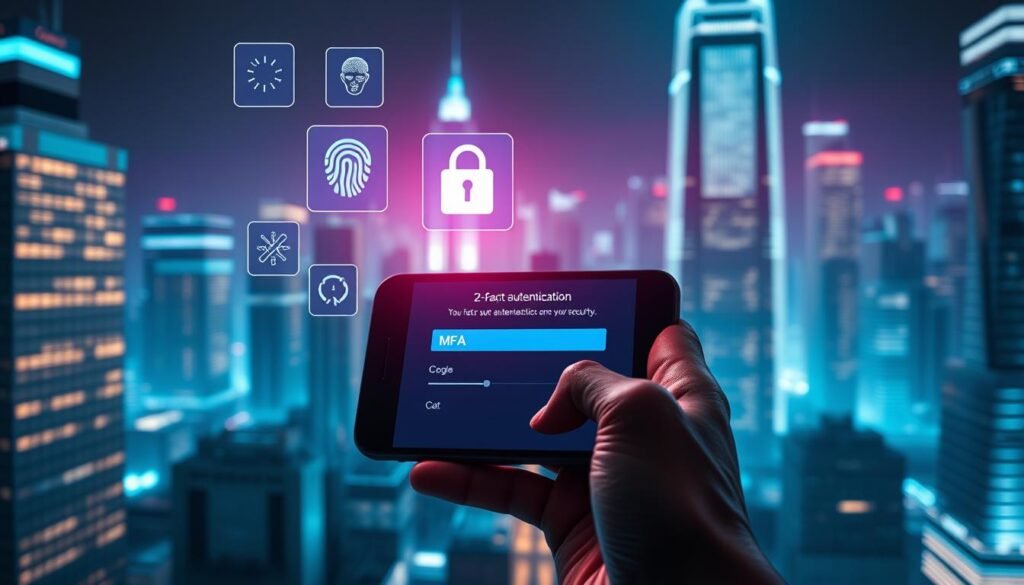
Enable MFA to add a second factor wherever available
Turn on multi-factor authentication (MFA) everywhere. Pair a password with an authenticator app, one-time code, or security key to stop most automated takeover attempts.
Use an app rather than SMS when possible—SIM-swap attacks target text messages tied to your phone.
Set recovery email and phone to regain account access
Update recovery details now. Google recommends adding a recovery email and phone so providers can verify you and alert you about unusual activity.
Record your provider’s recovery process and update the address or number when it changes. Store backup codes offline; treat them like spare keys.
Passkeys explained: device-based sign-in with biometrics
Consider passkeys where supported. These device-bound keys use biometrics or PINs and remove the need for typed secrets on many accounts.
Apply MFA to critical services first—email, financial accounts, and password managers—then extend protection to other accounts.
- Review account activity dashboards and sign-in alerts regularly.
- Train users: never approve unexpected push prompts and report suspicious requests immediately.
- Keep privacy in mind: verify any request for personal information via direct, trusted navigation.
Maintenance checklist: when to change, how to store, and how to spot scams
Treat alerts as triggers: act immediately, not on a calendar. Follow a short, repeatable playbook so you can secure an account quickly after an exposure.
When should I update credentials?
Change a password only after clear signs of compromise or a breach notification. Microsoft and current best practice favor targeted updates over forced rotations.
Prioritize high‑value accounts first: email, banking, and admin consoles often let attackers pivot across services.
Where and how should I store secret hints and vaults?
Keep secrets in an encrypted vault and use a reputable password manager. Neutral hints may be written down offline, but never leave credentials in plain sight.
- Use a password manager with breach monitoring and health reports.
- Update recovery address and phone when life changes occur.
- Standardize a renewal playbook: verify the URL, update the entry in your manager, enable MFA, and revoke old sessions.
How can I spot phishing and social engineering?
Train yourself and your team to treat unexpected requests as risky. Hover over links, avoid opening odd attachments, and never give credentials over email or phone.
- Access sensitive sites by typing the URL or using saved bookmarks.
- Use a trusted tool that alerts on breaches so you can act before attackers misuse leaked information.
- Document incident response steps: reset the affected password, enable MFA, review sign‑in logs, and check connected apps.
Quarterly review: run a health check in your manager and remediate reused or short entries every cycle. These simple habits save time and reduce risk.
For more on spotting credential phishing and scam tactics, read this guide on password phishing scams.
Conclusion
Small, steady improvements block most automated attacks. Adopt long, unique entries, enable multi-factor authentication, and store secrets in a reputable password manager.
Make a habit: aim for 14–16+ characters with varied letters, numbers, and symbols. Avoid names, addresses, phone numbers, and common words attackers try first.
Stop reusing passwords. Protect keystone accounts—email, banking, and your manager vault—with MFA and current recovery email and phone details. Run health checks, fix weak or reused entries, and enable breach monitoring.
strong, Use these tips as a checklist: long length, unique per account, MFA enabled, recovery updated, and phishing awareness. Start by replacing your top five high-value accounts this week and extend coverage gradually.
