
Could everyday programs be quietly collecting your contacts, location, and search history? That question matters now more than ever.
Many popular titles harvest large amounts of personal data. Research and App Store disclosures show social media, games, and utilities can share information widely. For example, some reports list major services that send user details to third parties.
This short guide will help you set priorities, check permissions on your device, and remove risky items safely. We focus on built-in tools first, then optional software if needed. You’ll learn to read privacy labels and match an app’s purpose to its access.
For concrete examples and names that appear on public lists, see this overview of programs that monitor data behavior on many phones: these 20 apps are watching you. Take action now—small audits of a few high-risk titles can cut your exposure and boost your security.
Key Takeaways
- Many mainstream apps collect and share sensitive data.
- Use quick permission checks to spot overreaching access on your device.
- Read store privacy labels to match app purpose with requested data.
- Start with built-in tools before adding security software.
- Prioritize and delete items that expose unnecessary information.
Why this matters now: What “invasive apps” are and how they threaten your privacy
Some common software quietly collects far more personal data than the feature list suggests. That collection can include contacts, location, search history, and device identifiers.
In plain terms: an invasive app is software that gathers extensive information unrelated to its core function, shares data with third parties, or tracks behavior across services. This increases privacy and security risk for the user and the operating system on their device.

Store privacy sections are a structural blind spot. Labels on the Apple App Store and Play Store rely on company self-reporting and may omit or misclassify collection practices. Use those disclosures as a starting point, not a final verdict.
- High-visibility collectors: social media and social media apps often top data lists because they monetize engagement and ad targeting.
- Surprising offenders: games and utilities—examples flagged include Candy Crush Saga, Roblox, and Duolingo—can request broad access.
- Kids and finance: SafetyDetectives found many children’s titles collect identifiers and share with third parties; finance services may request device ID, browsing history, and financial details (see PayPal disclosures).
Geography matters too: research shows certain Chinese-owned titles like Alibaba, Temu, and TikTok may request document and contact access and may also track addresses or approximate location. The more data an app collects and shares, the larger the attack surface for phishing, account takeover, or other security breaches.
Quick takeaway: review privacy labels and developer policies in the app store before installing. Compare how a service uses data—ads, analytics, or tracking—and decide if the tradeoff matches your privacy expectations.
Rapid checks: Signs your phone may be monitored or compromised
Quick scans of performance and billing reveal many early warning signs. Start with simple observations: battery drain, overheating, and unexplained data spikes can point to hidden activity. These symptoms may also follow a recent update or a new install.

Look for resource abuse. Continuous CPU use from background processes causes heat, freezes, and random reboots. If problems began after an update, scrutinize that app first.
Watch system indicators. If GPS or location toggles on by itself, or network activity spikes while the device is idle, that may indicate data exfiltration or tracking.
- Audit data consumption: sudden mobile data increases can reveal persistent connections or large transfers.
- Note call anomalies: hissing, clicks, or distortion—when paired with other signs—are one example of possible audio interception.
- Test power-off behavior: a device that won’t fully shut down or restarts itself can mean a process has elevated access.
- Review charges: unauthorized premium SMS or subscription fees suggest fraudulent components tied to a suspicious app.
One practical step: boot into safe mode to isolate third-party apps. If symptoms stop, a recently installed item likely caused them. Document timing, note suspect names, and plan a targeted scan or removal next.
For a deeper checklist on spotting spy software and steps to take, see how to spot cell phone spy.
How to find invasive phone apps
Use system tools first to map what each app touches and when. This gives clear evidence of sensor use, network calls, and unusual behavior so you can act with confidence.
On iOS
On iOS devices, open Settings > Privacy & Security > Safety Check to revoke sharing with people and programs quickly.
Then enable App Privacy Report (Settings > Privacy & Security > App Privacy Report) to see which apps access sensors, domains, and data over time.
On Android
Open Settings > Apps, pick an app, and tap Permissions to toggle Camera, Microphone, Location, Contacts, and SMS. Start with top-used items and work down by risk.
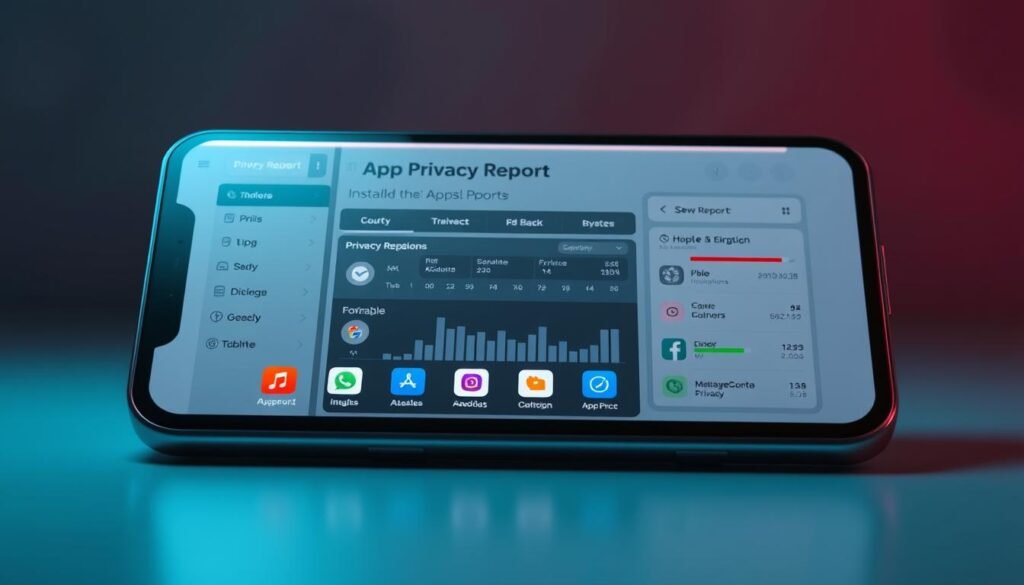
Spot red flags and tighten controls
Cross-check purpose versus permission: a flashlight asking for Microphone or a wallpaper app requesting Location is a clear example of mismatch.
- Tighten high-impact controls: use “While Using” for Location, revoke full Photo Library access, and turn off Nearby Device scanning.
- Document and test: screenshot reports before you detect remove steps so you can verify behavior after toggles or uninstalls.
- Store check: compare runtime behavior with the app store and Google Play privacy disclosures; discrepancies warrant removal.
Use the App Store and Play Store to vet apps before you install
Read store disclosures and developer details before you install anything. Doing this cuts risk and helps you decide if a service justifies access to your device.
Read privacy labels. On each app page open the Privacy or “See Details” section to learn what data is collected, whether it ties to identity, and how sharing is used (ads, analytics, functionality).
- Verify the developer: check the publisher name, linked website, and privacy policy. Missing or vague policies are red flags.
- Compare categories: social media and media apps often list broad sharing. If a simple tool lists similar flows, think twice before you download apps to your devices.
- Scan reviews and updates: filter recent comments for new permissions, aggressive ads, or post-update issues. Sudden permission expansion can signal monetization shifts; Google has removed deceptive entries from the Play Store for this reason.
- Platform differences: confirm the apple app store and google play store disclosures match your chosen device and privacy tolerance.
For a deeper look at Android threats, read this Android malicious app guide.
Detect and remove suspicious apps safely
Begin with a quick safety checklist: backup, change passwords, and enable two‑factor authentication. These actions limit damage if a malicious program is active on your device.
Prepare: back up to a local drive or a trusted cloud, then change credentials for email, banking, and messaging from a clean computer. Turn on two‑factor authentication (2FA) for critical accounts to cut the attack surface.
Isolate and uninstall
If you suspect active exfiltration, switch to airplane mode or disable Wi‑Fi and cellular temporarily. This reduces ongoing data transfers while you work.
- iOS: long‑press the icon → Remove App → Delete App. Then open Settings > Privacy & Security to reset permissions and review App Privacy Report.
- Android: Settings > Apps > [application] > Uninstall. Clear cache/data first if removal fails. Afterward, use Permission Manager to revoke high‑risk grants.
Scan and verify
Run a reputable antivirus software scan from a trusted vendor. Many security tools include anomaly detection that helps detect remove behavior that masquerades as harmless utilities.
“If someone had physical access, assume tokens and profiles may be compromised and act accordingly.”
| Action | iOS | Android |
|---|---|---|
| Backup first | iCloud or local backup | Google backup or local export |
| Uninstall | Long‑press → Delete | Settings → Uninstall (clear cache if needed) |
| Permissions | Downgrade “Always” to “While Using” | Set to “Ask every time” or “Deny” |
| Follow‑up | Check App Privacy Report; monitor battery & data | Use Permission Manager; monitor battery & data |
After removal
Watch battery drain, data use, and system stability for several days. Unexpected recurrence suggests leftover components or a second malicious program.
- Avoid clicking recent suspicious links in SMS or email while restoring.
- If problems persist, update the OS or consider a factory reset and reinstall only essential, vetted software.
- If someone had physical access, change the device passcode and remove unknown device management profiles.
High-risk categories and examples to reconsider
Certain popular services routinely request access that goes beyond their stated purpose. That makes it vital to weigh convenience against exposure.

Are social media platforms collecting too much?
Social media and social media apps often justify broad collection for discovery and ads. Meta’s suite shares an estimated 68.6% of collected data with third parties. YouTube shares about 31.4%.
Should kids’ titles be treated differently?
SafetyDetectives found 70% of a 20-item list collected identifying information and more than half shared children’s data. Reading Eggs pulls audio and photos; ABCMouse shares device details. Parents should require consent and limit installs.
Can benign tools turn harmful after updates?
Yes. Examples include fake Bluetooth utilities that shifted into aggressive adware after updates. If an app’s behavior changes—battery drain or pop‑ups—audit or remove it.
“Reevaluate high-impact permissions and prefer services with minimal collection.”
| Category | Common risk | Quick action |
|---|---|---|
| Social media | Large third‑party sharing (Meta ~68.6%) | Limit permissions; use browser with tracker blocks |
| Kids’ titles | Audio/photos and device IDs shared | Restrict installs; require parental approval |
| Utilities/games | Post‑update adware or trackers | Monitor updates; uninstall on anomalies |
Preventive habits and parental control tips
A few routine checks prevent most unauthorized access and reduce long-term risk. These steps take minutes but cut exposure to common threats. Make them part of a monthly device checklist.

Keep systems updated and download from official stores
Enable automatic updates on iOS devices and Android. Patches fix silent flaws that attackers use to gain access.
Only download from the Apple App Store or Google Play. Sideloading raises risk unless you vet the software carefully.
Permission hygiene, browser alternatives, and guarding physical access
Grant minimum access: prefer approximate over precise location, restrict background refresh, and revoke dormant permissions. Review permissions monthly.
For high‑tracker services, use a hardened browser with content blocking. A browser often limits tracking better than an installed client.
Lock screens with strong passcodes and disable lock‑screen message previews. Don’t leave devices unattended where someone could install software via physical access.
Parental controls, identity monitoring, and link‑scanning tools
Set up parental control baselines: require approvals for new installs, restrict in‑app purchases, and limit screen time. Check permissions on kids’ devices regularly.
Enroll in identity monitoring and data breach alerts to catch leaked credentials quickly. Combine that with two‑factor authentication and periodic password rotation.
Use link‑scanning tools for suspicious URLs from SMS or email. Routing unknown links through a scanner reduces the risk from malicious links and phishing.
“Make updates, limit permissions, and monitor exposure—small habits protect devices and data.”
| Practice | Why it helps | Quick action |
|---|---|---|
| Auto OS updates | Patches vulnerabilities | Enable automatic updates on all devices |
| Official stores only | Reduces unvetted software risk | Download apps from Apple App Store or Google Play |
| Permission audits | Limits unnecessary access | Monthly review; revoke unused grants |
| Parental control | Protects children’s accounts | Set approvals, block purchases, review permissions |
| Link & identity tools | Detects phishing and breaches | Use scanners and sign up for alerts |
Conclusion
Treat privacy as maintenance: short checks now save big headaches later. Run a simple way to match an app’s purpose to its permissions, read the app store privacy notes, and remove services that collect more data than they need.
Keep a short list of trusted software and review it quarterly. Removing low-value installs reduces your attack surface and makes ongoing management faster.
When you clean up, update the OS, reset sensitive permissions, and scan for anomalies. If problems persist on the device, consider a factory reset and reinstall only essential items.
Use what you learned proactively: vet every new app before installing, prefer browser access for heavy collectors, and pause installs when disclosures are vague. For concrete examples, review this hidden ad campaign list.
Privacy is a process. Regular reviews, cautious link habits, and selective sharing of information keep your phone calm, fast, and secure.
