Did you know over 60% of Linux security breaches start with misconfigured access controls? That’s like handing burglars your house keys! 🔑
In the Linux world, every file and directory has its own security rules. Think of them as bouncers deciding who gets in (and who gets booted). The system uses a simple but powerful model: read, write, execute for users, groups, and everyone else.
We’ll show you why giving full access (looking at you, chmod 777 fans) is like throwing a party and forgetting to invite the cops. 🚔 By the end, you’ll be locking down your system tighter than a dragon guards its treasure.
Key Takeaways
- Linux controls access through three permission types: read, write, execute
- Wrong configurations are the #1 cause of preventable security issues
- The system checks permissions for three entities: owner, group, others
- 777 permissions are basically a “hack me” sign
- Windows/Mac handle security differently than Linux
Understanding Linux File and Directory Permissions
Picture this: Your Linux system is a VIP club, and permissions are the bouncers. 🕺 They decide who gets backstage access to your precious files and who gets left at the velvet rope.
Why Permissions Matter for Security
That folder of cat memes? It shouldn’t have 777 permissions unless you want the whole internet petting your furry friends. 😼 Wide-open access is like posting your WiFi password on Twitter—convenient but dangerous.
Linux checks security in a specific order: owner first, then user group, finally everyone else. It’s picky about who gets what, and that’s good! About 60% of breaches happen because of loose permissions.
Core Concepts: Users, Groups, and Others
Think of Linux security as a three-layer cake: 🎂
- Owner: You (the VIP with backstage passes)
- Group: Your trusted crew (band members and managers)
- Others: Random fans (maybe keep them out of the green room)
Each directory and file has separate rules for these groups. The system checks them in order—if you’re the owner, Linux doesn’t care what the group settings say.
Pro tip: Follow the Principle of Least Privilege (POLP). Give only the access needed—no more. Your secret recipes don’t need to be world-readable! 🔒
How to View File and Directory Permissions in Linux
That “drwxr-xr-x” isn’t just keyboard smash—it’s your system’s security blueprint. 🔐 Linux hides its permission strings in plain sight, waiting for you to decode them like a spy cracking a cipher. 🕵️♂️
Using the ls -l Command
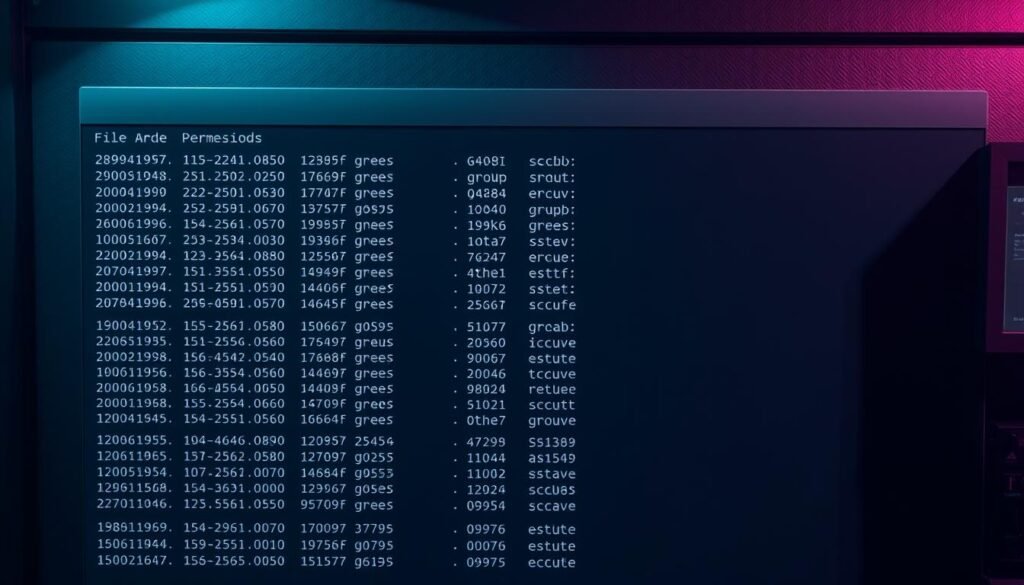
Type ls -l in your terminal, and boom—you’ve just summoned a treasure map of access rights. This command reveals:
- File types: “d” for directory, “-” for regular linux file
- Permission clusters: Three groups of r/w/x codes (more on those soon)
- Ownership: Who holds the keys to each file directory
Pro hacker tip: Run ll (alias for ls -lah) to see hidden files and human-readable sizes.
Interpreting Permission Strings
Let’s dissect “-rw-r–r–” like digital archaeologists:
- First character: “-” means it’s a file (not a folder)
- Next trio: “rw-” = owner can read/write but not execute
- Middle trio: “r–” = group members get read-only access
- Last trio: “r–” = everyone else gets the same as the group
Spot red flags instantly: If you see rwx for “others,” your system might as well wear a “Hack Me” nametag. 🔍
Breaking Down Linux Permission Types
Linux permissions aren’t just letters—they’re your system’s bodyguards. 🛡️ Those r, w, x codes control who touches your stuff and how. Let’s decode what they really mean before your cat memes end up public property.
Read (r), Write (w), and Execute (x) Explained
Read permission is like getting a museum ticket. You can look, but don’t touch the exhibits. With files, this means viewing contents. For folders, it lists what’s inside.
Write permission turns you into the museum curator. You can:
- Edit files (paint over the Mona Lisa)
- Create/delete files in folders (rearrange the whole gallery)
Execute permission is the red button moment. For files, it runs programs. For folders? That’s your backstage pass to enter. 🔍
How Permissions Differ for Files vs. Directories
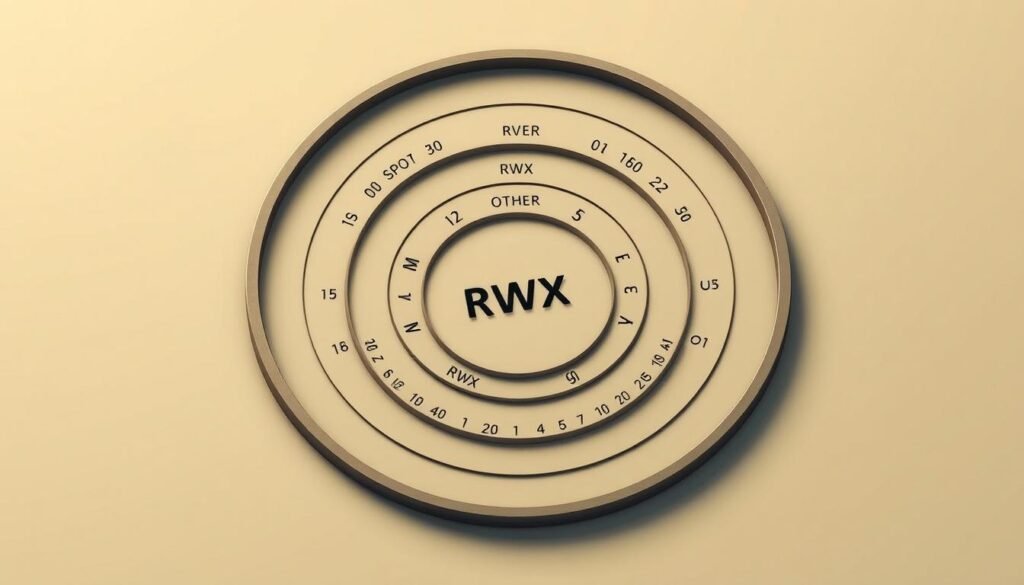
Here’s the kicker: execute means totally different things for files and folders. One lets you run programs, the other opens doors.
| Permission | Files | Directories |
|---|---|---|
| Read (r) | View file content | List directory contents |
| Write (w) | Modify file | Create/delete files |
| Execute (x) | Run as program | Access directory contents |
Pro tip: A folder without execute permissions is like a locked closet—even if you can see what’s inside (read), you can’t grab anything.
How to Set File Permissions Securely in Linux
Linux gives you two trusty tools to modify file access: symbolic mode (letters) and numeric mode (numbers). Choose your weapon wisely—each has superpowers for different scenarios. 🔧
Symbolic Mode: Permission Poetry
Think of symbolic mode as texting your system: “Hey Linux, let user u add (+) read/write (rw) access!” The syntax reads like a permission haiku:
chmod u+rw secret_recipe.txt
Breakdown of the magic spell:
- Who: u (user), g (group), o (others), a (all)
- Action: + add, – remove, = set exactly
- What: r (read), w (write), x (execute)
Numeric Mode: The Code Breaker
Prefer numbers? Numeric mode uses octal values like 744. Each digit represents:
- Owner permissions (7 = rwx)
- Group permissions (4 = r–)
- Others permissions (4 = r–)
Pro tip: Never use 777 in production unless you enjoy surprise server parties with uninvited guests. ☢️
Common safe combinations:
- 755 for scripts (owner: full, others: read/execute)
- 640 for config files (owner: rw, group: r, others: none)
- 600 for sensitive data (owner only)
Always test changes in a staging environment first. Your production system will thank you later. 🛡️
Changing Directory Permissions in Linux
Directories in Linux are like gated communities—each with its own security rules. 🏘️ While files have simple access controls, directory permissions act as bouncers for everything inside. Get these wrong, and you’ll either lock teammates out or leave the door wide open.
Setting Permissions for Group Owners and Others
Team projects need careful group permissions tuning. Here’s the golden rule: give write access only to those who truly need it. A shared project folder might use:
chmod g+w /projects/team_alpha
Common setups for collaboration:
| Scenario | Permissions | Command |
|---|---|---|
| Read-only sharing | dr-xr-x— | chmod 750 |
| Team edits allowed | drwxrwx— | chmod 770 |
| Temporary uploads | drwxrwxrwt | chmod 1777 |
Warning: Never use 777 unless you enjoy surprise file deletions. 🔥
Recursive Permission Changes with chmod -R
The chmod -R command is a bulldozer—it plows through folders and all contents. One typo, and you might give the whole internet access to your secret stuff. 🧨
Safer alternatives to blanket recursive changes:
- find + chmod: Target specific file types only
- Manual checks: Verify with ls -l after each change
- Dry runs: Test first with chmod -Rv (verbose mode)
Pro tip: This combo gives execute rights only to Python files:
find /scripts -name “*.py” -exec chmod +x {} \;
Remember: With great power comes great responsibility. And backup snapshots. 😉
Managing Ownership with chown and chgrp
Ownership in Linux is like having the master key to your digital kingdom. 🏰 When you see “Permission denied”, it’s often an ownership issue—either you’re not the boss of that file, or your team lacks access. Time to call in the cavalry: chown and chgrp.
Changing File Ownership
The chown command is your ownership override button. Need to hand files to another user? One command rules them all:
sudo chown alice:developers roadmap.txt
This makes Alice the owner and assigns the developers group. Pro tip: Always double-check names—Linux won’t warn you about typos! 🤦♂️
Common scenarios:
- New team member: Transfer project files with chown -R (recursive)
- Service accounts: Web servers often need specific owners (like www-data)
- Restore operations: Fix ownership after extracting backups
Modifying Group Ownership
While chown handles both user and group ownership, sometimes you only need to tweak the team. That’s where chgrp shines:
sudo chgrp designers logo.psd
Why use separate commands? As FreeCodeCamp explains, chgrp is safer when you only need to adjust team access without changing individual owners.
The sudo dilemma: These commands usually need admin rights. But with great power comes great responsibility—always verify changes with ls -l afterward. 🔍
Pro workflow tip: Use newgrp to set default groups for team projects. No more permission headaches when collaborating! 🤝
Special Permissions: SUID, SGID, and Sticky Bit
Beyond basic read-write-execute, Linux hides three ninja-level access controls. These special permissions act like temporary superpowers—handled wrong, they’re security nightmares. 🦹♂️
When and How to Use Special Permissions
SUID (Set User ID) makes files run as their owner. Ever changed your password? That’s /usr/bin/passwd using SUID to temporarily become root. The magic command:
chmod u+s /path/to/file
SGID (Set Group ID) works similarly but for groups. It’s perfect for team projects—new files inherit the parent folder’s group. Shared development directories often use:
chmod g+s /team_projects
The sticky bit is your anti-deletion shield. On directories like /tmp, it prevents users from deleting others’ files. Set it with:
chmod +t /shared_uploads
Security Implications of SUID and SGID
These powers come with risks. Attackers love finding misconfigured SUID/SGID files—they’re golden tickets to privilege escalation. 🎫
Red flags to hunt:
- SUID on random scripts (why does cat need owner powers?)
- World-writable SUID files (anyone can modify them)
- SGID on user home directories (group access gone wild)
According to Red Hat’s security team, special permissions should be:
- Minimal (only where absolutely needed)
- Regularly audited (find / -perm -4000)
- Owned by root/system accounts (never regular users)
Pro tip: The numerical equivalents pack a punch—4000 for SUID, 2000 for SGID, 1000 for sticky bit. Combine carefully! 💥
Best Practices for Secure Permission Management
Permission management is like being a digital bouncer—you decide who gets VIP treatment. 🚧 Get it right, and your system runs smoothly. Mess it up, and you’re hosting a hacker happy hour. These best practices keep your permissions tighter than a drum.
The 777 Trap: Digital Russian Roulette
That chmod 777 command? It’s the tech equivalent of leaving your car running with the doors unlocked. 🚨 Here’s why:
- Global write access lets anyone modify critical files
- Execute permissions on everything = malware paradise
- Even temporary 777 use leaves forensic breadcrumbs
Safer alternatives:
chmod 750 for private scripts
chmod 640 for config files
Balancing Accessibility and Security
The sweet spot? Principle of Least Privilege (POLP). Give just enough access—no more. Your team needs collaboration, not free rein.
Pro tips for harmony:
- Use groups instead of opening world permissions
- Schedule monthly security audit routines with ls -lR
- Log permission changes like you’d log who borrows your house keys 🔑
Remember: Good permission hygiene isn’t about lockdowns—it’s about smart accessibility controls. Now go audit those perms before the bots notice! 🤖
Conclusion
Congrats! You’re now armed with the knowledge to lock down your system tighter than Fort Knox. 🔐 From confused beginner to file security champion, you’ve mastered the art of balancing access and protection. Remember: good security isn’t about complexity—it’s about smart controls.
Next level? Automate your linux permissions audits with scripts. Tools like find + chmod combos can save hours. Just don’t get lazy—always verify changes!
With great power comes great permissions management. Now go forth and protect those files like the Linux guardian you are! 🐧 Your system will thank you later. 🚀
