Can a few quick changes really stop an intruder on your home network? That question matters because most routers ship with weak defaults and an expanding set of devices increases risk.
In minutes, you can harden a router and shrink the attack surface with clear, repeatable steps. Change default credentials, enable modern encryption, update firmware, and turn off risky features like remote admin, WPS, and UPnP.
These actions reduce the chance of identity theft, device takeover, and bandwidth hijacks. Place the router centrally to limit signal leakage and review connected devices regularly. If a model lacks WPA3, plan a replacement—older protocols are fragile.
For a practical checklist and extra guidance, see this short security tips that align with these priorities.
Key Takeaways
- Act fast: Core settings deliver large security gains in minutes.
- Enable modern encryption: WPA3 or WPA2 is essential for a safer network.
- Update firmware: Regular updates fix known vulnerabilities.
- Limit features: Disable remote admin, WPS, and UPnP when not needed.
- Segment devices: Use a guest network for IoT and visitors.
- Monitor devices: Review connected devices and logs often.
Why securing your home Wi‑Fi network matters right now
An open home network hands strangers a direct line into names, accounts, and camera feeds. Fixing a few settings will cut risk to your identity, finances, and connected devices.
An unsecured network exposes credit card details, bank records, social security numbers, logins, emails, and even live camera streams. Attackers can harvest this information and use it for fraud or identity theft.

What’s really at risk: identity, financial data, and device takeover
On an open or weakly secured network, outsiders can capture logins and sensitive documents. Phishing and malware delivery let attackers steal data or lock files for ransom.
Common results: stolen identity, drained accounts, and cameras or microphones taken over. Criminals may also route illegal traffic through your connection, creating legal headaches for the people who live there.
How local networking works and why more devices raise exposure
Your router links the modem to the local area network that all gadgets use. Laptops, phones, smart TVs, and IoT appliances share that single point of access.
- More devices = more firmware that needs patching.
- One weak smart plug or camera can give attackers a path to the rest of the system.
- Neighbors stealing bandwidth can mask stealthy monitoring of browsing and streaming.
| Threat | What gets exposed | Likely outcome |
|---|---|---|
| Phishing & malware | Logins, emails, saved passwords | Account takeover, identity theft |
| Man‑in‑the‑middle | Browsing, payment forms, messages | Credential capture, altered traffic |
| Unauthorized access | Cameras, microphones, IoT controls | Privacy invasion, device control |
Lock down the basics fast: router settings to change first
Start with simple changes that cut the obvious paths attackers use into home networks. Neutral SSID, separate admin and Wi‑Fi passphrases, and an explicit logout will close the most common doors.
Rename your SSID without personal info
Pick a bland network name that reveals nothing about the household. Examples: HomeNet-57 or Guest-204. Avoid surnames, unit numbers, or device brands.
Create a strong password with mixed characters
Update the Wi‑Fi password to at least 14 characters. Mix uppercase and lowercase letters, numbers, and special characters. Skip dictionary words and simple sequences.
“Replace defaults and use distinct passphrases so one leak doesn’t expose all access.”
Change default admin credentials and log out
Access the router admin page via its IP address (check Default Gateway on Windows or Network preferences on macOS). Replace the default admin user and password with a unique passphrase. Store it in a password manager.
Log out after saving changes—leaving an admin session open can let an attacker alter settings or lock you out.
- Segment credentials: Never reuse the Wi‑Fi password for the admin account.
- Rotate periodically: Change network passphrases after suspected access or on a schedule.
| Action | Why it matters | Quick result |
|---|---|---|
| Rename SSID | Reduces profiling by attackers | Less targeted probing |
| Set long passphrase | Increases time needed for brute force | Stronger network access control |
| Change admin login & log out | Prevents session capture and default exploits | Admin controls remain secure |
For a step-by-step checklist and extra guidance, see secure your router.
Turn on modern protection: encryption and firmware updates
Modern encryption plus up-to-date firmware form the foundation of a resilient home network and shrink attackers’ options. Enable WPA3 where available, and keep router software current to close known weak spots.

Enable WPA3 (or WPA2 if needed)
Select WPA3‑Personal (SAE) in wireless settings when your devices support it. WPA3 strengthens encryption and resists offline password cracking better than older protocols.
If a few older devices fail to connect, switch to WPA2/WPA3 mixed mode or temporarily use WPA2‑Personal. Avoid WEP and open modes entirely; replace any router that only offers those legacy options.
Update router firmware from the manufacturer
Check the vendor site or admin app for firmware patches and register the device for update alerts when possible. The FTC recommends confirming the latest version directly with the manufacturer.
Apply patches monthly or enable auto‑update. Reboot if prompted and confirm all devices reconnect. Record firmware software versions and dates so you can verify a successful update later.
“Replace defaults and use distinct passphrases so one leak doesn’t expose all access.”
For a guided checklist and vendor-specific steps, see this router security guide and tips on spotting unauthorized access in a network monitoring guide.
Reduce attack surface: disable risky features and enable your firewall
Fewer open doors mean fewer intrusions. Turn off remote admin, WPS, and UPnP, and make sure firewalls are on.
Minimizing active features on a router removes common entry points for intruders. Start by disabling WAN or remote management so the admin console is reachable only from inside the network.

Block outside admin access
Disable remote management in Administration or System settings. Leave it off unless you must reach the device from outside and then use a secure VPN or vendor-approved remote tool.
Stop unsafe pairing and auto ports
Turn off WPS (Wi‑Fi Protected Setup). The PIN and push-button methods can be brute‑forced and give unauthorized access.
Disable UPnP (Universal Plug and Play). UPnP can open inbound ports without notification; forward only the exact ports you need.
Enable layered firewalls
Turn on the router firewall and also enable host firewalls on desktops and laptops. Layered inspection of inbound and outbound traffic reduces unseen risks.
- Review after resets: Some models revert defaults—recheck these settings after updates or factory restores.
- Validate functionality: Normal browsing, streaming, and gaming should keep working; only risky admin and auto‑opening behaviors are restricted.
Create separation: use a guest network and isolate smart devices
Segment by purpose. Split traffic by role so casual guests, smart bulbs, and critical work machines live on separate lanes. This reduces the chance that one compromised device can see everything on the main network.
Set up a guest SSID with its own name and a strong passphrase. Name it neutrally and share that credential with visitors instead of primary login details. Most modern routers offer an independent guest network with a separate password.
Place IoT and smart home devices on a separate access network
Isolate IoT. Put smart plugs, bulbs, TVs, speakers, and thermostats on the guest or a dedicated IoT VLAN. If a smart device is breached, the attacker cannot reach laptops, NAS, or cameras on your main wireless network.
- Enable client isolation: Prevent guest-side devices from talking to each other or the main LAN when the router supports it.
- Limit privileges: Restrict guest network access to internet only where possible.
- Refresh passwords: Change the guest passphrase after events or when you suspect unknown connections.
- Monitor usage: Watch connected counts and remove unfamiliar devices promptly.
Keep control of access: monitor connected devices and use MAC filtering wisely
Keep an eye on connected gear; visibility is your best defense against unwanted guests. Use simple checks in the router admin to spot odd entries and act quickly.
Regular reviews cut chance of lingering access. Open your router settings and scan the client list for unfamiliar names, IPs, and MAC addresses.
Regularly review devices in router settings and remove unfamiliar access
Check the client list: In router settings, note device names, local IPs, and MAC addresses. Remove anything you do not recognize and then rotate the Wi‑Fi passphrase so only approved devices can rejoin.
Label key gear: Tag phones, laptops, and TVs in the admin console so anomalies stand out at a glance. Watch for odd hostnames or late‑night activity; these are common signs of piggybacking or compromise.
Enable MAC address filtering with awareness of its limits and upkeep
Use MAC filtering as a supplement, not a primary defense. It adds friction for casual intruders but is spoofable and needs updates whenever devices change.
“Visibility is power—know who’s connected and prune unknowns.”
- Rotate credentials: After removing unknown clients, change the network passphrase to force re‑authentication.
- Understand limits: MAC whitelisting requires maintenance and won’t stop determined attackers.
- Protect information and identity: Reducing unauthorized access lowers the risk of data exposure and identity theft.
| Action | Benefit | Limitations |
|---|---|---|
| Review client list | Quickly spots unfamiliar devices on the network | Requires regular checks to stay current |
| Rotate passphrase | Forces re‑authentication of all devices | Inconvenient for many devices; needs secure sharing |
| MAC address filtering | Adds entry friction and a basic whitelist | Can be spoofed; high maintenance for frequent device churn |
For steps on removing unknown devices and strengthening access control, see this guide to block unauthorized devices.
Add privacy and reduce exposure: VPN use and signal footprint tips
A trusted VPN adds a privacy shield, and smart router placement keeps your signal inside your walls. Combine both for less exposure and clearer control over who can see your internet activity.
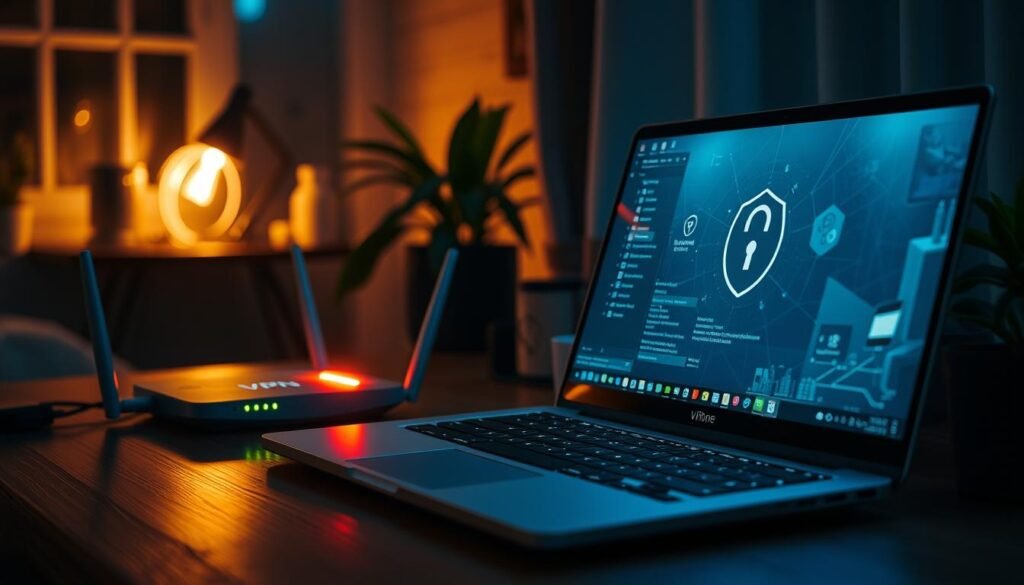
Use a reputable VPN to hide your IP address and encrypt traffic at home. A virtual private network (VPN) obscures the device IP address and encrypts browsing. That reduces tracking and adds privacy even on a home connection. Favor paid providers with audited privacy policies and modern protocols; avoid free services that log data or impose heavy caps.
Use VPN selectively on endpoints or at the router. Running a VPN client on specific devices gives flexible protection for sensitive sessions. Installing a VPN on the router covers all connected devices but may reduce speed for heavy traffic. Test performance and switch strategy if latency or throughput degrade critical internet tasks.
Position your router centrally to limit signal leakage beyond your home
Place gear away from windows and exterior walls. Central placement improves coverage and makes drive‑by signal capture harder. Experts note this also cuts dead zones and boosts real‑world speeds.
Tune power and channels where your router supports it. Lower transmit power and pick cleaner channels to reduce bleed‑over in dense neighborhoods. Walk around your property with a phone to confirm strong indoor coverage and weak signals outside.
- Benefits: added privacy, fewer external probes, and better indoor performance.
- Verify: check IP visibility and run a speed test with the VPN on and off.
- Provider choice: prefer no‑log, audited services and modern encryption.
For additional technical guidance and layered precautions, see this concise list of Wi‑Fi security tips.
Conclusion
Make sure you act now — good defaults and steady upkeep stop most common attacks. Prioritize modern encryption, a strong unique password, and safe router settings first.
Quick checklist: change the SSID to a neutral name, replace default admin credentials, enable WPA3/WPA2, update firmware, disable remote admin/WPS/UPnP, enable firewalls, and run a guest or IoT access network.
These steps cut risk to identity and personal data by closing the paths most attackers try. Revisit settings quarterly, rotate passwords after device changes, and document your configuration so fixes are repeatable.
Finally, use a reputable VPN for sensitive work and place the router centrally to limit signal leakage. Small, consistent actions keep a home wireless network resilient day to day.
