Ever feel like your password is the only thing standing between hackers and your life online? You’re not alone. In 2024, password leaks are up a staggering 69%, and relying on just one layer of defense is like locking your front door but leaving the windows wide open. 🚪
That’s where two-factor authentication (2FA) comes in. Think of it as your digital bouncer, checking IDs twice before letting anyone—or anything—into your accounts. It’s not just a fancy add-on; it’s a necessity in today’s world of phishing scams and data breaches.
From GitHub’s mandatory 2FA rollout to Google’s secret sauce for phishing protection, we’ll show you why this extra layer of security is a game-changer. Plus, we’ve got some pro tips on open-source tools you can use tonight to scan for vulnerabilities. Spoiler: they’re free and easy to use. 🛠️
Key Takeaways
- 2FA acts as a second layer of protection, making it harder for hackers to access your accounts.
- Password leaks are on the rise, making additional security measures essential.
- Platforms like GitHub and Google are leading the charge in mandatory 2FA adoption.
- Open-source tools can help you identify vulnerabilities in your security setup.
- Ignoring 2FA can lead to severe consequences, as seen with major companies.
Introduction to Two-Factor Authentication (2FA)
Passwords are no longer the ultimate gatekeepers of your digital life. 🚪 With cyber threats on the rise, relying solely on a password is like using a single lock to protect your valuables. That’s where two-factor authentication (2FA) steps in, adding an extra layer of security to keep your accounts safe.
2FA works by combining two different authentication factors: something you know (like a password), something you have (like your phone), and something you are (like your fingerprint). This combo makes it nearly impossible for hackers to break in. According to Microsoft, 2FA blocks 99.9% of automated attacks. That’s a stat worth celebrating! 🎉
The evolution of 2FA has been fascinating. From SMS codes to biometrics, the methods have gotten smarter and more secure. But here’s a shocking fact: 81% of hacking-related breaches involve stolen passwords, as per Verizon’s 2023 report. Yikes! 😱
So, what’s the best way to protect your data? Let’s break it down:
- TOTP (Time-Based One-Time Passwords): These are generated by apps like Google Authenticator and expire after a short time.
- Security Keys: Physical devices that you plug into your computer or phone for verification.
- Biometrics: Your fingerprint, face, or even your voice can act as your second factor.
Each method has its strengths, but they all share one goal: keeping your accounts secure.
Here’s a mind-blowing fact: your face unlock counts as 2FA—when configured right! 🤯 So, whether you’re using a security key or your fingerprint, you’re already ahead of the game. Stay tuned to learn why 2FA is a must-have in your digital toolkit. 🛡️
Why You Need to Configure Two-Factor Authentication Securely
In a world where hackers strike 50,000 times per second, your password is barely a speed bump. 🚨 Password leaks are skyrocketing, and weak combinations like “qwerty123” are a hacker’s dream. It’s time to level up your security game.
Here’s the scary truth: for just $5, hackers can buy your entire digital life on the dark web. 🕵️♂️ Your username password combo is no longer enough. That’s where multi-factor authentication comes in—adding an extra layer of protection to keep you safe.
SMS-based 2FA? It’s not as secure as you think. SIM swap attacks have surged 400% since 2021, turning your text messages into hacker invitations. 🚫 If you’re still relying on SMS codes, it’s time to rethink your strategy.
Platforms like GitHub are leading the charge with mandatory 2FA rollouts. 📈 This isn’t just a trend—it’s the future of authentication. Compliance FOMO is real, and you don’t want to be left behind.
Balancing security and convenience can feel like walking a tightrope. But finding your golden ratio is worth it. Here’s a quick comparison of popular 2FA methods:
| Method | Security Level | Convenience |
|---|---|---|
| SMS 2FA | Low | High |
| App-Based 2FA | High | Medium |
| Security Keys | Very High | Low |
Your password is just the first line of defense. Adding a second layer of authentication ensures your accounts stay secure, even if your password is compromised. Don’t wait until it’s too late—upgrade your security today. 🛡️
Step-by-Step Guide to Configuring 2FA
Ready to lock down your accounts like a pro? 🛡️ Adding an extra layer of protection doesn’t have to be complicated. Whether you’re a GitHub guru or a Google fan, we’ve got you covered. Let’s break it down step by step.
Choosing the Right 2FA Method
Not all methods are created equal. Here’s a quick rundown of your options:
- Security keys: Think Yubikey or Google Titan. These physical devices are the gold standard for protection. 🥇
- Authenticator apps: Authy and Microsoft Authenticator are top picks. They generate verification codes without relying on your phone number.
- SMS-based 2FA: Convenient but risky. SIM swap attacks can turn your text messages into hacker bait. 🚨
Pro tip: If you’re on a budget, free methods like TOTP apps are a solid choice. Just avoid SMS if you can.
Setting Up 2FA on GitHub
GitHub’s rolling out mandatory 2FA, and you’ve got a 45-day window to enroll. Here’s how to do it:
- Head to your account settings and click on “Security.”
- Choose your preferred method: app-based or security keys.
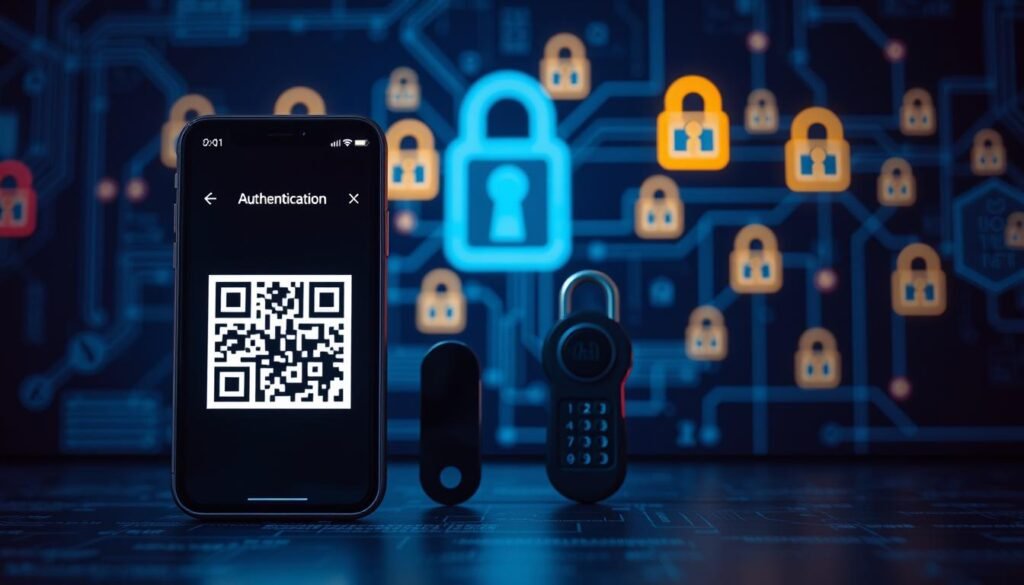
- Scan the QR code or manually enter the setup key into your authenticator app.
After setup, GitHub will prompt you for a verification code every 28 days. It’s a small price to pay for peace of mind. 🛡️
Setting Up 2FA on Google
Google’s taking a passkey-first approach, but you can still use traditional methods. Here’s how:
- Go to your Google Account and select “Security.”
- Choose “2-Step Verification” and pick your method: app, security key, or phone number.
- Follow the prompts to sync your device or app.
Bonus: Google’s location-based challenges add an extra layer of security. So, even if someone steals your key, they’ll have a hard time getting in. 🔒
Scanning for Vulnerabilities with Open Source Tools
Ever wondered if your 2FA setup is as secure as you think? 🕵️♂️ With cyber attacks becoming more sophisticated, it’s crucial to ensure your authentication methods are airtight. Open-source tools can help you spot weaknesses before hackers do.
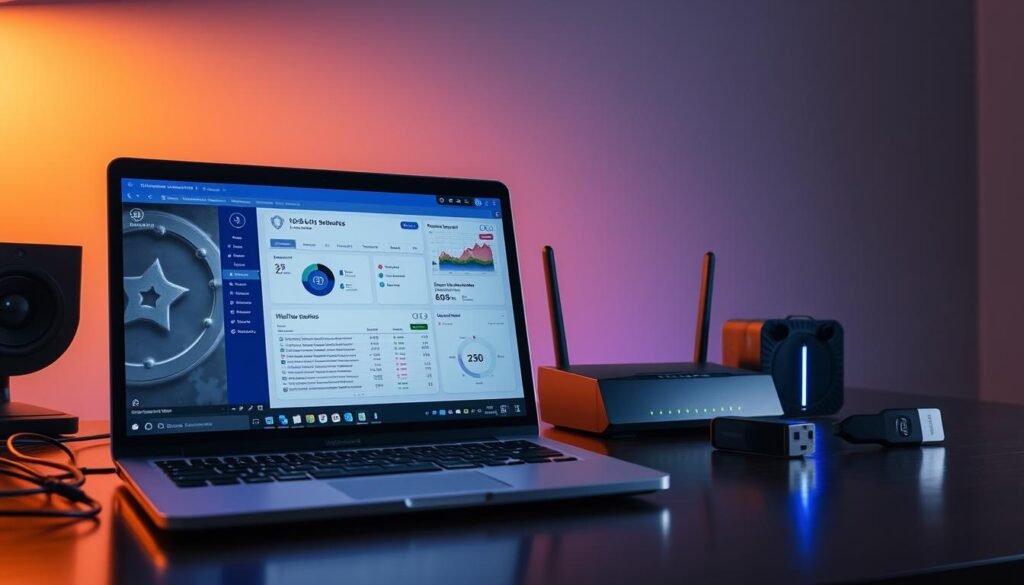
Fortune 500 companies rely on tools like OWASP ZAP and Snort IDS to reduce risk. These tools are free, powerful, and backed by a global community of experts. Here’s how you can use them to audit your setup in just 15 minutes:
- OWASP ZAP: This tool scans for vulnerabilities in your 2FA implementation. It’s perfect for spotting misconfigurations or weak spots.
- Snort IDS: Detects brute-force attacks on your authentication systems. It’s like having a digital watchdog for your accounts.
Spotting red flags is easier than you think. For example, vulnerable TOTP implementations often lack proper time synchronization. 🚩 A quick scan can reveal these issues before they’re exploited.
Visualizing your security posture is another game-changer. Tools like OWASP ZAP provide dashboards that highlight risks and offer actionable insights. 📊 It’s like having a cheat sheet for staying secure.
Why choose open-source over proprietary scanners? Community-powered tools are constantly updated, transparent, and often more effective. 🛠️ Plus, they’re free—so you can focus on reducing risk without breaking the bank.
Don’t wait for a breach to test your defenses. With these tools, you can stay one step ahead of hackers and keep your information safe. 🔒
Best Practices for Maintaining 2FA Security
Keeping your accounts safe requires more than just setting up 2FA—it’s about maintaining it like a pro. 🛡️ Here’s how to stay ahead of hackers and ensure your security is airtight.
First, let’s talk about the 90-day rule. NIST guidelines recommend refreshing your authentication methods every three months. This keeps your access secure and reduces the risk of compromised accounts. ♻️
Backup codes are your safety net, but they can also be a trap if not managed properly. Google’s 8-digit recovery codes system is a great example of secure backup management. Store them in a safe place—not on your devices or in your email. 🔄
Syncing apps across multiple devices can be tricky. Use trusted platforms like Authy or Google Authenticator, and enable biometric locks for added security. This ensures your verification process remains seamless and safe. 📲
Session management is another critical area. The “remember me” feature might seem convenient, but it can be dangerous if misused. Always log out of shared devices and avoid saving sessions on public computers. 🚪
Finally, schedule regular security checkups. Add reminders to your calendar to review your 2FA settings and update your password if needed. 📅 For more tips, check out this guide on best 2FA practices.
By following these steps, you’ll keep your accounts secure and your mind at ease. 🔒 Remember, security is a habit, not a one-time setup.
Common Pitfalls to Avoid When Using 2FA
Think your 2FA setup is foolproof? Think again. Even with an extra layer of security, there are mistakes that can leave your account vulnerable. Let’s dive into the most common traps and how to avoid them. 🕳️
💀 Deadly Sin #1: Using the Same 2FA Method Everywhere
A Microsoft study found that 34% of users reuse the same methods across accounts. This is like using the same key for your house, car, and safe. If one gets compromised, they all do. Mix it up with different verification tools for each account. 🔑
📵 Phone Number Trap: When SIM Swaps Ruin Your Digital Life
Relying on SMS-based 2FA? Big mistake. SIM swap attacks are on the rise, and your phone number can become a hacker’s gateway. Switch to app-based or hardware keys for better security. 🚨
Phishing scams have evolved. Hackers now trick you into handing over your verification code or redirecting your device to fake login pages. Always double-check URLs and never share your code. 🎣
⏰ Time Sync Tragedies: Why Your Authenticator App Might Betray You
If your device’s clock is off, your authenticator app’s codes won’t work. Regularly sync your device time to avoid lockouts. ⏱️
🆘 Disaster Recovery: What Snowden Does When He Loses His Security Key
Even experts lose their keys. Snowden recommends having backup methods like printed codes or secondary devices. Store them securely—not on your phone or email. 🔐
| Pitfall | Risk Level | Solution |
|---|---|---|
| Reusing Methods | High | Use unique methods per account |
| SIM Swap Attacks | Critical | Switch to app-based 2FA |
| Phishing Scams | High | Verify URLs, never share codes |
| Time Sync Issues | Medium | Sync device time regularly |
| Lost Security Key | High | Store backup codes securely |
By avoiding these pitfalls, you’ll keep your accounts safer and your mind at ease. Remember, security is a process, not a one-time setup. 🔒
Conclusion
You’ve just leveled up your digital defenses—pat yourself on the back! 🏆 By setting up 2FA, you’ve added a robust layer of security to your accounts. No more relying solely on a password to keep hackers at bay. You’re now part of the elite crew who takes their access seriously.
But why stop here? The future of authentication is already here with passkeys. They’re faster, safer, and phishing-proof. Consider this your next step in the digital security journey. 🚀
Shoutout to the open-source heroes who make tools like OWASP ZAP and Snort IDS accessible. They’re the unsung champions keeping the internet safer for everyone. 📢
Here’s your 2024 security checklist:
– Enable passkeys where available.
– Store backup codes securely.
– Regularly audit your 2FA settings.
– Sync your device time for accurate codes.
– Stay vigilant against phishing scams. 📅
And for the ultimate question: “What if I get hit by a bus?” Always have a disaster recovery plan. Store backup methods in a safe place, and ensure someone you trust knows how to access them. 🔐
You’ve got this. Stay secure, stay savvy, and keep evolving your defenses. 🔒
