Can an attacker quietly watch you through a camera you trust?
Camfecting — remote takeover of a camera — is real and affects laptops, phones, tablets, Macs, smart TVs, and IoT devices. This guide shows practical steps to harden systems, shrink the attack surface, and protect privacy without breaking daily use.
You’ll learn how to patch fast, set strong passwords and two-factor authentication (2FA), review app permissions, enable firewall rules, and deploy reputable antivirus with camera controls. We’ll also cover how phishing and social engineering lead to compromises and what to watch for when links and attachments arrive.
Expect measurable wins: fewer apps with camera access, quicker detection of odd activity, and lower exposure to remote access threats. For more background on real incidents and practical controls, see this short explainer on webcam risks and best practices: webcam security guidance.
Key Takeaways
- Camfecting can target many devices; updates and passwords matter.
- Limit camera permissions and monitor indicators for odd behavior.
- Enable 2FA and firewall rules to reduce remote access risk.
- Train people to spot phishing — human error is a top threat.
- Steps scale from home laptops to small office fleets with minimal tools.
Why webcam security matters right now
More cameras, more accounts — and that growth has changed how attackers find and exploit weak points. This is a practical privacy and business risk: a single compromised login can expose video, audio, and sensitive information from meetings or homes.
Remote work and smart-home gear have expanded the attack surface. Laptops, phones, tablets, smart TVs, and other devices now host cameras that connect to the internet and to multiple accounts.
Attackers profit by scanning for weakly protected cameras and reused credentials. It’s fast to probe millions of devices and profitable when one set of credentials opens many services.
Real incidents with Nest cameras show the consequences: intruders spoke through baby monitors and living-room devices after compromised accounts and missing two-factor protections.
- Early clues: a camera light flickers when idle, unexplained bandwidth spikes, or odd verification emails.
- Third-party risk: each app with camera permission increases exposure if updates or defaults lag.
- Persistence: a poorly protected camera can act as a backdoor for broader account compromise.
Immediate hygiene: review accounts tied to video platforms, rotate credentials, and check recovery info now. For a concise primer on practical steps, see this webcam security guide.
Understanding webcam hacking and how it happens
Malicious software hides in familiar files and links, then quietly turns cameras on. That simple setup explains many real breaches: attackers use stolen credentials or hidden programs to grab access and stay hidden.
What is webcam hacking? It’s unauthorized access to a camera via malware or compromised accounts that lets an attacker watch, record, or move deeper into a system.
Remote Access Trojans (RATs) are a common tool. A RAT (Remote Access Trojan) bundles remote control capabilities that can enable or mute a camera, change settings, and drop more malware once it runs on a computer.
Delivery routes include phishing links, drive-by downloads, fake updates, and bundled freeware. These tricks hide harmful files inside downloads people expect to be safe.
Attackers target phones, tablets, Macs, smart TVs, and IoT webcams alike. When updates lag or defaults stay unchanged, various operating systems become easy targets.
Early indicators: the indicator light acting oddly, unexpected camera test prompts, or new files and apps you didn’t add. Credential reuse is another fast path: a breached password can let webcam hackers log in without installing anything.
secure your webcam
Start with simple, physical defenses that stop visual spying even if software fails. These steps are practical and repeatable. They give immediate protection and reduce risk while you update settings.
Physical protections: camera covers and mindful placement
Block the lens first. Use a sliding cover or a small piece of tape when the camera is idle. Physical protection prevents visual capture even if an attacker gains logical access.
Place devices so the camera does not point at whiteboards, doorways, or children’s rooms. Think about what shows in your background during calls.

Digital basics: updates, passwords, and two-factor authentication
Keep operating systems, browser, and camera drivers up to date. Patching closes known vulnerabilities attackers scan for.
Create long, unique passwords with a password manager. Turn on two-factor authentication (2FA) using an app-based authenticator when available.
Review app permissions regularly. Revoke camera access for apps you do not recognize. Know how to toggle camera access off fast from system settings.
“Physical controls stop the simplest path to privacy loss. Software helps, but a cover works instantly.”
| Control | Action | Why it matters |
|---|---|---|
| Physical cover | Use sliding cover or tape | Stops visual capture even if compromised |
| Placement | Avoid sensitive viewlines | Reduces exposure of private spaces |
| Updates & 2FA | Patch OS and enable 2FA | Closes exploits and blocks account takeover |
| Permissions | Audit and revoke app access | Lowers attack surface from third-party apps |
- Quick tip: Save a short checklist for emergency camera cutoff.
- Baseline: Use these tips first; later sections show device-specific steps.
How to secure your webcam step by step on your device
Follow a compact checklist to harden device settings and reduce camera attack paths. These steps work on phones, laptops, and tablets and keep changes repeatable across systems.
A quick, ordered routine is faster than chasing a post-incident mess.
Update OS, firmware, apps, and drivers
Patch the operating system, browser, camera drivers, and firmware first. Schedule automatic updates and reboot so fixes apply fully.
Create strong credentials and enable 2FA
Set long, unique passwords and enable two-factor authentication (2FA) on the OS account, conferencing services, and cloud portals.
Review app permissions and disable unused access
Open privacy settings and remove camera access for apps you do not use. Require prompts for new requests.
Install and configure antivirus with camera controls
Choose reputable antivirus that offers webcam protection. Turn on real-time scanning and weekly on-demand scans.
For Windows-specific steps, see the guide on how to keep camera and mic protected on.
Turn on and tune your firewall
Enforce inbound blocks by default, review outbound rules, and log unusual traffic that could indicate exfiltration.
- Update first: install latest updates for software and firmware; reboot promptly.
- Refresh apps that request the camera; updates often close exploit paths.
- Build strong passwords and enable 2FA across accounts.
- Calibrate permissions: disable camera access for unused apps in OS settings.
- Harden defaults: block auto-run, limit admin rights, and trim startup apps.
- Deploy antivirus with webcam controls and enable camera-access alerts.
- Enable the firewall to monitor network traffic and block suspicious connections.
- Verify the computer is clean: run a full scan and investigate detections.
- Document changes so you can copy the configuration to other devices.
“Patch early, restrict access, and let layered tools watch for odd behavior.”
| Action | Result | How often |
|---|---|---|
| Patch OS & drivers | Closes known exploits | Weekly checks |
| Audit app permissions | Reduces third-party access | Monthly |
| Enable antivirus & firewall | Detects and blocks suspicious processes and traffic | Always on; scans weekly |

Harden your home and mobile networks
Lock the gateway first: change default admin names and passwords, disable remote management, and keep firmware current. These simple router tasks close common entry points that attackers probe when targeting cameras and other devices.
How to act now:
- Change defaults and update firmware on a regular cadence.
- Disable UPnP and avoid port forwarding to camera interfaces; use vendor cloud relays with strong authentication when available.
- Place IoT cameras on a guest or IoT VLAN to isolate them from laptops and workstations.
On the road: When you connect via public Wi‑Fi, use a reputable VPN so account logins and video streams travel inside an encrypted tunnel. That prevents eavesdropping on the internet path.
Watch for signs of intrusion: Review the router’s connected devices list and bandwidth graphs. Remove unknown entries, rotate Wi‑Fi passphrases, and inspect logs for outbound connections to unfamiliar hosts.
Pair defenses: Combine a network firewall with endpoint firewalls to block unsolicited inbound requests and limit outbound traffic from camera devices to approved services.
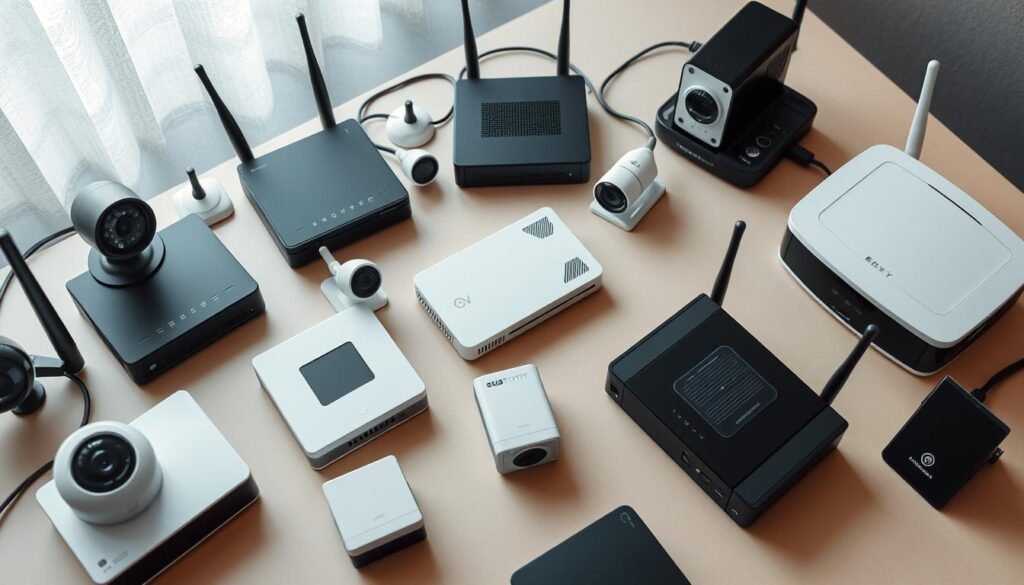
“Reduce exposed services and isolate IoT to shrink avenues attackers use for hacking.”
For a deeper checklist on strengthening home networks and devices, see this hardening guide, and for smart device tips check smart devices advice.
Behavioral defenses that stop phishing and social engineering
Social engineering preys on haste; small checks stop big compromises. Train a few quick habits and you cut the most common paths hackers use to get in.
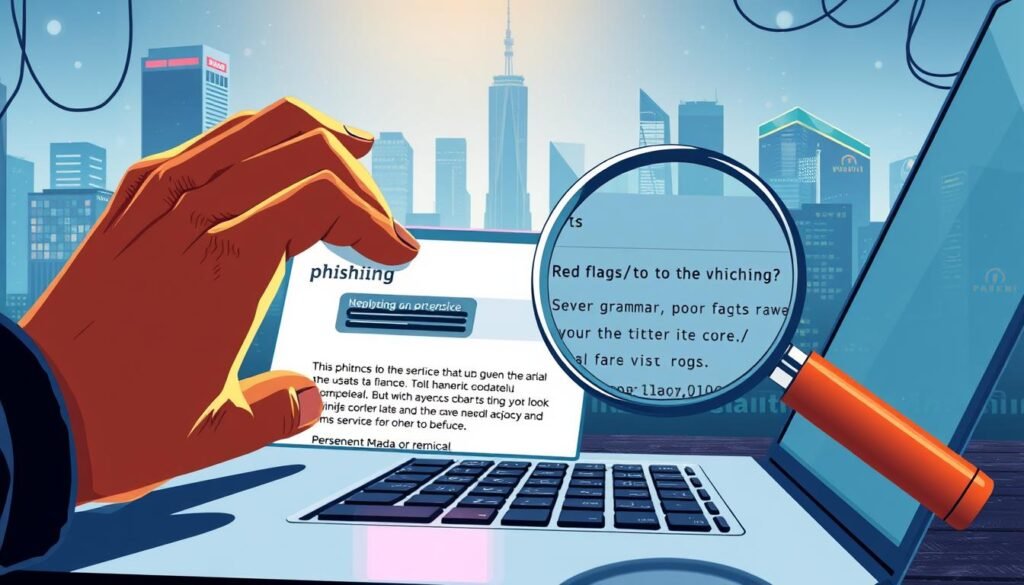
How to spot phishes in email, texts, and DMs
Learn the telltales: mismatched sender domains, urgent or threatening language, odd grammar, and login pages that look “almost right” are red flags.
Hover before you click. Preview links to see the real destination and avoid shortened URLs. When in doubt, open the service directly in a browser rather than following embedded links.
Avoid risky links, downloads, and unsolicited attachments
Treat attachments with suspicion. Block macros and refuse to run files that arrive unexpectedly, even from known contacts.
If a message pressures you to approve access or share a code, verify out-of-band. Call or message the sender using a trusted contact method before acting.
Check for breached accounts and change passwords immediately
Audit exposure with breach-check tools. If an account appears in a breach, change passwords and enable two-factor authentication (2FA) right away.
- Limit app sprawl: remove rarely used apps that request camera access and reduce linked accounts.
- Expect pretexting: a hacker may impersonate IT or vendors to get codes or approvals.
- Make sure family and team members know these basics; one phished email can deliver malware that targets a webcam.
- Run quick drills weekly: practice spotting phish attempts to keep skills sharp.
“Stop, look, and verify — that three-step habit prevents most credential theft and malware delivery.”
For deeper guidance on how social engineering works and how to defend against it, read this primer on social engineering and phishing.
Detect and respond: signs your camera may be compromised
If the indicator light turns on when no call is active, act quickly and calmly. That simple cue is one of the clearest signs a device may have unauthorized access.

Physical and performance signs to watch for
Watch for an indicator light that flickers or stays lit when idle. Track sudden internet usage or rapid battery drain on a laptop or phone.
Also check for video glitches, lag, or new files and apps you did not add. These are strong signs that something changed in settings or software.
Immediate steps to contain an incident
First, cover the lens and disconnect from the internet. Isolate the device by unplugging Ethernet or turning off Wi‑Fi. This stops live capture and exfiltration.
Run an on‑demand scan with a trusted antivirus tool and remove any detections. If symptoms persist, scan again with a second tool or boot from rescue media.
Recovery and reporting
Reset passwords from a known‑clean device and revoke app tokens. Re-enable camera access only after scans and settings checks. Keep a log of actions taken.
“If extortion or threats arrive, preserve messages and contact law enforcement; do not pay demands.”
| Warning sign | What it may mean | First action |
|---|---|---|
| Indicator light on when idle | Possible active video capture | Cover lens, disconnect network |
| Unusual internet spikes | Data exfiltration or stream | Isolate device, run scans |
| New files/apps/extensions | Malware or unauthorized access | Quarantine and remove; reset tokens |
| Fast battery drain | Background video or processes | Disconnect, scan with antivirus |
Ongoing maintenance to keep webcam security tight
A simple schedule turns one-off fixes into a repeatable defense plan. Make updates and audits part of a calendar so controls stay effective over time.
A calendar that enforces updates and audits turns one-off fixes into lasting protection. Set reminders for monthly and quarterly tasks so nothing slips between busy days.
What to do monthly
Apply OS, driver, and firmware updates to each device promptly. Track version numbers so you can confirm updates applied across the fleet.
Keep antivirus definitions current and run a full scan weekly. Verify that camera access alerts and key software features remain enabled.
Quarterly audits that pay off
Review camera permissions and privacy settings. Remove unused apps and set prompts to ask every time where possible.
Tune the firewall: check inbound blocks, review outbound rules for conferencing tools, and make sure logging is active for incident review.
Operational housekeeping
- Rotate sensitive credentials for admin accounts and services; set reminders to change passwords.
- Inventory connected devices and power down peripherals you no longer need.
- Test restore paths so you can disable the camera from settings and roll back changes if an update causes issues.
- Document lessons learned from scans, false positives, and blocks to refine the baseline.
“Regular maintenance keeps risk predictable and fixes manageable.”
Conclusion
Layered defenses shrink attacker options: keep software and firmware updated, enforce strong authentication, and tune firewall and network rules. Limit app permissions and enable alerts so features meant to protect can actually notify you when something changes.
Watch for clear signals: an odd indicator light, unexplained bandwidth spikes, or new files you didn’t create are actionable signs to investigate.
Keep a monthly and quarterly maintenance rhythm for a laptop, computer, and other devices. Update routers, segment IoT on separate networks, and use a VPN on public Wi‑Fi to protect information in transit.
Trust but verify: enable camera access logs and review them regularly. For a short checklist and practical reads, see these webcam security tips.
You have a clear plan—apply it consistently, and your webcam and privacy become much harder targets for webcam hacking, malware, and other hacking attempts.
