
Can a paper notebook and a fireproof safe outsmart modern hacks? That question frames this guide. Many assume digital tools are the only path to security, but practical analog methods still offer robust protection when paired with modern controls.
This guide sets clear expectations: you will learn offline-first methods for generating long, random credentials, safe real-world storage, and ways to add multifactor options and passkeys without losing usability.
We cover vendor-neutral options like Bitwarden, Proton Pass, 1Password, Dashlane, and NordPass, and show where a dedicated offline device or a locked safe beats sticky notes and desk drawers.
Expect reproducible workflows, sample storage layouts, and recovery plans you can implement today. The focus is on usable security that keeps your accounts and data out of reach of common threats.
Key Takeaways
- Long, unique passwords resist brute-force and pattern attacks.
- Store critical secrets in a fireproof safe or a dedicated offline device.
- Dedicated managers offer zero-knowledge encryption and safer sharing than browser storage.
- Add MFA and passkeys where possible for phishing-resistant sign-ins.
- Monitor breaches, rotate impacted credentials, and keep systems updated.
Why Offline Password Practices Still Matter in the Present Day
Keeping critical credentials off the net narrows attack surfaces and buys breathing room when services fail. An offline safety net reduces exposure during breaches and preserves access when sync systems break.
Offline storage limits remote attackers. Centralized cloud vaults and browsers are tempting targets. If a single device is compromised, people who only store credentials online can lose many accounts at once.
Visible notes—sticky notes, whiteboards, or a notebook on a desk—are among the worst options. Anyone walking by can photograph or copy a list of passwords and keys.
Safer choices include a fireproof safe or a dedicated password device. These physical barriers force an attacker to act locally, giving you time to respond.
Offline records also block phishing and credential-harvesting tools because paper and sealed devices can’t be autofilled over a malicious site.
- Offline copies reduce blast radius when breaches occur.
- They aid recovery during outages or lockouts.
- Teams benefit from documented contingency plans that limit downtime.

How to create and manage strong passwords offline
Begin with length, then add randomness—that order gives the biggest defense against brute-force attacks. Long passphrases and mixed character sets push attack timelines from hours into years.
Generate without a browser using diceware wordlists, an air-gapped generator, or a shuffled-deck method. These methods leave no trace on connected devices and yield high-entropy secrets you can record safely.
Avoid templates like PetName+123!Site and never embed birthdays, addresses, or public facts. One leaked entry often reveals a pattern that attackers reuse across accounts.
- Recommended lengths: 4–6 random words or 20+ characters for critical accounts.
- Rotation plan: monitor breaches, replace only impacted secrets quickly, and test recovery procedures quarterly.
- Recordkeeping: list which accounts need MFA or hardware keys and track unique username password pairs.
| Method | Memorability | Entropy | Trace Risk |
|---|---|---|---|
| Diceware | High | Strong | Low |
| Air-gapped generator | Medium | Very strong | Very low |
| Shuffled deck | Medium | Strong | Low |

Choosing the Right Offline Storage: Paper, Safe, and Dedicated Devices
A practical storage plan balances a durable notebook, a rated safe, and an air-gapped device. This section compares paper, mechanical protection, and sealed hardware so you can pick the best option for your needs.

Paper done right
Treat notebooks like cash. Use a single, durable book and record hints or index IDs rather than full entries. This reduces the value of a found page.
Label neutrally with coded names or numbers. Keep a sealed backup in a separate, secure place for disaster resilience.
Use a safe
Select a fire- and water-resistant safe with a solid lock. Prefer models that offer logged access or support an audit trail when used in teams.
Keep a second copy sealed and stored offsite. Define chain-of-custody rules: who may open the safe, how checkouts are logged, and when audits occur.
Offline password storage devices
Evaluate USB biometric vaults versus standalone keypad units. A biometric device unlocks entries only after fingerprint verification.
Standalone units remain air-gapped and cannot be hacked remotely. Prefer options with strong local encryption, tamper resistance, no wireless interface, and minimal firmware update exposure.
What to avoid
Avoid sticky notes, labeled folders in a file cabinet, under-keyboard cards, or any desk drawer that invites casual access. These places enable quick, silent exfiltration.
Test retrieval with a dry run so indexing works under pressure. Plan secure disposal for retired books or devices: shred, incinerate, or physically destroy electronic units.
- Quick checklist: dedicated notebook, rated safe, air-gapped device, neutral labels, documented access rules.
Designing an Offline-First System You’ll Actually Use
An offline-first setup should reduce friction, not add chores that invite shortcuts. Make security fit daily habits so people stop emailing or texting secrets.

Balance security with convenience
Map your daily flow. Decide which password stays purely offline and which can live in a manager for easy access.
Keep critical bank credentials in a sealed notebook. Put routine logins in the manager so teams move faster without risky sharing.
Index without exposing secrets
Use an index card or a paper ledger that lists service name, username, and an index pointer like “Notebook A, p.17, l.3.”
Record metadata such as creation date, last rotation, MFA status, and recovery contacts. This data makes audits quicker.
Make retrieval painless
- Design layout so any item is found under 60 seconds.
- Define who gets access; apply least-privilege on paper too.
- Keep a change-control row: update index when a password changes.
Practical example
Show a redacted bank entry that lists URL, username, and the safe page pointer but omits the secret. Schedule monthly spot checks and quarterly reviews to keep the system reliable.
Master Password Strategy for Your Vault and Devices
Your master password is the one critical secret that must resist guessing, fit your memory, and survive real-world mishaps like device loss. This section explains pick choices and safe backups so you retain access without adding risk.
Crafting a memorable, high-entropy passphrase
Favor five to seven random words over complex punctuation chains. Diceware-style phrases hit high entropy while staying memorable.
Avoid using birthdays, names, addresses, or band names; attackers harvest that personal information easily from public sources.
Storing master password backups securely
Write the master password once by hand. Place that sheet in a sealed envelope and lock it inside a rated safe. Log who may open the envelope and when.
For vendors that add extra secrets—such as 1Password’s secret key—print the emergency kit and treat it like the master password itself. For Bitwarden or Proton Pass, enable passkey login where available so daily access is easier without weakening the master.
| Step | Why it matters | Action |
|---|---|---|
| Pick diceware phrase | Memorable, high entropy | 5–7 random words |
| Handwritten backup | Prevents cloud leakage | Seal in envelope, safe-store |
| Vendor extras | Can block recovery | Print emergency kit for 1Password |

Complementary Online Options: When a Password Manager Makes Sense
Use an online vault for daily convenience while keeping critical keys locked on paper or in a safe. Dedicated services fill the gap between everyday access and high-assurance backups by offering encrypted syncing, secure sharing, and audit trails that browsers lack.
Dedicated password managers outclass built-in browser stores in several measurable ways.
Why dedicated password managers beat browser-based storage
Zero-knowledge encryption means the service cannot read your vault. That reduces risk from provider breaches and internal faults. Browser stores often encrypt locally but remain easier to extract if an attacker gains device access.
Zero-knowledge encryption, cross-device sync, and secure sharing
Cross-device sync keeps entries consistent across phones, tablets, and laptops. That saves time and prevents fragmented lists that lead to risky workarounds.
- Secure sharing: grant vault or folder access to specific users instead of emailing secrets.
- Auditing: see access history and revoke rights quickly for teams and families.
- Feature checklist: look for passkey support, TOTP generation, emergency access, breach monitoring, and export controls.
Disable built-in browser managers after setup
After you migrate, make sure Chrome, Safari, Edge, or iCloud Keychain saving is turned off. This avoids duplicate entries, accidental saves in weaker stores, and confusing autofill behavior.
| Capability | Dedicated manager | Browser store |
|---|---|---|
| Zero-knowledge model | Yes | Usually no |
| Cross-device encrypted sync | Yes | Limited / ecosystem-bound |
| Secure team sharing | Yes | No |
| Audit logs & export controls | Yes | Minimal |
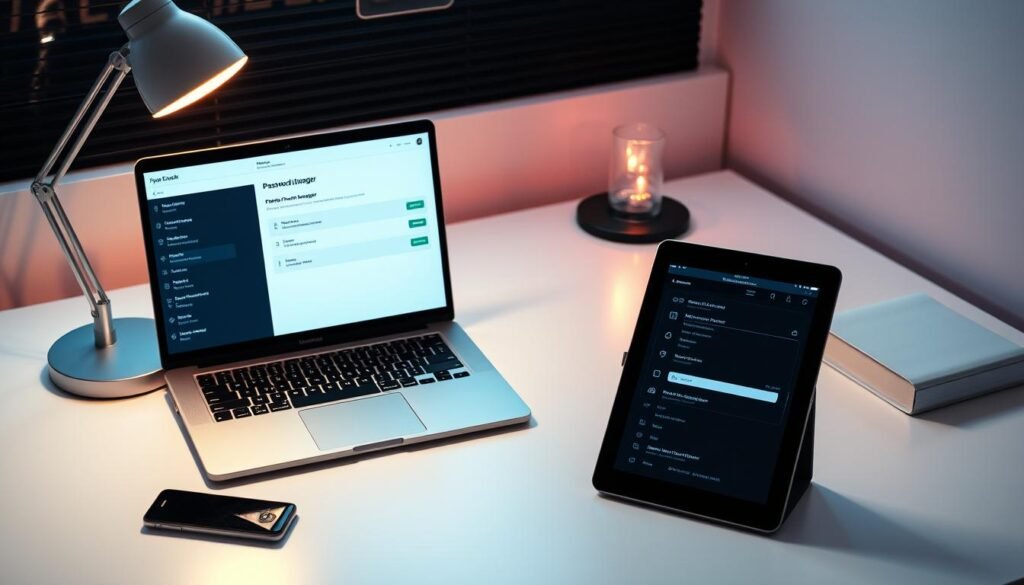
Recommended Password Managers and Self-Hosted Options
Choose a vault that suits your threat model and daily flow. Open-source projects give control and auditability. Commercial suites add monitoring, recovery tools, and polished apps.
Here are practical picks for most users and teams.
- Bitwarden — best for most: open source, independently audited in 2023/2024, passkey support, and mature self-hosting. Premium adds hardware-key two-factor authentication and vault health reports.
- Proton Pass — best free plan: unlimited entries with browser extensions, mobile apps, and Pass Monitor; paid tiers include Proton Drive storage and email alias features.
- 1Password — best upgrade: Travel Mode, a device-bound secret key beyond the master password, passkeys, and TOTP for higher-assurance travel and recovery scenarios.
- Dashlane — full-featured suite: breach alerts, dark web monitoring, and phishing protection. It lacks a desktop app but offers strong browser and mobile support for less technical users.
- NordPass — bundled option: XChaCha20 encryption, emergency access, and attractive bundles with other Nord services for users who want consolidated subscriptions.
Self-hosting notes: Bitwarden’s on-prem option is mature. If you prefer local control without a server, pick managers that support private sync, and avoid plain cloud documents for secrets.

Beyond Passwords: Two-Factor Authentication and Passkeys
Turn on two-factor authentication wherever possible. A second factor blocks most unauthorized logins even when a password is known.
Enable two-factor authentication: TOTP apps and hardware keys
Use an authenticator app for time-based one-time codes (TOTP). These apps work offline and resist remote interception.
Prefer hardware keys—like YubiKey—for phishing-resistant, device-bound authentication. Avoid SMS except as a temporary fallback.
Passkeys today: what they do and where to store them
Passkeys use public/private cryptography. The device holds the private key; the site keeps the public key. That makes phishing and reuse ineffective.
Store passkeys in a vetted password manager if it supports sync. Backups matter: register a second hardware key and keep printed recovery codes in your safe.
- Secure your devices with biometrics or a PIN; passkeys inherit the device’s protection.
- Test sign-in flows after enabling factors and document where keys live and how to revoke them.
- Begin with high-value accounts—email, banking, registrars—for maximum protection.
For a step-by-step guide on configuring multi-factor systems across platforms, read configure two-factor authentication securely.
Team and Family Use: Secure Sharing Without Leaks
Shared vaults must limit exposure while keeping work fast and auditable. Set clear roles, enforce MFA, and avoid ad-hoc sharing channels that leave secrets lingering.
When multiple people need access, pick a trusted password manager that supports groups, item-level permissions, and an audit log. These features let you scope rights by role and separate production, staging, finance, and admin vaults so each person sees only what they need.
Groups, permissions, and least-privilege access
Apply least-privilege. Create groups and assign vaults by role. Require hardware keys for admins and enforce multi-factor for every member.
Eliminate risky channels: no email, SMS, or chat for credentials
Use the password manager’s sharing interface to grant and revoke access centrally. Avoid sending credentials by email, SMS, or chat where messages can be forwarded or archived.
- Document join/leave workflows so new people get scoped access on day one and departing members lose vault rights immediately.
- Keep an access log and review it regularly; audits flag odd hours or unexpected locations.
- Design emergency procedures that let designated backups retrieve credentials without opening broad access.
Test the flow. Move a non-critical account through grant, use, rotate, revoke. Capture results in a short policy everyone can find. This is the simplest way to keep accounts secure while letting people work without friction.
Ongoing Hygiene: Updates, Breach Response, and Device Security
A clear breach playbook and current devices are the simplest ways to reduce risk. Follow simple checks that cut attacker windows and keep recovery fast. This section lists repeatable methods that fit daily routines.
What should you monitor after an exposure?
Watch breach alerts from your manager and trusted feeds. Dashlane offers breach alerts and phishing protection; Proton Pass includes Pass Monitor to flag weak or reused passwords and unenrolled MFA.
- Act fast: rotate affected passwords, check related accounts for reuse, and revoke tokens.
- Treat email and cloud providers as Tier 1; attackers who access them can reset other services.
Which device and software steps matter most?
Keep operating systems, browsers, and antivirus current on every device. Malware that captures keystrokes or browser data defeats even the best secrets.
Review device inventories, remove lost or retired device access, and wipe items before resale.
Practice regularly. Run a quarterly drill: pick a mock account breach, walk through rotation, update the offline record, and confirm restores of critical data and credentials.
Conclusion
Build a simple, repeatable system that pairs a sealed backup with a trusted vault for daily use.Use passkeys and two-factor authentication to harden logins while keeping master secrets in a rated safe.
You now have a clear path: generate unique credentials offline, index them, and use a vetted password manager for routine access and secure sharing. Pick a pilot set and test recovery before full migration.
For most people, Bitwarden or Proton Pass are top picks; 1Password and Dashlane add premium features, while NordPass fits bundled needs.
Eliminate risky habits: avoid emailing secrets, spreadsheets, sticky notes, or leaving a copy in a browser store. Train family or teams on groups, least-privilege, and regular breach checks.
Start today: write a durable master phrase, secure it in your safe, register backup hardware keys, and enable MFA on high-value accounts so your analog vault protects your digital life.
