Worried that apps and services might be quietly sharing where you go? This guide answers that question and gives clear, tested steps to regain control. We’ll show how to toggle global Location Services, set per-app rules, and manage sharing tools so your privacy and security come first.
Modern devices let you switch these controls quickly. On iPhone, use Settings > Privacy & Security > Location Services. On Android, edit the Quick Settings tile or press and hold the Location icon. You’ll learn how to choose options like Never, While Using the App, or Always, and when to use each choice.
We rely on solid information and practical tips used by experts. Expect step-by-step guidance for both major platforms, plus safe handling of Find My and Maps sharing. If you want a deeper walkthrough on how to prevent being tracked, check this helpful guide from AVG for extra detail: prevent your phone being tracked.
Key Takeaways
- Global switch first: Learn the main Settings toggle for your device.
- Use app-level controls: Grant access only when an app needs it.
- Manage sharing tools: Stop or limit Find My and Maps sharing when not needed.
- Balance usability and safety: Choose options that protect privacy security without breaking key services.
- Follow experts’ steps: Small changes in settings yield big privacy gains.
Why turning off location services can protect your privacy, battery life, and security
When devices stop broadcasting exact position, your digital footprint gets smaller fast.
Reducing persistent position checks also saves battery and cuts data use.
Limiting position access reduces passive tracking across GPS, Wi‑Fi, Bluetooth, and cellular services. That tightens your privacy footprint while keeping core features you actually need.
Cutting back on constant gps checks helps battery life and lowers data usage. Many experts call this an easy, high-impact win.

Fewer apps collecting movement information means less profiling and fewer personalized ads over time. For security, restricting apps and devices from persistent position access lowers risks like stalking and account compromise.
- Disable or limit position per app to keep necessary services while blocking passive scans.
- Expect some features—navigation and ride-hailing—to be reduced if position is paused.
- Emergency services can still locate a device during 911 calls; your protection does not block critical help.
| Benefit | What changes | Practical tip |
|---|---|---|
| Privacy | Less third-party profiling and targeted ads | Grant access only while using the app |
| Battery life | Fewer background GPS checks | Limit precise position use in high-drain apps |
| Security | Lower risk of unwanted surveillance | Review permissions regularly and revoke unused access |
Need official guidance for iOS settings? See Apple’s privacy controls for step-by-step help.
Turn off phone location tracking on your device
A quick settings swipe or a single toggle in iOS will immediately close many common ways apps read your position.
Android: quick tile and Settings path
Swipe the top screen down twice to open Quick Settings. Press and hold the Location icon to edit its behavior.
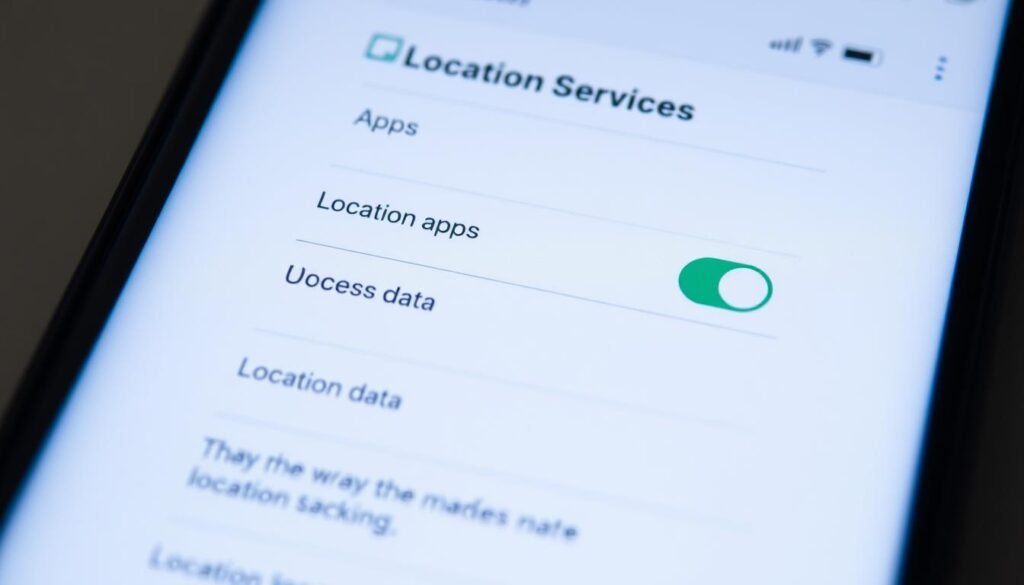
If the tile is missing, tap Edit or Settings to add it. Then switch Use Location off in the global panel to stop apps from reading GPS and Wi‑Fi-based position data.
iPhone: privacy master switch
Open Settings > Privacy & Security > Location Services and flip the master switch to disable systemwide access.
Remember: navigation and ride-hailing apps will lose precision when you do this. To reset all app permissions later, go to Settings > General > Reset > Reset Location & Privacy.
Quick checks and best practice
For a fast toggle, use the top screen Quick Settings tile (Android) or the master switch on iOS when you only need temporary privacy.
- Open settings and verify individual apps if you prefer selective access.
- Expect some service disruptions when turning location off; re-enable for navigation when needed.
- For account-level controls and syncing, review your Google account permissions at Google account location settings.
Control app permissions to manage when apps may access your location
You can control what apps know about you by changing permission settings for each app. This protects privacy while keeping essential services working. The steps below show exact paths on iPhone and Android so you can make choices quickly.
iPhone: set app permissions per app
Open Settings > Privacy & Security > Location Services. Select an app, then pick one of: Never, Ask Next Time Or When I Share, While Using the App, or Always.
Use “Ask Next Time” for apps you rarely trust to access position data. Use While Using for maps or delivery tools that must use location in the foreground.
Android: quick app info and permission control
Press and hold the app icon, tap app info > Permissions > Location. Choose All the time, Only while using the app, Ask every time, or Deny.
If an app seems unknown or untrusted, deny access. For account-level guidance see this concise Google help page about managing permissions: manage account location settings.
“Audit permissions regularly and keep only the apps you trust with access.”
- Audit app permissions monthly and remove access from unused apps on your device.
- Prefer per-app controls instead of a global kill switch to preserve useful features for key apps.
- Use “Ask every time” for apps you want to limit without breaking them entirely.
For a step-by-step review on shared position with people and apps, see this practical guide: check who you’re sharing with.
Fine-tune accuracy and background features for better privacy
Control how precise your device is and what it logs in the background to cut unnecessary data collection while keeping useful features intact. These settings let you share a rough area with apps that only need it, while denying exact coordinates to anything that doesn’t.
How to share approximate position on iOS
Open an app’s settings under Privacy & Security > Location Services and toggle Precise Location per app. This shares an approximate area instead of exact GPS coordinates.
Approximate position often works for weather, news, and local content. Keep precise access for navigation and ride services only.
Adjust Google Location Accuracy on Android
Go to Settings > Location Services > Google Location Accuracy and disable “Improve Location Accuracy” to reduce precision. On older devices (Android 11 and below) look under Advanced > Google Location Accuracy.
Reducing accuracy lowers background scans that refine your position from Wi‑Fi and Bluetooth sources.
Limit significant place logs on iPhone
Disable Significant Locations under Settings > Privacy & Security > Location Services > System Services to stop the device from recording frequent stops in the background.
This change reduces long-term profiling while keeping critical services available when you need them.
- Use approximate settings when exact GPS is unnecessary to improve your privacy.
- Check each screen in Settings so only essential apps may use location services.
- Audit background features monthly and revoke access from apps you rarely use.
| Fine-tune option | Where to find it | Effect |
|---|---|---|
| Precise Location (iOS) | Settings > Privacy & Security > Location Services > [App] | Share approximate area instead of exact GPS; preserves privacy for non-navigation apps |
| Significant Locations (iOS) | Settings > Privacy & Security > Location Services > System Services | Stops background logging of frequent places; reduces profiling |
| Google Location Accuracy (Android) | Settings > Location Services > Google Location Accuracy (or Advanced) | Disables improved position fixes from Wi‑Fi/Bluetooth; lowers precision and background scans |
For a wider privacy review, check your privacy and app settings regularly to keep these features locked to only what you need.
Manage system services: Find My Device, sharing, and account links
System services can silently share your position unless you audit them regularly. Review account-level features and sharing tools so people and linked accounts only get access when you intend.
Android: To disable Android’s recovery feature tied to your Google account, open settings > Security (or Biometrics & Security) > Find My Device and flip the service off. Remember this limits the ability to find location if the device is lost.
How to stop sharing with specific people
In Google Maps, tap your profile > Location sharing > New share to add a contact and set a duration. You can also copy a link instead of choosing a person.
To end sharing later, open the same profile > Location sharing, select the person, and tap Stop.
- Weigh recovery vs. privacy: Disabling Find My Device reduces find location options but stops account-based monitoring by anyone with credentials.
- Apple users: In Find My > People, select the person and choose Stop Sharing My Location.
- Audit devices: Check which devices and people have access and revoke what you no longer trust.
| Action | Where | Effect |
|---|---|---|
| Disable Find My Device (Android) | Settings > Security / Biometrics & Security | Prevents account-based recovery and recent find location reports |
| Share via Google Maps | Google Maps > Profile > Location sharing > New share | Share for a set time with chosen contacts or via link |
| Stop Sharing (iPhone) | Find My > People | Ends ongoing access and removes shared visibility |
Extend privacy beyond your phone: browsers, wearables, and enterprise devices
Protecting your movements means hardening more than just your handset. Browsers, smartwatches, and managed corporate devices all request or share position data. Tightening these areas reduces exposure and keeps core services working when you need them.
Web browsers: stop sites from asking to access location
Chrome: go to Settings > Privacy and Security > Site Settings > Location and select Don’t allow sites to see your location. This prevents web pages from asking to use GPS or related services.
Firefox: type about:config in the address bar, set geo.enabled to false to block geolocation prompts at the engine level.
Safari (macOS): open System Preferences > Security & Privacy > Location Services and uncheck Safari to stop site requests.
Wearables: mirror phone controls and check watch permissions
Apple Watch follows your iPhone’s settings. If you limit an app on the phone, the paired watch usually inherits that rule.
Android Wear watches let you open Settings > Permissions > Location on the watch and revoke access directly. Check both the watch and companion app to be sure.
Enterprise tips: enforce policies and audit access across fleets
Use mobile device management (MDM) to enforce app permissions and system services policies. Require “Ask every time” for sensitive apps and document approvals for regulated devices.
Train staff to spot risky apps and to review prompts on each screen, since some sites or apps re-request access from the top of the page.
“Treat browsers, wearables, and enterprise endpoints as equal partners in your privacy program.”
| Area | Action | Outcome |
|---|---|---|
| Browsers | Disable site geolocation prompts (Chrome/Firefox/Safari) | Stops web services from requesting to access location services |
| Wearables | Review watch permissions; mirror phone rules | Prevents apps on watches from sharing precise gps data |
| Enterprise | Enforce MDM policies; audit app permissions | Central control of app permissions and reduced risk across devices |
Note: Some workflows—like those using Google Maps for routing—may need specific permissions. Confirm critical app flows after tightening settings, and consider periodic audits to balance usability and cybersecurity.
For a deeper discussion on privacy risks and enterprise controls, see this industry perspective: how location tracking is raising the stakes on privacy.
Conclusion
A quick habit of checking a couple of settings can protect your privacy and battery life. Make the master switch and the quick tile your go-to tools, and prefer per-app rules to blanket changes.
Keep these core moves: on Android, swipe top screen and hold Location to use the tile; on iPhone, use the master control to manage location services. Be ready to re-enable when you need navigation or delivery apps.
Weigh recovery features before you disable find services. For details on handling Find My Device, see the Find My Device guide.
Audit monthly, tighten precision and background logs, and document changes across each device and account for stronger cybersecurity.
