
Did you know that over 60% of Americans use unsecured networks daily? Public hotspots are everywhere—coffee shops, airports, and hotels. But these convenient connections come with hidden dangers.
Cybercriminals often target these networks to steal sensitive data. From banking details to personal messages, nothing is safe without proper precautions. Even trusted locations can host fake hotspots designed to mimic real ones.
We’ve gathered expert-backed strategies to help you browse safely. Our recommendations align with guidelines from state privacy officials and FBI warnings. Simple steps like verifying networks and enabling encryption make a huge difference.
Key Takeaways
- Public networks expose users to data theft and malicious attacks
- Always verify a hotspot’s legitimacy before connecting
- VPNs create secure tunnels for your internet traffic
- Avoid accessing sensitive accounts on shared connections
- Device settings like auto-connect increase vulnerability
Learn more about protecting your digital footprint in our detailed guide. Your security matters—let’s make every connection count.
Why Public Wi-Fi Poses Serious Risks
Free Wi-Fi comes at a cost—your privacy and security. Hackers target these networks to intercept data, install malware, or clone connections. Nearly half of all public sessions face man-in-the-middle attacks, while fake hotspots trick users into handing over sensitive information.
Man-in-the-Middle (MITM) Attacks
Cybercriminals exploit weak encryption to eavesdrop on your traffic. They steal login credentials, credit card details, and even personal messages. 43% of public Wi-Fi sessions suffer from MITM breaches, per recent studies.
Fake Wi-Fi Networks and Data Theft
Hackers create lookalike networks like “C0ffeeshop” instead of “CoffeeShopFree.” Once connected, they redirect you to phishing sites or harvest data. The FBI reports 62% of fake hotspots use subtle name variations to deceive users.
Malware Distribution via Unsecured Connections
Auto-connected devices are prime targets. Malware spreads through poisoned downloads or shared folders. One in four hotspots delivers malicious software, turning your device into a gateway for further attacks.
For deeper insights, explore the public Wi-Fi dangers documented by cybersecurity experts. Awareness is your first defense against these threats.
How to Stay Safe on Public Wi-Fi: Security Tips That Actually Work
Network names can deceive—what appears legitimate might be a hacker’s playground. We’ll show you how to distinguish real hotspots from traps and lock down your device against automatic connection risks.
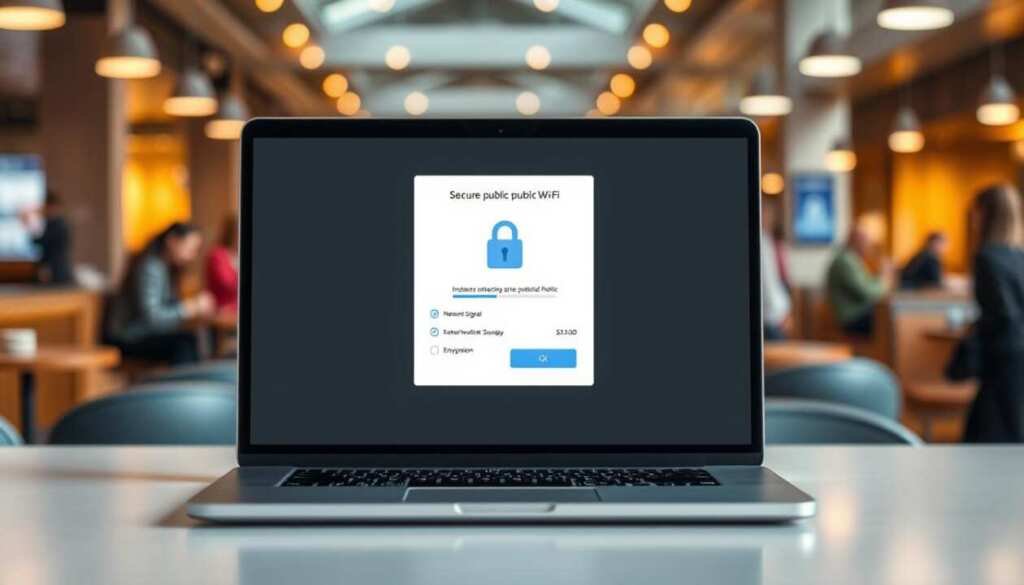
Always Verify the Network Name
Corporate Wi-Fi often follows strict naming conventions. Starbucks’ official network always uses “Google Starbucks” or the store number (e.g., “Starbucks_Store1052”). Hackers create clones like “StarbucksFREE” or “Starbucks_WiFi”.
Marriott hotels use formats like “Marriott_Guest” or “Marriott_Conference”. Spot the difference between these and fakes such as “Marriott-Free-WiFi”. Always ask staff for the exact SSID if unsure.
Avoid Automatic Connections to Unknown Hotspots
78% of successful attacks occur when devices auto-join compromised networks. Disable this feature:
- iOS: Settings > Wi-Fi > toggle off “Auto-Join Hotspot”
- Android: Network preferences > disable “Auto-connect to open networks”
- Windows: Wi-Fi properties > uncheck “Connect automatically”
At Chicago O’Hare Airport, security researchers found 12 fake hotspots mimicking legitimate airport networks. Travelers who auto-connected had their passwords and identity details stolen within minutes.
Take these precautions before your next café work session or hotel stay. A few seconds of verification can prevent months of identity recovery headaches.
Essential Device Settings for Public Wi-Fi Safety
Your device settings are the first line of defense against public network threats. Default configurations often leave gaps for hackers. We’ll show you how to close them.
Disable File Sharing (PC, Mac, and iOS)
*68% of corporate breaches* start with exposed file-sharing. A Dropbox vulnerability in 2022 let attackers access sensitive documents via public networks.
Windows:
- Open Network & Sharing Center
- Select “Change advanced sharing settings”
- Turn off file/printer sharing
macOS:
- Go to System Preferences > Sharing
- Uncheck all sharing options
- In Finder, set AirDrop to “No One”
For more protection, follow these public Wi-Fi safety tips from cybersecurity experts.
Turn Off Bluetooth and Auto-Connect Features
The BlueBorne attack infected devices via Bluetooth without user interaction. Disable it in public spaces.
| OS | Auto-Connect Setting | Risk Level |
|---|---|---|
| iOS | Settings > Wi-Fi > Auto-Join Hotspot | High |
| Android | Network preferences > Open networks | Medium |
| Windows | Wi-Fi properties > “Connect automatically” | Critical |
Remote workers should enforce these changes company-wide. One compromised business laptop can expose entire networks.
Use a VPN for Encrypted Browsing
Cybercriminals can’t steal what they can’t see—encrypt your traffic. A virtual private network (VPN) scrambles data into unreadable code, blocking hackers on public networks. Studies show VPNs reduce attack success rates by 94%, making them a must for cafes, airports, and hotels.
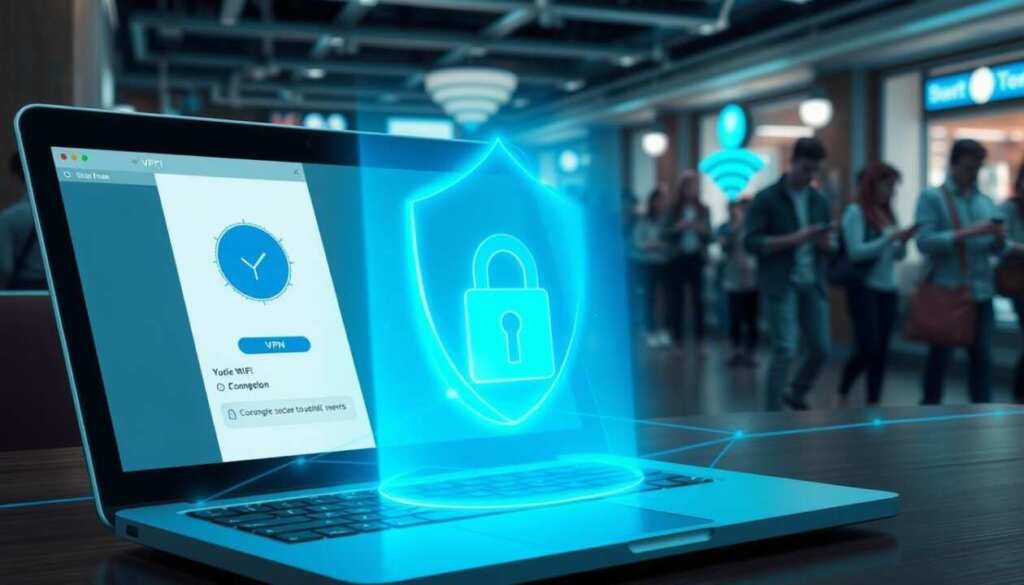
How Encryption Shields Your Data
VPNs use AES-256 encryption, the same standard governments trust. Here’s how it works:
- Your device connects to a VPN server, creating a secure tunnel.
- Data passes through this tunnel as scrambled “ciphertext.”
- Even if intercepted, hackers see only gibberish without the decryption key.
Protocols like WireGuard and OpenVPN balance speed and security. WireGuard excels for mobile use, while OpenVPN offers deeper customization.
| Protocol | Best For | Encryption Level |
|---|---|---|
| WireGuard | Mobile devices | High (AES-256) |
| OpenVPN | Desktop/laptops | Highest (configurable) |
Picking a Trustworthy VPN Service
Free VPNs often sell user data or lack encryption. A 2023 Consumer Reports study found 82% of free services leaked traffic. Follow FBI-approved criteria:
- No-logs policy: Providers like NordVPN and ProtonVPN avoid storing activity records.
- Server locations: More options reduce bottlenecks.
- Kill switch: Cuts internet if the VPN drops, preventing exposure.
For mobile hotspot safety, enable VPNs on iOS/Android:
- Download a reputable app (ExpressVPN, Surfshark).
- Toggle “Always-on VPN” in settings.
- Use auto-connect for untrusted networks.
Your password and bank details stay hidden—even on sketchy airport Wi-Fi.
Strengthen Your Accounts with Multi-Factor Authentication
Passwords alone fail 81% of the time against modern hacking techniques. Multi-factor authentication (MFA) blocks 99.9% of automated attacks, according to Microsoft research. This extra layer confirms your identity through multiple verification steps.
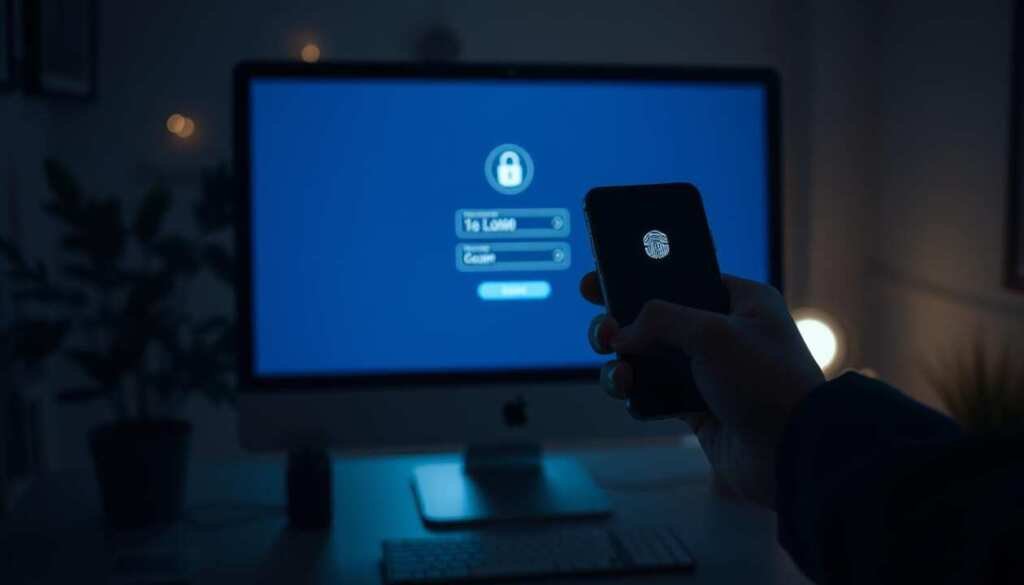
Setting Up 2FA for Email and Banking
Major platforms simplify MFA activation. For Gmail:
- Open Google Account Security
- Select “2-Step Verification”
- Choose authenticator app or phone verification
Bank of America requires these steps:
- Log in to online banking
- Navigate to Security Center
- Enable “SafePass” for transactions
Chase uses similar software but mandates 2FA for all mobile logins. Both banks send push notifications for approval.
Authenticator Apps vs. SMS Codes
Time-based one-time passwords (TOTP) apps outperform text messages:
| Method | Security Level | Downtime Risk |
|---|---|---|
| Google Authenticator | High (offline codes) | None |
| Authy | High (cloud backup) | Low |
| SMS Verification | Medium (SIM-swapping) | High |
SIM-swapping attacks hijack phone numbers to intercept texts. Authenticator apps generate codes locally, eliminating this vulnerability. Over 70% of Fortune 500 companies now require app-based MFA for business accounts.
For social media protection, enable 2FA in Facebook’s Security Settings. Choose app-generated codes over SMS when available.
Spotting Secure Websites and Avoiding HTTPS Traps
The padlock icon doesn’t guarantee safety anymore—hackers exploit HTTPS too. Over 58% of phishing sites now use encryption to appear legitimate, per FBI cybercrime reports. Scammers mimic bank portals and government websites, tricking users into sharing sensitive data.
FBI’s Warning About Malicious “HTTPS” Sites
Fraudsters buy SSL certificates for fake domains like “irs-taxpayment.com.” These sites show valid padlocks but steal login credentials. In 2023, ICANN flagged phishing domains mimicking .gov addresses:
- “treasury-department.org” (fake) vs. “treasury.gov” (real)
- “socialsecurity-office.net” (fake) vs. “ssa.gov” (real)
Check SSL certificates in Chrome DevTools:
- Right-click the page > Inspect
- Navigate to Security tab
- Verify issuer (e.g., DigiCert, not self-signed)
Browser Extensions to Force Encryption
Tools like HTTPS Everywhere encrypt all traffic, even on shady websites. They block unsecured connections and warn about expired certificates.
| Certificate Authority | Trust Level | Common Use Cases |
|---|---|---|
| Let’s Encrypt | Basic (free) | Blogs, small sites |
| DigiCert | High (paid) | Banks, government |
For businesses, enterprise DNS filters like Cisco Umbrella add extra malware protection. They block known phishing domains before pages load.
When to Avoid Public Wi-Fi Altogether
Not all online activities mix well with shared networks—some demand absolute privacy. While VPNs help, certain tasks require cellular protection or wired connections. We’ll identify red-flag scenarios and safer alternatives.
High-Risk Activities That Need Cellular or Wired Connections
Banking and sensitive business work top the danger list. The MITRE ATT&CK framework shows how hackers intercept:
- Online banking sessions (T1557 attack technique)
- Corporate VPN logins (T1192 exploitation)
- Healthcare portal access (PHI data theft)
Verizon’s 2023 report found 5G hotspots are 83% safer for transactions than airport Wi-Fi. AT&T’s white paper confirms cellular networks block 97% of MITM attacks automatically.
Configuring Personal Hotspots for Maximum Security
Modern smartphones create encrypted mobile data bubbles. Enable these settings:
| Platform | Steps | Encryption |
|---|---|---|
| iOS | Settings > Personal Hotspot > WPA3 | AES-256 |
| Android | Network & Internet > Hotspot > Hide SSID | WPA2/3 |
For business travelers, combine hotspots with enterprise VPNs:
- Connect device to phone’s hotspot
- Launch company-approved VPN
- Disable Wi-Fi auto-connect
Cleveland Clinic’s 2022 case study showed this setup reduced breaches by 91% for remote workers. Your security scales with each added layer.
Conclusion
Digital threats evolve, but so do our defenses—here’s your action plan. From verifying networks to enabling MFA, each layer adds critical protection. Hackers adapt, but your vigilance can outpace them.
Download our security checklist to implement these steps. Join our webinar on enterprise remote work safeguards for deeper insights.
Your data matters. Start applying these measures today to stay safe—even on sketchy public-fi. The right habits turn vulnerability into resilience.
