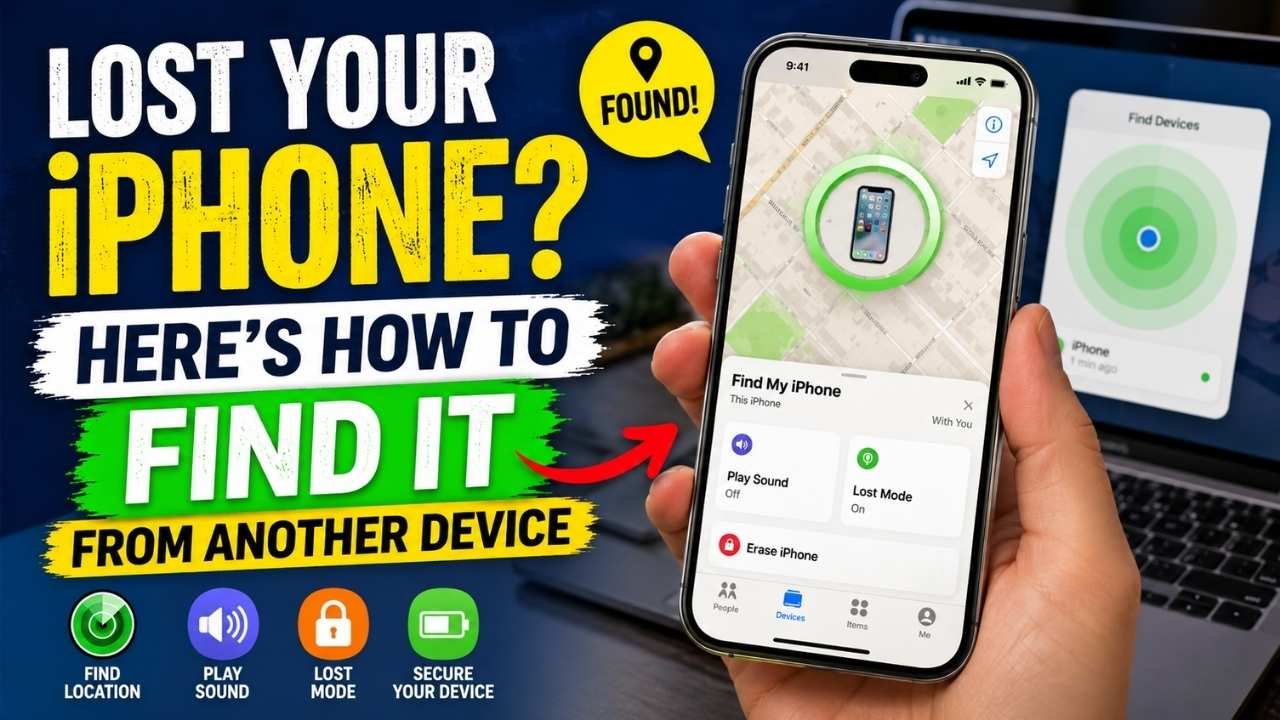
If your iPhone is missing, open Find My on another Apple device signed in to your Apple Account. Select Devices, choose the missing iPhone, and check the location shown on the map.
If the phone appears to be nearby, try Play Sound. If it shows up somewhere else, you can use Directions when it is safe and reasonable to retrieve it. If you cannot recover the phone quickly, especially if you suspect someone else has it, use Mark as Lost instead of immediately erasing it.
You do not need another iPhone specifically. An iPad or Mac connected to your Apple Account can also use Find My. You can also open Apple’s Find Devices service at iCloud.com/find in a browser.
The main catch is that Find My generally needs to have been set up on the missing iPhone before it disappeared.
Before You Start: Check Whether Find My Was Enabled
Find My normally needs to be enabled before the iPhone is lost. You cannot simply switch it on remotely after the phone has disappeared.
When Find My is already configured, you may be able to view the phone’s location, play a sound, mark it as lost, receive a notification when it is found, or erase it remotely. Which options work depends on how the iPhone was configured and whether it can currently communicate with the Find My network.
Also, do not assume every map marker is a continuously updated position. You may be looking at a current location, an earlier reported location, or no usable location at all.
How to Find a Lost iPhone From Another iPhone or iPad
Open Find My
On another iPhone or iPad connected to your Apple Account:
- Open the Find My app.
- Select Devices.
- Find the missing iPhone in the device list.
If location information is available, Find My can show the phone’s current or most recently available location.
Select the Missing iPhone
Tap the missing iPhone and look at what Find My is actually showing before taking action. The right next step depends on whether the phone appears nearby, somewhere familiar, offline, or in a location you do not recognize.
| What You See | What to Do | Best Use |
|---|---|---|
| Phone appears nearby | Use Play Sound | Finding it around your home, office, car, or another familiar place |
| Location appears elsewhere | Review the map and use Directions when appropriate | Recovering a phone you reasonably believe was simply misplaced |
| Phone cannot currently be located | Check the available last location and use Notify When Found if offered | Waiting for the phone to become locatable again |
| Possible theft | Mark as Lost and secure your account | Protecting the device while you pursue a safe recovery |
Play Sound, Get Directions, or Mark It as Lost
Play Sound is the obvious first step when the map suggests the iPhone is close. The sound can play even if the device is in Silent mode or its volume is muted.
Directions is more useful when Find My shows the phone somewhere away from you and there is a safe, reasonable explanation for why it might be there.
Mark as Lost matters when you cannot retrieve the phone promptly. Lost Mode locks the iPhone and helps protect the information stored on it.
A practical rule is: sound when it is nearby, directions when recovery looks straightforward, and Lost Mode when the situation is uncertain.
How to Find a Lost iPhone From a Mac
You can also use the Find My app on a Mac connected to your Apple Account.
- Open Find My on the Mac.
- Select Devices.
- Choose the missing iPhone.
- Review the location or status shown.
- Choose the appropriate recovery or security option.
A Mac does not provide a different or stronger tracking system. It is simply another way to access Find My. What you can see still depends on the missing iPhone’s settings and whether location information is currently available.
How to Find Your iPhone Using Someone Else’s Device
Using a borrowed iPhone or iPad is a little different from using one of your own devices. There is no need to change the owner’s Apple Account settings just to search for your phone.
Instead, open a private browser session when possible and go to iCloud.com/find. Sign in with the Apple Account used on your missing iPhone, locate the device, and sign out when you are finished.
Do not save your Apple Account password on someone else’s device. Recovering one device is not worth creating a second security problem.
How to Find Your iPhone Without Another Apple Device
Use Find Devices on iCloud.com
You do not need a spare iPhone, iPad, or Mac. A web browser can be enough.
- Open iCloud.com/find.
- Sign in with the Apple Account associated with the missing iPhone.
- Select the missing iPhone from the available devices.
- Check the location or status shown.
- Use Play Sound, Lost Mode, or another appropriate option based on the situation.
This is especially useful when your usual trusted Apple device is not available.
What to Do If Your iPhone Is Offline
Offline does not necessarily mean the phone is permanently untraceable. It does mean you should stop treating the map as live tracking.
Check the Available Location
Look for any current or previous location information and check when it was reported. An offline phone may still have a last-known location available for a limited period.
That location can be useful, but treat it as history, not proof that the phone is still sitting there.
Turn On Notify When Found
If Notify When Found is available, enable it. Find My can then alert you when the phone becomes locatable again.
That is usually more useful than repeatedly refreshing the map and hoping the status changes.
What Does “No Location Found” Mean?
No Location Found means Find My cannot currently provide a usable location for the device. The message does not tell you exactly why.
The phone may simply be unavailable to Find My, or there may be no location information that can currently be shown.
When this happens:
- Check whether a previous location is available.
- Enable Notify When Found if the option appears.
- Consider Mark as Lost if the phone is genuinely missing.
- Do not treat an older location as a live position.
What to Do If Your iPhone May Have Been Stolen
A misplaced iPhone and a stolen iPhone need different responses. Once theft looks possible, protecting the device and your account matters more than personally chasing the location shown on the map.
Mark the iPhone as Lost
Open Find My or iCloud.com/find and choose Mark as Lost.
Lost Mode locks the iPhone with its passcode and helps prevent easy access to your personal information.
Protect Your Apple Account
Review your Apple Account information and connected devices. If you notice changes you did not make, update your password and security information as appropriate.
Be especially careful with texts, emails, or calls claiming that your missing iPhone has been found and asking for your password, verification code, or other credentials. Treat those messages as suspicious.
When to Contact Law Enforcement
If Find My shows the phone at an unfamiliar location and you suspect theft, do not go there and confront someone yourself. Contact local law enforcement instead.
You should also contact your wireless carrier to report the missing device and discuss suspending service if needed.
When Remote Erase Makes Sense
Remote erase is a last-resort security step, not the first thing to do because the phone has been missing for a few minutes.
Consider erasing the iPhone when recovery looks unlikely and protecting the data on it has become the priority. If the device is offline, the erase request can take effect when it connects again.
Do not remove a stolen iPhone from Find My just because you erased it. Removing it from Find My also removes Activation Lock, which can make the device easier for someone else to reactivate or resell.
Can You Find an iPhone That Is Turned Off?
Sometimes. A supported iPhone may still provide useful location information after it goes offline, especially when the relevant Find My network features were enabled beforehand.
Do not treat that as a guarantee that every powered-off iPhone will remain continuously trackable.
Apple’s Find My settings include Find My network, which can help locate a device while it is offline, and Send Last Location, which can send the iPhone’s location when the battery becomes low.
A realistic expectation is that a powered-off phone may still leave you useful location information, but you should not count on a continuously updated position.
What If Find My Was Never Enabled?
If Find My was not set up before the iPhone disappeared, you cannot turn it on remotely and make the phone appear on the Find My map.
Without Find My already enabled, location tracking, Lost Mode, and remote erase through Find My will not normally be available.
At that point, shift your focus from tracking to account and device security:
- Secure your Apple Account if you think it may be at risk.
- Contact your wireless carrier about the missing phone.
- Report suspected theft to local law enforcement.
- Review important accounts connected to the phone and update security information where needed.
After You Recover Your iPhone
Once the phone is safely back in your hands, take a minute to check your Find My settings. It is much easier to prepare for the next loss while you still have the device.
Enable Find My iPhone
Go to Settings > [your name] > Find My > Find My iPhone and make sure Find My iPhone is turned on.
Enable Find My Network
Turn on Find My network where supported. This can help the iPhone remain locatable in more situations when it is offline.
Enable Send Last Location
Turn on Send Last Location. This allows the iPhone to send its location when the battery becomes low.
These settings only take a moment to check and are far easier to deal with before the phone goes missing again.
Frequently Asked Questions
Can I find my lost iPhone from another iPhone?
Yes. On another device connected to your Apple Account, open Find My, select Devices, and choose the missing iPhone. Find My needs to have been configured on the missing iPhone beforehand for normal location features to work.
Can I locate my iPhone from an iPad?
Yes. Open Find My on the iPad, select Devices, and choose the missing iPhone. The iPad can show whatever current or last-known location information is available.
Can I find my lost iPhone from a Mac?
Yes. Open Find My on the Mac, select Devices, and choose the missing iPhone.
Can I find my iPhone if it is turned off?
Possibly. It depends on the iPhone model, how Find My was configured, Find My network availability, and what location information is available. A powered-off iPhone should not be assumed to provide a continuously updated location.
What does No Location Found mean on an iPhone?
It means Find My cannot currently provide a location for that device. Check for an earlier location, use Notify When Found if available, and consider Lost Mode if the phone cannot be recovered quickly.
Can I use Find My from someone else’s iPhone?
Yes. A practical approach is to use the borrowed device’s browser and sign in to Find Devices at iCloud.com/find with your own Apple Account. Sign out afterward and do not save your credentials on the borrowed device.
What should I do if my iPhone was stolen?
Mark it as Lost, review your Apple Account security, contact your carrier, and report the theft to local law enforcement. Do not travel to an unfamiliar location shown in Find My to confront a suspected thief.
Can I find an iPhone if Find My was not enabled?
Not through normal Find My tracking. Find My cannot usually be activated remotely after the iPhone is already missing. Focus instead on securing your Apple Account, contacting your carrier, and reporting theft when appropriate.
Final Takeaway
The fastest way to look for a missing iPhone is usually Find My > Devices > your missing iPhone on another device connected to your Apple Account. You can do the same from an iPad or Mac, while iCloud.com/find gives you a browser-based option.
Then choose the response that fits what you actually see. Use Play Sound when the phone is probably nearby, check the available location when it was likely misplaced, enable Notify When Found when it is offline, and use Lost Mode when recovery is uncertain.
If theft looks possible, stop treating Find My like a route to personal recovery. Secure the device and your Apple Account, keep the iPhone in Find My so Activation Lock remains in place, and involve law enforcement rather than confronting someone yourself.
