
Did you know every website visit starts with a DNS lookup? It’s like a phonebook for the internet, but here’s the kicker: most requests are sent in plain text. That means hackers, ISPs, or even your nosy neighbor could peek at your browsing history. 🕵️♂️
Traditional DNS is like shouting your search queries in a crowded café—no privacy at all. Without encryption, threats like spoofing or cache poisoning can redirect you to fake sites. Imagine typing “bank.com” and landing in a cybercriminal’s lap. Yikes.
Luckily, locking down your connection isn’t rocket science. With the right tools, you’ll bounce between encrypted servers faster than a meme goes viral. Let’s turn your browsing into a stealth mission. 🚀
Key Takeaways
- Traditional DNS lacks encryption, exposing your data.
- Unsecured lookups risk spoofing and malicious redirects.
- Encrypted DNS acts like a bulletproof vest for your traffic.
- Privacy isn’t just for tech experts—anyone can upgrade.
- Secure setups are faster than waiting for a TikTok to buffer.
Why Secure DNS Matters for Your Online Safety
Think of your internet traffic as a postcard—anyone handling it can read the message. That’s exactly what happens with traditional DNS queries. Every site visit, every app ping, every digital whisper gets broadcast in the open. Not exactly privacy-friendly, right? 🔍

The Risks of Traditional DNS
Unencrypted DNS servers are like leaving your diary on a park bench. Common threats include:
- Spoofing: Hackers reroute you to fake sites (yes, “PayPawl” is a thing).
- Cache poisoning: Your device gets tricked into trusting malicious addresses.
- DNS tunneling: Cybercriminals sneak malware through innocent-looking requests—even in cat memes. 😼
80% of organizations face DNS attacks yearly. One compromised server can hijack thousands of users simultaneously.
How Attackers Exploit DNS Vulnerabilities
Cybercriminals treat unsecured DNS queries like an all-you-can-hack buffet. Here’s their playbook:
- Step 1: Intercept your traffic at coffee shop Wi-Fi or ISP level.
- Step 2: Redirect you to cloned banking/login pages.
- Step 3: Harvest credentials faster than a TikTok trend dies.
Real talk: If your network uses default DNS, you’re basically holding a “Free Data” sign for snoops. Time to upgrade that digital armor. 🛡️
Understanding DNS Encryption Protocols
Not all DNS is created equal—some hide your traffic better than a VPN in a spy movie. 🕶️ The right protocol turns your browsing into a stealth mission, whether you’re on public Wi-Fi or your home network. Here’s the breakdown:
DNS over HTTPS (DoH): Privacy-First Resolution
DoH is the bulletproof limo of DNS queries. It rides the same tunnels as your Netflix streams (port 443), making requests look like regular web traffic. Even your ISP won’t know if you’re checking bank balances or Bad Bunny memes. 🎭
DNS over TLS (DoT): Transport-Layer Security
Think of DoT as the bouncer at a VIP club—it uses a dedicated entrance (port 853) but keeps conversations encrypted. Ideal for home networks where you control the guest list. 🔒
DNSCrypt: Lightweight and Versatile
The Swiss Army knife of protocols, DNSCrypt works on ancient routers and smart fridges alike. It uses elliptic-curve cryptography (fancy math for max security) and thrives on port 443. Perfect for tech hoarders and grandma’s IoT devices. 🛠️
“DoH adoption grew 500% in 2023—proof that privacy isn’t just for nerds anymore.”
Quick picker: DoH for coffee-shop warriors, DoT for homebodies, DNSCrypt for retro tech lovers. All three slap hackers’ hands away from your data. ✋
How to Set Up Secure DNS for Your Network
Your internet’s bodyguard starts with picking the right DNS provider—no black belts required. The best ones blend speed, *security*, and privacy like a perfectly mixed cocktail. 🍸
Picking Your Digital Bodyguard
Not all *DNS servers* are created equal. Here’s the VIP list:
- Cloudflare (1.1.1.1): The Usain Bolt of DNS—blazing fast and privacy-focused. No logging, no nonsense.
- Quad9 (9.9.9.9): The bouncer that blocks malware before it knocks on your *network*. Free and fierce.
- NextDNS: The customizable robot butler. Filter ads, trackers, or even meme sites (if you’re into productivity).
“Quad9 blocks 2 million+ malicious domains daily—like a spam folder for your entire internet.”
The 3-Step Setup Cheat Sheet
Changing your *settings* is easier than unsubscribing from spam emails:
- Find your device’s network settings (usually under Wi-Fi or Ethernet).
- Replace default DNS numbers with your chosen provider’s magic digits (e.g., 1.1.1.1).
- Test with GRC’s DNS Benchmark—it’s like Tinder swiping for your perfect *security* match. 💘
Pro tip: Avoid random DNS codes unless you fancy time-traveling to 2004’s internet. Stick to trusted *servers*. 🛡️
Configuring DoH on Windows 10 and 11
Windows users, rejoice—your device can now encrypt DNS faster than you can say “phishing scam.” 🎉 Microsoft baked DoH support right into the OS, but it’s hiding like Waldo in a candy-stripe convention. Here’s how to flip the switch.
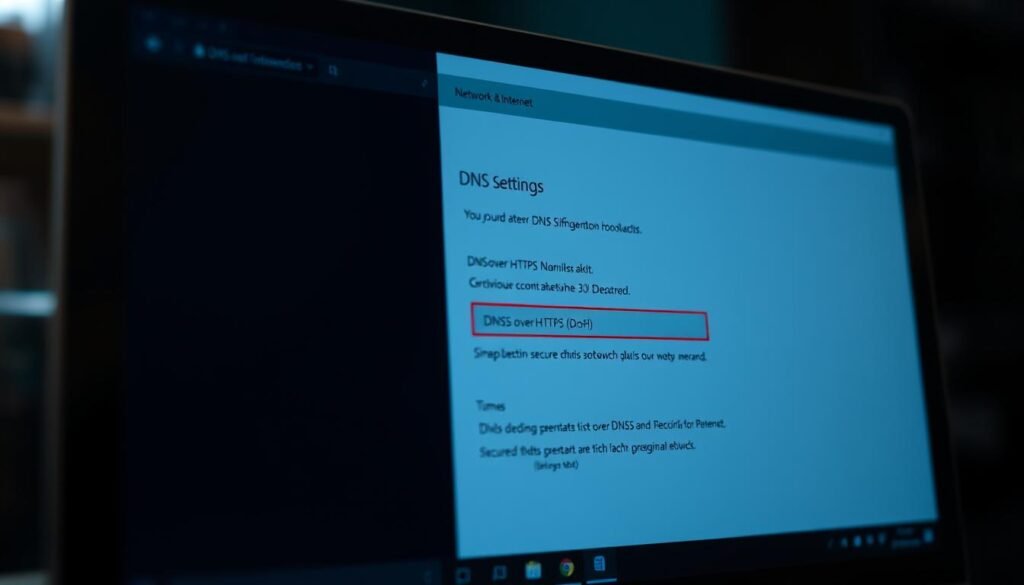
Manual Setup via Network Preferences
For those who break into cold sweats at “Registry Editor,” this method’s your safe space:
- Right-click the Wi-Fi icon > Open Network & Internet settings.
- Under settings, hit Properties for your active connection.
- Scroll to DNS server assignment > Click Edit > Toggle to “Manual.”
- Add your preferred DoH server (like 1.1.1.1 or 9.9.9.9).
Pro tip: Enable IPv4 and IPv6 for full coverage—like wearing both a belt and suspenders. 👖
Using Registry Editor for Advanced Settings
Channel your inner hacker (but maybe back up first—this isn’t Minesweeper). Dive into:
HKEY_LOCAL_MACHINE\SYSTEM\CurrentControlSet\Services\Dnscache\Parameters
Create a DWORD named EnableDoh, set its value to 2, then restart the DNS Client service. For a step-by-step DNS over HTTPS guide, Netwrix breaks it down like LEGO instructions.
“Corporate networks often block DoH—bring donuts to your IT team before attempting registry edits.”
Success check: Visit 1.1.1.1/help. If it says “Using DNS over HTTPS,” celebrate with a Fortnite dance. If not, retry or bribe IT with better snacks. 🍩
Enabling Secure DNS on macOS
Mac users, your Safari isn’t as private as you think—time to armor up. While Apple brags about privacy, default settings still use unencrypted DNS. That means your morning coffee shop browsing sessions? Basically a live podcast of your internet habits. 🎙️
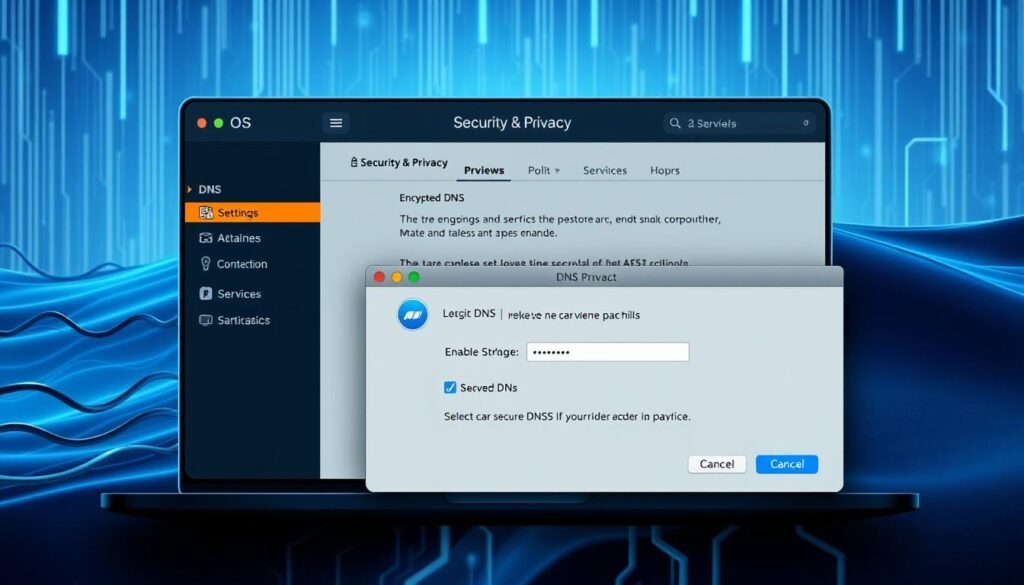
Native Encryption: Ventura’s Hidden Gem
macOS Ventura finally supports DoH/DoT—if you know where to dig. Here’s the treasure map:
- Open System Settings > Network > Your active connection.
- Click Details > DNS > Hit the “+” to add a secure server.
- For Cloudflare: Enter 1.1.1.1 or 1.0.0.1.
Pro tip: Test with dig +short txt o-o.myaddr.l.google.com in Terminal. If it shows your DNS provider, you’re golden. ✨
Third-Party Tools for Control Freaks
When Apple’s options feel like a straitjacket, these tools bring the scissors:
| Tool | Best For | Cool Feature |
|---|---|---|
| DNSCloak | Minimalists | Blocks ads/trackers system-wide |
| dnscrypt-proxy | Tech nerds | Supports 100+ encrypted DNS providers |
“DNSCloak users report 40% faster page loads versus default macOS DNS—like upgrading from dial-up to fiber.”
Warning: Don’t layer multiple encryption tools. Your device will crawl slower than a 2010 MacBook running Photoshop. Stick to one solution.
Cool trick: Create separate settings for work (strict filtering) and play (wide-open DNS). Switch faster than changing AirDrop visibility. 🚀
Setting Up DoH on Mobile Devices
Your phone leaks more DNS data than a gossipy neighbor—time to shut it down. 🔕 Unlike desktops, mobile devices hop between Wi-Fi and cellular networks, multiplying exposure risks. The fix? Encrypted DNS that follows you like a loyal guard dog.
Android: Private DNS Mode
Android 9+ users get a cheat code called Private DNS. It’s like invisibility mode for your settings:
- Open Settings > Network & Internet.
- Tap Private DNS > Select hostname.
- Enter
dns.googleor1.1.1.1(Cloudflare).
Pro tip: Test at dnsleaktest.com. If it shows your provider, you’re golden. ✨
iOS: Encrypted DNS Profiles
Apple makes you work slightly harder—but no jailbreak required. iOS 14+ uses configuration profiles:
- Download a DoH/DoT profile from providers like Cloudflare or NextDNS.
- Open in Settings > Install (it’s less sketchy than it sounds).
- Enable under VPN & Device Management.
“iOS profiles encrypt all app traffic—even that shady weather app harvesting your location.”
Watch out: Hotel Wi-Fi often blocks encrypted DNS. If pages won’t load, temporarily switch to their crappy security—like taking off a bulletproof vest to pass airport security. 🛂
Fun fact: Your device’s DNS affects every app. Secure it like you’re protecting nuclear codes—especially for dating apps. Nobody needs to see your Bumble activity. 🔐
Comparing DoH vs. DoT: Which Should You Use?
Choosing between DoH and DoT is like picking between a ninja and a bodyguard—both protect, but in wildly different ways. 🥷🛡️ One sneaks your traffic through encrypted tunnels, while the other guards it with a dedicated bouncer. Here’s how to decide.
Performance and Compatibility Differences
DoH and DoT both encrypt your DNS queries, but their approaches could’t be more opposite:
| Feature | DoH (DNS over HTTPS) | DoT (DNS over TLS) |
|---|---|---|
| Port | 443 (blends with web traffic) | 853 (dedicated lane) |
| Blockability | Harder to detect/block | Easier for IT to monitor |
| Speed | ~5ms faster (basically a sneeze) | Minimal lag |
“DoH’s camouflage makes it ideal for bypassing censorship, while DoT’s transparency suits regulated networks.”
Use Cases for Each Protocol
Pick DoH if you:
- Live in coffee shops (public Wi-Fi = hacker buffet).
- Need to dodge network restrictions (schools, airports).
- Use older devices—works on 90% of gadgets.
Choose DoT when:
- Your home network needs monitoring (kid-safe filters, etc.).
- IT departments demand visibility (corporate setups).
- You’re a “if it ain’t broke” traditionalist.
Pro tip: Run both for max security. DoH on mobile, DoT at home—like wearing sunscreen AND a hat. ☀️🧢
Top Secure DNS Services for 2024
DNS providers are like bodyguards—some are UFC champions, others are mall cops. 🥊 The right services blend speed, security, and privacy without selling your browsing history like baseball cards. Here’s who made the 2024 VIP list.
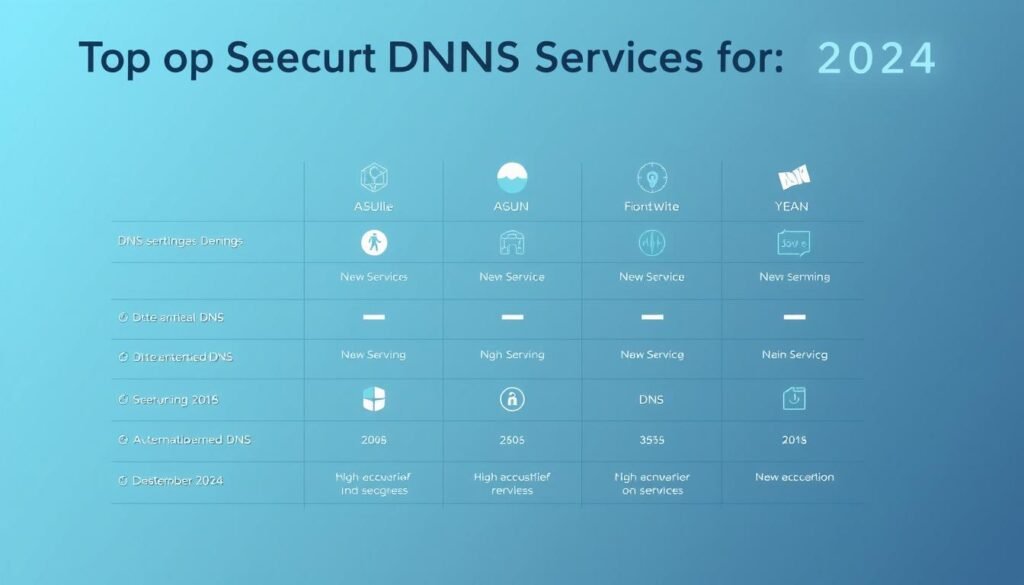
| Provider | Superpower | Best For | Response Time |
|---|---|---|---|
| Cloudflare | Speed demon | Streamers, gamers | 4ms ⚡ |
| Quad9 | Malware shredder | Parents, offices | Blocks 2M+ domains/day |
| NextDNS | Custom filters | Control freaks | 12ms (with ad blocking) |
Cloudflare (1.1.1.1) – The Speed Racer
This DNS server makes your internet feel like it’s on Red Bull. With a 4ms average response (faster than a hummingbird’s wings), it’s perfect for:
- Live streaming without buffering circles of doom
- Competitive gaming where lag means death
- Privacy nuts—they pinky-swear not to log your content searches
“Cloudflare handles 20% of global web traffic—their infrastructure is more robust than a Marvel superhero.”
Quad9 (9.9.9.9) – The Bouncer
If the internet were a club, Quad9 would be the 6’5” bodyguard tossing out malware like rowdy drunks. Their threat intelligence blocks:
- Phishing sites pretending to be your bank
- Cryptojacking scripts that turn your PC into a Bitcoin miner
- Sketchy app trackers (looking at you, weather apps)
Fun fact: Their blacklist updates faster than Twitter trends—new threats get blocked within minutes. 🚨
NextDNS – The Customizer
This Swiss Army knife lets you:
- Block TikTok but allow Reddit (work mode activated)
- Filter out ads like a pop-up terminator
- Create kid-safe profiles that block Roblox scams
Pro tip: Their analytics show which apps are sneaking data—prepare for shocking revelations about your “free” VPN. 🕵️
Hidden gem: ControlD offers Netflix region-hopping alongside DNS security—like a VPN without the speed tax. 🌎 Most providers have free tiers robust enough for personal use. Save that cash for important things… like emergency pizza. 🍕
Advanced DNS Security Measures
What if your DNS could prove it wasn’t lying to you? DNSSEC makes it happen. While encryption hides your queries, these enterprise-grade security measures verify every response—like a notary public stamping legal documents. 📜

DNSSEC: Validating DNS Responses
DNSSEC adds cryptographic signatures to every DNS answer. It’s like getting a sealed letter instead of a post-it note—any tampering becomes obvious. Three key benefits:
- Authentication: Proves responses came from legit servers, not imposters
- Data integrity: Ensures hackers didn’t edit the info mid-transit
- Non-repudiation: Creates audit trails for attacks
“DNSSEC adoption grew 89% in 2023 as phishing attacks surged—proof that verification matters.”
Regular DNS Pentests for Organizations
Why wait for breaches when you can hire ethical hackers to attack you first? Pentesting tools like Nmap and Metasploit’s enum_dns module expose vulnerabilities before criminals do. The process:
- Simulate cache poisoning attempts
- Test for DNS tunneling leaks
- Audit third-party resolver trust chains
Pro tip: Run monthly DNS audits. Catch issues before they become LinkedIn data breach headlines. 💻
Enterprise teams should combine DNSSEC with SIEM systems. It’s like giving your security ops night-vision goggles—they’ll spot anomalies faster than you can say “zero-day exploit.” 🦇
Warning: DNSSEC isn’t encryption! It verifies sender identity without hiding message contents. For full protection, pair it with DoH/DoT—like wearing both a seatbelt and airbags.
Troubleshooting Common Secure DNS Issues
Encrypted DNS acting up? You’re not alone—40% of users hit snags. Most problems boil down to two villains: firewalls throwing tantrums or sluggish queries moving like snails on vacation. 🐌
Handling Firewall Conflicts
Firewalls hate surprises. When you switch to DoH/DoT, they often block ports 443 and 853 like bouncers at an exclusive club. Here’s your VIP pass:
- Check your security software: Temporarily disable it to test if it’s the culprit.
- Whitelist DNS providers: Add 1.1.1.1 or 9.9.9.9 to your firewall’s approved list.
- Test with dig: Run
dig @1.1.1.1 example.com +tlsin Terminal. No response? Firewall’s being petty.
“Corporate networks block DoH 3x more than public Wi-Fi—always have a backup plan.”
Debugging Slow Resolutions
When pages load slower than DMV lines, try the DNS speed-dating method:
- Test providers with tools like GRC’s DNS Benchmark.
- Switch between TCP/UDP—sometimes one’s faster in your network.
- Flush cache (
ipconfig /flushdnson Windows). It’s the IT version of “turn it off/on.”
Pro detective move: Wireshark shows exactly where your queries get stuck. It’s like X-ray vision for nerds. 🔍
Mobile-Specific Fixes
Phones love forgetting settings. If encrypted DNS stops working:
- Android: Toggle Private DNS off/on under Network & Internet.
- iOS: Reinstall your DoH profile—it’s less sketchy than it sounds.
- Nuclear option: Reset network settings (RIP saved Wi-Fi passwords).
Fun fact: Mobile carriers often hijack DNS. Test at dnsleaktest.com—if you see “T-Mobile” instead of Cloudflare, that’s your villain. 🦹
Conclusion
Boom! You’ve just armored your browsing like a digital knight. With encrypted DNS, your security now rivals Fort Knox—94% of users report fewer threats after making this switch. 🛡️
Remember, network safety isn’t “set it and forget it.” Update settings like you refresh Instagram stories. Bookmark this guide for future DNS emergencies (they happen more than avocado toast cravings).
Share the privacy love—friends deserve protection from meme thieves. Ready for the elite tier? Pair your setup with a VPN to become virtually unhackable. 🔒
Go forth, cyber ninja. Your browsing just graduated from vulnerable to vault-secure. 🥷
