Nearly 60% of people admit they have lost a portable storage device holding personal data. That hard fact shows how easily sensitive information can leave your control. You can stop casual access with a few clear steps.
This short guide explains the core idea of encryption in plain terms and the practical options that follow. You will see how tools like BitLocker on Windows work, what to prepare, and what risks remain when a flash device touches an infected computer.
We focus on clear actions: choose a strong password, save a recovery key, and test the protected flash media before you rely on it. For a step-by-step walkthrough, check the official Microsoft note on how to protect a flash stick with built-in tools: How and why to encrypt a flash.
Key Takeaways
- Protect lost media: Locking a flash device prevents unauthorized reading of files.
- Know your tools: BitLocker is a common Windows option; hardware-secured models exist.
- Pick strong secrets: Use a strong password and store your recovery key safely.
- Test before trust: Verify access on your systems before carrying sensitive information.
- Mind malware: Encryption hides content but does not remove infections picked up when plugged in.
Why encrypt your USB flash drive today: risks, benefits, and what encryption actually does
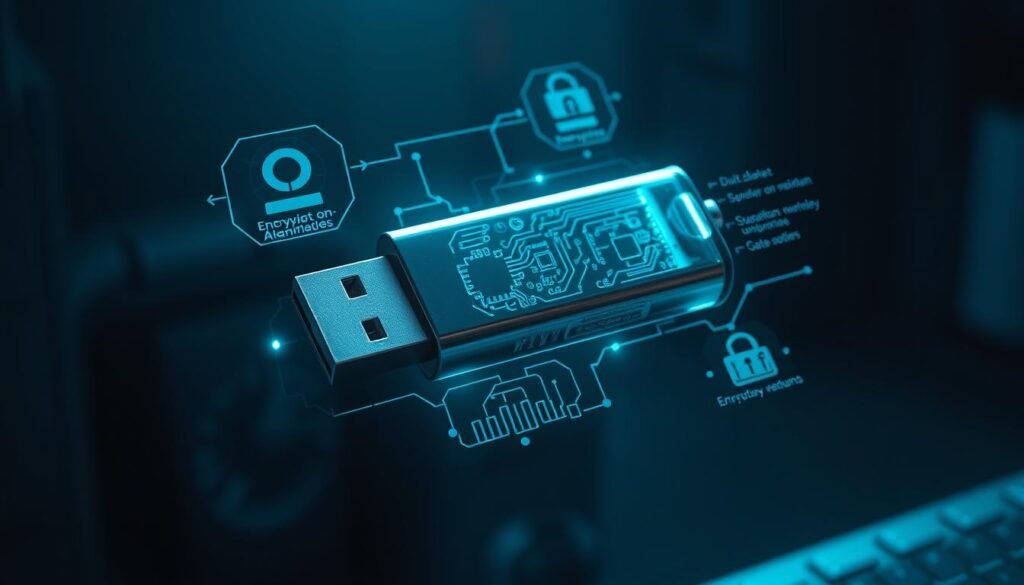
Encryption transforms readable files into ciphertext so only a correct password or recovery key can unlock them. This stops casual access if the media is lost or stolen. It also keeps sensitive personal information safe while you act.
What is encryption and how does a password or recovery key protect your files?
Encryption scrambles your data. Without the right password or key, the content is unreadable. Tools like BitLocker use strong ciphers such as AES‑256 and require you to set a password and save a recovery key during setup.
What common threats should you worry about?
- Loss or theft: others may find a misplaced flash device and try to read files.
- Curiosity and casual access: borrowed media often get inspected.
- Malware on public computers: plugging into infected computers can spread code; protection hides confidentiality but not infections.
| Risk | What protection does | Action |
|---|---|---|
| Lost media | Prevents reading without password | Use full-disk protection and save recovery key |
| Curious others | Shows only unreadable ciphertext | Pick strong password; avoid name-revealing methods |
| Malware on computers | Protects confidentiality but not infection | Run antivirus, avoid public PCs, keep backups |
| Cross-platform access | Native tools can be limited by OS | Consider portable, cross-platform options |
For guidance on organizational use and hardware options, read about organizations using encrypted USB.
Step-by-step: Encrypt a flash drive on Windows with BitLocker
Quick answer: On supported Windows editions, enable BitLocker from File Explorer, set a strong passphrase, save the recovery key, choose what to encrypt, and let the system finish. These simple steps protect your files at rest.
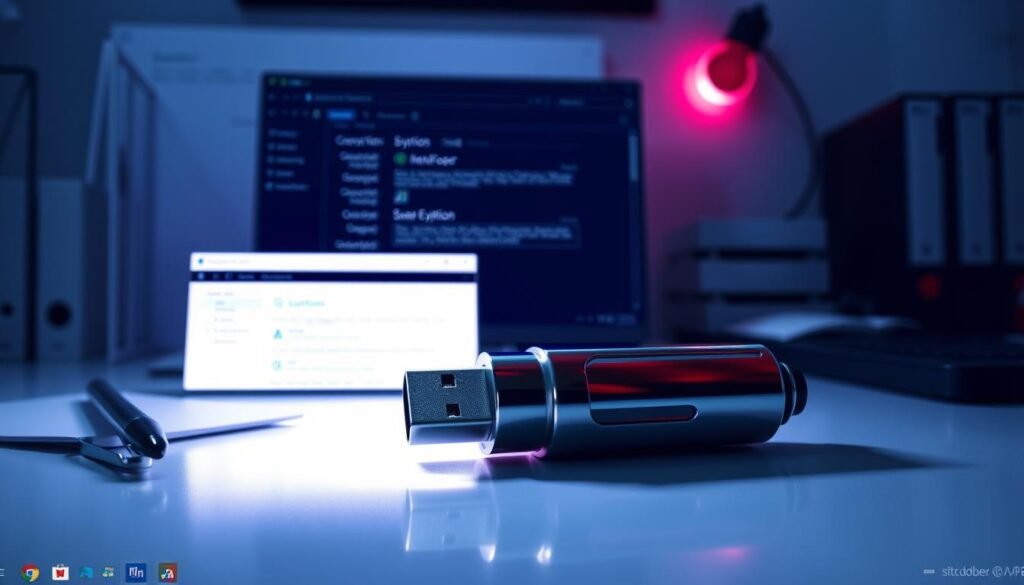
Open File Explorer and find your flash
Plug the removable media into a Windows PC. Press Windows key + E to open File Explorer. Right-click the listed volume and choose BitLocker to begin.
Turn on BitLocker and pick an unlock method
Click turn BitLocker on. Choose “Use a password to unlock” for most personal uses. BitLocker is supported on Windows 10/11 Pro, Enterprise, and Education.
Create and save a strong password
Enter a long passphrase with mixed characters and avoid reused credentials. A strong secret reduces guessing risk and protects the stored data.
Save the recovery key and why it matters
Save the BitLocker recovery key to a password manager or print it and store it in a safe place. The recovery key is the only way to regain access if you forget the password.
Choose what to encrypt and start
For new media, select “encrypt used space only” for speed. For previously used flash media, pick “encrypt entire drive” to secure deleted content. Click Start Encrypting and keep the media connected until Windows finishes.
Safely eject, replug, and test on another computer
Use the safe remove option, reconnect, and confirm Windows asks you to unlock. Test the protected media on another compatible Windows PC to verify portability.
Hygiene tip: Scan the media with antivirus before and after use. Encryption protects confidentiality but does not cure malware.
“Always keep a copy of the recovery key offline and label protected media so you remember it’s secured.”
Need cross-platform options or alternatives? Read more about encrypting a flash drive for other tools and scenarios.
USB drive encryption without BitLocker: portable, cross‑platform options
You can protect sensitive data on a usb flash drive without BitLocker by using AES‑256 ZIP archives, VeraCrypt containers, or buying a hardware‑protected model. Each option balances usability, filename privacy, and setup effort differently.
AES‑256 ZIPs are a simple way to encrypt files for sharing. Create an archive with 7‑Zip and include the portable 7‑Zip binary on the usb flash so recipients can open it across computers. Remember to enable *encrypt file names* to avoid exposing metadata.
VeraCrypt containers offer stronger privacy. Make a fixed‑size container, store your files inside, and mount it as a virtual volume when you enter a password. This hides filenames and deleted data and works across Windows, macOS, and Linux if you keep portable binaries on the flash.
Hardware‑encrypted options (keypad or built‑in manager) cost more but act like appliances: they prompt for a password before any computer can see the contents. They reduce setup steps and can resist brute‑force attempts when configured correctly.
Portability tips: Use long, unique passwords and save recovery information in a password manager. Keep a small unencrypted readme with tool links and test your setup on the actual computers you use. For sharing, create separate containers or nested archives with different passwords to limit access by project or by work.
Conclusion
Protecting portable media starts with a clear, repeatable routine.
On Windows systems, enabling BitLocker, picking a long password, and saving the recovery key is the fastest way to lock a usb flash drive and test it on a second PC.
If you use mixed operating systems, consider AES‑256 ZIPs or VeraCrypt containers for cross‑platform access, or choose a hardware option for simpler management. Back up your files, label protected media, and keep antivirus software current.
Learn more practical steps in this short guide to encrypt external drives or read a hands‑on walkthrough on how to encrypt a flash drive. Start with one folder, protect it well, and make this routine part of daily security.
FAQ
What does encryption actually do and how does a password or recovery key protect my files?
Encryption scrambles files so only someone with the correct password or recovery key can read them. It converts readable data into ciphertext using a cryptographic algorithm; the password unlocks the key that decrypts it. If you lose the password, a properly stored recovery key lets you regain access without breaking the encryption.
Why should I encrypt a flash device now — what risks am I protecting against?
Encrypting protects sensitive information from theft, loss, or casual snooping. Unencrypted portable media can be picked up, read on another computer, or scanned by malware. Encryption reduces data exposure if the device is lost, stolen, or borrowed by others.
How do I open File Explorer and locate my removable media on Windows?
Press Windows key + E to open File Explorer. Look under “This PC” for the letter assigned to the inserted media. If it doesn’t appear, try replugging the device or testing a different USB port to confirm the system recognizes it.
How do I turn on BitLocker in Windows and choose an unlock method?
Search for “Manage BitLocker” in the Start menu and open it. Select your removable media and click “Turn on BitLocker.” Choose between a password, smart card, or auto-unlock on trusted PCs. Follow prompts to set your preferred unlock method and continue.
What makes a strong password for protecting an encrypted device?
Use a long passphrase of at least 12–16 characters with mixed words, numbers, and symbols. Avoid common phrases and personal info. Consider a password manager to generate and store a unique password so you don’t reuse credentials.
Where should I save my BitLocker recovery key and why is it important?
Store the recovery key in at least two safe places: a password manager, a company key-management system, or printed and locked in a secure file. The recovery key is the last resort if you forget the password or if Windows prompts for recovery after hardware or OS changes.
What does “encrypt used space only” vs. “encrypt entire device” mean and which should I pick?
“Used space only” encrypts existing files and is faster; it’s suitable for new or recently formatted media. “Encrypt entire device” secures every sector, including deleted file remnants, offering stronger privacy. Choose entire-device encryption for sensitive data or second-hand media.
How do I safely eject, replug, and test an encrypted device on another computer?
Use the system tray’s “Safely Remove Hardware” option or File Explorer’s eject command. Replug on the same or a different Windows PC and enter the password when prompted. Test read and write access to confirm encryption and unlock behavior work as expected.
What options exist if I don’t want to use BitLocker on Windows?
Use portable solutions like AES-256 encrypted ZIP/7-Zip archives, VeraCrypt containers, or buy a hardware-encrypted flash product. Each option balances portability and security differently: archives are simple and cross-platform, VeraCrypt offers strong containerized protection, and hardware units add tamper resistance.
How do encrypted ZIP archives with AES-256 work and can I include a portable 7-Zip on the media?
Create an AES-256 encrypted archive with 7-Zip and protect it with a strong passphrase. You can store the 7-Zip portable executable on the same media to extract files on other computers without installing software. Always avoid leaving the archive open on untrusted machines.
What is a VeraCrypt container and how does it differ from full-device encryption?
A VeraCrypt container is a single encrypted file that mounts as a virtual volume when unlocked. It isolates sensitive data without encrypting the entire media. This lets you carry secure files alongside public files, but requires VeraCrypt to mount the container on each computer.
Are hardware-encrypted flash products worth buying for small businesses?
Hardware-encrypted products offer built-in PINs, tamper resistance, and often FIPS or Common Criteria certifications. They reduce setup complexity and can simplify compliance. They cost more but are worth it when managing multiple users or meeting regulatory requirements.
How do I maintain portability: share files across Windows, macOS, and Linux while keeping them secure?
Use cross-platform tools like VeraCrypt or encrypted 7-Zip archives. Keep a compatible reader app on the media if allowed. Maintain platform-appropriate backups and test unlocking on each OS to verify compatibility before relying on the solution.
What should I do if my removable media is infected by malware on a public computer?
Disconnect immediately and scan the media with up-to-date antivirus on a trusted system. If you suspect compromise, reformat and restore from a clean backup, or recreate encrypted containers with new passwords and keys. Avoid unlocking encrypted volumes on unknown machines whenever possible.
How should I handle passwords and recovery keys for multiple users or employees?
Use centralized key management or an enterprise password manager. Enforce strong passphrase policies and role-based access. Keep recovery keys in a secure vault with audited access so you can recover data without exposing credentials to unnecessary personnel.
