
Did you know? Over 60% of Linux vulnerabilities stem from outdated software. Skipping patches is like leaving your front door unlocked in a cyber-neighborhood—risky business! 😬
Whether you’re a terminal newbie or a command-line ninja, automating patches saves time and keeps threats at bay. No more frantic midnight updates or that “oops, I broke my system” panic.
We’ll walk you through simple methods—GUIs, terminal magic, and cron jobs—so your system stays fortified without lifting a finger. Even Linux docs recommend this setup!
Key Takeaways
- Manual updates leave systems vulnerable to attacks.
- Automation ensures consistent protection with zero effort.
- Works for all skill levels, from GUI lovers to terminal pros.
- Debian/Ubuntu’s official tools make it foolproof.
- Smart configurations prevent update mishaps.
Why Automatic Security Updates Are Essential for Linux
Linux without timely updates is like a bank vault with its door wide open. Hackers scan for unpatched vulnerabilities 24/7—your system could be their next payday. 🎯

The Risks of Outdated Systems
Unpatched systems are hacker buffets. Remember the 2018 MariaDB incident? A botched update removed the package entirely, crashing 70% of TurnKey servers. 😱
- Cybercriminals exploit known flaws within hours of patch releases.
- Manual updates often lag—human forgetfulness is the weakest link.
- Critical vulnerabilities (like Heartbleed) demand instant fixes.
“Debian’s backporting solves the stability-vs-security paradox—patches without breaking changes.”
Benefits of Automated Patching
Automation is your silent guardian. It nukes risks while you sleep, coffee, or binge Netflix. 🛡️
- Zero delays: Patches deploy the moment they’re live.
- Debian’s curated updates avoid “oops-my-server-broke” drama.
- TurnKey data shows only one major breakage every five years with automation.
Pro tip: Pair auto-updates with security newsletters (like Linux Security Advisories). Critical CVEs won’t sneak up on you. 📩
Method 1: Using GNOME Update Manager for Automatic Updates
GUI fans, rejoice! Ubuntu’s built-in tool makes patching as easy as ordering pizza. 🍕 This method is perfect if terminals give you the heebie-jeebies.
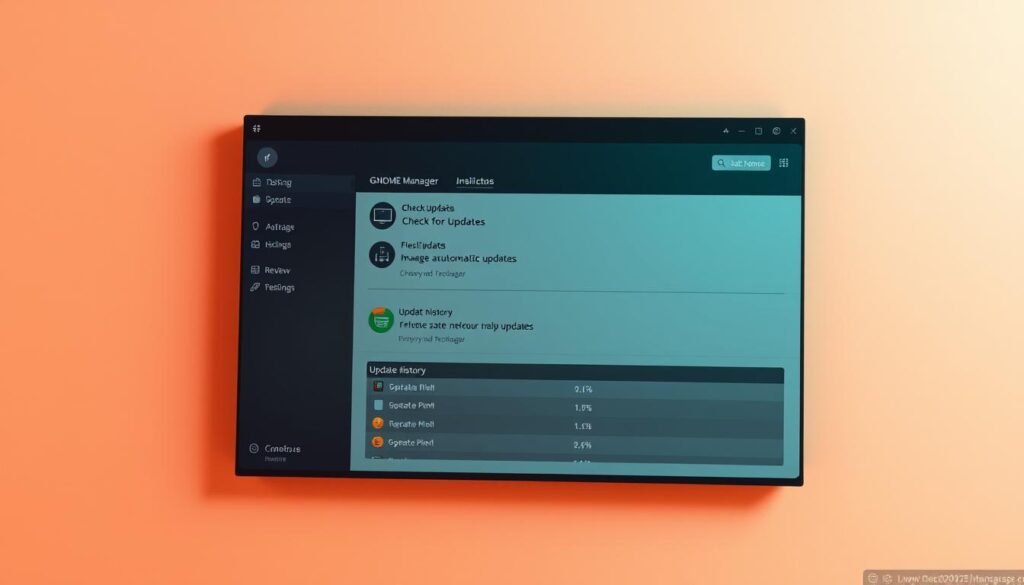
Accessing Software & Updates Settings
Find the software hub in your app menu—it’s usually hiding between Files and Firefox. Once open:
- Click the Updates tab (look for the arrow-circle icon)
- Spot “Download and install automatically”—that’s your golden ticket
- Ignore the “pre-releases” box unless you’re feeling chaotic
Configuring Automatic Security Updates
The magic happens in the dropdown menu. Here’s what each option does:
| Setting | Best For | Default? |
|---|---|---|
| Daily | Always-on desktops | Yes |
| Weekly | Limited bandwidth | No |
| Only LTS | Ultra-stable systems | No |
Pro tip: Choose weekly if your internet cries during peak hours. Fewer updates = happier Zoom calls.
Warning: Don’t let excitement trick you into checking “install security” updates for beta packages. Stability matters!
Method 2: Configuring Automatic Updates with unattended-upgrades
Terminal warriors, this one’s for you—no GUI needed! 🛠️ The unattended-upgrades package is Debian/Ubuntu’s secret weapon for hands-off patching. Let’s turn your system into a self-healing fortress.

Installing the unattended-upgrades package
Fire up your terminal and drop this command:
sudo apt-get install unattended-upgradesThis grabs the package from Ubuntu’s default repository. Pro tip: Run sudo apt update first if your system’s been napping.
Modifying the 50unattended-upgrades file
Now, the fun part—editing configs. Crack open /etc/apt/apt.conf.d/50unattended-upgrades with nano or vim:
- Uncomment
"${distro_id} ${distro_codename}-security"to enable patches - Add problem package names under Unattended-Upgrade::Package-Blacklist (your VIP bouncer list 🚫)
“Dry-run tests save headaches. Use
sudo unattended-upgrades --dry-runbefore going live.”
Setting update intervals in 20auto-upgrades
Next, edit /etc/apt/apt.conf.d/20auto-upgrades to set the rhythm:
APT::Periodic::Update-Package-Lists "1";
APT::Periodic::Unattended-Upgrade "1";
Secret sauce: Install mailutils and uncomment email alerts in the config. Get reports like “Hey boss, 12 patches installed while you binged Stranger Things.” 📧
Method 3: Setting Up Automatic Updates via Cron
Want total control over your system updates? Cron jobs put you in the driver’s seat. 🚦 This method is perfect for admins who want to write their own update rules rather than relying on pre-built tools.

Creating a security update script
First, craft your script in /etc/cron.weekly/apt-security-updates. Here’s the magic formula:
#!/bin/sh
apt-get update
apt-get --only-upgrade install $(apt-get upgrade -s | grep "^Inst" | grep -i security | awk '{print $2}')
This apt combo fetches only security upgrades, skipping feature updates that might break things. Pro tip: Test with --dry-run first!
Scheduling with cron.weekly
The cron system runs your script automatically. Just make it executable:
chmod +x /etc/cron.weekly/apt-security-updatesFor extra polish, add a random sleep to avoid traffic jams:
sleep $((RANDOM \% 3600))| Schedule | Best For | Risk Level |
|---|---|---|
| Weekly | Most servers | Low |
| Daily | High-security systems | Medium |
| Hourly | Critical infrastructure | High |
Configuring log rotation
Nobody wants 10GB log files! Add this to /etc/logrotate.d/apt-security:
/var/log/apt-security.log {
    weekly
    rotate 4
    compress
    missingok
}
Now your log files stay tidy while recording every update. 🤵♂️ Your personal security butler never takes a day off!
Advanced Configuration Options
Time to level up your Linux game with pro-level tweaks! Beyond basic setups, these ninja moves give you surgical control over patches. Whether you’re guarding special packages or taming notification floods, we’ve got you covered. 🎯
Package blacklisting
Some packages are divas—they hate updates. Protect them by editing /etc/apt/apt.conf.d/50unattended-upgrades:
- Add problematic package names under
Unattended-Upgrade::Package-Blacklist - Example:
"mysql-server", "custom-kernel-module"
Pro tip: Test with --dry-run before live deployment. Your special snowflake apps stay safe! ❄️
Email notification setup
Get alerts without becoming a notification zombie 🤖. First, install mailutils:
sudo apt install mailutilsThen uncomment these lines in the same config file:
Unattended-Upgrade::Mail "your@email.com";
Unattended-Upgrade::MailReport "on-change";
Choose on-change for only important alerts, or always for detailed reports.
Automatic reboot settings
The nuclear option ☢️—great for headless servers. Requires update-notifier-common:
sudo apt install update-notifier-commonThen activate in 50unattended-upgrades:
- Uncomment
//Automatic-Reboot "false"; - Set to
"true"and adjust reboot window if needed
“Stagger reboots across server fleets using
RandomSleepto avoid simultaneous downtime.”
Bandwidth hack: Limit updates with Acquire::http::Dl-Limit in /etc/apt/apt.conf.d/99throttle. Perfect for metered connections! 🕒
Verifying Your Automatic Update Configuration
Ever set up something and wondered if it actually works? Let’s verify those updates! 🔍 Smart admins always check their work—especially when it comes to keeping systems safe.
Checking current settings with apt-config
Your config might say it’s active, but let’s peek under the hood. Run this magic command:
apt-config dump APT::Periodic::Unattended-UpgradeLook for "1" in the output—that means auto-updates are live. If you see "0", Houston, we have a problem! 🚨
Performing dry runs
Dry runs are like training wheels for paranoid admins 🚴♂️. Test without consequences:
sudo unattended-upgrades --dry-run --debugWatch for errors in red. Pro tip: Ignore “Lock could not be acquired” messages—they just mean another process was running.
Monitoring update logs
Your system keeps receipts in /var/log/unattended-upgrades/. Be a log detective 🕵️♂️:
cat /var/log/unattended-upgrades.log | grep -i errorClean logs mean happy systems. For more details, check out this advanced guide on Linux update configurations.
| Verification Method | What It Checks | When to Use |
|---|---|---|
| apt-config | Current settings | After initial setup |
| Dry run | Update simulation | Before major changes |
| Log monitoring | Past activity | Weekly maintenance |
Remember: Even installed packages need checkups. Set calendar reminders to verify your setup quarterly—your future self will thank you! 📅
Potential Risks and How to Mitigate Them
Auto-patching isn’t all rainbows and unicorns—sometimes updates bite back. 💥 Remember the 2018 MariaDB incident? A “security” update accidentally wiped the package entirely, taking down thousands of servers. Let’s armor-plate your system against these surprises.

When Updates Break Things
Dependency hell is real. That innocent patch might:
- Conflict with custom kernel modules (hello, black screen!)
- Introduce new bugs while fixing old ones
- Change config files without warning
Pro move: Test updates on a clone first. Virtual machines make perfect guinea pigs. 🐹
Bandwidth and Resource Gotchas
Security patches aren’t light—they average 50-300MB monthly. On metered connections or crowded servers, this can:
- Slow critical workloads to a crawl
- Trigger cloud overage charges
- Timeout during low-signal remote sessions
“Schedule large updates during off-peak hours using
APT::Periodic::RandomSleepin Debian.”
Keeping the Reins on Critical Systems
Some systems should never update unattended. Hospitals, ATMs, and nuclear plants (hopefully) don’t run untested patches. 🛡️ Your mitigation toolkit:
| Risk | Impact | Solution |
|---|---|---|
| Broken dependencies | Service downtime | Package blacklisting |
| High CPU usage | Performance crashes | Throttle with nice -n19 |
| Bad patches | Data corruption | Snapshot backups |
Rollback 101: Always keep old kernel versions. That Advanced Options GRUB menu? Your lifeline when updates explode. 💣
Conclusion: Maintaining a Secure Linux System
Keeping your Linux fortress secure doesn’t end with setup—it’s an ongoing mission. 🔍 Automation isn’t “set it and forget it.” Treat it like a car: regular checkups prevent breakdowns.
Mix-n-match strategies for max protection. GUI tools for simplicity, cron jobs for control, and email alerts for awareness. Like a security ninja’s toolkit! 🥷
Stay subscribed to security bulletins—they’re your early-warning radar. Critical patches drop fast, and you’ll want that intel before hackers do. Pro tip: Bookmark the Linux Security Advisories page. 📩
Schedule quarterly audits. Verify updates applied correctly, review logs, and test restore points. Your future self will high-five you when things go sideways. 🚨
Now you’re armed to keep threats at bay. Go forth and protect that system like the Linux wizard you are! ✨
