This Flashlight App Wanted My Location—An Investigation into Unnecessary Permissions

Have you ever tapped Allow and later wondered why a simple torch asked for your location?

Table of contents

An expert take by Ethan Cross, HakTechs.com Lead Analyst

This introduction shows how one small request reveals broader risks and simple fixes. You’ll learn where controls live on your phone and how to stop surprises without losing useful features.

A flashlight that asks for location is a clear red flag. It forces a question about how apps touch your device and what information they can reach.

We define app permissions in practical terms: each permission gates access to a specific sensor, data store, or system feature. Granting access enables functionality; denying it blocks that capability.

You’ll see concrete steps to review and change permissions on your phone, plus a plain example of when to deny a request and when a feature truly needs access.

Key Takeaways

  • One unexpected request can signal overreach—deny if it doesn’t match the feature.
  • Learn the Settings paths to audit controls per app and by permission type.
  • Use privacy controls to disable camera and mic quickly when needed.
  • Auto-removal for unused apps resets risky access after long idle time.
  • Check Play Store disclosures and the Data safety panel before installing.

Why a Flashlight App Asked for Location: Understanding Permission Overreach and Your Privacy

When a simple torch asks for your coordinates, you should ask why. Small convenience tools often bundle tracking SDKs that want more access than the feature needs.

Real-world risk: Many lightweight utilities show multiple prompts on first launch or later when a feature initializes. Each prompt grants a specific permission, and some are optional.

Check the Play Store Data safety panel before installing to see a list of declared data and optional items. If location or contacts lack a clear feature-based reason, deny and test the tool.
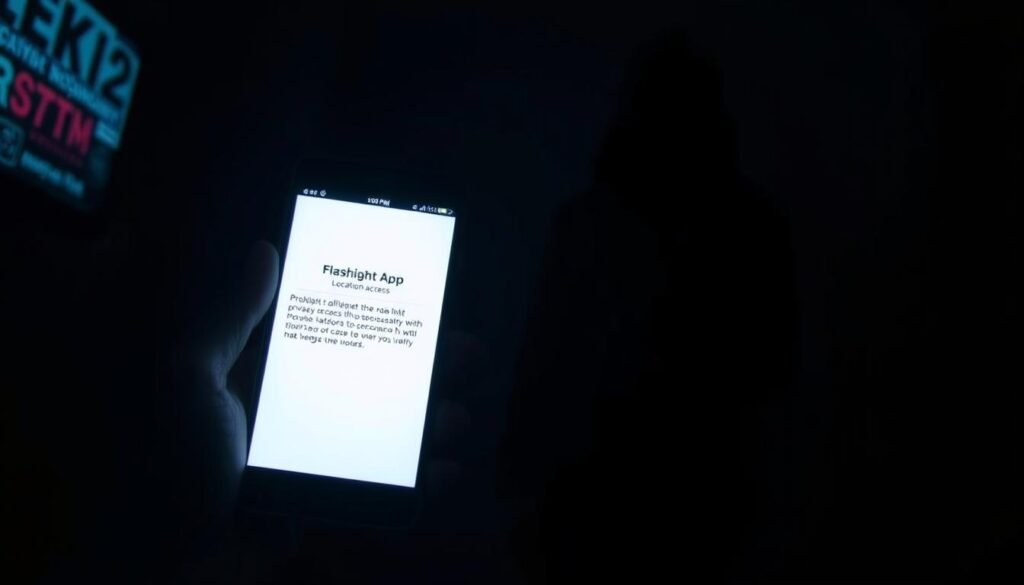
A dimly lit room, the focus on a smartphone's screen displaying a flashlight app's permission request for location access. The phone's display casts a soft, eerie glow, hinting at the potential privacy implications. In the background, a shadowy figure lurks, symbolizing the unseen data collection and surveillance concerns. The scene evokes a sense of unease and the need to understand the motivations behind such unnecessary permissions. Dramatic lighting, deep shadows, and a moody atmosphere convey the article's investigative tone, inviting the viewer to question the app's true intentions.

  • Ad and analytics SDKs often request location to enrich profiles.
  • Last-used timestamps reveal unexpected background use of sensitive sensors.
  • Unused apps may auto-remove access after long inactivity—review and uninstall risky entries.
Reason Requested Warning Sign Action
Advertising SDK needs coords Flashlight with location prompt Deny, find a minimal alternative
Optional contact sync No in-app feature uses contacts Leave optional denied; test core feature
Analytics default request Multiple unrelated requests at install Check Data safety and reviews; report if vague
Background tracking Last-used shows off-hours activity Revoke access and uninstall if suspicious

In a typical case, deny first and re-enable only if a clear example shows the feature needs that access. For historical context and reporting tips, see this investigation into flashlight overreach.

How to Take Control: Change, Limit, and Review App Permissions in Settings

Start small and act deliberately: audit one app at a time to reduce risky access. Use the system’s Permission manager and per-app screens to set sensible defaults that match real features.

Take control of what runs on your phone by auditing each app’s access in Settings.
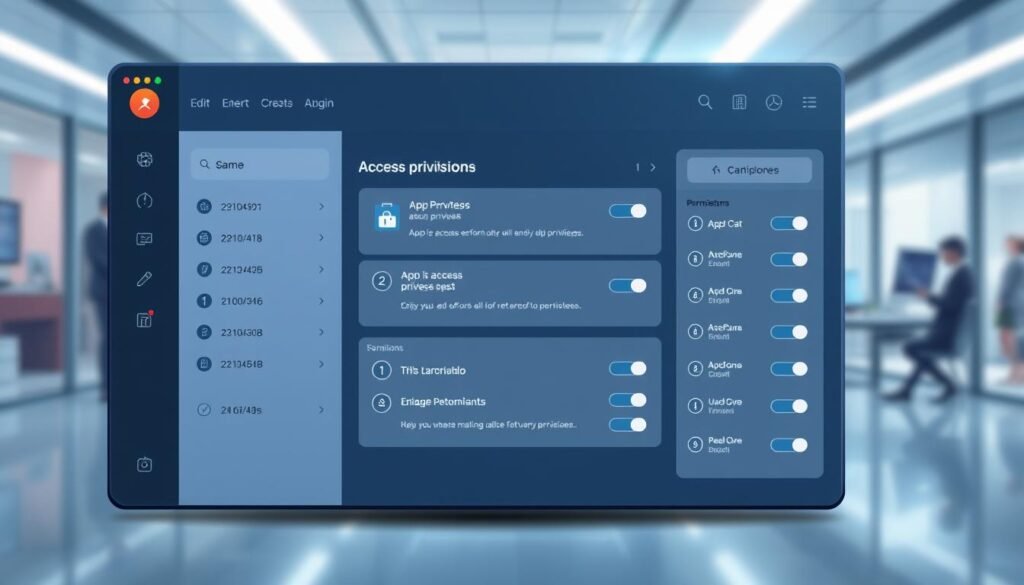
A stylized, high-resolution digital illustration of a permission manager dashboard interface. The foreground features a clean, minimalist layout with toggles, sliders, and categorized lists to manage app permissions. The middle ground displays detailed information about a selected app's access privileges, with toggles to enable/disable specific permissions. The background showcases a blurred, abstract cityscape or office environment, conveying a sense of the larger digital ecosystem. The color palette is muted and professional, with strategic use of blues, grays, and whites. Lighting is soft and diffused, creating a calm, focused atmosphere. The overall composition is balanced, intuitive, and designed to empower the user's control over their digital privacy.

Change permissions for a single app

Open Settings > Apps > Tap app > Permissions. This screen shows Allowed vs. Not allowed. Tap each entry to pick a safer option.

Choose the right access level

Prefer Allow only while using. For camera and microphone, use Ask every time when unsure. Avoid Allow all the time unless core features require it.

Manage by type with Permission manager

Go to Settings > Security & privacy > Privacy > Permission manager to see lists of apps per category and revoke in bulk.

  • Use the photo picker to share photos or video without giving full files read/write access.
  • Revoke nearby devices and notification access after pairing or testing.
  • Enable Auto-remove (Pause app activity if unused) to reset approvals over time.

For a quick reference on the Play Store Data safety list permissions, check this list permissions.

Pro-Level Privacy: Vet Apps Before Install and Monitor Access Over Time

Treat each new install like a mini security review: read the Data safety details first. Doing a quick check in the store and the system dashboards saves time and prevents unwanted access later.
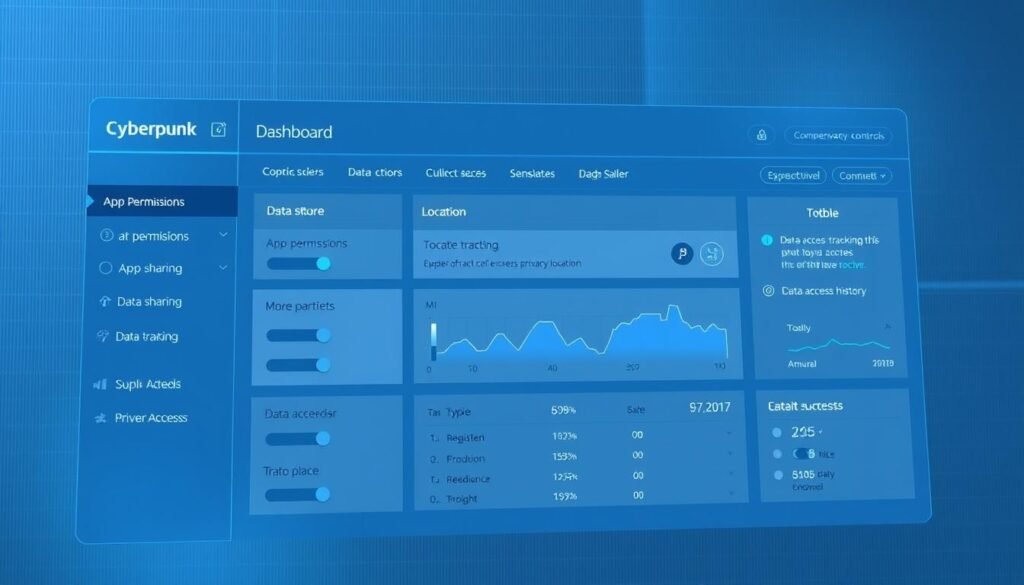
A sleek, minimalist dashboard interface showcasing comprehensive privacy controls. The foreground features a series of toggles, sliders, and toggle buttons for managing app permissions, data sharing, and location tracking. The middle ground includes a visual overview of active app permissions and data access history. The background has a subtle grid pattern and a muted, professional color palette of blues and grays, creating a calming, authoritative atmosphere. Elegant typography and clean iconography convey a sense of precision and attention to detail. Lighting is diffused, with a soft, even glow across the screen. The camera angle is slightly elevated, emphasizing the dashboard's intuitive layout and user-friendly design.

What to check before you tap Install

Open the Play Store listing and expand the Data safety section. Look at the list of data and whether items are marked Optional. If sensitive items lack a clear feature reason, skip or find a minimal alternative.

Watch access over time

Use the Privacy Dashboard to see which apps used location, camera, or microphone in the past 24 hours. Unexpected entries mean revoke access or uninstall.

  • Quick shutoff: go to Settings > Security & privacy > Privacy > Privacy controls to toggle Camera access and Microphone access system-wide.
  • Prefer approximate location for weather and basic utilities; reserve precise location for navigation or geofencing.
  • Review lists by type in the permission manager and schedule monthly audits.

android app permissions: Practical Scenarios, Red Flags, and a Safe-Use Checklist

A surprise prompt is your cue to pause and inspect what the software really needs. Use a quick checklist to decide: deny, test, then grant narrowly if the feature truly requires access.
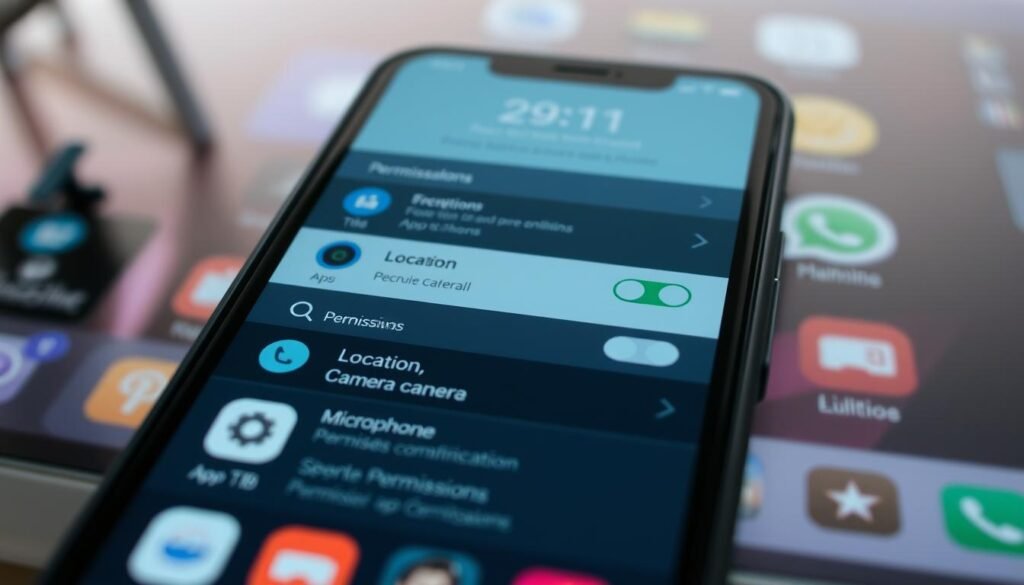
A crisp, high-resolution image of a smartphone screen displaying a detailed permission management interface. The foreground shows a grid of app icons, each with a set of toggles for location, camera, microphone, and other permissions. The middle ground features a clean, minimalist UI with clear labeling and toggles for granular control. The background is a subtly blurred representation of the phone's home screen, conveying a sense of real-world context. The lighting is soft and natural, with a slight warm tone to suggest a contemporary, professional setting. The camera angle is frontal, providing an intuitive and accessible view of the permission management system.

Flashlight case: deny unnecessary access

Flashlight tools rarely need location, contacts, or microphone. Deny those immediately and allow only LED control. If location keeps appearing, uninstall and choose a minimal alternative.

Messaging, maps, and social: how to set sensible defaults

For messaging, allow contacts and SMS when needed. Set camera and microphone to Ask every time for video to stay in control.

For maps, choose Allow only while using for location. Deny read/write Files unless the feature clearly needs access. Use the photo picker for sharing photos and video.

Red flags and a quick response playbook

Watch for contacts or SMS prompts on non-communication tools, camera microphone requests in utilities, or repeated prompts after denial.

  • Don’t allow surprising requests; test the feature.
  • If you need the feature later, open Settings > Apps > Tap app > Permissions to grant narrowly.
  • Grant Nearby devices for pairing, then revoke in Permission manager after setup.

For a simple store-safety check and practical guidance, review this safety checklist and this overview of mobile risks: mobile app security risks.

Conclusion

Keep control by granting the minimum access each app needs and by using system controls to limit high-risk requests. Make it a habit to tap permission prompts thoughtfully and to review access from Settings > Apps > [App] > Permissions and the Permission manager.

Simple routines protect your phone without breaking useful features.

Use global privacy toggles to disable Camera and Microphone when you need instant assurance. Enable Auto-remove for idle apps and check the Play Store Data safety details before you install.

Make sure you keep shortcuts: per-app edits, category views via Permission manager, and the global controls for quick lock-down. For extra context on user behavior and risk, see this study on app consent and regret at mobile consent research.

FAQ

Why would a simple flashlight request my location?

Many lightweight utilities ask for extra access to support advertising, analytics, or third‑party SDKs. A flashlight does not need location to flash your screen or LED. If it requests location, that’s a sign of permission overreach — often used to profile users or serve targeted ads. Deny location and keep core features working.

How do I change permission settings for a single app on my phone?

Open Settings, go to Apps, tap the specific app, then choose Permissions. From there pick the access level you want: Allow only while using, Ask every time, Don’t allow, or Allow all the time. That isolates one app without affecting others.

What does "Ask every time" mean and when should I use it?

“Ask every time” prompts permission each time the app needs access. Use it for sensitive features like camera, microphone, or precise location when you only want temporary access. It balances convenience with control and reduces continuous background collection.

Where can I manage permissions by type across all apps?

Go to Settings > Security & privacy > Privacy > Permission manager (naming may vary by device). There you can review and change which apps can access categories like location, camera, microphone, and contacts from a single place.

Should I allow approximate location or precise location?

Prefer approximate location for weather, maps previews, and non‑critical features. Precise location should be reserved for navigation or services that truly need exact positioning. Approximate reduces tracking and still supports many useful features.

How does the Android 13+ photo picker affect file access?

The photo picker lets apps access only selected images or videos instead of entire storage. It reduces the need to grant read/write storage access and limits exposure of personal files. Use the picker whenever an app asks to attach media.

What are quick steps to cut notification noise and nearby device access?

In Settings, open Apps or Notifications to turn off nonessential alerts per app. For nearby devices or Bluetooth permissions, use Permission manager to deny background access unless the app actively needs to discover local devices.

When should I deny SMS, call logs, contacts, or phone access?

Deny these sensitive permissions unless the app provides phone or messaging core functionality. Messaging clients, dialers, and backup tools may legitimately need them; most utilities (like flashlights or calculators) do not.

What is the auto‑remove for unused apps feature and why enable it?

Auto‑remove (or auto‑revoke) resets permissions for apps you haven’t opened in a set period. Enable it to prevent idle apps from keeping access to camera, location, or contacts without your knowledge. It’s a simple way to reduce long‑term risk.

How can I vet an app before installing from the Play Store?

Check the Play Store Data safety section and the listed permissions before tapping Install. Read recent reviews and developer responses. If a simple utility requests broad access (like location, mic, or contacts), consider alternatives with minimal required access.

What does the Privacy Dashboard show and how often should I check it?

Privacy Dashboard displays which apps accessed location, camera, or microphone in the past 24 hours. Check it regularly — weekly is a good habit — to spot unexpected access and quickly revoke permissions for suspicious apps.

Can I quickly disable camera and microphone for all apps at once?

Many phones offer system privacy toggles to block camera and microphone globally. You can also use Quick Settings shortcuts on Pixel and some other devices. Use these when you need a temporary, device‑wide layer of protection.

What are red flags when an app requests permissions during use?

Be wary if a utility asks for unrelated access (e.g., a flashlight asking for contacts or SMS), requests background location without visible need, or pressures you to enable “Allow all the time.” Close the app, deny the request, and look for a trusted alternative.

For the flashlight example, which permissions can I safely deny?

Deny location, contacts, microphone, and SMS for a flashlight. Allow only what’s required to control the LED or screen—typically no special permissions at all. If the app still needs a feature, prefer “Ask every time” or seek a simpler app.

How often should I audit permissions and device settings?

Perform a quick audit monthly and a deeper check after installing new apps. Review Privacy Dashboard, Permission manager, and app lists. Regular audits keep app access minimal and help maintain battery and performance health.

Where can I find reliable guidance on specific permission risks and CVE advisories?

Consult vendor advisories from Google Play Protect and device makers, the Common Vulnerabilities and Exposures (CVE) database, and reputable security outlets like KrebsOnSecurity or the Electronic Frontier Foundation. Cross‑check any claims before acting.

Ethan Cross

Ethan Cross is a cybersecurity analyst and tech journalist with over a decade of experience in ethical hacking, malware analysis, and digital forensics. At HakTechs.com, he delivers in-depth reports, security tips, and expert analysis to help readers stay ahead of emerging cyber threats.