
The ZAP Proxy Playbook: A Developer’s Guide to Automated and Manual Vulnerability Scanning

Fact: More than 70% of web applications have at least one high‑impact bug exposed in routine tests, and many appear in minutes when traffic is inspected.

Table of contents

An expert take by Ethan Cross, HakTechs.com Lead Analyst

This playbook shows how to use OWASP ZAP as your primary tool to improve application security.

The guide balances automated checks and hands‑on probes so teams can find and fix real issues fast. You will learn core concepts: passive versus active analysis, crawling (including AJAX), authenticated tests, and fuzzing.

OWASP ZAP is a dynamic application security testing (DAST) solution that inspects web traffic, supports desktop and API automation, and runs on Windows, Linux, macOS, or Docker. It helps reveal security vulnerabilities in web applications and supports repeatable sessions for reliable results.

Use active probes carefully: they can expose deeper flaws but may change data or state. Always get explicit permission from the application owner before you start.

Key Takeaways

  • Learn how to apply OWASP ZAP to strengthen application security.
  • Combine passive checks with targeted active probes for coverage.
  • Configure auth, crawlers, and persistence for repeatable tests.
  • Integrate the tool into CI to catch issues earlier.
  • Respect scope and get written permission before testing.
  • Follow a repeatable workflow to reduce real‑world risk.

Set Up OWASP ZAP for Real-World Security Testing

Prepare installers, runtime, and scope so tests are repeatable, legal, and reliable.

Install and configure the zed attack proxy with the correct prerequisites to make testing smooth and repeatable.

A holographic desktop display hovers above a sleek, minimalist workspace. The display shows a persistent session, its interface glowing with a cool blue hue, casting soft shadows across the desk. The scene is bathed in warm, directional lighting, creating a sense of depth and focus on the central element. The background is blurred, emphasizing the display as the primary subject. The overall mood is one of productivity, security, and technological sophistication, reflecting the technical nature of the "OWASP ZAP" vulnerability scanning guide.

How do I install and choose an environment?

Install owasp zap on Windows, Linux, or macOS from the official site, or pull the Docker image. Use Java 8+ for most installers; macOS and Docker bundles include Java for convenience.

Should I persist sessions and why?

On first start, opt to persist session. Persisted sessions save findings and site structure to a local HSQLDB. That helps with repeatable assessments and developer handoffs over time.

Always confirm written permission from the owner of the target. Define Contexts and add only in‑scope URLs. Create a workspace per web application to store credentials and exclude patterns.

  • Tune passive and active policies to reduce noise.
  • Trust the local browser certificate for HTTPS interception when needed.
  • Back up sessions and export context files for team reviews.
TaskRecommended OptionWhy it matters
Install methodInstaller or DockerEnsures consistent runtime across client and CI agents
Session handlingPersist session (HSQLDB)Supports repeatable assessments and data backups
Scope controlContexts + URL allowlistPrevents accidental testing of third‑party assets
Trust for TLSInstall local cert in browserEnables decrypting HTTPS requests for deeper analysis

ZAP proxy vulnerability scanning: automated and manual workflows that developers can trust

Start with a Quick Start automated scan to gather a baseline, then use manual tools and fuzzing to reach protected or dynamic flows.

Run an automated scan from the desktop client via Quick Launch. Enter the target URL, choose the zap spider and/or ajax spider, and click Attack. The zap spider parses HTML quickly; the ajax spider renders JavaScript in a headless browser to find dynamic links.

Balance safety and coverage. Passive checks inspect proxied traffic without changing data and are safe for production. Active scans send crafted requests that may create, modify, or delete data, so run them only against authorized non‑production targets.

Configure authenticated testing to reach protected routes. Zed attack proxy supports form, script, JSON, and HTTP/NTLM methods so you can exercise login flows and better identify vulnerabilities affecting sensitive data.

A detailed, high-resolution image of an AJAX spider, an advanced web application vulnerability scanner tool. The spider is depicted in the foreground, rendered in a realistic, lifelike style with intricate mechanical details. The spider is perched on a sleek, modern laptop computer, symbolizing its role in automated web application testing. The background features a blurred, minimalist cityscape, conveying a sense of the web application's broader context. The lighting is dramatic, with a warm, focused glow illuminating the spider, creating a sense of importance and technical sophistication. The overall mood is one of power, precision, and the relentless pursuit of web application security.

Monitor WebSockets for issues in persistent channels and use the Fuzzer to stress input handling with large payload sets. Finally, use Manual Explore through the attack proxy to capture user paths the crawlers miss and replay critical requests for validation.

  • Quick Start: Auto scan, pick crawlers, map the web application.
  • Crawlers: zap spider for server pages; ajax spider for SPAs.
  • Depth: Auth tests, WebSockets, fuzzer, and manual exploration.

Interpret findings, prioritize risk, and report with confidence

Work from the Alerts tab to turn findings into remediation actions quickly. The Alerts tab lists items by risk with evidence, affected parameters, and fix guidance. If you don’t see it, enable it from the View menu.
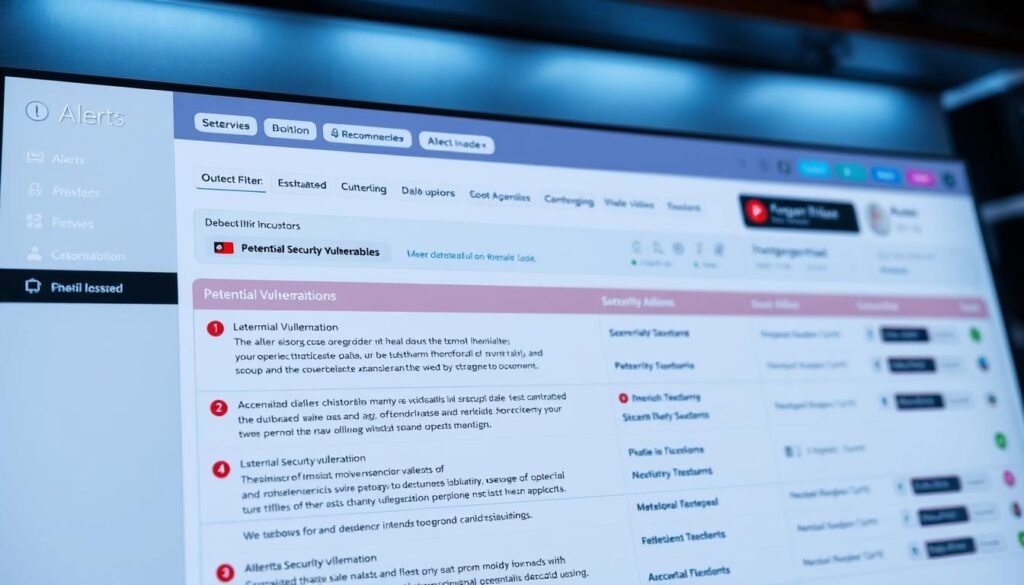
A high-resolution image of an "alerts tab" interface, featuring a clean and intuitive dashboard layout. The foreground displays a prominent alerts panel with detailed information about potential security vulnerabilities, including severity levels, descriptions, and recommended actions. The middle ground showcases customizable filtering and sorting options, allowing the user to prioritize and address the most critical issues. The background depicts a neutral, yet professional color scheme with subtle gradients, conveying a sense of focus and productivity. Lighting is soft and diffused, creating a clear and legible display. The camera angle is slightly angled, providing an ergonomic and user-friendly perspective. The overall mood is one of productivity, efficiency, and confidence in addressing security concerns.

How do I triage from the Alerts tab?

Start triage in the Alerts tab: sort entries by severity, drill into request and response pairs, and capture screenshots for developer handoffs.

Use filters to isolate critical security issues and group related items by component or microservice. Confirm exploitability before raising tasks so teams can prioritize by impact rather than count.

How should I prioritize and document risk?

Prioritize by exploitability, asset criticality, and exposure of sensitive data. Record whether findings came from passive or active scans and keep authorization notes for any penetration test activity.

Can I automate reporting and CI integration?

Yes — run the tool via API to export HTML, JSON, or XML reports and embed jobs into pipelines for continuous security testing. See the API automation guide for examples.

  • Replay requests to confirm noisy endpoints and collect clear evidence.
  • Leverage add‑ons to enrich reports with tech fingerprints and tailored rules.
  • Track KPIs like mean time to remediation and fixed‑to‑found ratios to measure progress.

Conclusion

Turn these practices into a short, repeatable routine for safer releases. Keep sessions persistent, run authenticated checks, and feed results into CI so fixes land faster.

Turn the techniques here into repeatable steps your team can follow every sprint.

Make the tool part of your workflow: keep persist session enabled to reproduce findings over time. Use the traditional spider for static paths and the AJAX spider for single‑page web applications.

Balance passive and focused active checks. Never run destructive attack traffic on production. Automate exports and track mean time to remediation so teams measure progress.

With owasp zap in CI, authenticated runs, WebSockets analysis, and fuzzing, you reduce exploitable vulnerabilities in production and protect sensitive data across your applications.

FAQ

How do I install and configure OWASP ZAP for real-world security testing?

Begin by downloading the official Zed Attack Proxy (ZAP) from the OWASP site and choose the installer that matches your OS. Ensure Java is up to date if you use the cross-platform package. Configure your browser to route traffic through the local client or use the built-in desktop launcher. Set certificate trust for HTTPS interception, define a working directory for sessions, and tune options like timeouts, thread counts, and request throttling to match your test environment.

What is the best way to persist sessions for repeatable scans and ongoing assessments?

Enable session persistence in the client so history, cookies, and authentication tokens are saved between runs. Use named sessions and export them to versioned files or a secure repository. Combine persistent sessions with scripted login flows or API-based authentication to reproduce the same application state across automated and manual tests.

How should I define scope and permissions before starting a penetration test?

Create a clear scope list of allowed hosts, paths, and API endpoints, and mark out-of-scope assets to avoid accidental testing. Obtain written authorization from stakeholders, document permitted testing windows, and confirm any rate limits or sensitive data handling rules. Use the scope settings in the tool to enforce boundaries during automated crawls and scans.

How do I run a Quick Start automated scan from the desktop client?

Use the Quick Start or Automated Scan feature to provide a target URL, select authentication if needed, and tune attack strength. Start with a passive crawl to map the site, then run active tests focused on in-scope areas. Monitor the Alerts tab for findings and pause or stop the scan if you hit protected or fragile components.

When should I use the traditional spider versus the AJAX spider for modern web applications?

Use the traditional spider for server-rendered pages and simple link structures. Choose the AJAX spider or browser-based crawler for single-page applications (SPAs) and sites relying on JavaScript to render routes and content. The AJAX spider executes client-side scripts, so it finds dynamic endpoints and state changes that a regular spider may miss.

How do I balance passive versus active testing to reduce risk while improving coverage?

Start with passive analysis to discover endpoints and flag informational issues without sending attack payloads. Reserve active testing for non-production or explicitly authorized windows, and scope active tests to lower-risk endpoints first. Tune active test intensity, limit attack vectors for critical systems, and use incremental runs to minimize disruption.

How can I configure authenticated scanning to reach protected routes and data flows?

Implement authentication via recorded login scripts, form-based credentials, API tokens, or OAuth flows. Configure session management so the client maintains cookies, CSRF tokens, and headers. Validate authentication by visiting protected pages in the same session before starting active tests. Where possible, use a test account with limited privileges.

What techniques harden dynamic testing for applications using WebSockets?

Enable WebSockets monitoring in the tool so traffic is captured and analyzed. Record and replay relevant frames during authenticated sessions. Combine WebSocket inspection with manual exploration to understand message formats. Apply targeted fuzzing and rate controls to avoid breaking real-time channels.

How do I extend depth with the OWASP ZAP Fuzzer and Manual Explore through the client?

Use the fuzzer to mutate parameters, headers, and request bodies for input validation and injection testing. Configure payload sets, match/replace rules, and performance limits. Pair fuzzing with manual proxying: interact with the app through the client to discover hidden flows, then send suspect requests to the fuzzer for systematic testing.

Where should I look first in the Alerts tab to identify relevant security issues?

Sort alerts by risk and confidence to focus on high-severity findings first. Expand entries for evidence, affected requests, and remediation suggestions. Cross-reference alert IDs with CVE records or vendor advisories when present. Use alert tags and notes to track which findings need developer follow-up.

How do I prioritize security issues by severity and application impact?

Prioritize by combining the scanner’s severity rating with real-world impact: affected endpoints, data sensitivity, and exploitability. Start remediations for critical and high-severity items that expose sensitive data or allow remote control. Use threat modeling and business context to adjust priorities where necessary.

How can I automate reporting and integrate the tool into a continuous security testing pipeline?

Use the API to trigger scans, export results, and ingest alerts into CI/CD or ticketing systems. Schedule baseline scans against staging environments and block merges on critical regressions. Generate machine-readable reports (JSON or XML) for dashboards and human-readable summaries (HTML or PDF) for stakeholders.

Are there safety considerations when running active tests against production systems?

Yes. Active tests can cause service disruption, data corruption, or trigger monitoring alarms. Avoid running intrusive tests on production unless absolutely necessary and authorized. If you must test production, use read-only accounts, low-intensity settings, narrow scope, and approved maintenance windows.

Ethan Cross

Ethan Cross is a cybersecurity analyst and tech journalist with over a decade of experience in ethical hacking, malware analysis, and digital forensics. At HakTechs.com, he delivers in-depth reports, security tips, and expert analysis to help readers stay ahead of emerging cyber threats.