
Ever feel like someone’s watching over your shoulder while you type? 😱 Keyloggers are the digital equivalent of that creepy feeling. These sneaky software programs can record every keystroke you make, stealing passwords, credit card info, and even your private messages without you noticing.
Imagine this: you’re logging into your bank account or sending a confidential email, and somewhere in the background, a keylogger is silently capturing it all. Scary, right? The worst part? You might not even know it’s there until it’s too late.
But don’t panic! We’re here to help you spot and kick these digital stalkers out of your computer. Whether you’re a tech pro or just starting out, we’ve got simple, step-by-step tips to protect your device. Because let’s face it—no one wants to be part of the 43% of cyberattacks that use keyloggers.
Key Takeaways
- Keyloggers can steal sensitive info like passwords and credit card details.
- They often operate silently, making them hard to detect.
- Built-in tools like Task Manager can help you spot suspicious activity.
- Removing keyloggers doesn’t require advanced tech skills.
- Protecting your device is crucial—43% of cyberattacks involve keyloggers.
What Is a Keylogger and Why Should You Care?
Your keyboard might be a double agent, logging every keystroke. Keyloggers are sneaky tools that record everything you type—passwords, messages, even that embarrassing Google search. They’re the digital equivalent of a nosy neighbor peeking through your window. 🕵️♂️
Understanding Keyloggers
Keyloggers come in two main flavors: hardware keyloggers and software keyloggers. Hardware versions are physical devices that plug into your keyboard or USB port. They’re like tiny spies hiding in plain sight. Software keyloggers, on the other hand, are programs that sneak into your system, often disguised as harmless apps or hidden in temp files.
Here’s the kicker: keyloggers aren’t just for hackers. Jealous exes, sketchy coworkers, or even your boss might use them. And corporate keyloggers? Totally legal, but still creepy. 😬
How Keyloggers Threaten Your Privacy
These digital stalkers don’t just steal your passwords. They can capture screenshots, track mouse movements, and even log website clicks. Imagine typing your credit card info or writing a private message, only to have it all recorded. Yikes!
- Hardware keyloggers need physical access to your device, but they’re hard to spot.
- Software keyloggers spread like digital herpes, infecting your system without you noticing.
- That “free PDF converter” you downloaded? It might be logging your bank login. 👀
Bottom line: keyloggers are a serious threat to your privacy. Whether it’s your Amazon password or that fanfic you’re writing, they’ll snatch it all. Stay vigilant and protect your data!
How to Detect Keylogger in Windows 10
Feeling like your computer’s acting shady? It might not just be in your head. Keyloggers can lurk in your system, silently recording your every move. But don’t worry—spotting them isn’t as hard as it sounds. Let’s dive into some simple ways to uncover these digital spies.
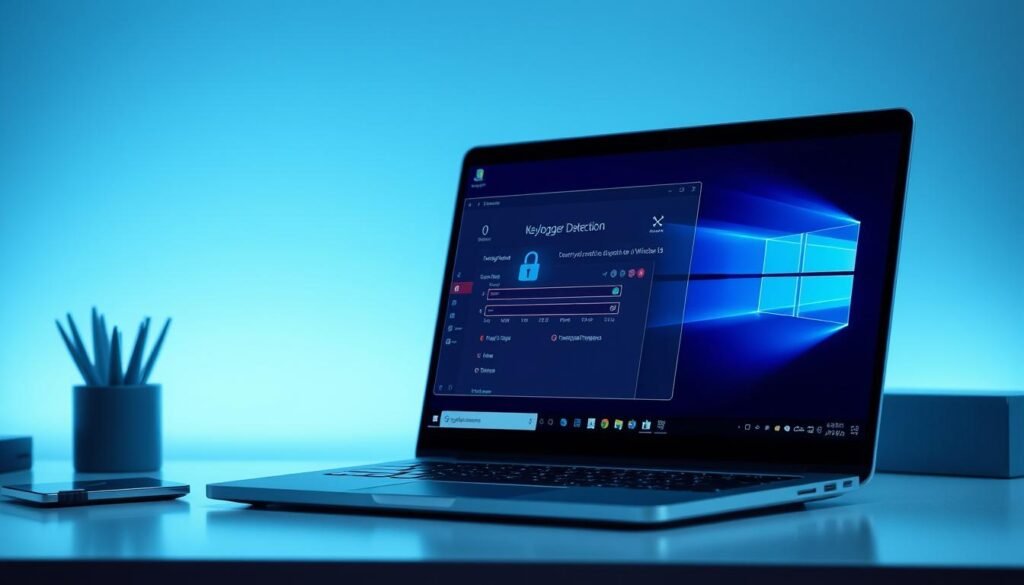
Using Task Manager to Identify Suspicious Processes
Your Task Manager is like a detective’s magnifying glass. Open it up and look for any processes hogging your CPU. If something like “Windows Helper Service” is using 90% of your resources, it’s time to Google it. 🕵️♂️
Pro tip: Sort by “Publisher” to spot fake Microsoft entries. If it doesn’t say “Microsoft Corporation,” it’s probably sus. Found something fishy? Check it out here to confirm.
Checking Installed Programs for Unfamiliar Apps
Next, head to your programs list. Scroll through and look for anything you don’t remember installing. Found “TotallyLegitApp_virus.exe”? Yeah, that’s a red flag. 🚩 Delete it immediately—no second chances.
Also, check the Startup tab in Task Manager. If an unknown app is set to “Enabled,” disable it. Your system will thank you.
Monitoring System Performance for Keylogger Signs
Is your PC slower than a dial-up connection? Keyloggers often bloat your system, causing lag or random cursor disappearances. Open Notepad and start typing while watching Task Manager. If you see CPU spikes, it’s time to investigate further.
Keyloggers are sneaky, but with these tips, you’ll be one step ahead. Stay vigilant and keep your system clean!
Step-by-Step Guide to Removing Keyloggers
Think your computer’s hiding something from you? 🕵️♂️ Keyloggers can be sneaky, but kicking them out isn’t rocket science. Here’s your ultimate guide to cleaning up your system and reclaiming your privacy.

Uninstalling Suspicious Software
First things first: check your programs features. Open the Control Panel and head to “Programs and Features.” Scroll through the list and look for anything you don’t recognize. Found “TotallyLegitApp.exe”? Yeah, that’s a red flag. 🚩
Uninstall it immediately. Pro tip: delete its cache from ~/Library/Application Support (for macOS) or the AppData folder (for Windows). This ensures no hidden files are left behind.
Clearing Temporary Files to Eliminate Hidden Keyloggers
Next, it’s time to clean up your temporary files. These are like digital hiding spots for keyloggers. Open the Run dialog (Windows key + R), type “%temp%,” and hit Enter. Delete everything in the folder. 🧹
This step is crucial because keyloggers often lurk here, waiting to strike. Clearing these files is a quick and effective way to boost your system’s protection.
Using Antivirus Software for Thorough Removal
Now, let’s bring in the big guns: antivirus software. Tools like Bitdefender or Norton 360 are your best bet for real-time scanning. Run a full system scan to detect and remove any lingering threats. 🛡️
For extra oomph, combine manual removal with antivirus scans. This way, you’re covering all bases. Remember, some keyloggers can regenerate, so thorough removal is key.
- 🧹 Temp file cleanup: Where keyloggers hide with your browser history.
- Antivirus showdown: Free vs. paid—which actually nukes keyloggers?
- Pro move: Combine manual removal with antivirus scans for maximum oomph.
- Warning: Some keyloggers regenerate—we’ll show you how to kill them permanently.
For more detailed steps, check out this step-by-step guide. Stay vigilant and keep your system clean! 🚀
Preventing Future Keylogging Attacks
Worried about your online privacy? Keyloggers can turn your device into a spy tool. But don’t stress—there are simple ways to keep your security tight and your sensitive data safe. Let’s dive into some pro tips to stay one step ahead of these digital snoops.
Keeping Your Antivirus Software Updated
Your antivirus is like a bodyguard for your device. But even the best bodyguard needs regular updates. Make sure your antivirus is set to auto-update, so it’s always ready to tackle the latest threats. 🛡️
Windows Defender users, enable real-time protection. It’s like having a 24/7 watchdog for your system. Free or paid, keep your antivirus fresh—it’s your first line of defense.
Using Virtual Keyboards for Sensitive Inputs
Typing your bank login? Use a virtual keyboard. It might look a little weird, but it’s a game-changer for security. Virtual keyboards bypass physical keyloggers, making it harder for snoops to steal your info. 🔐
Pro tip: Use this trick for all websites where you enter sensitive data. It’s a small step that makes a big difference.
Enabling Two-Factor Authentication for Added Security
Think of two-factor authentication (2FA) as a bouncer for your accounts. Even if someone steals your password, they’ll need a second code to get in. 🚪
Set up 2FA wherever possible. One-time passwords make stolen credentials useless. It’s an extra layer of security that’s worth the time.
- 🔐 Virtual keyboard pro tip: Use it for banking logins (looks weird, works great).
- Why 2FA is like having a bouncer for your accounts.
- Update your antivirus like you update your TikTok—automatically!
- Free vs paid VPNs: Which actually protect your typing?
- Bonus: How to spot phishing emails trying to install keyloggers.
Hardware vs. Software Keyloggers: What’s the Difference?
Ever wonder if your keyboard is spilling your secrets? 🕵️♂️ Keyloggers come in two main types: hardware and software. While both aim to capture your data, they operate in very different ways. Let’s break it down so you can spot the sneaky spies lurking in your web of devices.
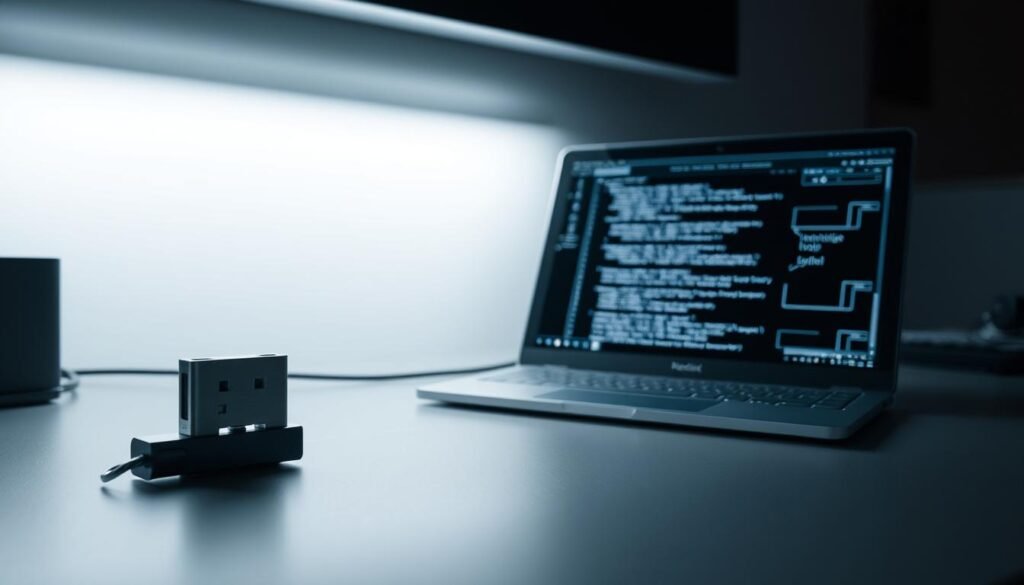
Identifying Hardware Keyloggers
Hardware keyloggers are physical devices that plug into your keyboard or USB port. They’re like tiny spies hiding in plain sight. These gadgets store your data locally until someone retrieves it physically. Here’s how to spot them:
- 🔌 Check your USB ports monthly for any unfamiliar dongles.
- Shine a flashlight behind your PC to spot hidden devices.
- Pro tip: Your keyboard connector shouldn’t have extra attachments—ever.
Hardware keyloggers require physical access, so if your device has been out of sight, it’s time for a thorough inspection.
How Software Keyloggers Operate
Unlike their hardware counterparts, software keyloggers don’t need physical access. They sneak into your system through malicious downloads or infected applications. Once installed, they can email logs automatically or upload them to a remote server. 🕷️
Here’s what makes them tricky:
- They often disguise themselves as legitimate programs.
- Some can even capture screenshots or track mouse movements.
- Corporate versions might use visible monitoring software, but they’re still invasive.
For more insights on how these threats operate, check out this detailed guide.
| Feature | Hardware Keyloggers | Software Keyloggers |
|---|---|---|
| Access Required | Physical | Remote |
| Data Storage | Local | Remote or Local |
| Detection | Visual Inspection | Antivirus Scans |
Whether it’s a hardware or software keylogger, staying vigilant is key. Regularly inspect your devices and keep your security tools updated to stay one step ahead. 🛡️
Conclusion: Stay Vigilant and Protect Your Data
Protecting your digital life doesn’t have to be complicated. 🛡️ Start with a solid action plan: weekly antivirus scans and monthly hardware checks. This combo keeps keyloggers at bay and your information safe.
Remember, keyloggers evolve. Stay updated on new detection tricks and tools. Shared devices? Create separate user accounts immediately. It’s a simple step that adds an extra layer of security.
When in doubt, reset, restore, and start fresh. Always back up your data first—better safe than sorry. 🚀 Treat your PC like your phone: lock it down tight and stay one step ahead of any threat.
Whether it’s personal or business, your data deserves protection. Stay vigilant, stay informed, and keep your digital world secure. 💻🔒
