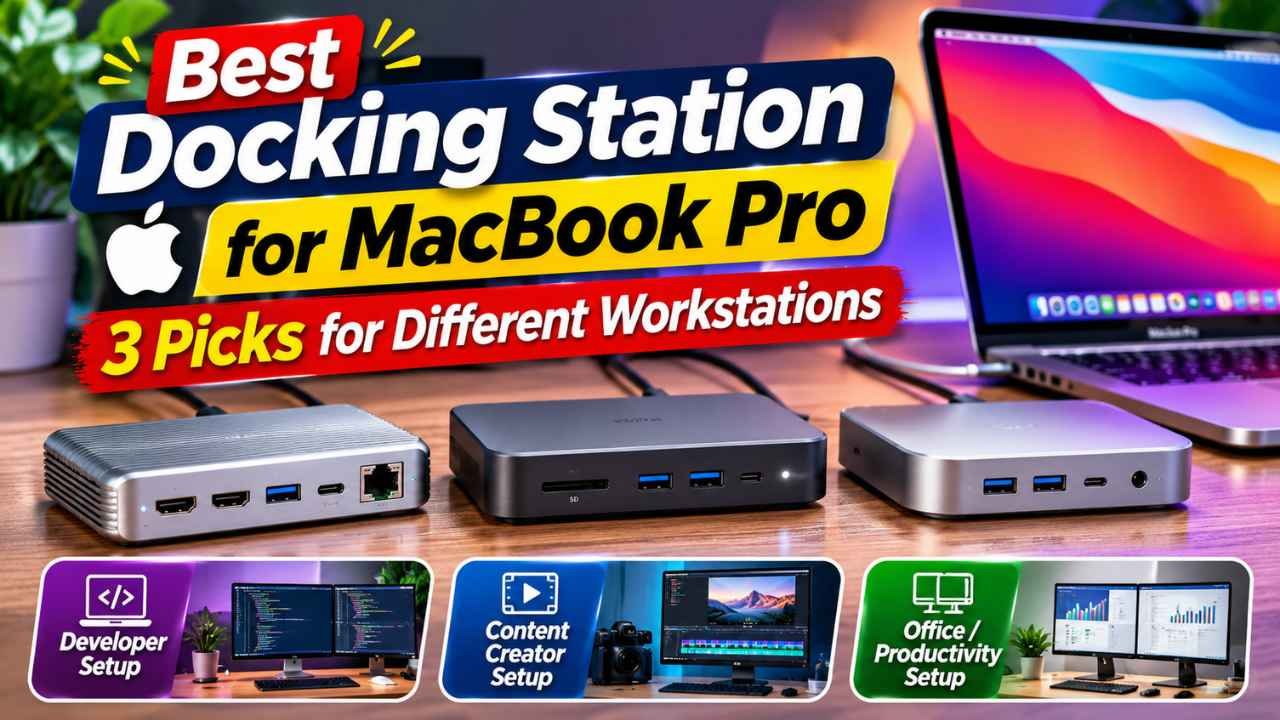
The best docking station for MacBook Pro isn’t necessarily the one with the most ports or the highest transfer speed. It is the one that supports your MacBook’s specific chip, charges it adequately, and connects all your accessories without creating new compatibility problems.
For most home offices, the Plugable TBT4-UD5 offers a sensible balance of connectivity and charging power. The CalDigit TS5 is a stronger choice for demanding Thunderbolt 5 workstations, while the Plugable UD-6950PDH solves a different problem: connecting two external monitors to MacBooks with limited native display support.
Before spending money on a dock, there are a few important differences to understand. This research-based comparison explains those differences using manufacturer specifications, documented compatibility, and practical workstation requirements rather than claimed hands-on testing. Current Amazon prices and stock may vary and have not been independently confirmed for every model.

Key Takeaways
- The Plugable TBT4-UD5 is a well-balanced Thunderbolt 4 docking station for everyday productivity and compatible dual-monitor setups.
- The CalDigit TS5 offers Thunderbolt 5 connectivity and up to 140W charging for demanding professional workstations.
- Base M1 and M2 MacBook Pro models need a solution such as DisplayLink to run two independent external monitors through a dock.
- Having multiple HDMI ports does not guarantee that a docking station can extend multiple displays on macOS.
- Check your MacBook’s chip, monitor requirements, charging needs, and existing accessories before paying for additional ports.
Helpful Products at a Glance
Best for most workstations: Plugable TBT4-UD5 offers dual HDMI outputs, Thunderbolt 4 connectivity, and sufficient charging power for many MacBook Pro users.
Best for demanding professional workflows: CalDigit TS5 provides faster Thunderbolt 5 connectivity, extensive peripheral support, and up to 140W laptop charging.
Best for overcoming native dual-monitor limitations: Plugable UD-6950PDH uses DisplayLink technology to support two external displays on compatible MacBooks.
What Should You Check Before Buying a MacBook Pro Docking Station?
MacBook docking stations can look remarkably similar while behaving very differently. Two products may offer the same number of HDMI ports, but only one might support the extended desktop configuration you want.
Your MacBook’s processor and Thunderbolt capabilities matter more than the total number of ports advertised on the packaging. Start by opening the Apple menu and selecting About This Mac to identify your exact model and chip.
How Many External Monitors Does Your MacBook Pro Support?
Apple’s native external display limits vary between processor generations. A conventional Thunderbolt dock cannot automatically increase the number of displays supported by your MacBook’s hardware.
| MacBook Pro Chip | Maximum Native External Displays | Important Consideration |
|---|---|---|
| M1 / M2 | 1 | DisplayLink is an option for additional monitors. |
| M3 | Up to 2 | Two external displays require the laptop lid to be closed and a supported configuration. |
| M4 / M5 | Up to 2 | Supports two external displays while using the built-in screen. |
| M1 Pro / M2 Pro / M3 Pro / M4 Pro | Up to 2 | A compatible Thunderbolt dock can support dual displays. |
| M5 Pro | Up to 3 | Requires supported display resolutions and connection arrangements. |
| M1 Max through M5 Max | Up to 4 | Some configurations require additional connections or specifically supported docks. |
These are overall native display limits, not a guarantee that every docking station can deliver that number through one cable. Resolution, refresh rate, available bandwidth, and the dock’s internal design also matter. Intel-based MacBook Pro models have their own requirements.
Consult Apple’s external display compatibility guide for the supported configurations of your exact MacBook Pro.
Thunderbolt 4 vs. Thunderbolt 5 vs. USB-C
USB-C describes the physical connector. Thunderbolt describes a connectivity technology that can carry data, video, and power through that connector. Identical-looking ports do not necessarily provide identical capabilities.

| Dock Technology | Maximum Advertised Bandwidth | Best Use Case |
|---|---|---|
| USB-C 3.2 Gen 1 | 5Gbps | Basic office accessories and everyday connectivity |
| USB-C 3.2 Gen 2 | 10Gbps | General productivity and moderate file transfers |
| Thunderbolt 3 | Up to 40Gbps | Older compatible MacBook Pro workstations |
| Thunderbolt 4 | 40Gbps | Dual displays, fast storage, and everyday professional use |
| Thunderbolt 5 | 80Gbps, with up to 120Gbps in Bandwidth Boost mode | High-bandwidth displays and demanding storage workflows |
These figures represent connection capabilities rather than guaranteed file-transfer speeds. Connected devices share available resources, and actual performance depends on your MacBook, dock, cables, and accessories.
A Thunderbolt 5 dock can make sense for newer MacBook Pro models equipped with Thunderbolt 5 ports. However, connecting one to a Thunderbolt 4 MacBook will not give that computer Thunderbolt 5 speeds.
How Much Charging Power Do You Need?
One of the main advantages of a powered docking station is that it can charge your MacBook while handling monitors, storage drives, and other accessories through the same cable.
- 60–65W: Suitable for lighter workloads on many smaller MacBook Pro models, although charging may be slower.
- 85–100W: A practical range for many 13-inch and 14-inch MacBook Pro workstations.
- 140W: Worth considering for compatible 16-inch MacBook Pro models used for demanding tasks.
These are practical buying guidelines, not fixed charging requirements for every MacBook. A lower-wattage dock may charge your laptop during ordinary work but struggle to maintain its battery level during sustained video rendering or other intensive tasks.
Apple also has model-specific requirements for fast charging. Check its MacBook fast-charging guide before assuming that a 140W dock will deliver the fastest charging speed on every generation.
Best Docking Stations for MacBook Pro Compared
These three docking stations address different workstation needs. The comparison prioritizes useful connectivity, monitor compatibility, charging capabilities, and the compromises each design introduces.
| Feature | Plugable TBT4-UD5 | CalDigit TS5 | Plugable UD-6950PDH |
|---|---|---|---|
| Best For | Most everyday workstations | High-performance professionals | MacBooks with native display limitations |
| Connection | Thunderbolt 4 | Thunderbolt 5 | USB-C with DisplayLink |
| Laptop Charging | Up to 100W (96W certified) | Up to 140W | Up to 100W |
| Dual 4K 60Hz Support | Yes, on supported Macs | Yes, on supported Macs | Yes, with DisplayLink software |
| Ethernet | 1 Gigabit | 2.5 Gigabit | 1 Gigabit |
| Dedicated HDMI Ports | 2 | No | 2 |
| DisplayLink Software Required | No | No | Yes |
| Relative Price Position | Mid-range Thunderbolt dock | Premium | Specialized office dock |
1. Plugable TBT4-UD5 — Best Docking Station for Most MacBook Pro Users
The Plugable TBT4-UD5 is a sensible starting point if you want a permanent workstation without paying extra for professional-grade Thunderbolt 5 bandwidth. Its combination of dual HDMI outputs, charging, USB connectivity, and memory card readers covers many everyday requirements.
Its biggest advantage is convenience. You can leave your monitors, keyboard, mouse, Ethernet cable, and other accessories connected to the dock. When you return to your desk, connecting your MacBook requires just one Thunderbolt cable.
Key Features
- Thunderbolt 4 connectivity with up to 40Gbps bandwidth.
- 13-port design for workstation expansion.
- Up to 100W USB Power Delivery with 96W certified charging.
- Two HDMI outputs supporting dual 4K monitors at 60Hz on compatible computers.
- Gigabit Ethernet, SD and microSD card readers, and USB connectivity.
- One downstream Thunderbolt 4 port for compatible accessories.
The dedicated HDMI outputs are particularly useful if you already own standard office monitors. You may not need to purchase separate USB-C display adapters, and native video output avoids the need for DisplayLink software.
However, the dock cannot overcome the native single-monitor restriction on base M1 and M2 MacBook Pro models. Base M3 owners should confirm their clamshell-mode compatibility before buying it specifically for two monitors.
Pros and Cons
| Pros | Cons |
|---|---|
| Convenient dual HDMI connectivity | Cannot bypass native MacBook display limits |
| Good charging power for many MacBooks | Not designed for 140W laptop charging |
| No DisplayLink software needed | Only one downstream Thunderbolt port |
| Useful selection of everyday ports | Limited to Gigabit Ethernet |
Who should buy it? Remote workers, programmers, students, and office professionals who want a straightforward one-cable workstation with one or two compatible HDMI monitors.
For ordinary productivity, Thunderbolt 4 remains a capable technology. Spending more on a faster dock is difficult to justify if your most demanding accessories are two office monitors and an external SSD.
Check the official Plugable TBT4-UD5 specifications for detailed display and host compatibility.
2. CalDigit TS5 — Best Thunderbolt 5 Docking Station for MacBook Pro
The CalDigit TS5 is better suited to a workstation where high-speed storage, multiple displays, and powerful charging are regular requirements rather than occasional conveniences.
Its 15-port design includes three downstream Thunderbolt 5 ports, giving you more flexibility when connecting compatible monitors, high-performance SSDs, and other demanding peripherals.
The TS5 makes the most sense when your MacBook and accessories can actually use its additional bandwidth. Buying it exclusively to connect a mouse, keyboard, and ordinary monitor would leave much of its potential unused.

Key Features
- Thunderbolt 5 with 80Gbps bidirectional bandwidth and supported Bandwidth Boost capabilities.
- Up to 140W dedicated power delivery to the connected laptop.
- Four Thunderbolt 5 ports in total, including the host connection.
- 2.5 Gigabit Ethernet for compatible high-speed networks.
- UHS-II SD and microSD card readers for transferring media files.
- Included 240W external power supply and Thunderbolt 5 cable.
Photographers and video editors may particularly appreciate the combination of fast external storage connectivity and memory card readers. The higher charging capacity can also be useful when running sustained workloads on a compatible 16-inch MacBook Pro.
Unlike the Plugable TBT4-UD5, the TS5 does not have dedicated HDMI outputs. If your monitors only accept HDMI, you will need suitable USB-C-to-HDMI adapters or cables. Its native display capabilities also depend on your MacBook’s chip and the supported connection arrangement.
Pros and Cons
| Pros | Cons |
|---|---|
| High Thunderbolt 5 bandwidth | Premium price position |
| Up to 140W laptop charging | HDMI monitors require compatible adapters or cables |
| Three downstream Thunderbolt ports | Older MacBooks cannot use full Thunderbolt 5 speeds |
| 2.5 Gigabit Ethernet and fast card readers | More capability than many office users need |
Who should buy it? Video editors, photographers, creative professionals, and users building a high-performance workstation around a Thunderbolt 5-equipped MacBook Pro.
It is also worth considering if you expect to upgrade your MacBook and high-speed accessories in the future. Just make sure the extra investment serves a realistic upgrade plan rather than a vague desire for newer technology.
See CalDigit’s official TS5 specifications and display compatibility information before planning a multi-monitor configuration.
3. Plugable UD-6950PDH — Best DisplayLink Dock for MacBook Pro
The Plugable UD-6950PDH addresses one of the more frustrating limitations of older Apple Silicon MacBooks: the inability of certain models to run two native external displays.
Instead of relying entirely on native video output, this docking station uses DisplayLink technology. It processes display information through software and sends it over the USB connection to the dock.
This makes it particularly useful for base M1 and M2 MacBook Pro owners who need two independent external monitors for productivity. However, DisplayLink introduces software requirements and compromises that native Thunderbolt docks avoid.
Key Features
- Support for two external 4K monitors at 60Hz using DisplayLink.
- Up to 100W laptop charging through USB Power Delivery.
- HDMI and DisplayPort connection options for two monitors.
- USB-A and USB-C connectivity for compatible accessories.
- Gigabit Ethernet and SD/microSD card readers.
- Compatibility with supported Apple Silicon and Intel-based MacBooks.
For spreadsheets, email, research, coding, and browser-based applications, the additional desktop space can be extremely useful. You could keep your main project open on one monitor while using the second for reference documents or communication tools.
You must install DisplayLink Manager and grant the necessary macOS screen recording permission. DisplayLink can also interfere with protected video playback, making this dock less attractive for entertainment-focused or certain professional video workflows.
Pros and Cons
| Pros | Cons |
|---|---|
| Dual-monitor support for base M1 and M2 MacBooks | Requires DisplayLink software |
| Flexible HDMI and DisplayPort connectivity | Requires macOS screen recording permission |
| Useful for multitasking and office productivity | Protected video playback limitations |
| Up to 100W laptop charging | Not ideal for latency-sensitive visual workloads |
Who should buy it? Base M1 and M2 MacBook Pro owners who genuinely need two external monitors, as well as office users whose productivity benefits outweigh the software requirements.
If your MacBook already supports two external monitors natively, a conventional Thunderbolt dock will generally be the simpler choice.
Review the official Plugable UD-6950PDH compatibility information and DisplayLink’s macOS permission documentation before purchasing.
Which Docking Station Should You Buy for Your MacBook Pro?
The right dock depends on what you do with your MacBook every day. Rather than choosing based on specifications alone, consider which of these workstation scenarios most closely resembles yours.
| Your Main Requirement | Recommended Dock |
|---|---|
| Everyday home office setup | Plugable TBT4-UD5 |
| Two native HDMI monitors | Plugable TBT4-UD5, on a compatible Mac |
| Dual monitors on a base M1 or M2 MacBook Pro | Plugable UD-6950PDH |
| Video editing with high-speed external storage | CalDigit TS5 |
| Up to 140W laptop charging | CalDigit TS5 |
| Multiple Thunderbolt peripherals | CalDigit TS5 |
| Native display output without DisplayLink software | Plugable TBT4-UD5 or CalDigit TS5 |
If your MacBook supports native dual displays, start by comparing the two Thunderbolt models. Choose the DisplayLink option primarily when you need a display configuration that your MacBook cannot otherwise support.
Is a Docking Station Better Than a USB-C Hub?
A USB-C hub is often the more economical choice if all you need is a connection for a monitor, a flash drive, and a memory card. Compact hubs are also easier to carry when traveling.
A powered docking station becomes more useful when your MacBook regularly moves between portable and desktop use. It allows your accessories to remain connected to a single workstation, usually with its own power supply.

| Feature | Portable USB-C Hub | Powered Desktop Dock |
|---|---|---|
| Portability | Generally excellent | Usually limited |
| Port Selection | Typically smaller | Often more extensive |
| Power Supply | Often relies on the laptop or a separate charger | Usually includes its own power supply |
| Multiple Monitors | Highly dependent on design | More specialized options available |
| Typical Cost | Lower | Higher |
You may not need either accessory if your MacBook already has enough ports. For example, connecting a monitor directly to its HDMI output and using Bluetooth accessories could solve your problem without another purchase.
Common Mistakes When Buying a MacBook Pro Dock
Assuming Dual HDMI Means Dual Extended Displays
Some USB-C docks rely on Multi-Stream Transport (MST) to provide independent displays on Windows. macOS does not generally support this method for extending multiple independent desktops through a conventional MST hub.
Consequently, a dock advertised as supporting two or three monitors might mirror the same image across its outputs when connected to a Mac. Look for explicit macOS compatibility and supported display arrangements.
Ignoring the Difference Between Input Power and Laptop Charging
A docking station’s power supply rating does not necessarily represent the amount of power delivered to your MacBook. Some power is reserved for the docking station and its connected accessories.
Always check the specified host charging wattage rather than relying on the largest power figure in the product description.
Buying More Bandwidth Than You Need
Thunderbolt 5 can benefit demanding storage and display configurations, but it will not make a basic keyboard or webcam noticeably faster. Even a moderately priced dock may already exceed the requirements of your office accessories.
Using the Wrong USB-C Cable
Not every USB-C cable supports Thunderbolt, high-speed data, video output, or high-wattage charging. Using an unsuitable replacement cable can result in missing displays, slower transfer speeds, or reduced charging performance.
Use the Thunderbolt cable included with your dock whenever possible. If you need a longer replacement, confirm its supported bandwidth and charging rating.
How to Set Up a Docking Station With Your MacBook Pro
Most conventional Thunderbolt docks require little configuration. DisplayLink-based products have an additional software installation requirement.
- Connect the power supply: Plug the docking station into a suitable wall outlet.
- Connect your monitors: Use the appropriate HDMI, DisplayPort, USB-C, or Thunderbolt connections supported by the dock.
- Attach your accessories: Connect your keyboard, mouse, Ethernet cable, storage drives, and other peripherals.
- Connect your MacBook: Use the included host cable and the dock’s designated computer connection.
- Install required software: If using a DisplayLink dock, download the compatible DisplayLink Manager software and follow its permission instructions.
- Configure your displays: Open System Settings and select Displays to arrange your monitors and choose extended or mirrored display settings.
- Verify the setup: Confirm that your MacBook is charging, your monitors operate at the intended resolution and refresh rate, and your connected accessories function correctly.
If a monitor remains blank, first check the input source on the monitor, cable compatibility, MacBook display limits, and docking station requirements. Test one display at a time to isolate the problem. For a DisplayLink configuration, also confirm that DisplayLink Manager is running and has the required permissions.
Frequently Asked Questions
Can I Leave My MacBook Pro Connected to a Dock All Day?
Yes. A properly functioning, compatible docking station can remain connected throughout the workday. Your MacBook manages its charging process, and macOS includes battery management features intended to help reduce unnecessary battery aging.
Can I Use a Docking Station With My MacBook Pro Lid Closed?
Yes. A compatible powered dock, external monitor, keyboard, and mouse can support closed-display operation, commonly called clamshell mode. The number of available external monitors still depends on your MacBook model and display configuration.
Will a Docking Station Slow Down My MacBook Pro?
A compatible Thunderbolt dock should not directly reduce your MacBook’s processor performance. However, multiple bandwidth-intensive devices sharing the same connection can affect accessory performance. DisplayLink also introduces software processing overhead that may matter in some demanding visual workloads.
Can I Use a Windows Laptop Dock With a MacBook Pro?
Sometimes. Standards-based USB-C and Thunderbolt docks frequently support both operating systems, but video output, charging, firmware tools, and advanced features may behave differently. Always check the manufacturer’s explicit macOS compatibility information.
Final Verdict: What Is the Best Docking Station for MacBook Pro?
The Plugable TBT4-UD5 is the most balanced choice among these three docks for everyday MacBook Pro workstations. It combines practical charging power, dual HDMI connectivity, and useful accessory ports without requiring Thunderbolt 5 hardware to realize its main benefits.
Choose the CalDigit TS5 if you have a demanding Thunderbolt 5 workstation, regularly transfer large files, connect multiple Thunderbolt accessories, or need higher charging power. If you own a base M1 or M2 MacBook Pro and specifically want two independent external displays, the Plugable UD-6950PDH addresses that need through DisplayLink.
Ultimately, the best docking station is the one that solves your actual connectivity problems. Match it to your MacBook’s capabilities, your monitors, and your daily workload before spending extra on features you may never use.
